Note: This article covers the current customer display (FieldStack version 6 and later). For the legacy customer display image method, see: Customer Display - Legacy Image Setup
Overview
FieldStack software supports hardware with a customer facing display screen. Each workstation can be configured to use the new customer display (version 6 and later), the original customer display (prior to 6), or no customer display.
Enabling the Customer Display
To enable the customer display on a machine:
- Go to Options > Configuration Management
- Search for "customer display"
- Set Use New Customer Display to True
- Go to Terminal Settings and set Show Customer Display to True
See the article FieldStack Settings (Configuration Management) for help with changing settings.

How Transactions Appear
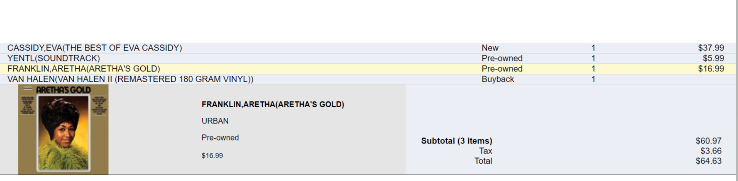
When processing a transaction, the customer display shows each item as it's scanned, including the item description, quantity, amount, and product image. The most recently scanned item appears with its image, while previous items show as a scrollable list.
A running subtotal at the bottom shows item count, subtotal, tax, and total.
Transaction types are labeled automatically (Sale, Ticket, Tip, BOGO, Coupon, Gift Card, Loyalty).
Sales and Buy Backs appear as in the example below:
Managing Advertisements
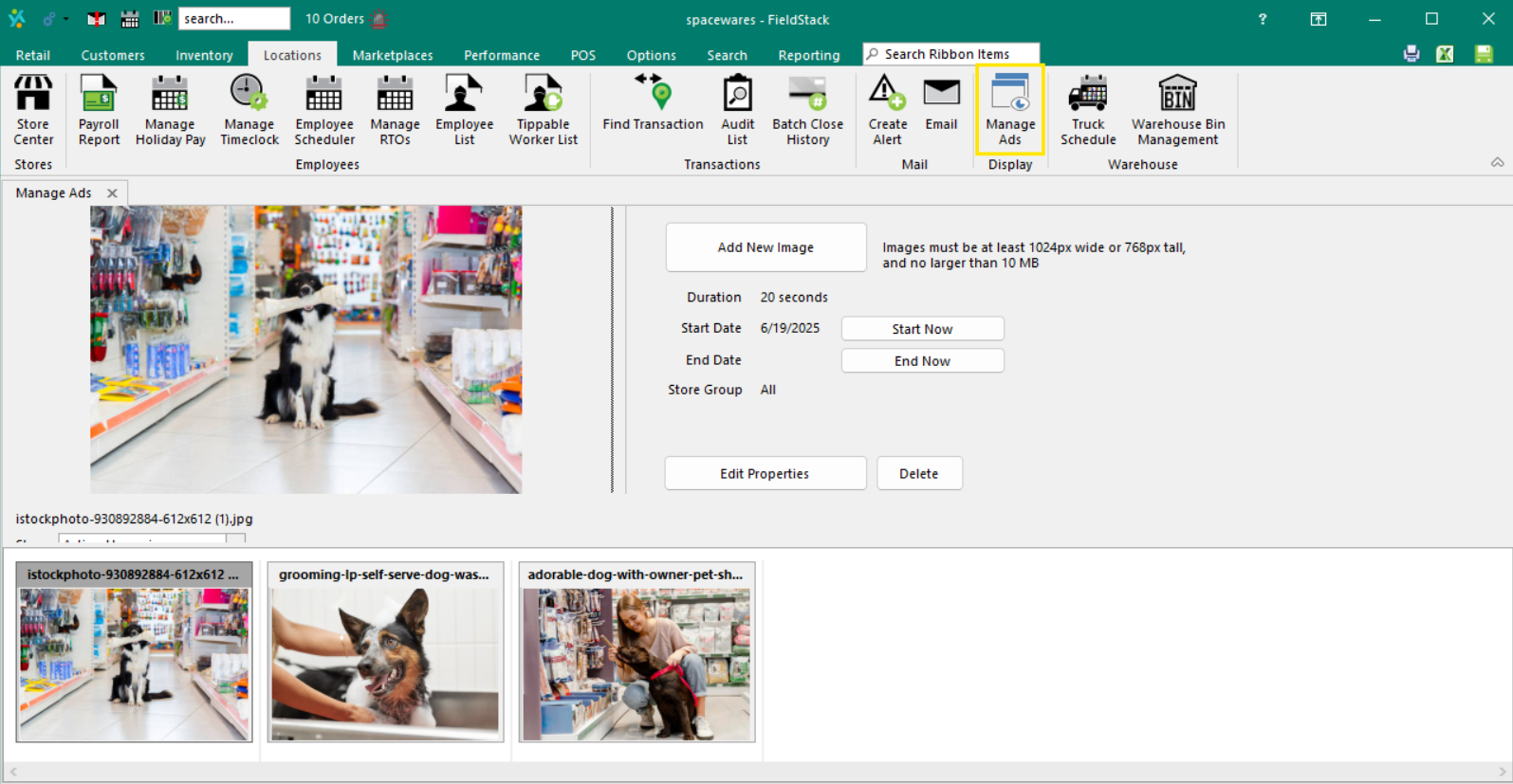
When no transaction is active, the display can cycle through images and advertisements. Manage these from Locations > Manage Ads.
Adding images:
- Click Add New Image and select your image file
- Images must be at least 768px tall or 1024px wide, and no larger than 10MB
- Set the display duration (in seconds), start date, end date, and which store group should see it
Filtering images:
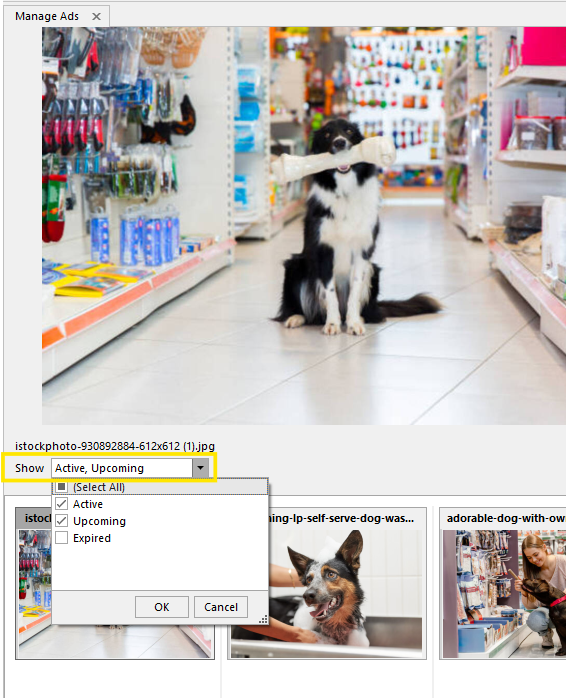
Use the dropdown to view images by status - Active (currently cycling), Upcoming (scheduled for the future), or Expired (past end date).
Editing multiple images:
Hold CTRL and click to select multiple images, then edit them all at once.
Deleting images:
Select an image and click Delete to remove it permanently.
Quick actions:
- Start Now - begins cycling the image today
- End Now - stops cycling the image (sets end date to yesterday)
Was this article helpful?
That’s Great!
Thank you for your feedback
Sorry! We couldn't be helpful
Thank you for your feedback
Feedback sent
We appreciate your effort and will try to fix the article