Note: This article covers the legacy method for setting up customer-facing POS screen images using item codes and Configuration Management. For the current customer display (FieldStack version 6 and later), see Customer Display - Transactions and Images
Overview:
FieldStack software supports hardware with a customer facing screen (some FieldStack clients use suggested Touch Dynamic workstations, which include these screens). Each workstation can be configured to show an image (or an animated gif) of your choice.
1. Preparing the image
To optimize images for customer display use, use the following guidelines:
- Size: Images should be sized only as large as they will need to be at the maximum. (We recommend 1-2 MB max)
- File Type: Most clients prefer to use animated gifs as they're flexible and allow for image carousels to be shown to customers.
- Dimensions: While screen resolutions and preferences vary, for Touch Dynamic units, FieldStack has experienced good performance with images sized 500px x 325px (or an aspect ratio of 20:13).
2. Create an "item" in FieldStack to store image settings and details
Every image used in FieldStack must be attached to an item. Having the image attached to an item provides a mechanism for admins to change image behaviors and attributes.
Items can be created either from scratch, or by searching for and cloning an existing item from the Item Listing screen, shown below. Cloning is the preferred and easiest method. To clone an item, select it on the Item Listing screen, and use the key combination CTRL + S. The Edit Item screen will appear as a result.
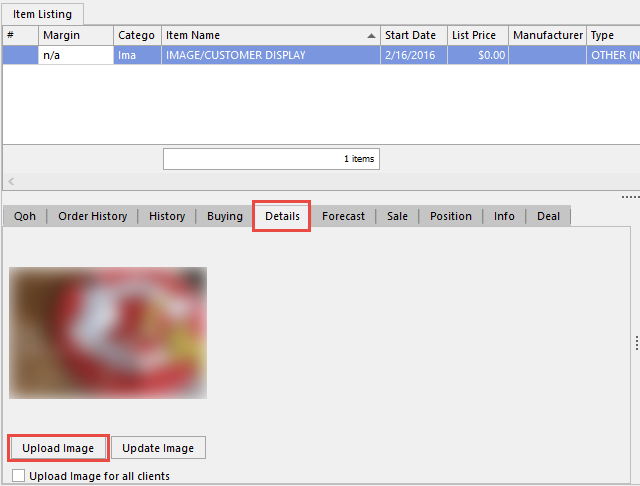
Item Listing Screen showing an item configured to display an image on the customer display:

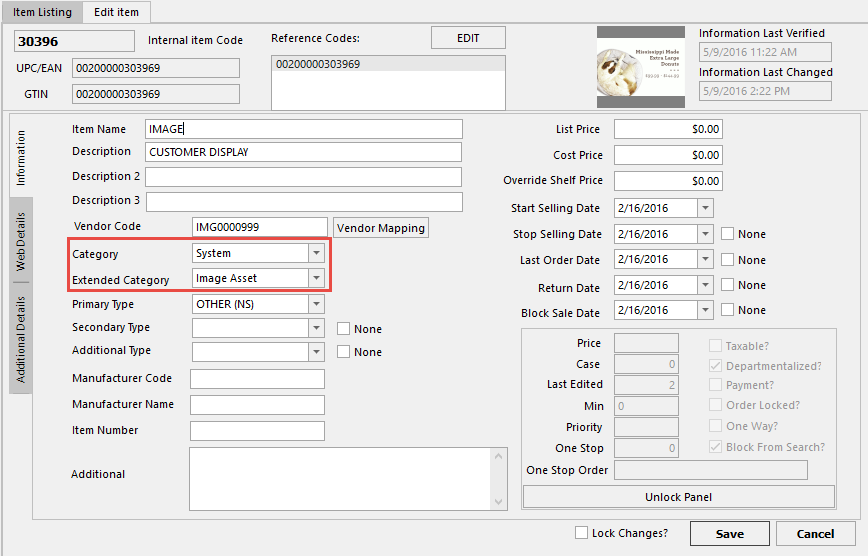
The Edit item screen is used for entering a couple of key settings to prepare the listing for customer display.
Important settings: For the purposes of setting up a customer image, it is important that the category and extended category are configured as shown in the screenshot below.
- Category = System
- Extended Category = Image Asset
Note: Take note of the item code in the upper left of the screen. This is the code used in a later step to assign this image to the customer display.
Once done, be sure to click the Save button.
Edit Item Screen (below) showing an item configured to display an image on the customer display:
3. Uploading the image
When done editing the item, save the new listing then bring it up in the item listing screen (see image below). Here, click Upload Image on the Details tab and select the desired image. When you leave the Details tab and then go back to it, the image will appear.
Item Listing Screen:
4. Assigning the image (item code) to the desired Machines
Images are assigned at the Machine level in the Options tab > Configuration Management.
On the left side, navigate to the desired location and machine and click on it to select. On the right side, the setting for "Customer Display Advertisement Image Item Code" should be set to the "Item Code" of the item. Once you've made the change, click the Save Machine Settings button.
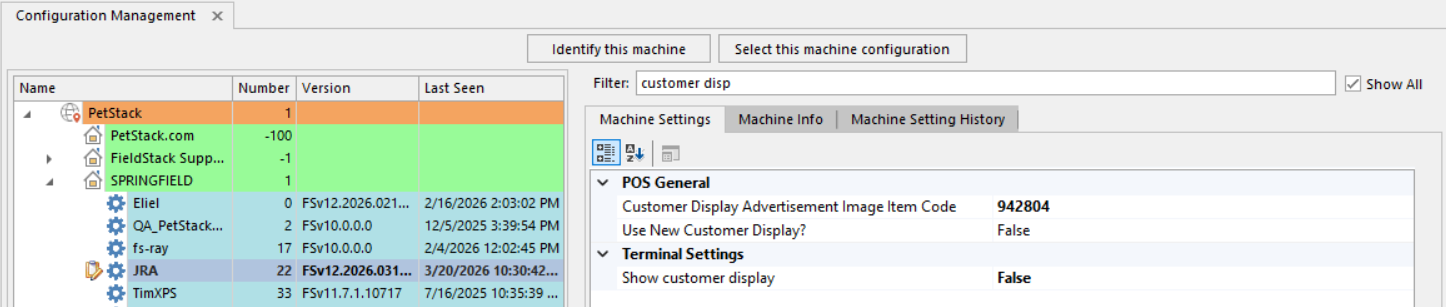
After saving the settings, the image should appear on that machine.
NOTE: Currently, images are saved on the individual machines and are re-cached once each week. Should you need to push out a new image immediately, simply create a new item (by cloning an existing one), and navigate through the steps above to make it active. In some cases, you may want to have a few different items, alternating between them periodically.
Was this article helpful?
That’s Great!
Thank you for your feedback
Sorry! We couldn't be helpful
Thank you for your feedback
Feedback sent
We appreciate your effort and will try to fix the article