Overview
Most of the text on your web store can be edited from within FieldStack without changing any code. These editable text fields are called Locale String Resources. Examples include button labels, navigation links, heading text, and system messages.
For instance, you could change "Search" to "Find Your Dreams!" or "Saved for Later" to "My Shopping List."
Go to the Marketplaces Tab > Edit Text Resources to open the editor. The editor shows the full list of text resources used on the web store, along with search and filter tools to help find specific resources.

Identifying Which Resource Controls Which Text
If you're not sure which resource controls a specific piece of text, you can toggle a view on the Web Store Administration Page that displays resource names in place of their values on the live site. This makes it easy to identify the exact resource to edit.
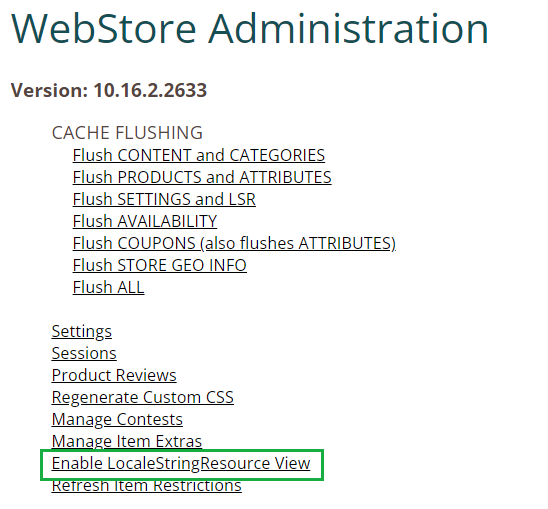

For more on the admin page, see: Web Store Administration Page
Editing a Resource
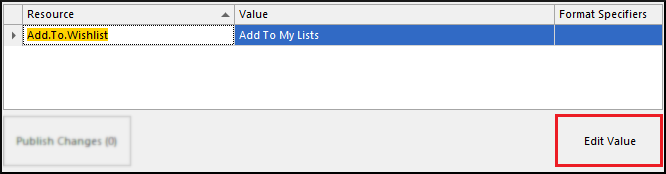
- Select a resource row and click Edit Valuein the bottom right, or double-click the row
- Make your changes in the edit window
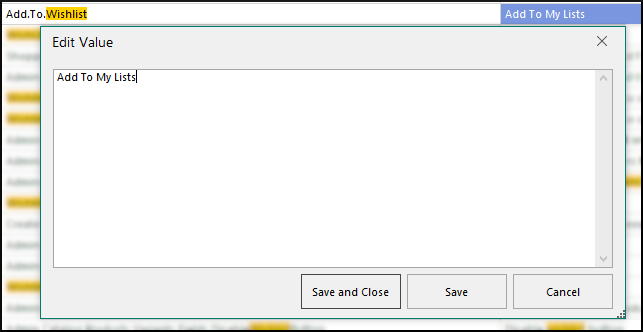
- Click Save
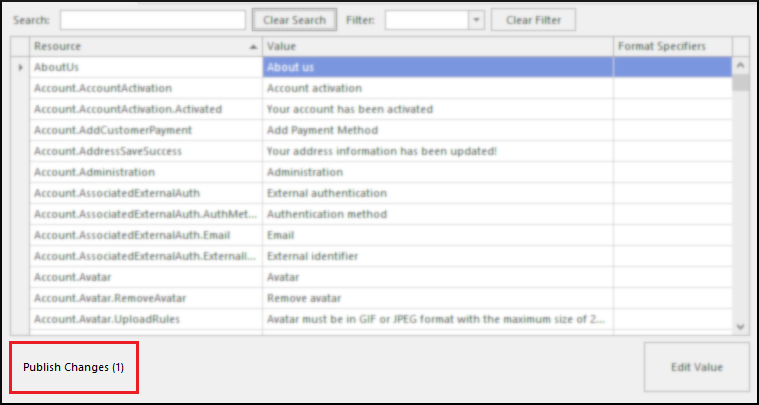
- Click Publish Changes at the bottom left to push your changes to the web store
Placeholder Variables
Some resources include placeholder variables wrapped in curly brackets (e.g., {0}, {1}, or {customerName}). These are replaced with actual values when displayed on the web store.
When you open a resource that contains placeholders, the Edit Value window displays a Format Specifiers panel on the right listing all placeholders required for that resource. Use this as your reference when editing.

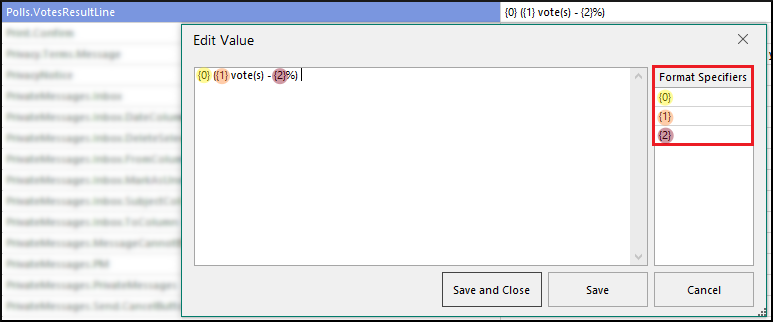
When editing a resource with placeholders:
- You must keep all of the listed placeholders intact - removing one will cause a "Missing Format Specifier" error
- You cannot add new placeholders that aren't defined - these will cause an "Extra Format Specifier" error
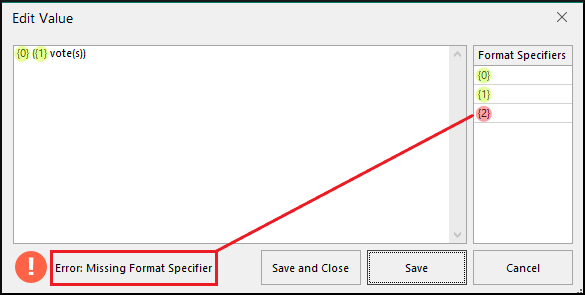 | 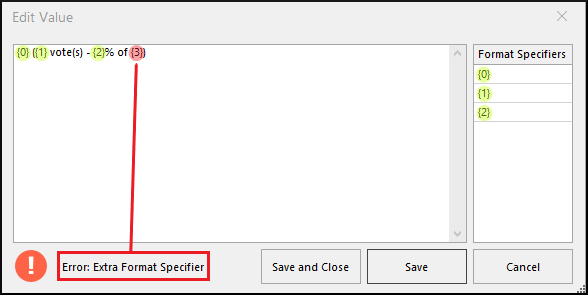 |
The system will reject any save attempt that doesn't match the required format specifiers exactly.
Applying Changes to the Web Store
After publishing, flush the Settings cache on the Web Store Administration Page to make your text changes visible to customers.
Was this article helpful?
That’s Great!
Thank you for your feedback
Sorry! We couldn't be helpful
Thank you for your feedback
Feedback sent
We appreciate your effort and will try to fix the article