Overview
The WYSIWYG ("What You See Is What You Get") editor is a visual content editing tool used throughout FieldStack's web store content management screens. It lets you format text, insert images and links, and structure content without writing HTML directly.
You'll use this editor when:
- Editing web store content pages or category pages
- Editing the Intro Content, main content, or footer HTML on category pages
- Adding or formatting product description text
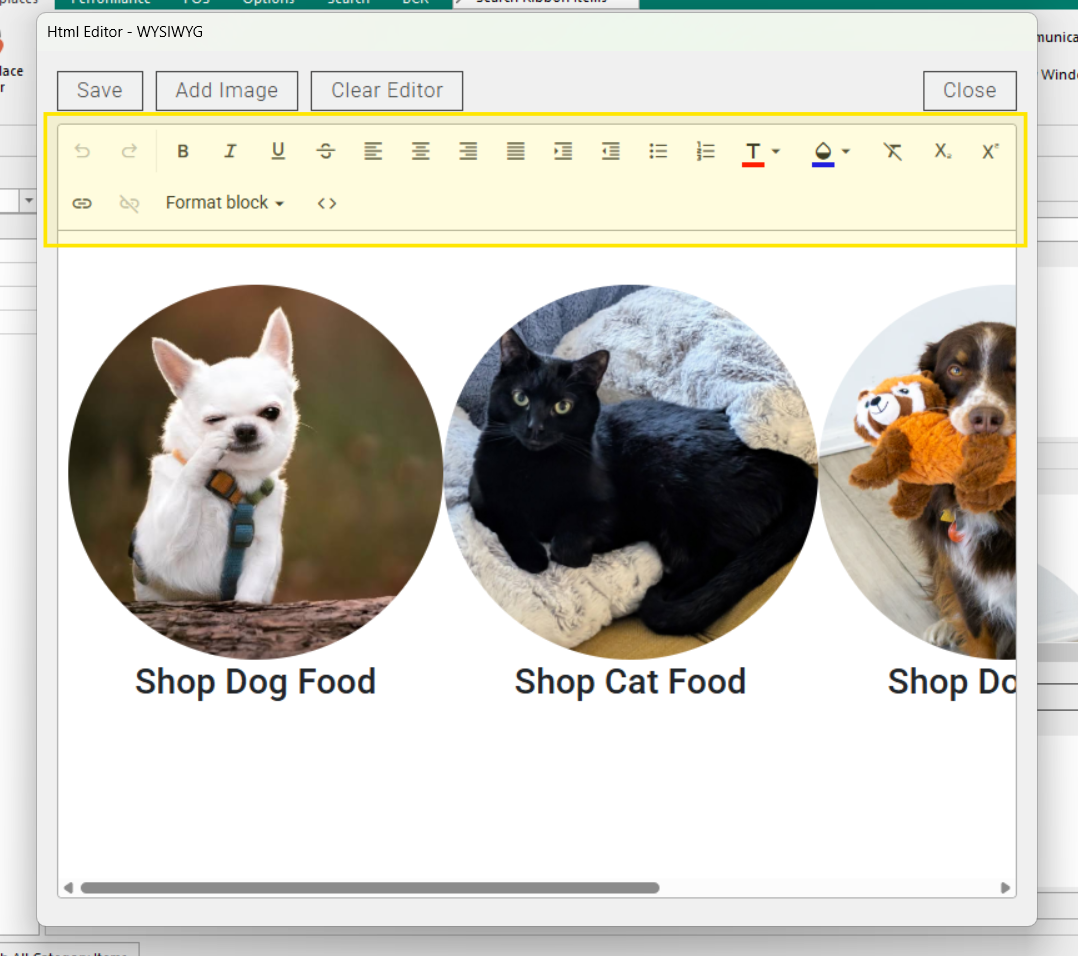
Below you will find an image of the WYSIWYG Editor View (Content Editor default view). The Toolbar buttons are highlighted in yellow.
Toolbar Reference
In the WYSIWYG Editor View in the Content Editor, there is a series of standard editing tools in the menu.

Some of these functions you may recognize, such as Bold and Italics, or the Add Link button. Here is a comprehensive list of each button from left to right:
| Order | Icon | Function |
| 1 |  | Undo |
| 2 |  | Redo |
| 3 |  | Bold |
| 4 |  | Italics |
| 5 |  | Underline |
| 6 |  | Strikethrough |
| 7 |  | Align Left (currently active) |
| 8 |  | Align Center |
| 9 |  | Align Right |
| 10 |  | Justify |
| 11 |  | Indent |
| 12 |  | Outdent |
| 13 |  | Bullet Point List |
| 14 |  | Ordered List |
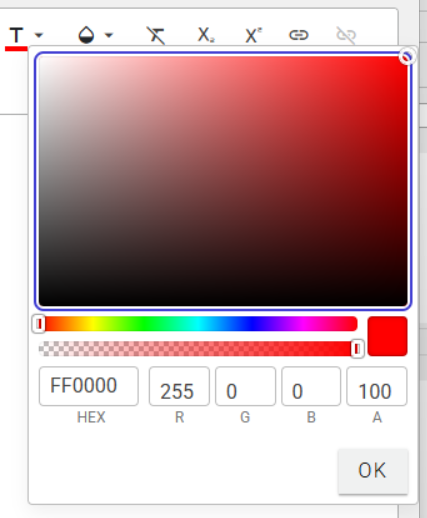
| 15 |  | Text Color |
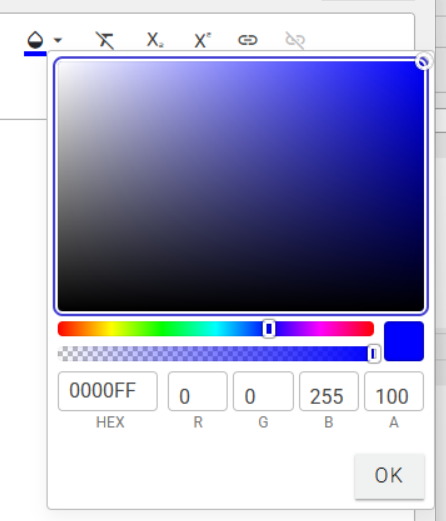
| 16 |  | Background Color |
| 17 |  | Remove Styling |
| 18 |  | Subscript |
| 19 |  | Superscript |
| 20 |  | Insert Link |
| 21 |  | Remove Link |
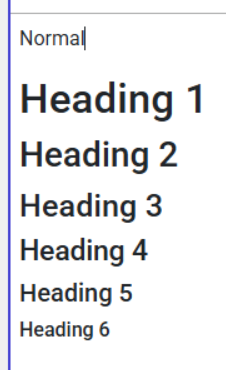
| 22 |  | Text Style (Normal, Heading 1–6) |
| 23 |  | View Source (HTML Editor) |
Toolbar Details
- Text color
- Background color
- Text Style
- Styles available: Normal, Heading 1, Heading 2, Heading 3,Heading 4, Heading 5, Heading 6
Adding Images
The Add Image button, when clicked, allows users to upload an image from a file on their computer or from a URL.
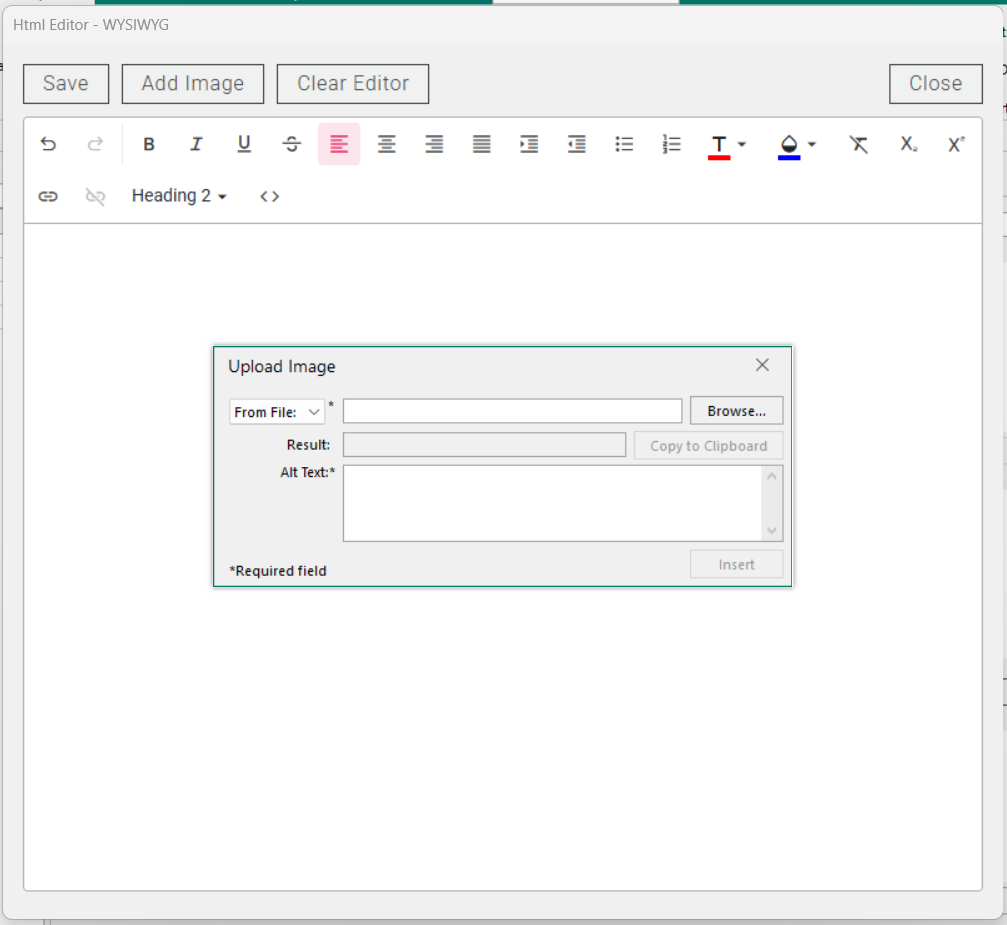
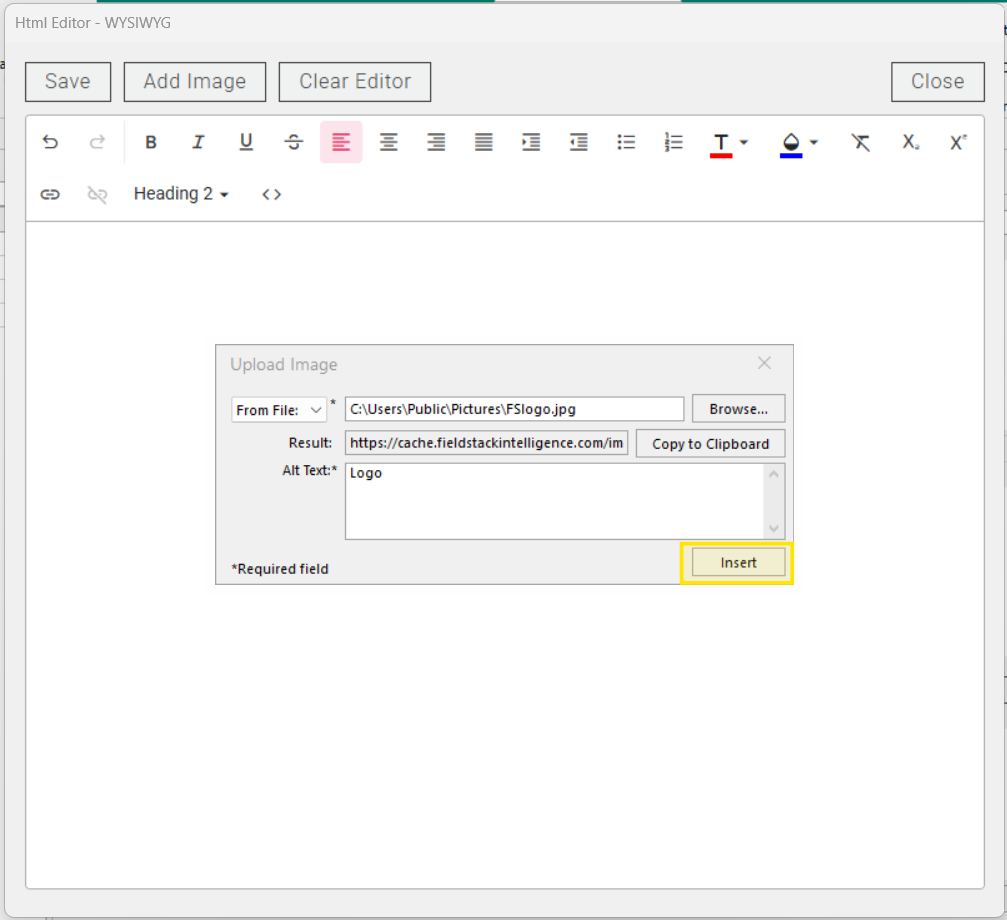
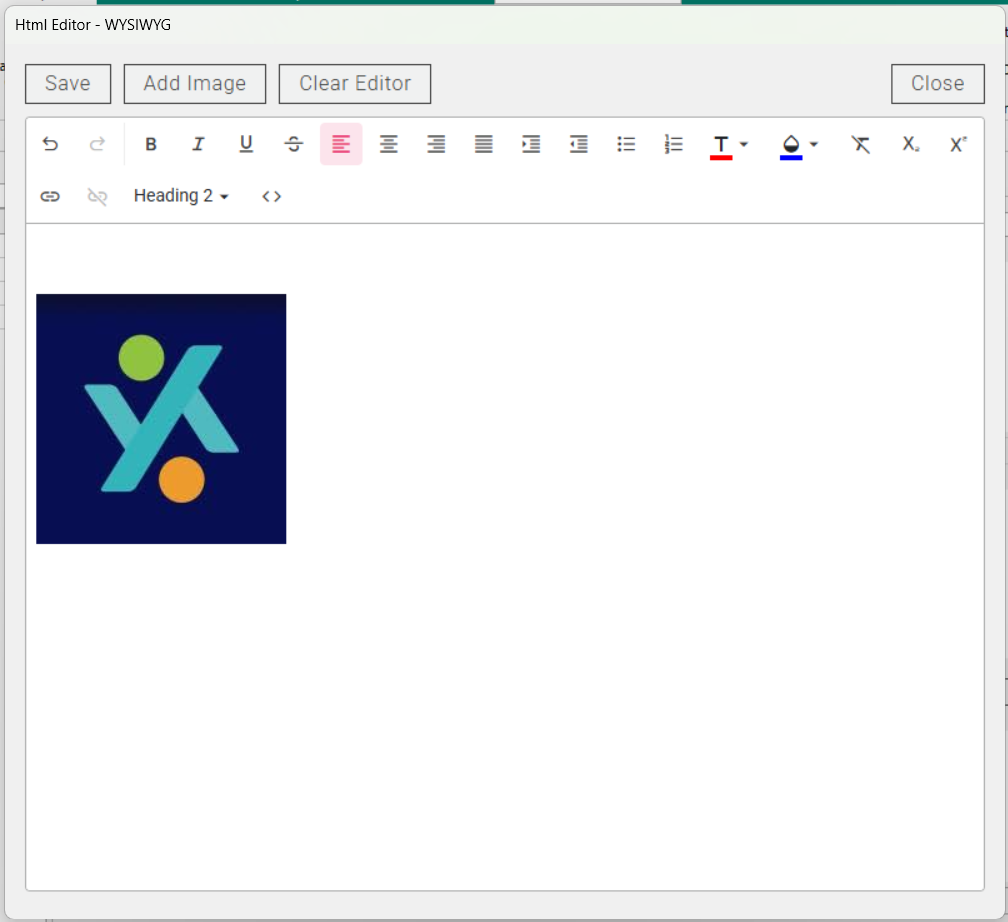
Add an image, enter Alt Text for the image, a short description of an image that is embedded within the image's HTML code. This is required for accessibility (screen readers) and SEO. Then click Insert to see it in the WYSIWYG.
Alternatively, users can insert an inline frame element using the HTML Editor View for videos or non-image media.
As a note, Do not use copyrighted material that is not available to be used commercially.
Embedding Videos or Other Media
The WYSIWYG editor doesn't directly support video or other embedded media. To add these, switch to the HTML Editor View (via the View Source button) and paste in the embed code or iframe.
Saving Your Changes
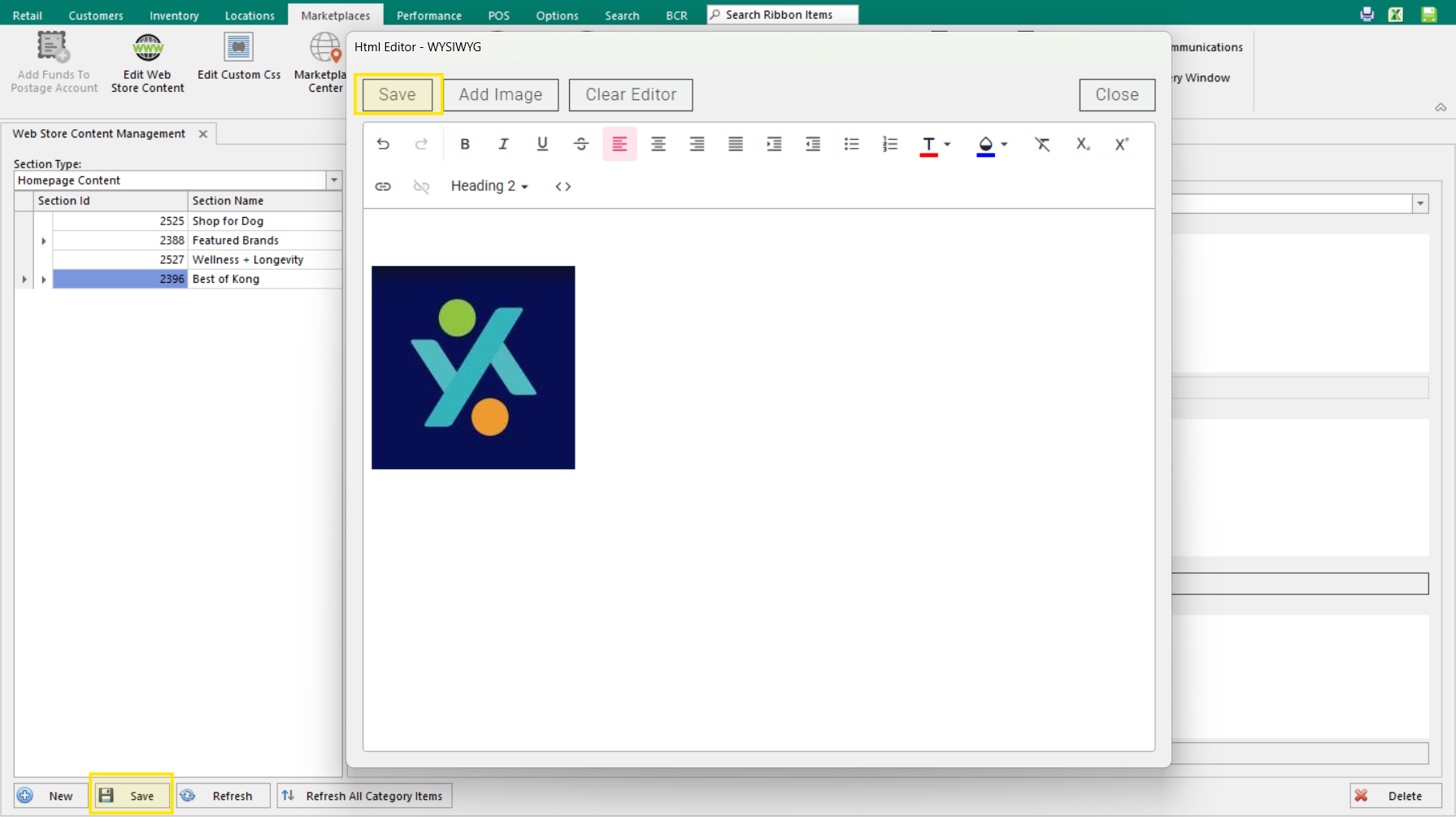
After you're done editing, click Save, both inside the Content Editor window and in the Web Store Content Management tab (bottom left corner). Without saving in both places, your changes may be lost.
Was this article helpful?
That’s Great!
Thank you for your feedback
Sorry! We couldn't be helpful
Thank you for your feedback
Feedback sent
We appreciate your effort and will try to fix the article