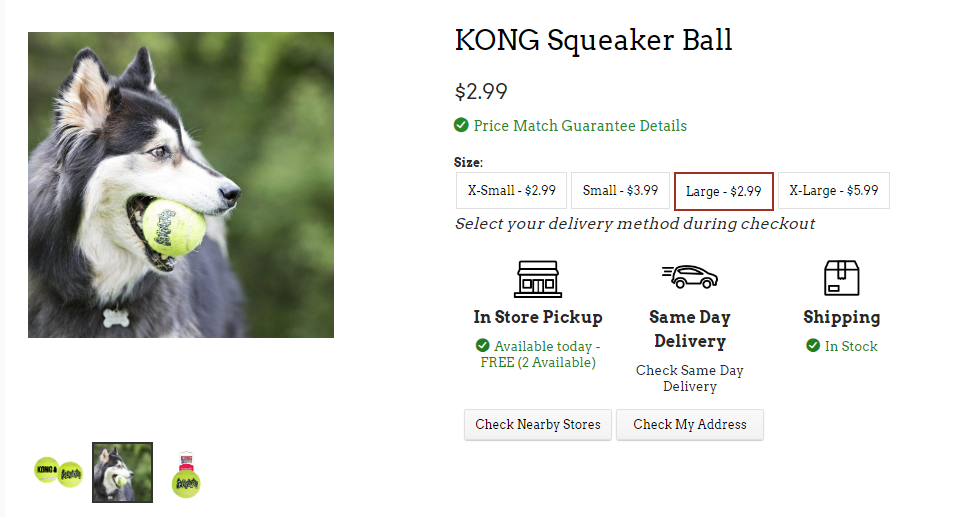
Multiple product images give online customers a better view of what they're buying. Each image appears as a thumbnail on the product page that customers can click through.
Image Requirements
Images should be clear, manufacturer-supplied product photos.
- Supported formats: JPG, JPEG, PNG, GIF, BMP
- Maximum dimensions: 1280 pixels (images are automatically resized if larger)
- Alt-text maximum length: 1024 characters
Adding an Image
1. Open the item in the Edit Item screen (double-click the item name)
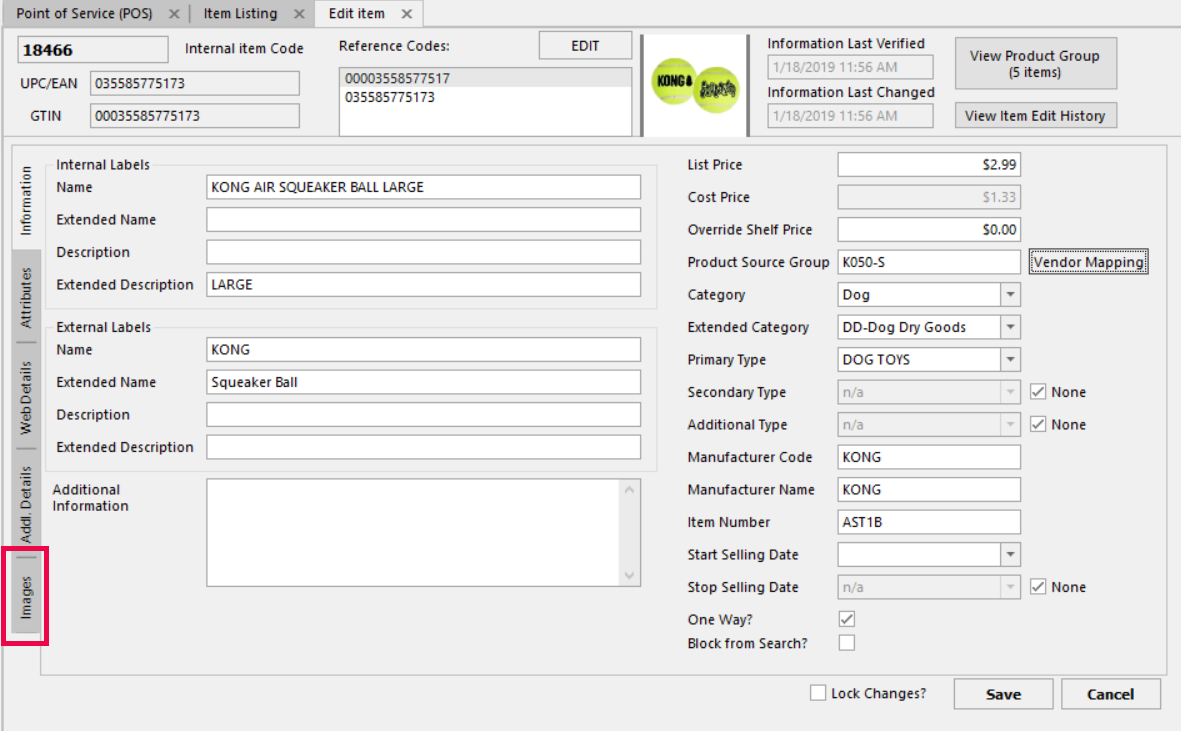
2. Click the Images tab in the lower left
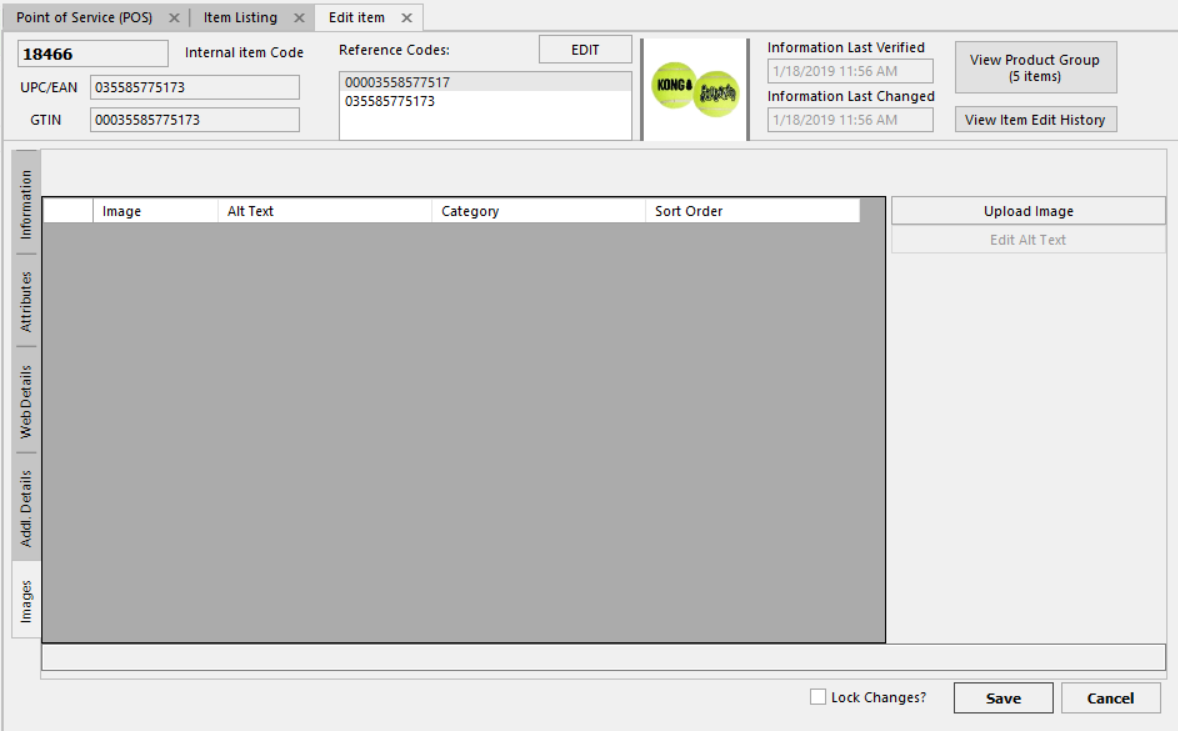
3. Click Upload Image to browse your computer for an image file
4. In the popup, select your image and enter Alt-Text (a short description of the image - required for accessibility and SEO)
5. Click Insert
6. Click Save, then confirm with Yes to commit the image to the database
Note: Saving closes the Edit Item screen. To add another image to the same item, double-click the item name again and repeat the process.
Reusing Existing Images
If an image has already been uploaded to another item, click Get Existing instead of Upload Image to select from previously uploaded images. This opens a browser of all previously uploaded images that you can select from, avoiding duplicate uploads.
Managing Images
Right-click any image in the list to:
- Edit the alt-text
- Delete the image
- Zoom in to preview
- Replace with a different image

Updating Images on the Web Store
Images uploaded through the desktop application are stored in the cloud and will appear on the web store. However, images may be cached - if you don't see your changes reflected on the web store immediately, the image cache may need to be flushed. More information on cache flushing is in this article: Web Store Administration Page
Was this article helpful?
That’s Great!
Thank you for your feedback
Sorry! We couldn't be helpful
Thank you for your feedback
Feedback sent
We appreciate your effort and will try to fix the article