Store transfers allow users to send inventory from one store to another for various reasons. The sending store scans items out, and the destination store receives the items.
This is for the “LooseOrAny” Purchase order locking type for receive mode, a Location Setting in Configuration Management.

If you do not have the “LooseOrAny ” Configuration, please see Store-to-Store Transfers - “Tightly Bound” Configuration for more information on the store transfer process.
Sending a Transfer
1. Open Send Mode on the POS by clicking the red Enter Send Mode button, or the CTRL+S keyboard shortcut.
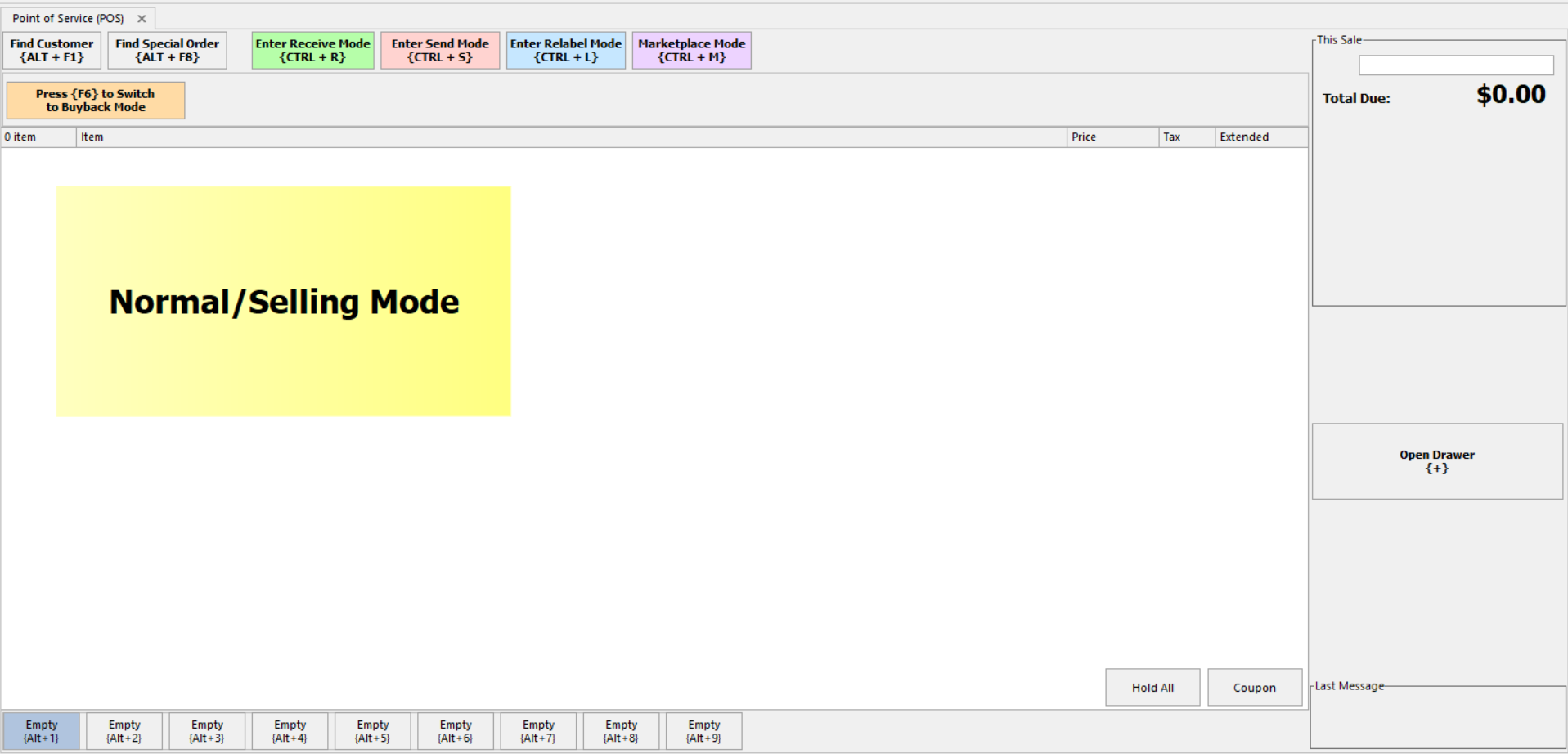
2. Tap Assign Tracking Number on the right ride of the screen, or the ALT+P keyboard shortcut.
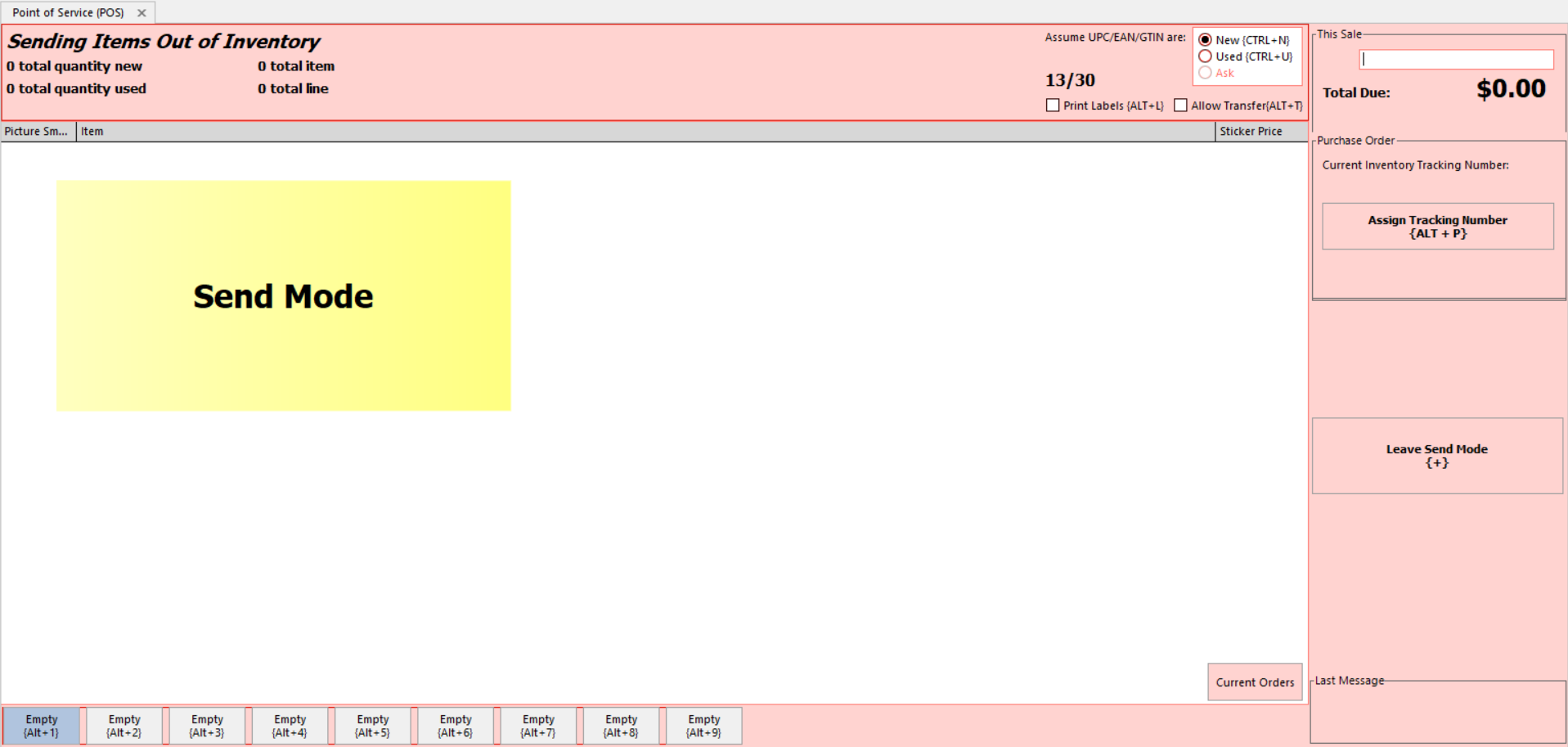
3. The Order Tracking Number textbox popup will appear. Use the text box to enter a PO number, Tracking Number, or reason that the item is being received, depending on your policies and workflows.
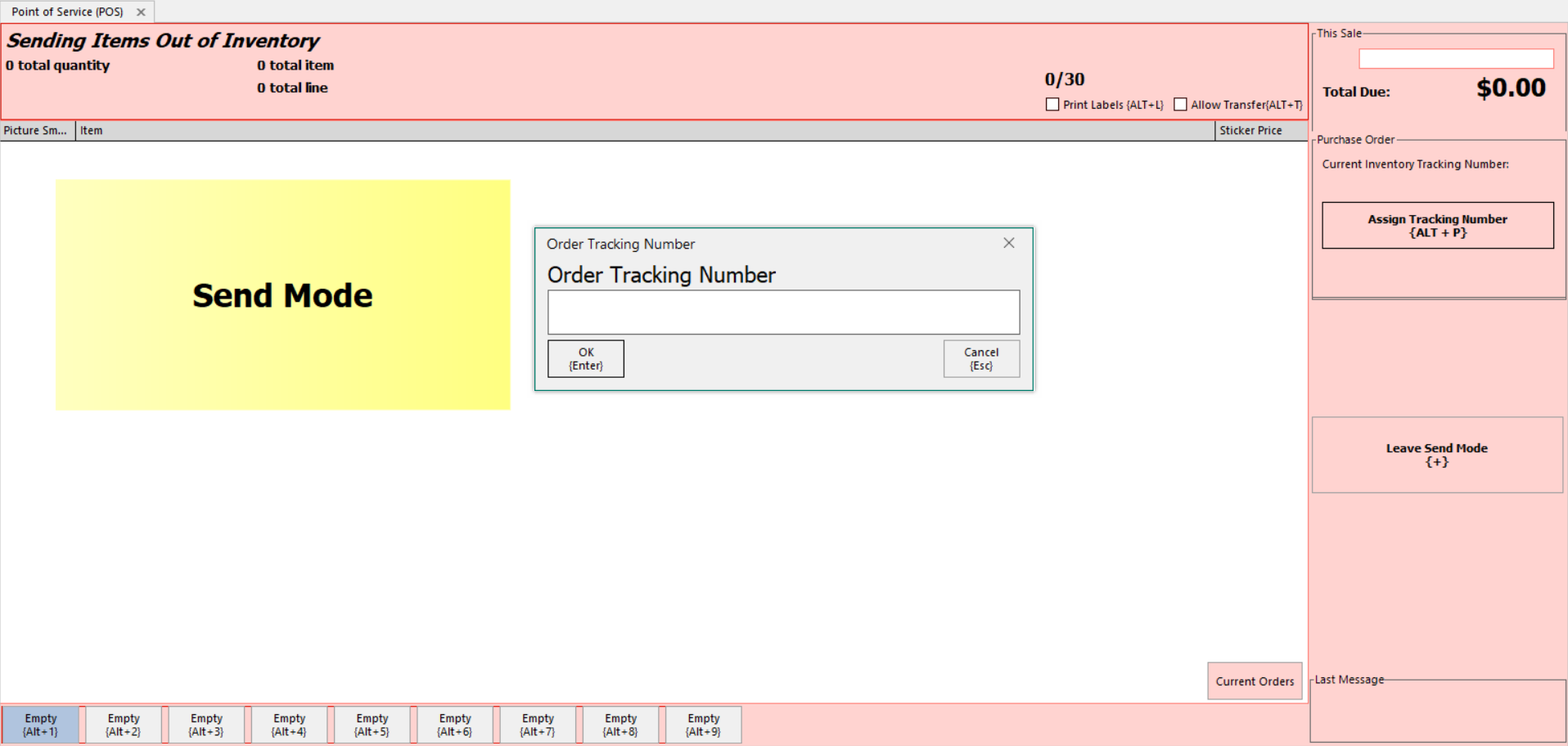
4. Scan all items in send mode in the normal manner.
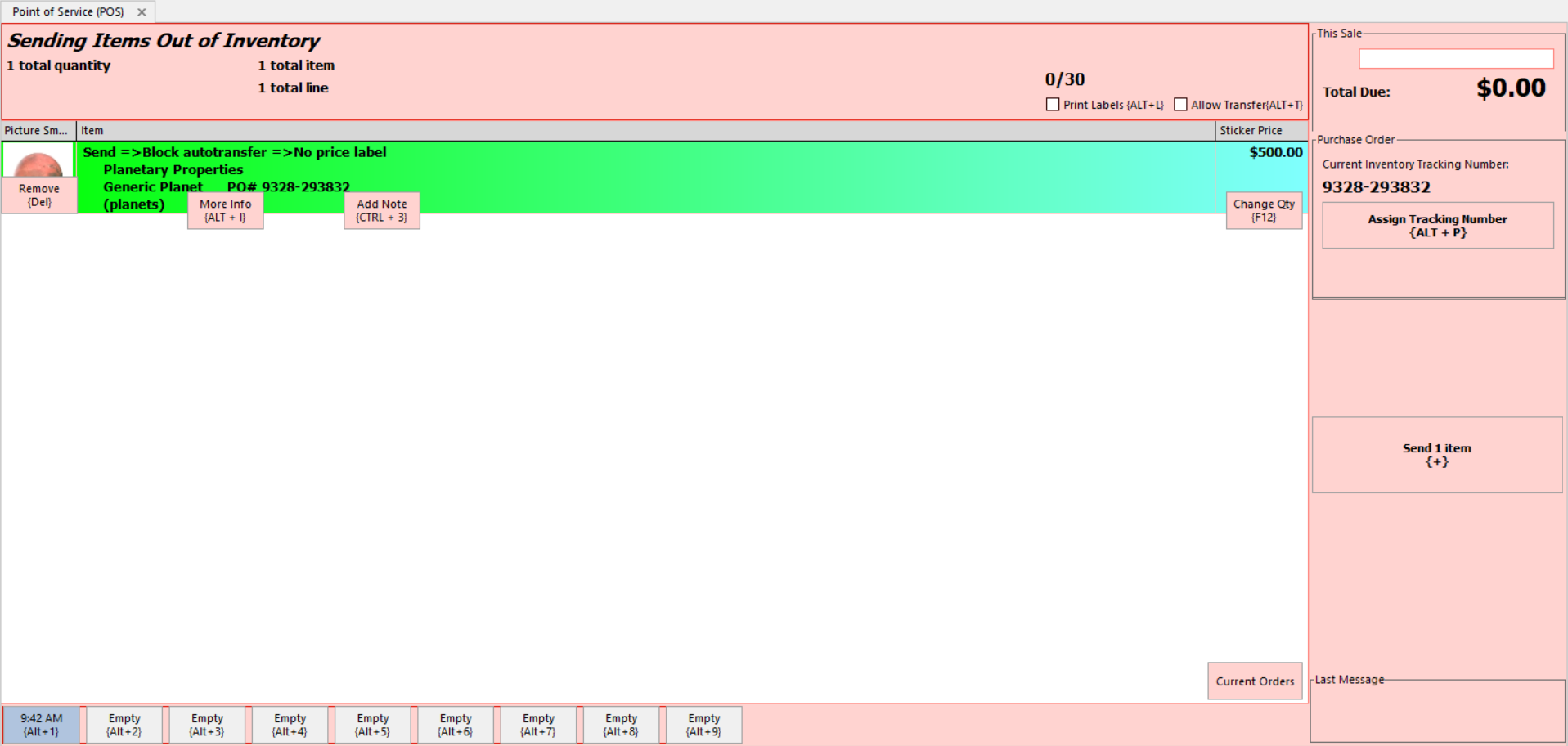
5. Tap the Send [x] item button, or the + keyboard shortcut to finalize the list.
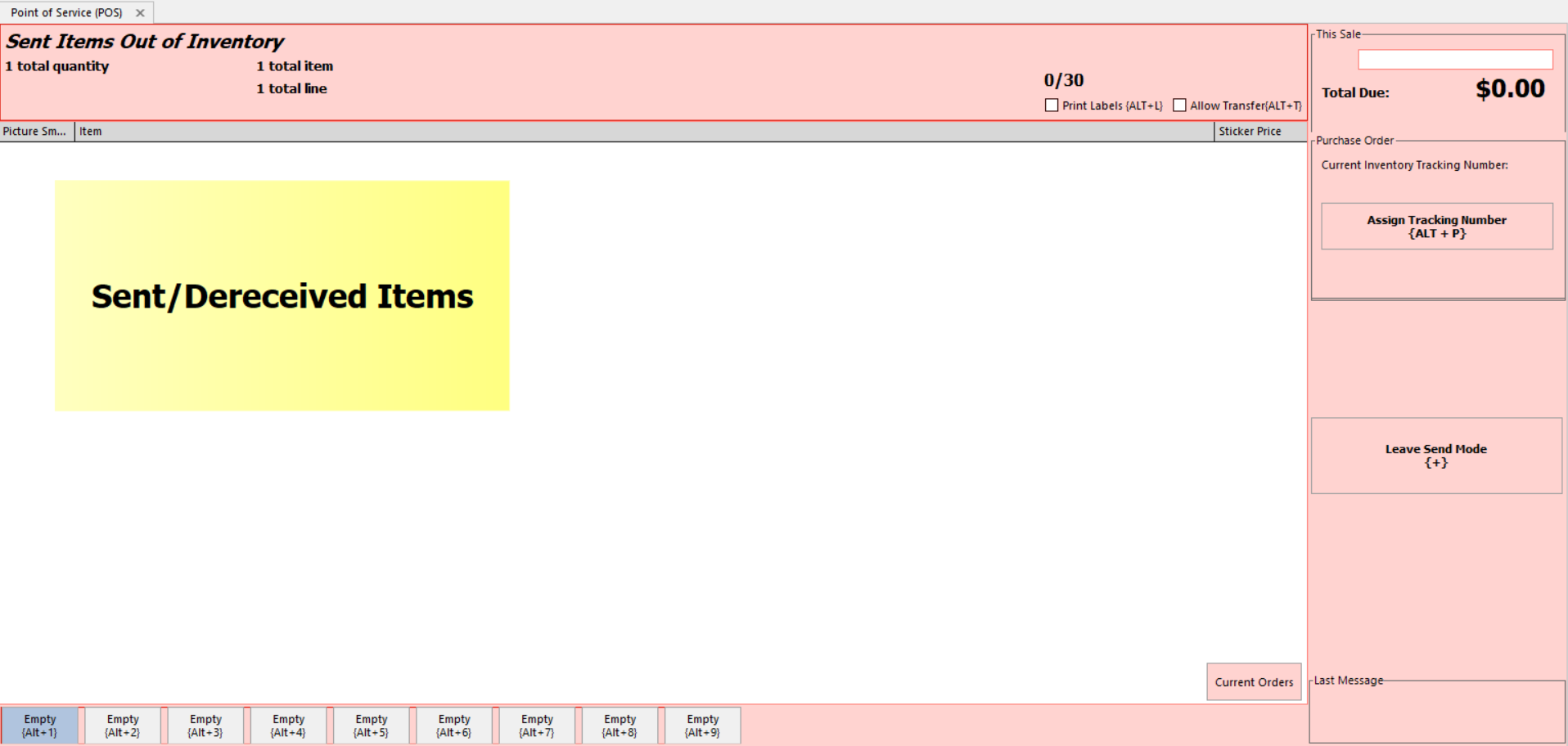
6. Review your company's workflow on how to mark and pass off the items for store transfer.
Receiving a Transfer
See Inventory - Receiving & Sending Product for more information on how to Receive a Store Transfer.
Was this article helpful?
That’s Great!
Thank you for your feedback
Sorry! We couldn't be helpful
Thank you for your feedback
Feedback sent
We appreciate your effort and will try to fix the article