CYCLE COUNT IMPROVEMENTS
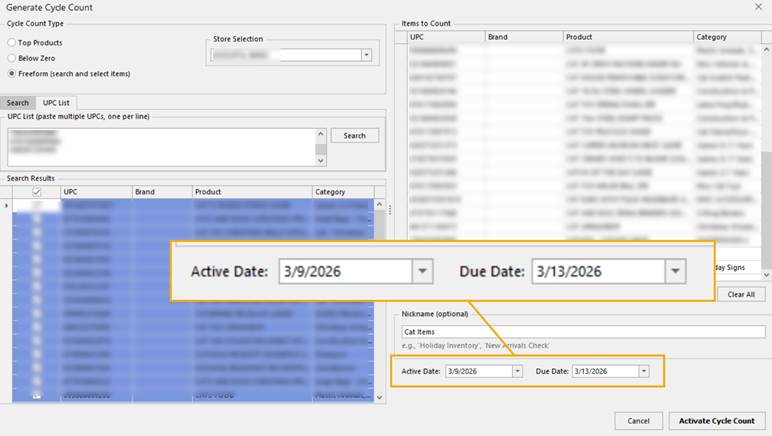
In Cycle Count generation on the Management form, Active Date and Due Date have been added.
Active Date informs FieldStack Mobile; the Cycle Count will not show in the list until 12 AM local time on the date designated. This allows an administrator to build Cycle Counts in advance, which users will not see until the day arrives.
Due Date shows on FieldStack Mobile in the Cycle Count list. It is for reference and can be used to aid in assigning and reviewing cycle counts.
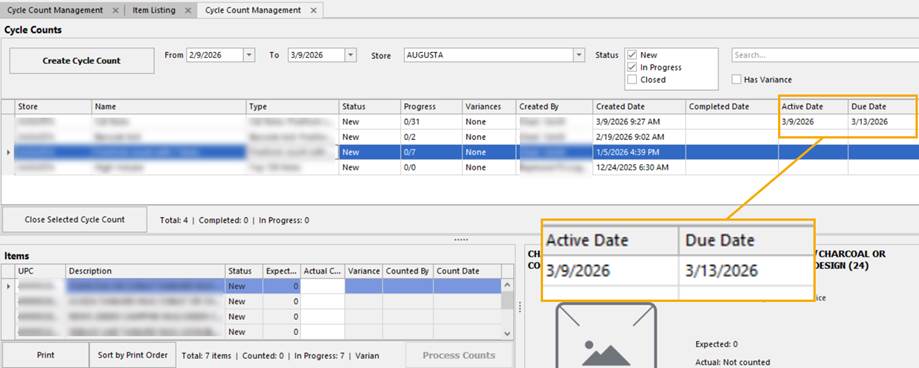
The dates are visible in new columns within the Cycle Count Management form.
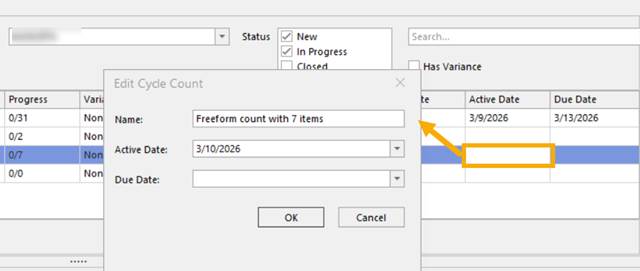
To add, edit, or clear a date, right click on the cycle count line and select what you would like to do.
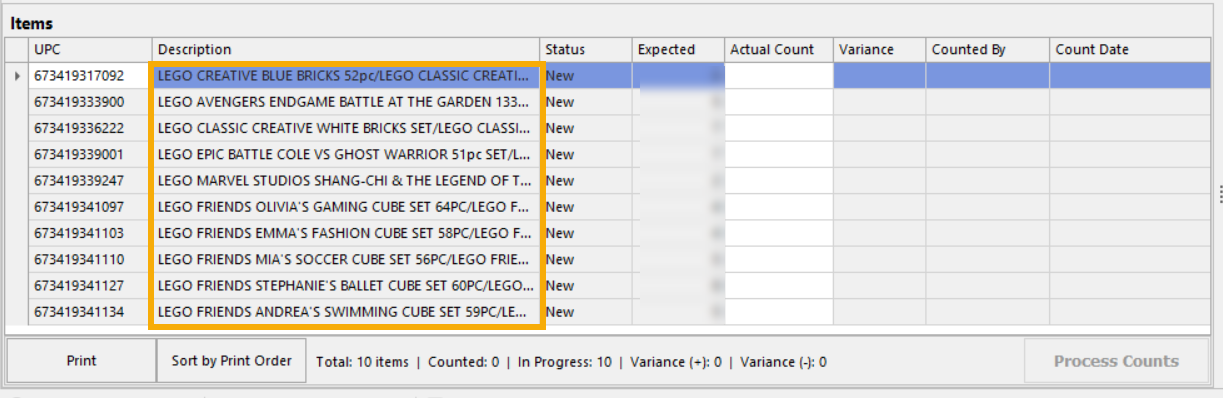
Item description on Management form show all Description lines.
MARKETPLACE CHANGE ITEM IMPROVEMENTS
Action Required
Backend Setting: Enable multi-item swap [in Marketplace Center > Change Item]
Default: Not enabled
This is a backend setting. If you would like this enabled, contact your Account Manager or Client Success.
Previously when using Change Item in Marketplace Center, an unshipped item could replaced with another single item. The pricing would have to be manually altered depending on the goal.
With this new feature enabled the following are possible:
- Replace 1 item with 1 item
- Replace 1 item with multiples of the same item
- Replace multiple items with the same single item
- Replace multiple items in the same order with 1 item
Not available at this time: Replace 1 item with multiple SKUs.
After selecting your new item with one other item row selected, you will be prompted to enter a quantity for the new item. If you are replacing 1 large item with 2 smaller variants of a similar product, you would change the swap quantity to 2:
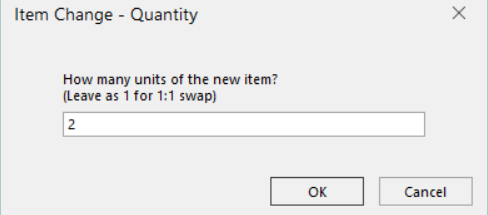
After entering the quantity, you will be asked how you would like the pricing handled.
You can use the new item's price to overwrite the original, or distribute the original item price across the new new items in quantity: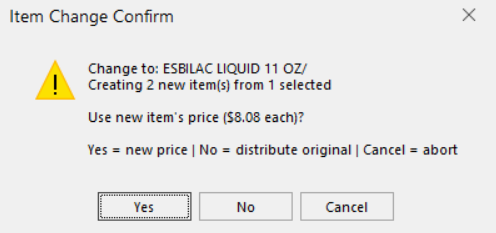
If changing multiple items to the same SKU, it is a similar flow but the quantity relates to the number of original items to replace. So if you want to replace 4 items with a quantity of 4 of a new item, you would use the default shown in the pop-up. In this case 4.
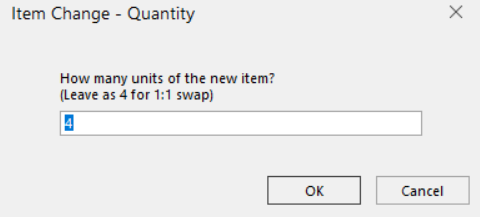
If you wanted to replace 4 items with 1 of a new item, you would change the quantity to 1.
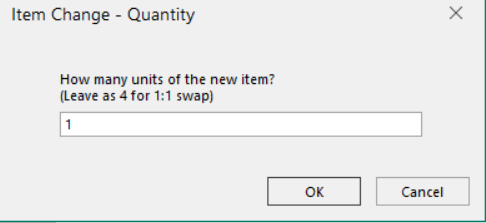
In all cases the original items being replaced will be cancelled, and a new item line will be created for each single quantity of the new item. As you get accustomed to this workflow, check the cost per item after making the change and ensure what you selected is doing what is intended.
Was this article helpful?
That’s Great!
Thank you for your feedback
Sorry! We couldn't be helpful
Thank you for your feedback
Feedback sent
We appreciate your effort and will try to fix the article