Create Transfer within a Warehouse
Action Required
Location Setting:
- Quick Transfer Access enabled = True
- Is Warehouse With Bins = True
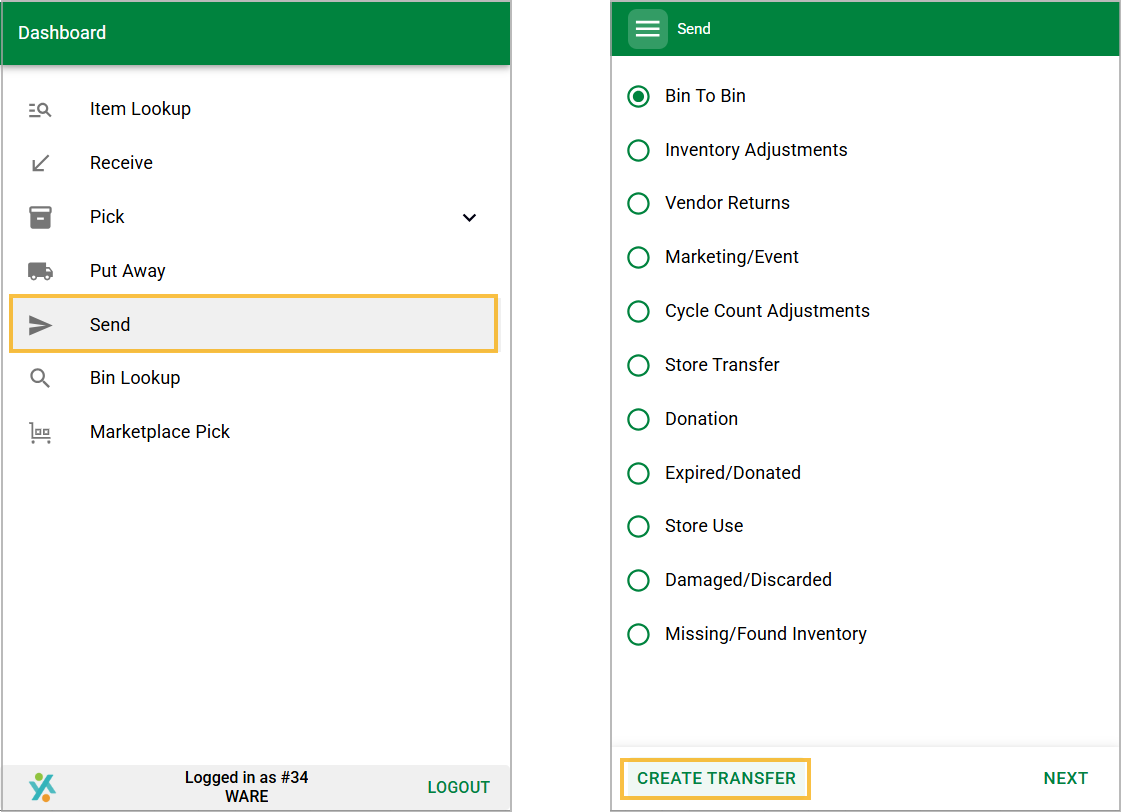
Within a warehouse that has storage locations, Create Transfer can be enabled within Send mode to allow an item or batch of items to be sent from Bin locations to a Store, without creating a Transfer Purchase Order.
Select Send Mode and tap Create Transfer.
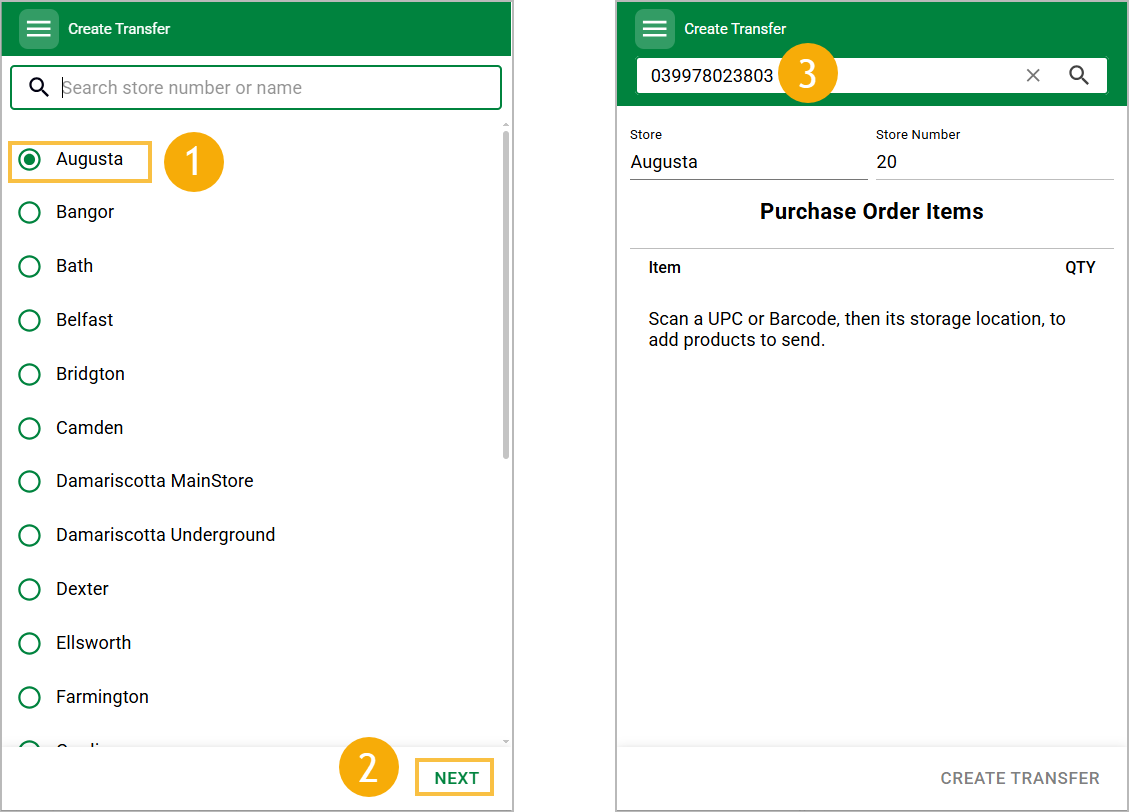
Select or search the destination by store number or name and tap Next to begin creating your transfer. Scan your first item.
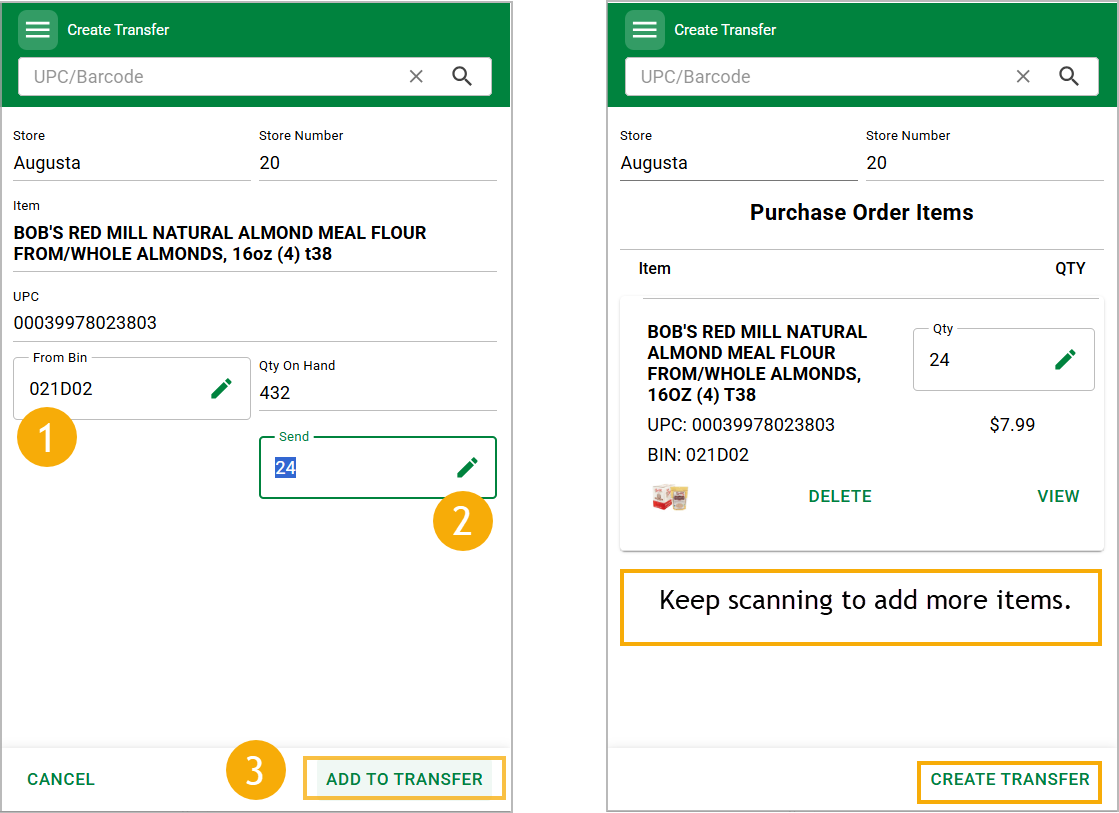
After scanning your item, scan the bin/storage location from which its being pulled, enter the quantity and tap Add to Transfer.
A single item can be transferred, which will result in a single transfer purchase order for that item, or subsequent items can be scanned and stacked to build a batch before processing. Multiple items in the same batch will sit in the same transfer which the destination store can receive from.
The transfer Purchase Order number will show on screen after the Transfer is processed.
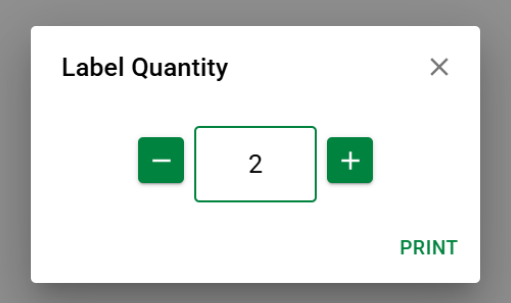
With the device setting Print Store Transfer Purchase Order Label turned on, the user will have the ability to print a 4 x 6. The store can scan the barcode on the label and use Stage All to receive the order.
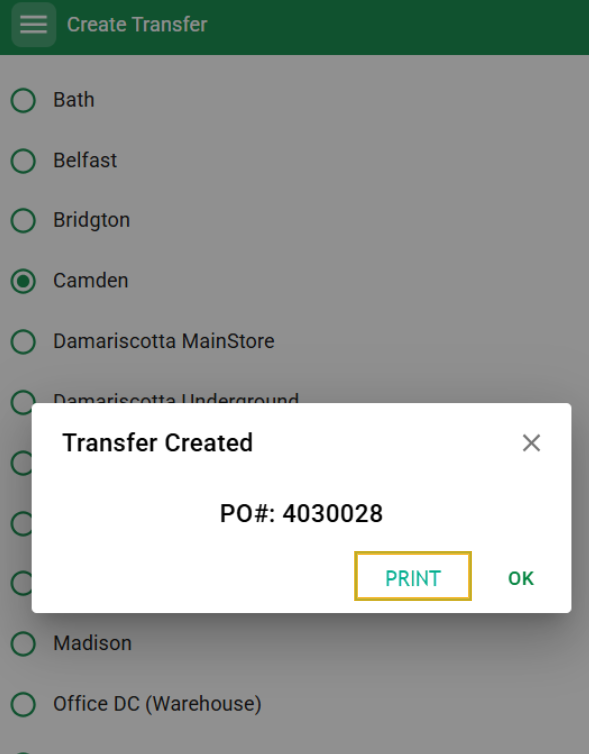
Print Purchase Order Label
In stores, when completing Pick by PO, and with the setting mentioned above enabled, Pick Mode will print Purchase Order label(s) in the same way that Create Transfer does in stores today.
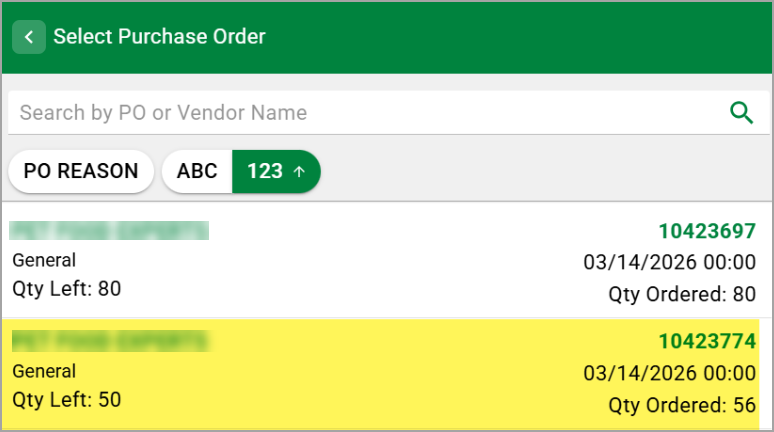
Receiving invoice-based POs: Qty Left on the Receive screen is now based on the shipped quantity (according to EDI 856 data, if available) instead of the original ordered quantity. This also matches the Missing & Extra report. This means the Qty Left could be less than the Qty Ordered before Receiving begins.
Fixes
Caching on multiple screens was introduced in the last few months to optimize performance. Many workflow concerns were brought up related to these changes. Much of those changes have been reverted. You can expect to see the following:
- Item Lookup: Rescanning the item already on screen shows its latest name, quantities and details. Before, it kept what it had loaded.
- Receive: A UPC just added on the desktop is found on the next scan, instead of saying “not found” until the cache expires.
- Send: A PO just created on the desktop shows up in the PO list right away.
- Bins: A bin just added or renamed on the desktop is accepted on its first scan. Bin lists on screen refresh within a minute.
- Relabel: When you tap Print, FSM checks the price again. If the price changed since scanning, it shows “Price changed since scanning” with the new price and prints nothing until you tap Print again. Prices typed in by hand with EDIT are kept.
- Cycle Count: If an alternate barcode is moved to a different item on the desktop, FSM matches it to the new item within a minute.
Was this article helpful?
That’s Great!
Thank you for your feedback
Sorry! We couldn't be helpful
Thank you for your feedback
Feedback sent
We appreciate your effort and will try to fix the article