This article explains the coupon settings that control when a coupon can be used, how much it can take off, who can use it, and what happens when more than one coupon applies to the same item. Each heading below matches a section on the coupon form.
TABLE OF CONTENTS
- Minimum Transaction Requirements
- Maximum Transaction Requirements
- Usage Limits
- Stacking (Advanced)
- Customer Price Code
- Related Articles
Minimum Transaction Requirements
| Setting | What it does | Example |
|---|---|---|
| Minimum Purchase Amount | The sale's total must be at least this amount. | "$10 off purchases of $50 or more." |
| Minimum Eligible Item Amount | The coupon's eligible items must add up to at least this amount. Other items in the sale don't count. | "Spend $100 on Brand X, save $25." |
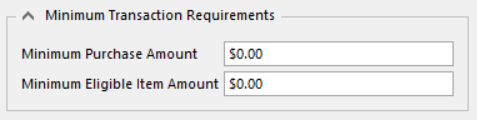
Tip: For brand deals, use Minimum Eligible Item Amount. Minimum Purchase Amount counts everything in the sale.
Maximum Transaction Requirements
| Setting | What it does |
|---|---|
| Maximum Amount | The coupon doesn't apply when the sale's total is over this amount. 0 means no maximum. |
| Redemption Count | How many times the coupon can apply in one sale. It discounts up to this number times Quantity Get items. Starts at 1. Clear it, or enter 0, for no limit. |
| Redemption Value | The most the coupon can take off in one sale. 0 means no limit. Not available on Transaction coupons with a Direct discount. |
| Span Transactions? | Makes Redemption Count a limit per customer across all their purchases, instead of per sale. Requires a customer on the sale. Not available for Transaction coupons. |
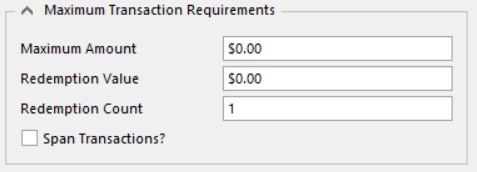
Examples:
- $5 off one item, Quantity Get 1, Redemption Count 1: $5 off one item, even if the customer buys several.
- $5 off one item, Quantity Get 1, Redemption Count cleared: $5 off every eligible item.
- Buy one, get one, Redemption Count 2: the customer can get up to two free items in one sale.
Note: If you clear Redemption Count, also set a Redemption Value. With both at no limit, the coupon applies to every eligible item in the sale.
Usage Limits
Usage limits control how many times the coupon can be used across all sales.
| Setting | What it does |
|---|---|
| Apply Limits to Web | Enforces the limits on web store orders. |
| Apply Limits In Store | Enforces the limits on in-store sales. |
| Limit Total Uses | The coupon can be used this many times in total, across all customers. |
| Limit Per-Customer Uses | Each customer can use the coupon this many times. |
| Select Customers (optional) | Only the customers you choose can use the coupon. |
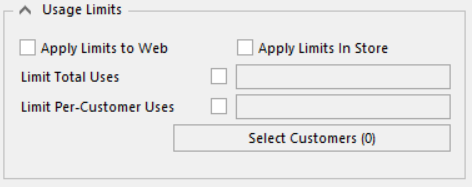
Note: Check Apply Limits to Web, Apply Limits In Store, or both. If neither is checked, the limits aren't enforced.
What happens when the limit is reached:
| Where | What happens |
|---|---|
| In store, Auto Apply coupon | The coupon doesn't apply. No message is shown. |
| In store, coupon scanned | The register asks Customer is not eligible for this coupon -- apply anyway? The cashier can apply it anyway. Self-checkout refuses it. |
| Online | The coupon code is refused. |
Stacking (Advanced)
Stacking decides what happens when two coupons apply to the same item.
By default, coupons stack. Every coupon starts at Stack Level 0, so two coupons can both discount the same item. Each one is figured from the item's price before coupons, and together they can discount more than the item costs.
Example: A 20% off coupon and a 30% off coupon both apply to a $30.99 item. The item gets $6.20 off and $9.30 off.
| You want | Do this |
|---|---|
| Two coupons to never discount the same item | Check Prevent Stacking on one of them. |
| A coupon to never combine with any other coupon | Check Prevent Stacking. It won't apply to an item that already has a coupon, and no coupon can apply after it. |
| The second coupon figured from the already-discounted price | Set Stack Pricing to Price in Order. |
| A coupon to go first or last regardless of level | Set Stack Order to Apply First or Apply Last. |
| Setting | What it does |
|---|---|
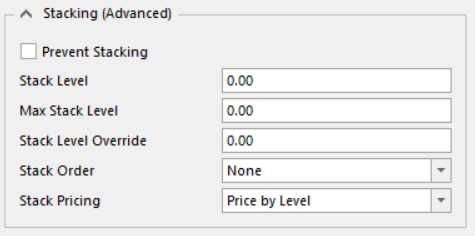
| Stack Level | The order coupons apply in. Lower numbers apply first. Starts at 0. |
| Max Stack Level | This coupon only applies on top of coupons at or below this level. Starts at 0. |
| Stack Order | None (default), Apply First, Apply Last, Apply First (within level), or Apply Last (within level). |
| Stack Pricing | Price by Level (default): figured from the price after coupons at lower levels, ignoring coupons at the same level. Price in Order: figured from the price after every coupon applied so far. |
| Stack Level Override | Records a different Stack Level on the item than the one used to order the coupons. |
| Prevent Stacking | This coupon won't apply to an item that already has a coupon, and no other coupon can apply after it. |
Note: Different Stack Levels alone don't stop stacking. A coupon still applies on top of another as long as the other coupon's Stack Level is at or below its Max Stack Level. For example, with Stack Levels 0 and 1 and Max Stack Level 0, the level 1 coupon still stacks. With Stack Levels 1 and 2 and Max Stack Level 0, it doesn't.
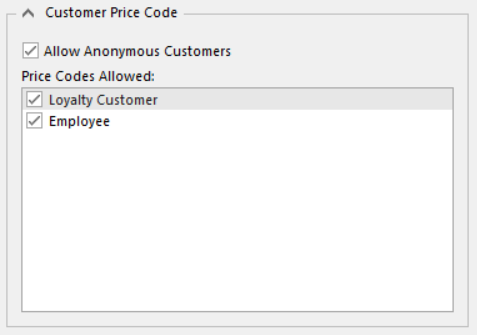
Customer Price Code
| Setting | What it does |
|---|---|
| Allow Anonymous Customers | Checked: the coupon works on sales with no customer attached. Unchecked: a customer must be on the sale. |
| Price Codes Allowed | Only customers with a checked price code can use the coupon. Uncheck a price code, such as employee or wholesale, to keep those customers from using it. |
Related Articles
Was this article helpful?
That’s Great!
Thank you for your feedback
Sorry! We couldn't be helpful
Thank you for your feedback
Feedback sent
We appreciate your effort and will try to fix the article