For more information on using the Quick Access Menu (QAM), see: Quick Access Menu
Overview
Quick Access Management lets you create and manage the Quick Access Menu that appears on POS registers and Self-Checkout kiosks. These menus give cashiers a quick way to add products to a sale without scanning. They are useful for large or heavy items, products without barcodes, coupons, or common fees like bag fees.
Menus items can be organized into categories, and are assigned to stores. Each store can have one menu at a time, but the same menu can be shared across multiple stores.
Accessing Quick Access Management
Quick Access Management is found on the Inventory tab in the ribbon. Only company administrators have access.
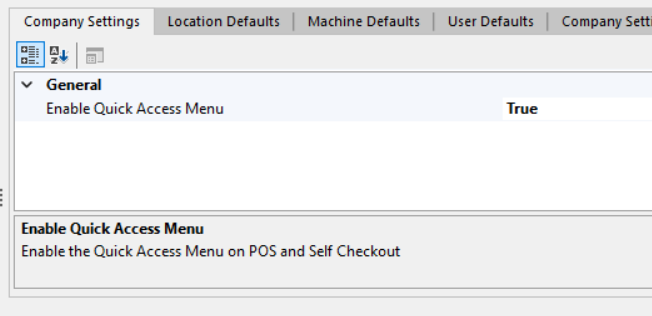
If the button is not visible, the Quick Access feature may not be enabled for your company. Contact your administrator to turn it on in Configuration Management.
The Management Screen
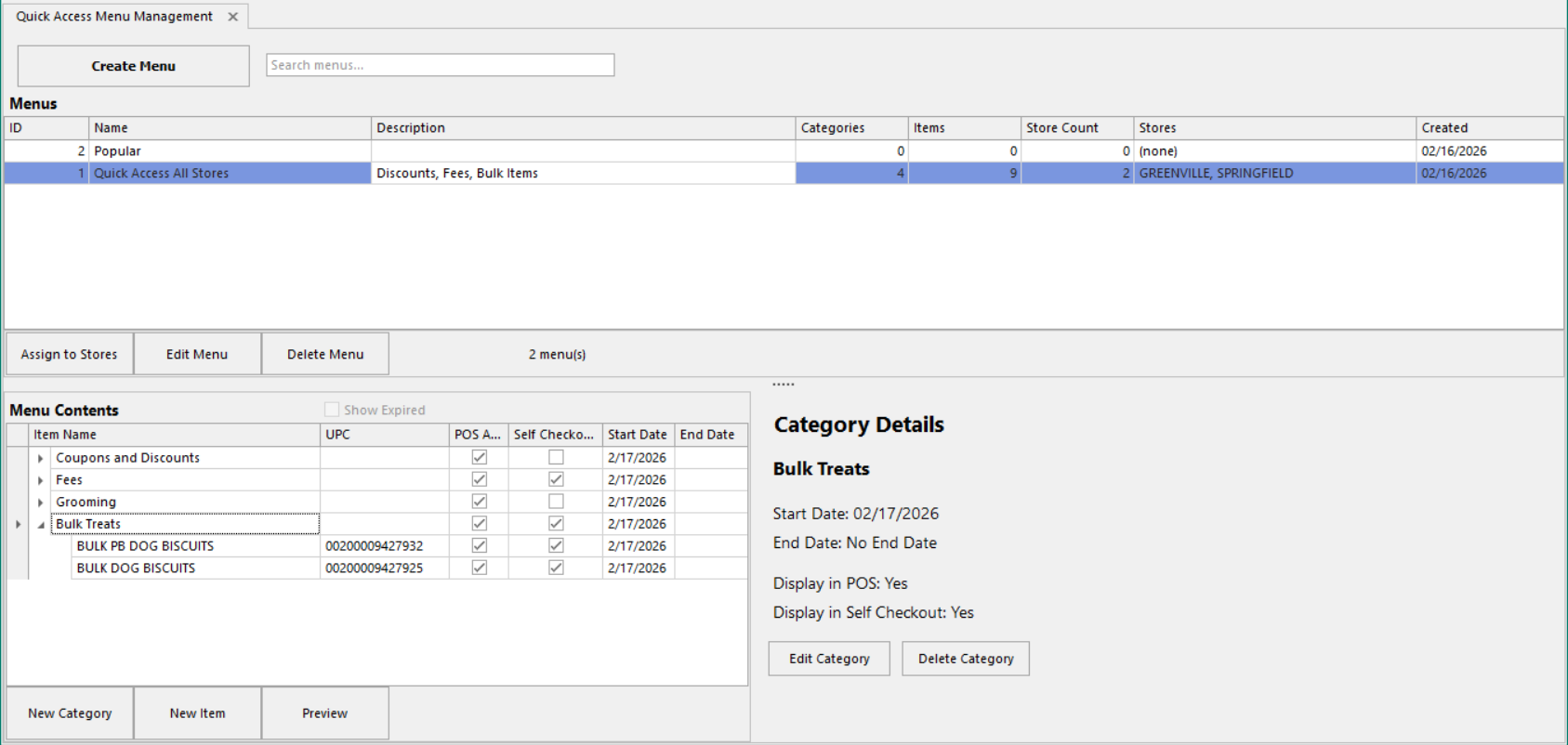
The management screen is split into two panels:
Top panel
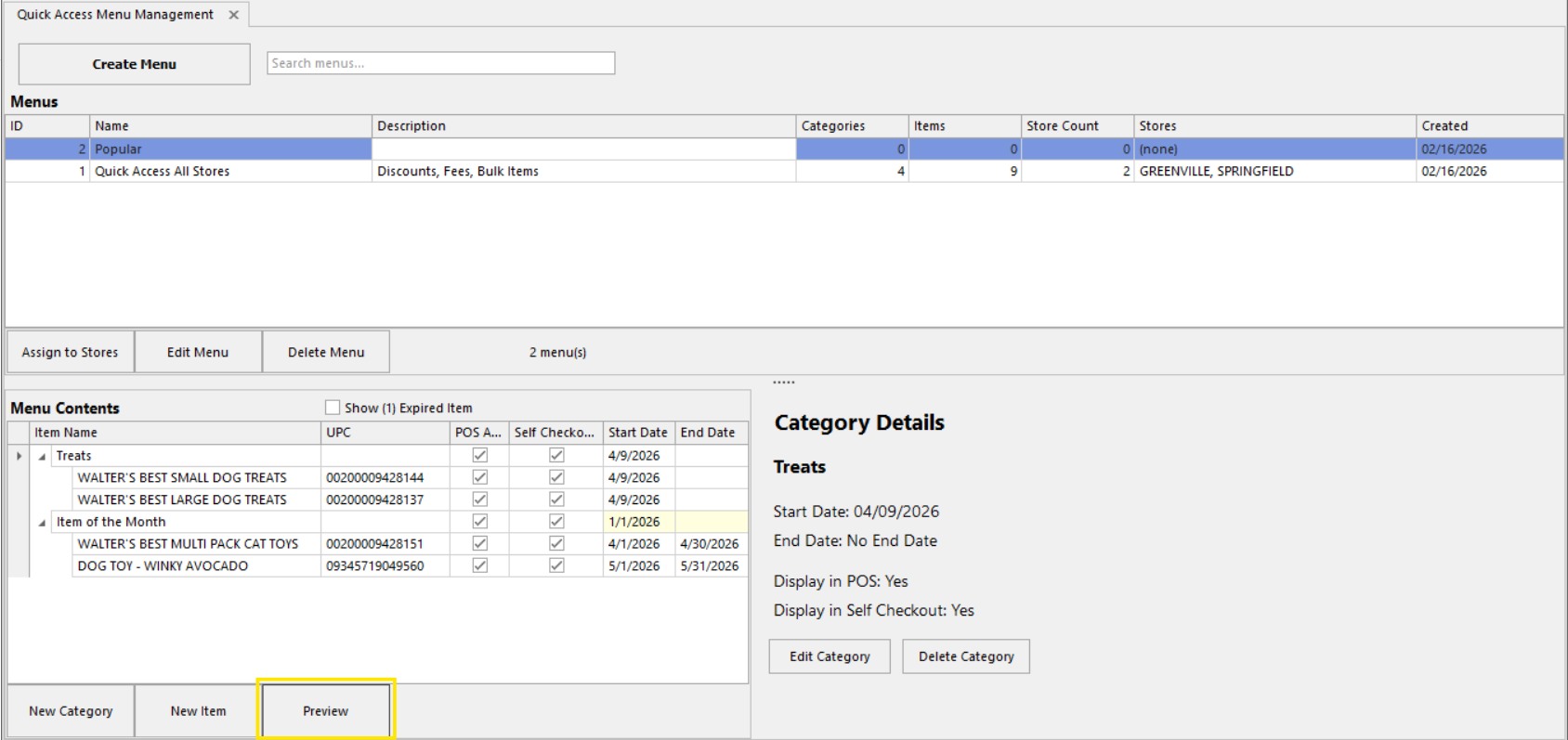
Menu List: A searchable grid showing all menus. Each row shows the menu name, description, number of categories, number of items, and which stores are assigned. The search bar filters across menu name, description, and assigned store names.
Bottom panel
Menu Contents: When you select a menu from the list, the bottom panel displays its contents as a tree view. Categories appear as parent nodes, with their items nested underneath. The tree shows each entry's display name, UPC, start date, end date, POS visibility, Self-Checkout visibility, and sort order.
Working with Menus
Creating a New Menu
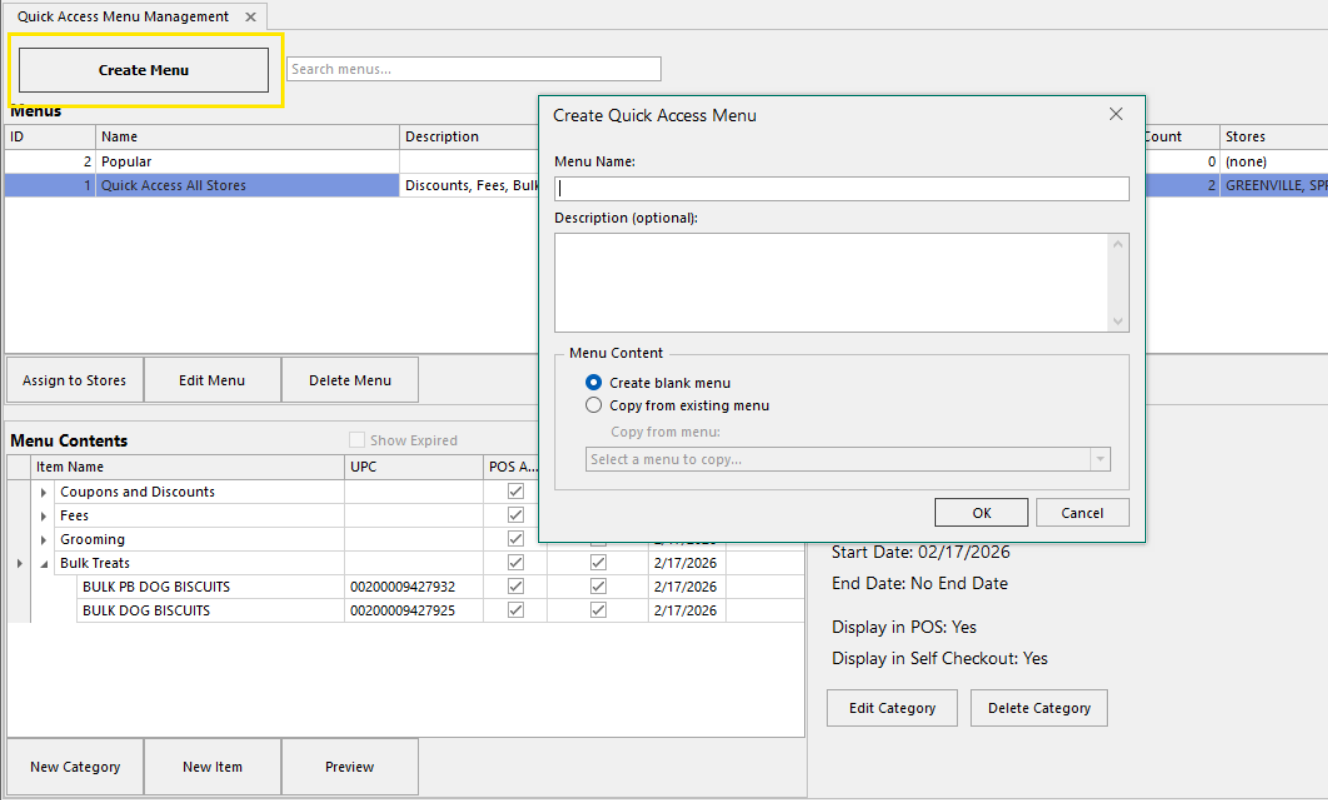
Click Create Menu in the top panel. You can create a blank menu or create a copy of an existing menu (which duplicates all of its categories and items). Menu names must be unique.
Editing a Menu
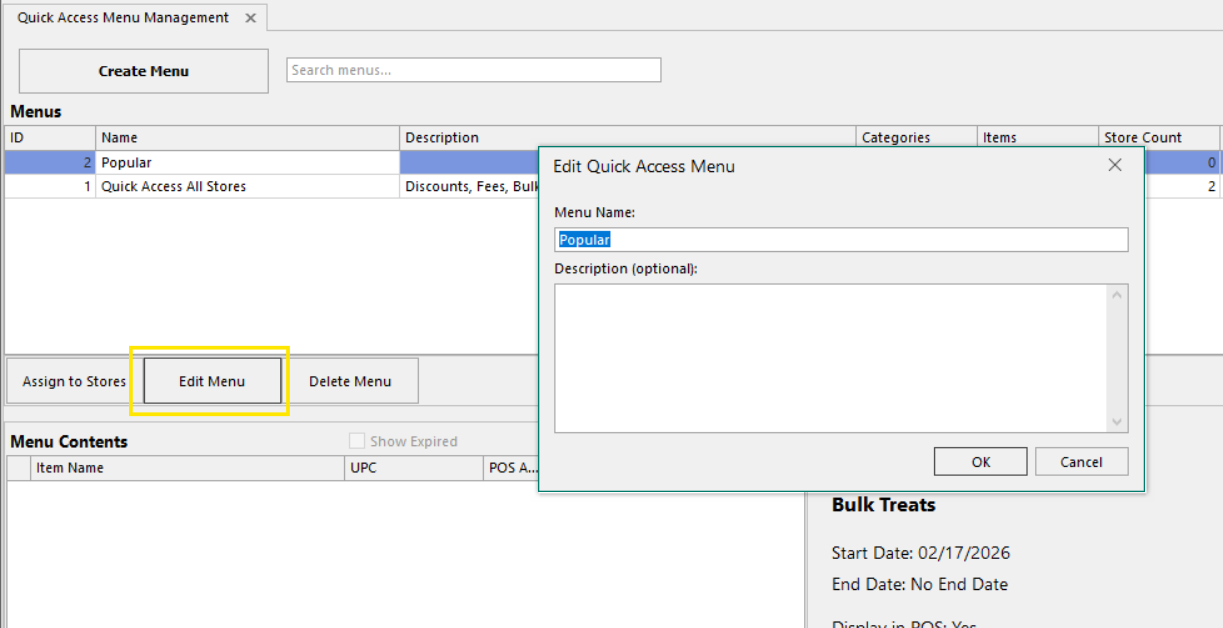
Select a menu and click Edit Menu to change its name or description.
Deleting a Menu
Select a menu and click Delete. A menu cannot be deleted while it is assigned to any stores - you must unassign it from all stores first. Deleting a menu permanently removes all of its categories and items.
Assigning Menus to Stores
Select a menu and click Assign to Stores to open the store assignment screen. This shows all stores with checkboxes.
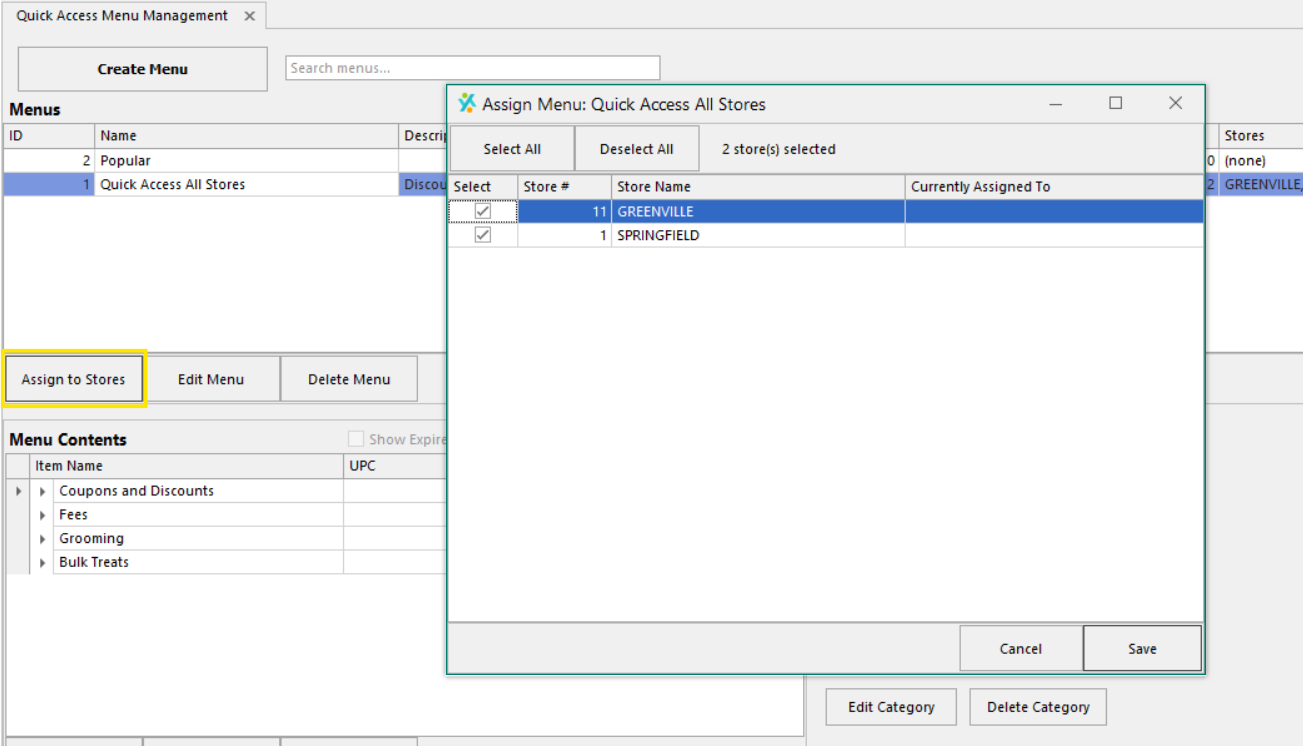
- Check a store to assign this menu to it and uncheck a store to remove the assignment.
- Stores with a yellow highlight are currently assigned to a different menu. Assigning your menu to one of these stores will replace the existing assignment (you'll be prompted to confirm).
- Each store can only have one menu at a time.
- You can use Select All or Deselect All for quick bulk changes.
- If unassigning all stores, the menu still exists, it just won't be active at any store.
Working with Categories
Categories are organizational folders that group items together on the menu. On the register, they appear as teal-colored tiles that cashiers tap into.
Adding a Category
Click New Category in the tree panel to add a top-level category. You can also right-click an existing category and select Add Sub-Category to nest a category inside another.
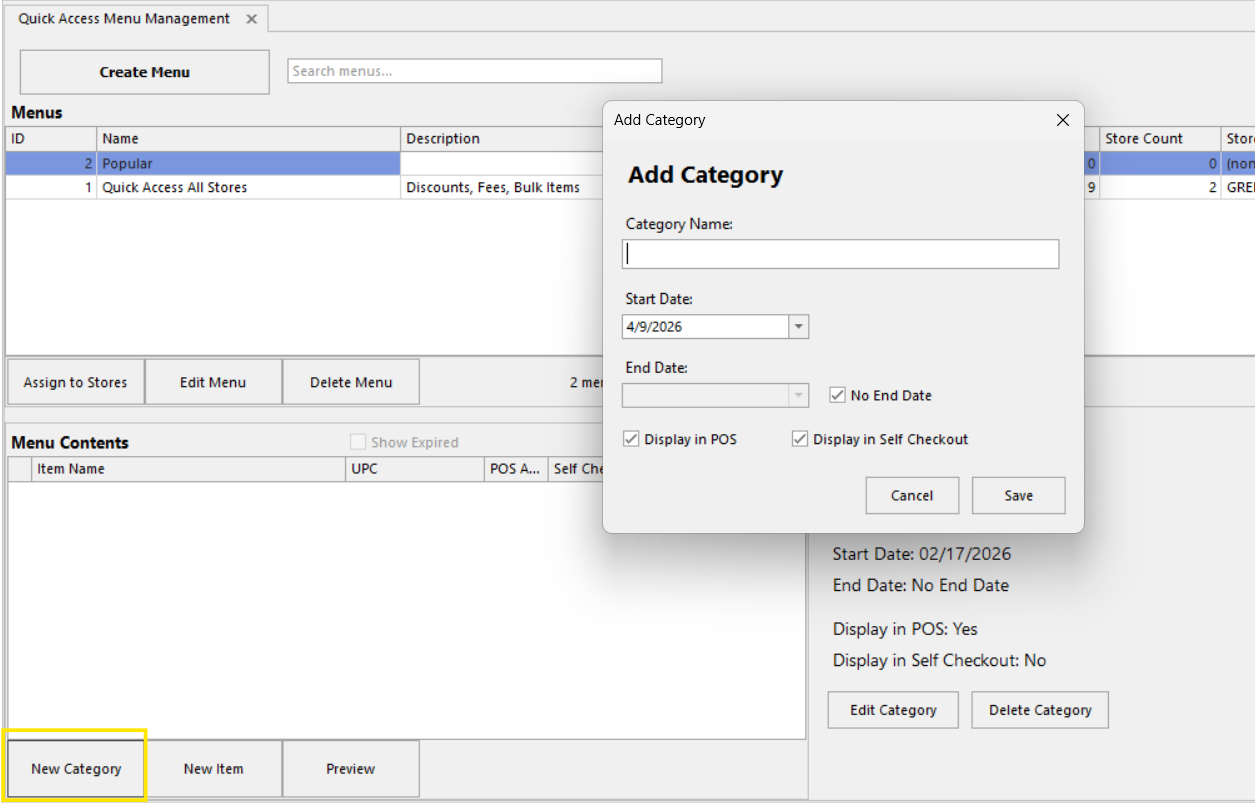
When adding a category, you provide:
Display Name - the label shown on the register (100 character max)
Start Date - when the category becomes visible
End Date - when the category expires (optional; leave blank for no expiration)
Shown POS / Shown Self-Checkout - whether it appears on each channel
Editing a Category
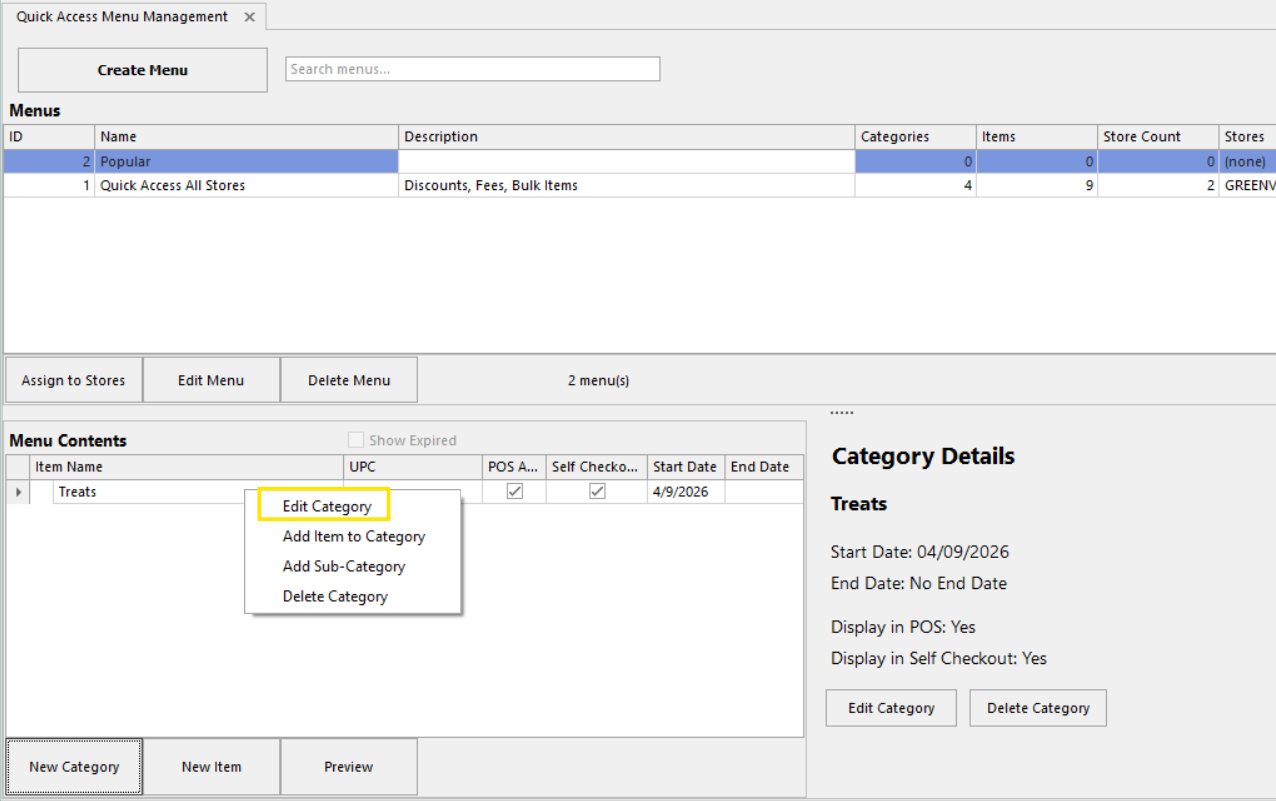
Right-click a category in the tree and select Edit Category to change its name, dates, or visibility.
Deleting a Category
Right-click a category and select Delete Category. This removes the category and all items within it.
Working with Items
Adding a Single Item
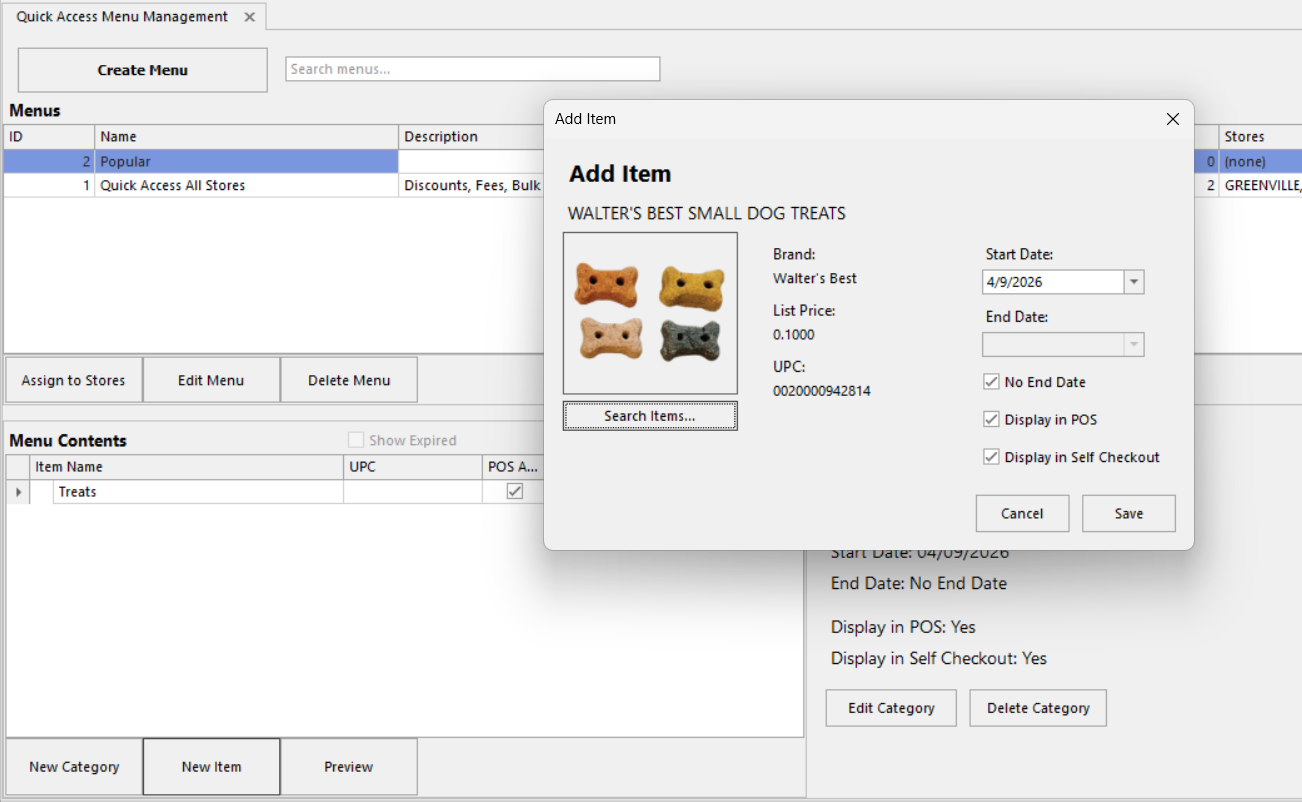
Click New Item in the tree panel. An item search popup opens where you can search by UPC or product name.
To add an item directly into a category, right-click the category and select Add Item to Category.
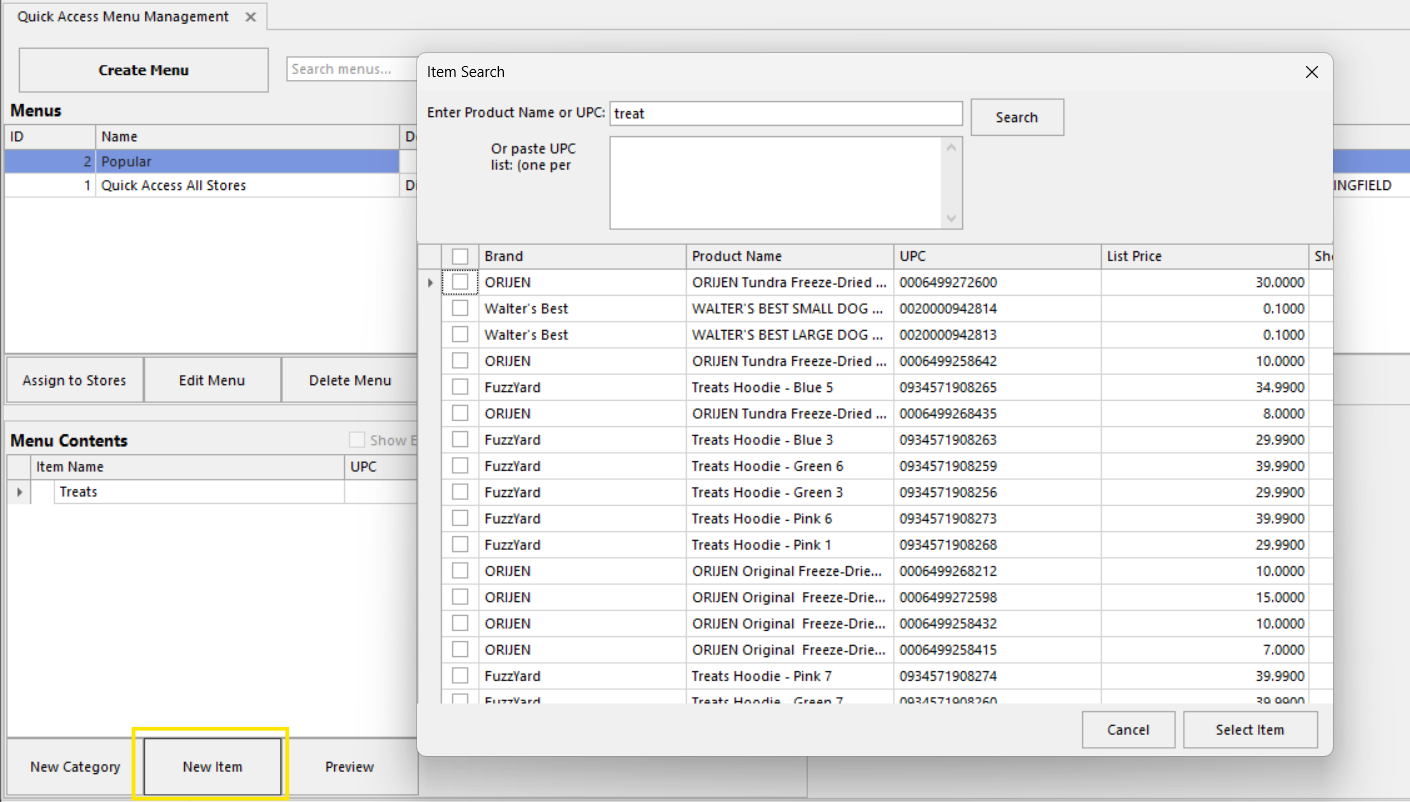
After selecting a(n) item(s), you configure:
- Start Date - when the item becomes visible on the register
- End Date - when the item expires (or check "No End Date" for permanent items)
- Shown POS - whether the item appears on POS registers
- Shown Self-Checkout - whether the item appears on Self-Checkout kiosks
Adding Multiple Items at Once
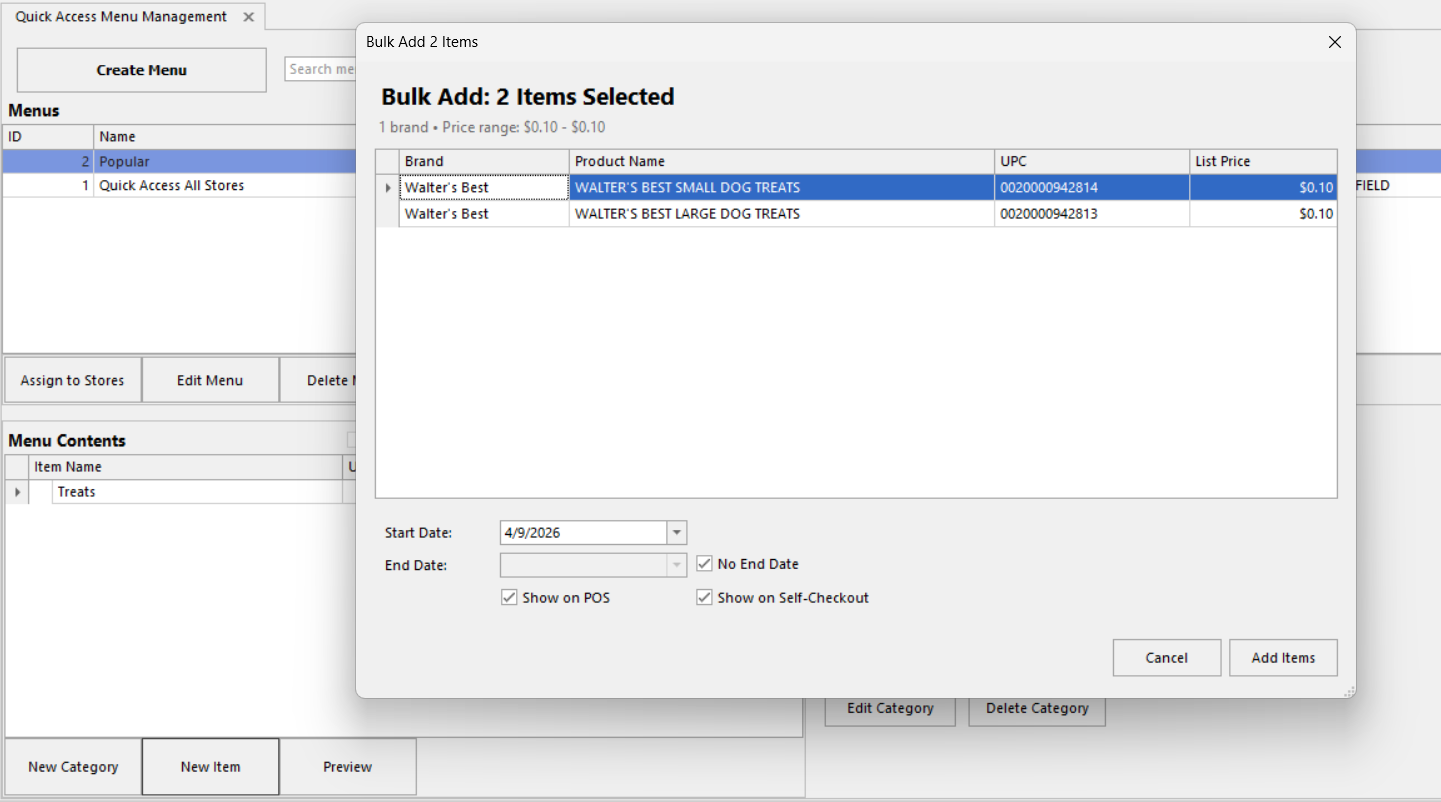
When searching for items, you can select multiple products at once. This opens a bulk add screen where you can configure shared date and visibility settings for all selected items.
Editing an Item
Right-click an item in the tree and select Edit Item. You can change the item's dates and visibility settings. The product itself cannot be changed - to swap a product, remove the item and add the new one.
Bulk Editing Items
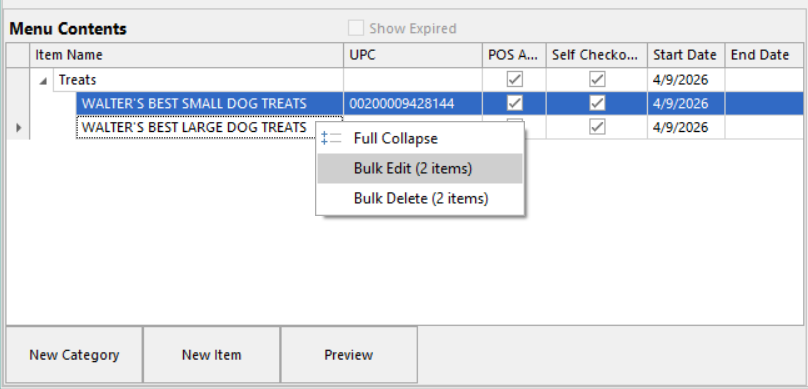
Select multiple items in the tree (Ctrl+click or Shift+click), then right-click and select Bulk Edit. This lets you update sort order and visibility for all selected items at once.
Removing an Item
Right-click an item and select Delete Item. You can also select multiple items and use Bulk Delete.
Viewing the Item Listing
Double-click an item in the tree (or right-click and select View Item) to navigate to the Item Listing screen for the item. This is only available for items that have a UPC.
Organizing the Menu
Reordering with Drag-and-Drop
Drag and drop items and categories in the tree to change their display order on the register. When dragging, an arrow appears next to the target indicating where the item will be placed:
- Blue Arrow pointing up - the item will be placed above the target, at the same level.
- Blue Arrow pointing down - the item will be placed below the target, at the same level.
- Green Arrow pointing right - the item will be placed inside the target category, at the beginning. This only works when the target is a category.
You can also select multiple items (Ctrl+click or Shift+click) and drag them together.
Moving Items Between Categories
You can drag items from one category to another, or from a category to the top level (and vice versa). If you drag an item into a category where that same product already exists, the duplicate will be skipped and you'll see a warning.
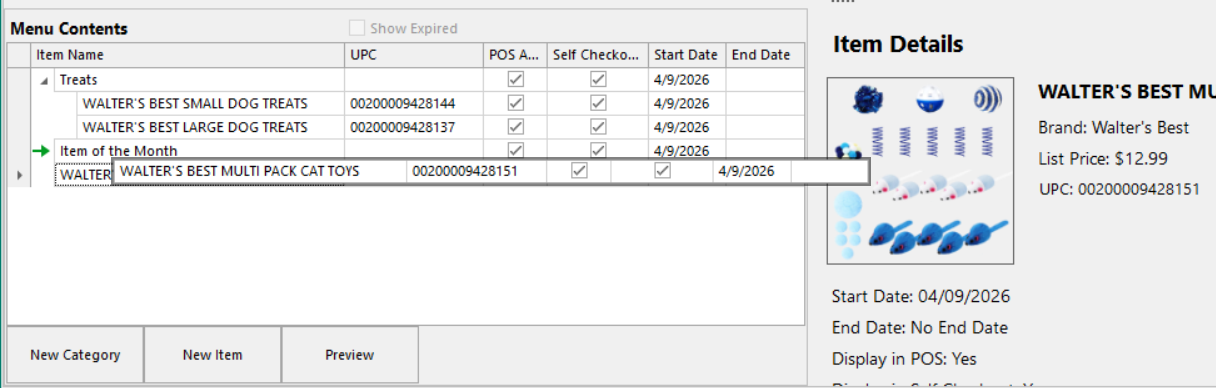
Note: You cannot drag an item into another item, only categories can contain children.
Scheduling and Expiration
Every item and category has a Start Date and an optional End Date that control when it is visible on the QAM on the POS.
- Start Date - the first day the item is visible on the register.
- End Date - the last daythe item is visible on the register. The item disappears the following day.
- For example, an item with an End Date of 4/15 will still appear on 4/15 and will be gone on 4/16.
- Use "No End Date" for items that should remain on the QAM permanently.
Items can be added with a future Start Date to schedule them in advance. When an item expires, it automatically disappears from the POS QAM, no manual removal is needed.
Expired Items in the Management Tree
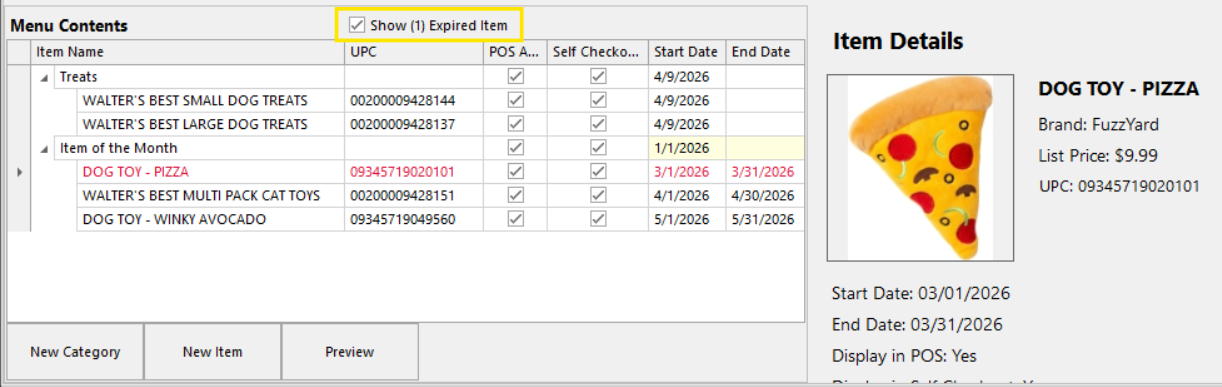
- Expired items and categories appear in red text in the tree.
- By default, expired items are hidden from the tree. Use the Show Expired Item checkbox to reveal them. The checkbox label shows counts, e.g., "Show (3) Expired Categories / (5) Expired Items."
Date Mismatch Warnings
If a category has a child (item or subcategory) with a different start or end date, the parent's date columns are highlighted in yellow. This alerts you that a child's visibility window doesn't match its parent's.
Previewing a Menu
Select a menu and click Preview in the Menu Contents panel to see how the menu will look on the register. The preview shows the same grid and category navigation that will be on the POS and Self Checkout kiosks, filtered to only show items that are currently active.
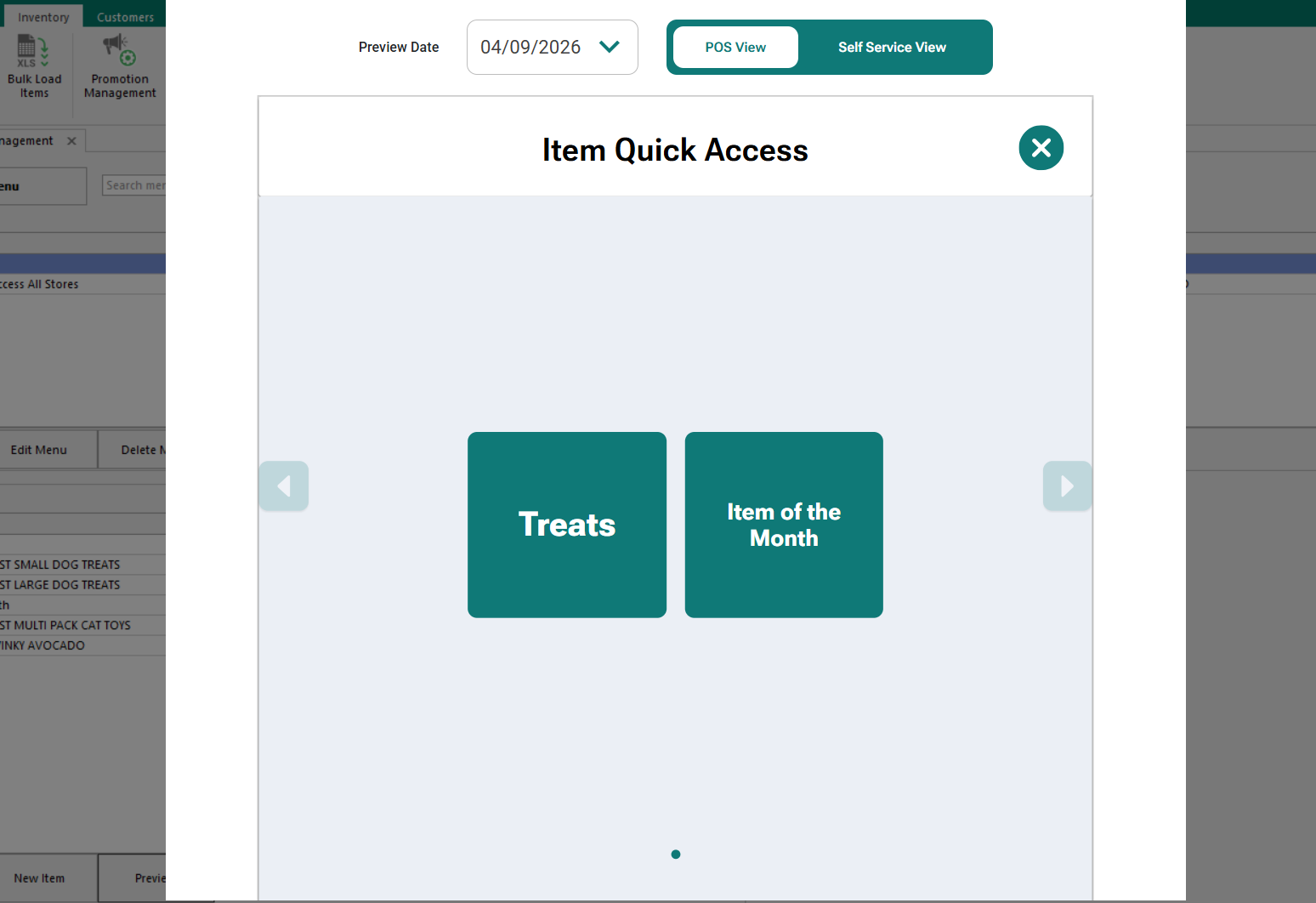
Note: Clicking items in preview mode is view-only.
Was this article helpful?
That’s Great!
Thank you for your feedback
Sorry! We couldn't be helpful
Thank you for your feedback
Feedback sent
We appreciate your effort and will try to fix the article