For more information on managing the Quick Access Menu (QAM), see: Quick Access Menu Administration
Overview
Quick Access is a touchscreen menu on the POS that lets users add items to a sale without scanning a barcode. Your administrator sets up the menu with items like large or heavy products that are difficult to scan, items without barcodes, coupons, or common fees such as bag fees all organized into categories for easy access.
Opening Quick Access
The Quick Access button appears on the POS screen next to the search bar/ scanner input field. Tap it to open the Quick Access Menu as a full-screen overlay.
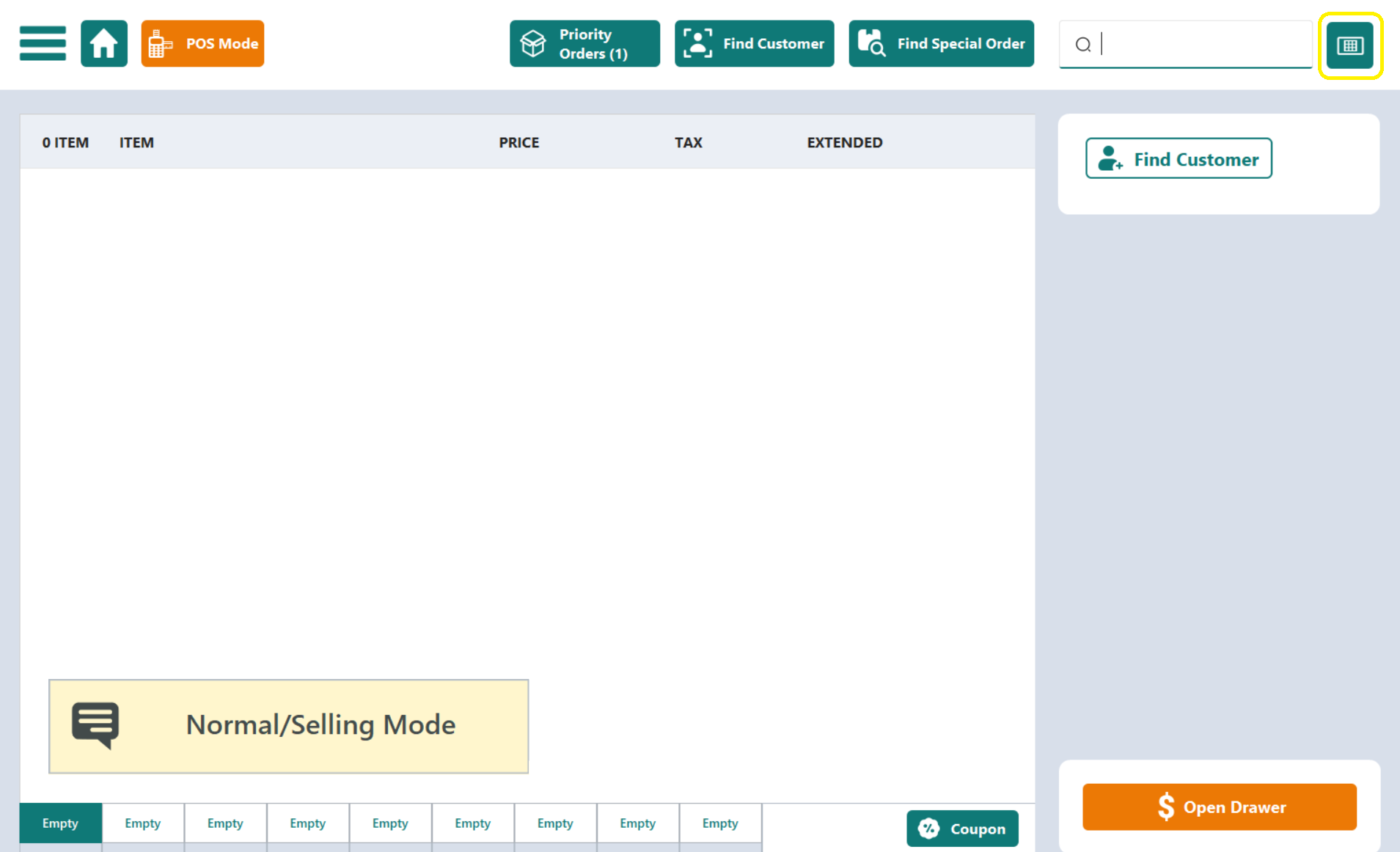
Note: If you don't see the button, your store may not have a menu assigned - contact your administrator.
Navigating the Menu
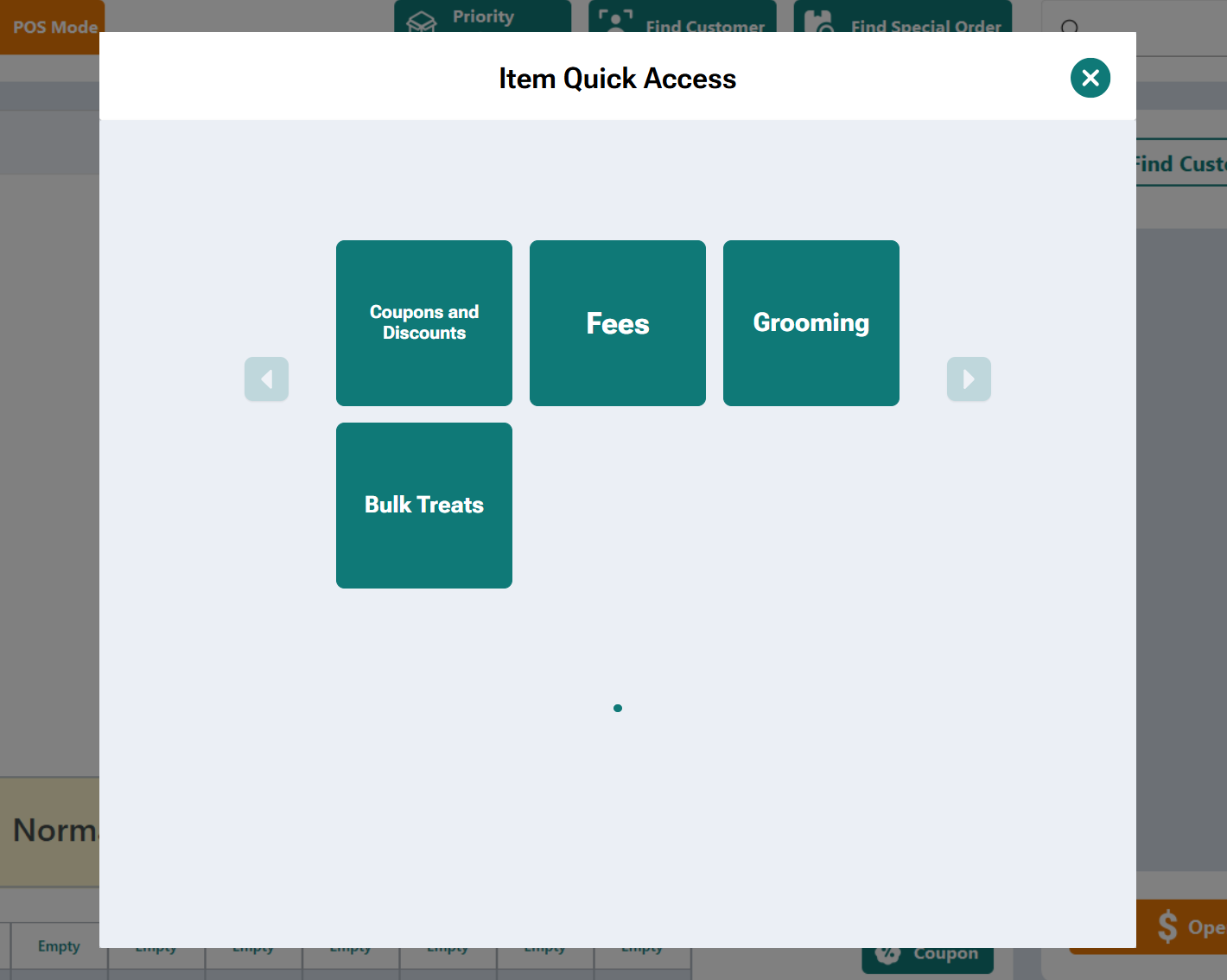
When Quick Access opens, you'll see a grid of items and categories:
Browsing Pages
Items are displayed in a grid, up to 9 per page. If the menu has more than 9 items at a given level, use the left and right arrow buttons on either side of the grid to page through them. The page indicator dots at the bottom show how many pages are available and which page you're on.
Using Categories
Categories appear as solid teal-colored tiles with a text label. Tapping a category opens it and displays the items inside.
When you're inside a category:
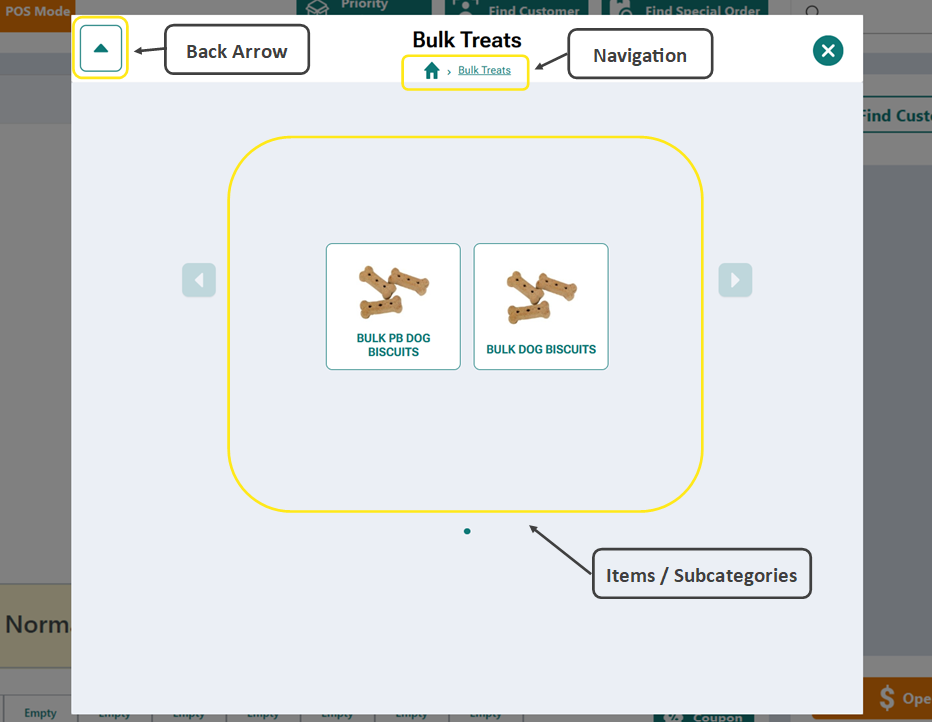
- The category name shows at the top.
- A breadcrumb trail appears below the title (e.g., Home > Category Name), showing where you are in the menu. You can tap any breadcrumb to jump back to that level.
- A back arrow button appears in the top-left corner. Tap it to go back up one level.
- Items and Subcategories are shown in the center.
- Categories can contain other categories (subcategories), so you may need to navigate through multiple levels to find the item you're looking for.
Adding an Item to a Sale
Tap the item you'd like to add, and it adds to the sale and closes Quick Access automatically
Items appear in the sale screen and can be removed or adjusted just like a scanned item.
Was this article helpful?
That’s Great!
Thank you for your feedback
Sorry! We couldn't be helpful
Thank you for your feedback
Feedback sent
We appreciate your effort and will try to fix the article