Marketplace Mode in New POS
Marketplace Mode has been re-rendered to function within the New POS.
This is a device setting so that you can get accustomed to it while not adopting it on all devices.
If you would like all computers changed at the same time, please contact your account manager.
Action Required
Machine Setting: Use New Marketplace Mode
Default = False
Improvements
- Touch First functionality
- Clearer UI
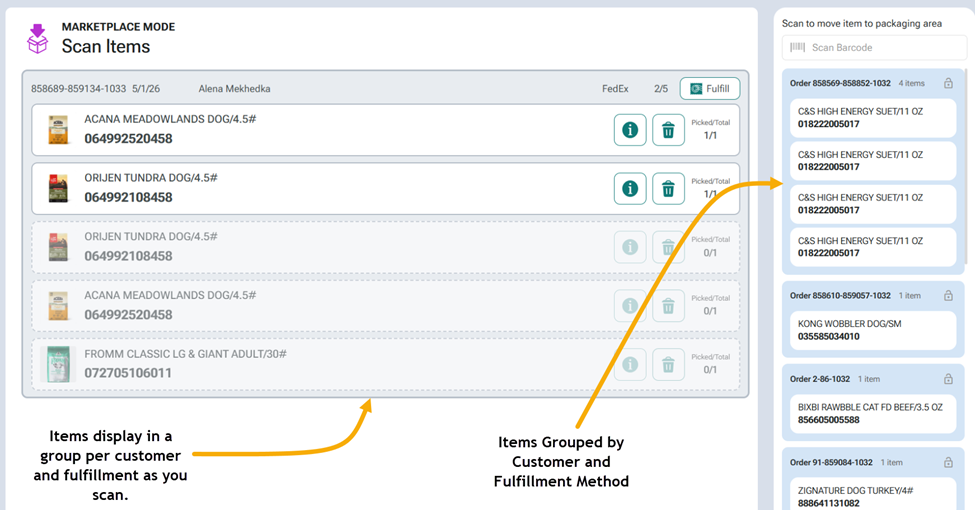
- Item grouping by customer and fulfillment type
- Items populate the group as they are scanned making it clear what else should go with that customer’s order
- Order number displayed on each item card
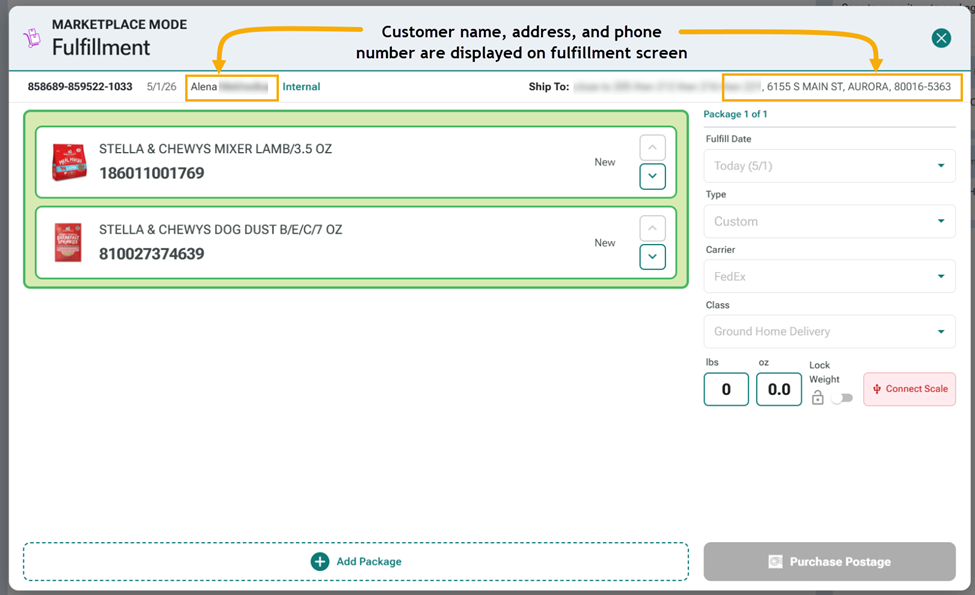
- Customer name and contact info on each item group
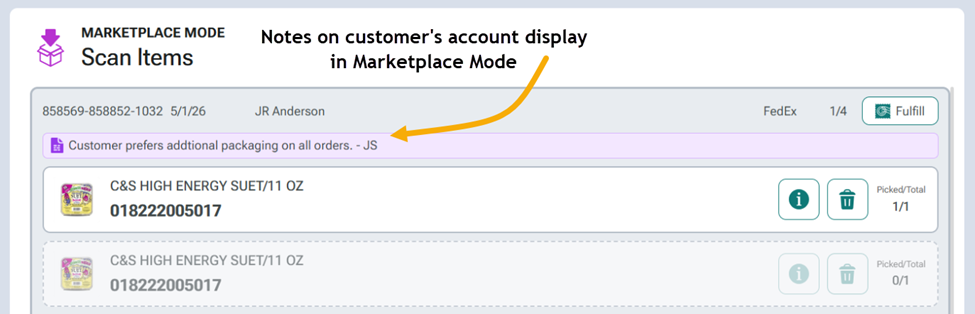
- Customer notes displayed on screen
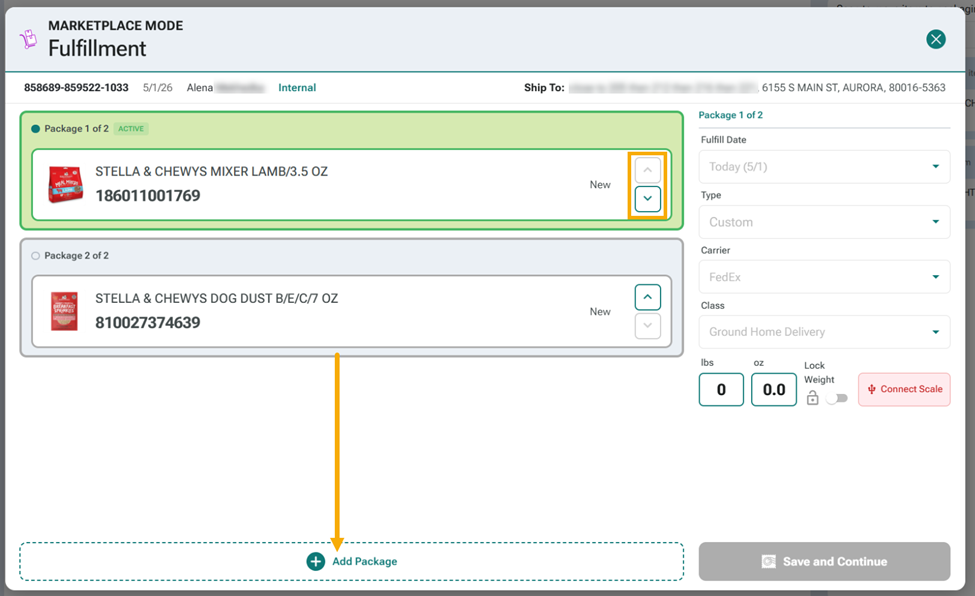
- Drag and drop or button controlled package creation
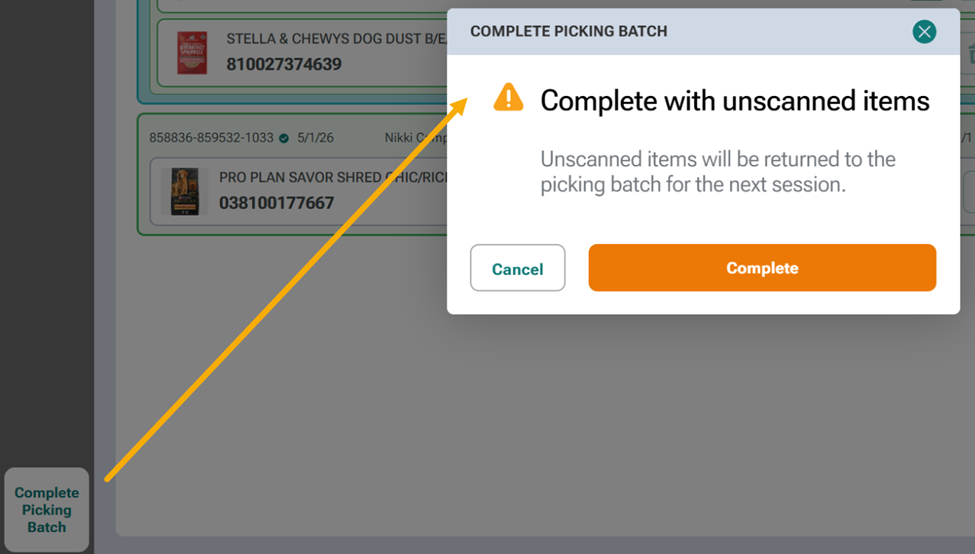
- One path for Batch completion increase workflow consistency
- Unfinished batches should reduce drastically
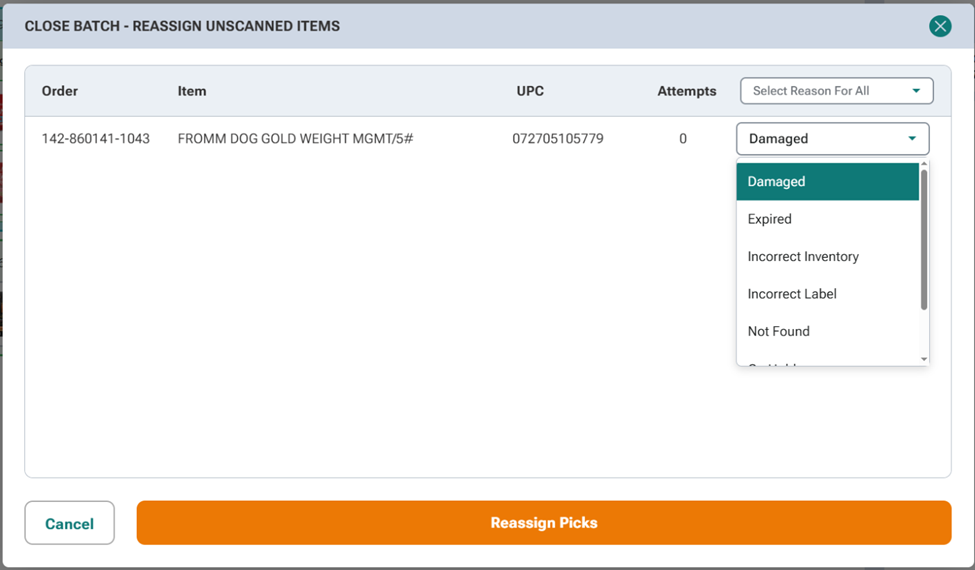
- Complete your batch and let FieldStack reassign the items
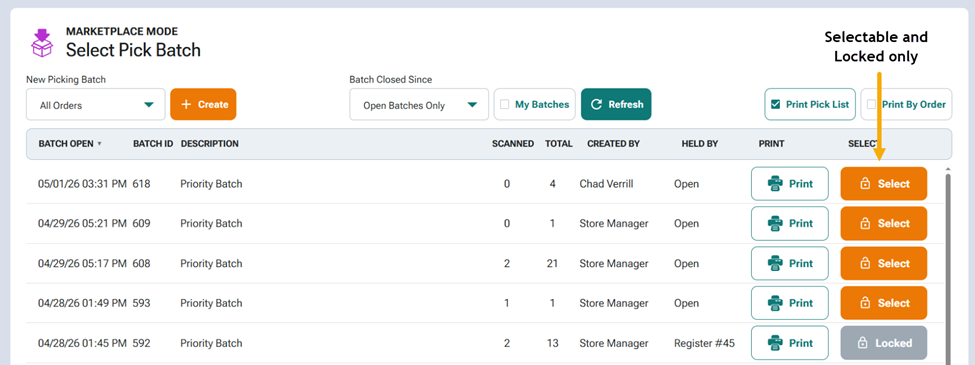
Open Marketplace Mode and Select your Pick Batch.
Better visualization allows you to scan items in groups or in any order.
Use the customer information to contact Local Delivery or Curbside customers whose orders may need service.
Customer Notes display above any packages they ordered.
Drag and drop or use arrow buttons to create new packages or group items.
Simplified Completion increases uniform workflows.
Easily reassign unscanned items. FieldStack will re-allocate to another location or a new batch depending on stock, availability, and fulfillment method. Unfinished batches should reduce drastically.
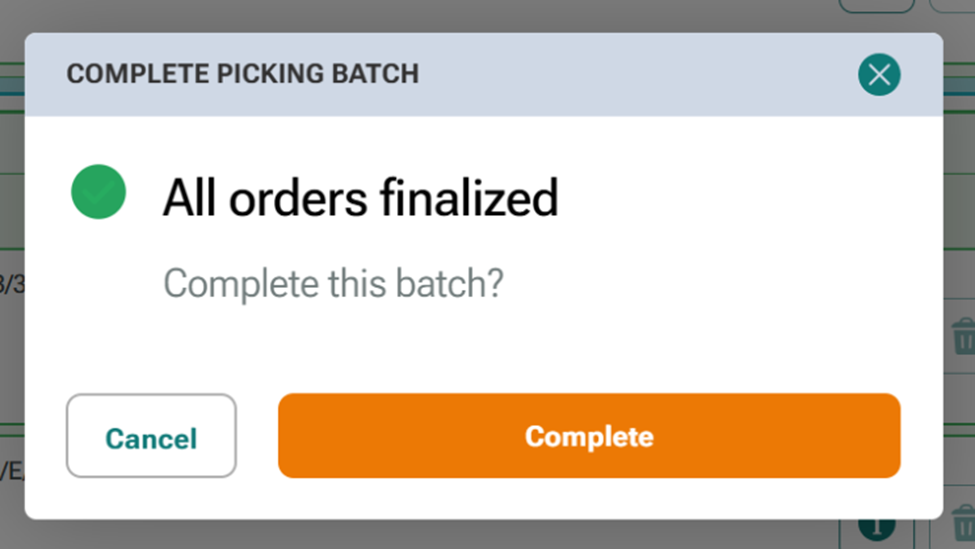
When all items have been processed or handled in some way, users will be encouraged to complete the batch.
Single Use Coupons
Read More
Within FieldStack, a list of single use coupons can be generated and applied to a coupon/promotion. Those single use coupon codes can be handed out to general or distinct customers. The codes can only be used once and are marked as ineligible after use.
A full description of the process can be found here.
Autoship Promotions
Autoship discounting allows you to set up programs like "20% off your initial Autoship, 10% all recurring orders."
From the promotions page, Create a new, active, blank promotion, then tap Autoship Discount to create a recurring discount.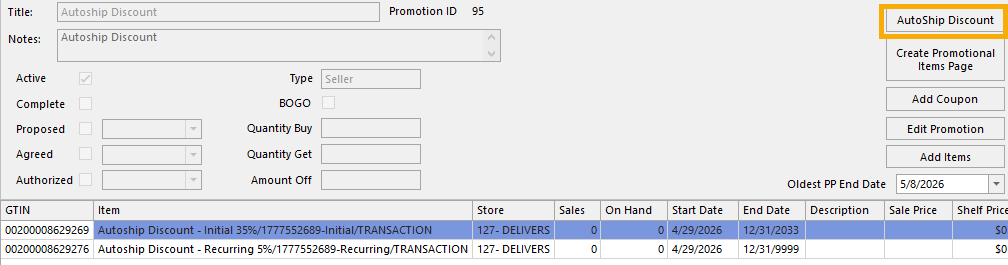
As you set your promo name, date range, and discounts, the summary will describe the offer.
Tap Edit to define specific items or attributes.
Tap Exclude to select ineligible items.
Uncheck "Limit initial discount" to allow customers to enroll in unlimited autoships with the same discounts.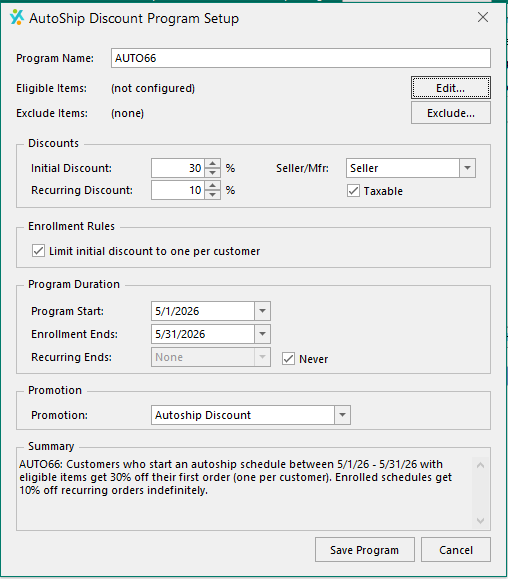
Print Special Orders Only
Action Required
Company Setting: Default Print Special Orders Only
Default = False
If true, Print Special Orders Only will be pre-checked in POS receive Mode and FS Mobile Receive Mode.
Within Receive mode on POS or FS Mobile, a user will now have the ability to “Print Special Orders Only." If you have historically had a back-end process that prints labels after items have been received, or who have not printed labels and struggled to keep up on incoming special orders, this new setting and method will allow the printing of only special order labels in receive mode, when a user is involved regardless if your item is set to default label, shelf talker, or none.
Increasing inventory through a Cycle Count process, direct adjustment in FS Mobile, or through automated FieldStack processes will not mark special orders as arrived.
If you would like to adopt this new method, please contact your account manager to have your current process altered.
Percentage Based Tipping
Action Required
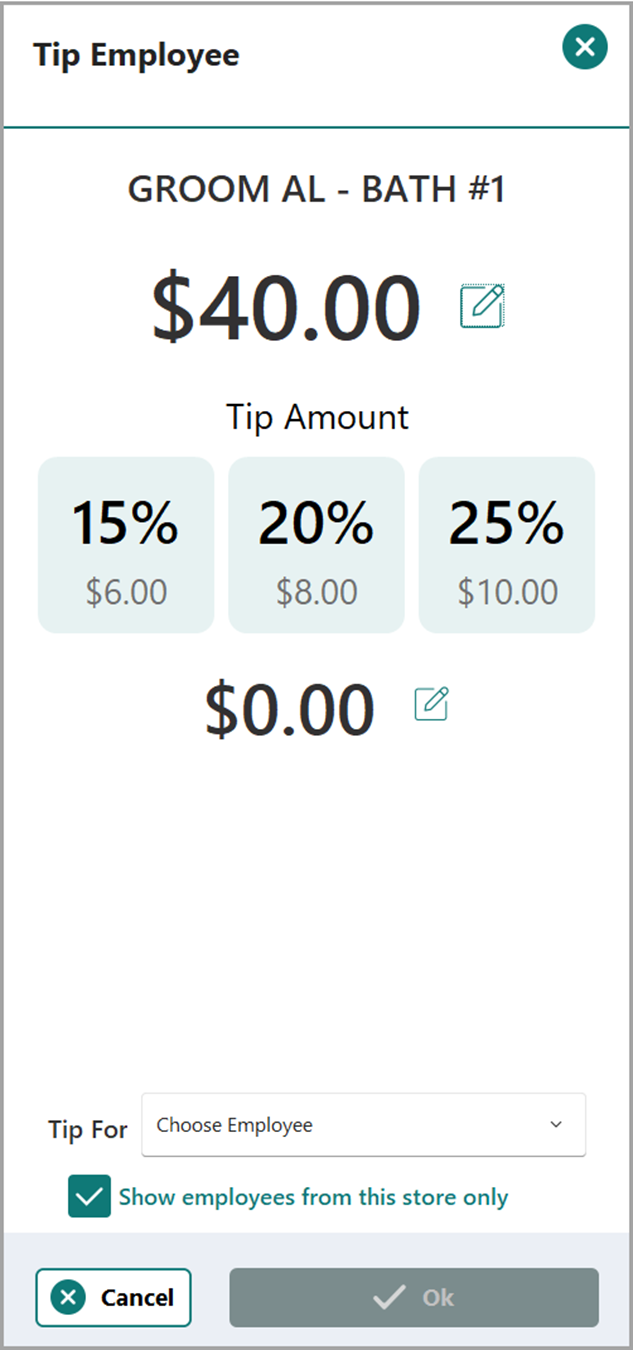
Location Setting: Use percentage based tip entry?
Location Setting: Percentage based numeric tip values (e.g. 15,20,25)
Default = False/ Empty
A location setting has been introduced to allow simplified tip entry on FieldStack POS and Fiserv Clover devices. This allows for 3 static values and a custom entered amount.
Other Improvements
CYCLE COUNT IMPROVEMENTS
- FS Mobile: Recount Mode
- FS Mobile: Freeform on FS Mobile allows a user to scan any items in an order.
- Desktop-generated lists have been changed from Freeform to Custom.
- Location list in CC management screen and Generate screen no longer display virtual locations, warehouses, or locations that have cycle counting turned off.
- Company Setting: Show total cost variance on Cycle Count Management will display the full cost total of the variances within a completed cycle count.
- Reprinting the paper version of a cycle count will display only those items which had a variance.
- Management interface has been optimized to load more quickly overall, but load items more slowly to allow scrolling without flicker.
MARKETPLACE CHANGE ITEM IMPROVEMENT – An item flag has been added to the data warehouse for reporting on items that required substitutions prior to fulfillment.
CROSSDOCK & REPLENISHMENT – Added Product Source Group Number and last 6 Months sales.
RECEIVE SUMMARY
Action Required
Location Setting: Show Receive Summary Dialog
Default = False
Introduced a setting that allows a user to see the Total Cost of items received to a Purchase Order within a Receive session in store locations.
INVOICE MANAGEMENT – Addition of Total Quantity and Total Cost on invoice management purchase order line items.
ORDER LIST – On the Waiting Orders tab, a Total Cost column and Total Price column have been added.
CONSOLIDATE DRAWERS AT CLOSE – Ability to count cash from all registers in a store in one consolidated method when a shared cash drawer has been used across multiple registers.
Action Required
Location Settings:
- Consolidate Drawer Count
- Default = False
- Store Base Cash Amount (as opposed to "Drawer base cash amount")
- Only considered when “Consolidate” setting is true.
RECEIPT ROLL UP – If the same item is sold in multiple quantities, a setting allows the quantity to roll up as a single line on the receipt.
Action Required
Location Setting: Consolidate Identical Items on Receipt
Default = False
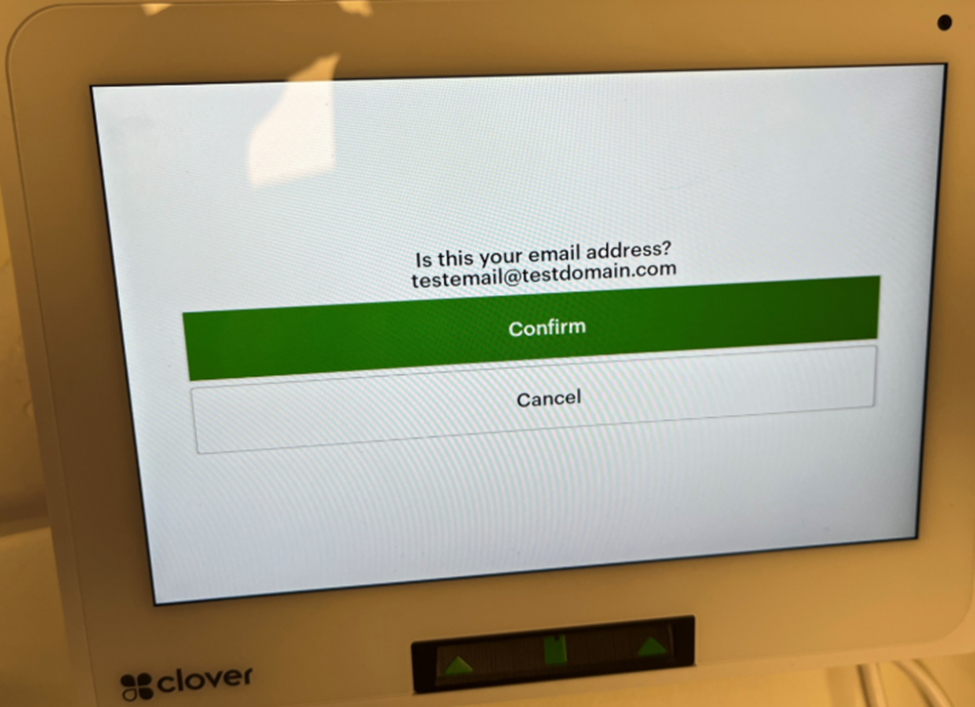
FiSERV – Customer email confirmation on Clover device. If enabled, a customer can see and confirm their email address on the Clover device thus reducing errors in clerk/customer communication.
Action Required
Machine Settings:
- CC Email Confirmation Button Phrase
- CC Email Confirmation Phrase
- Default = Null (both)
Example:

FIELDSTACK MOBILE LOGIN
QR code login enlarged and optimized to match New POS.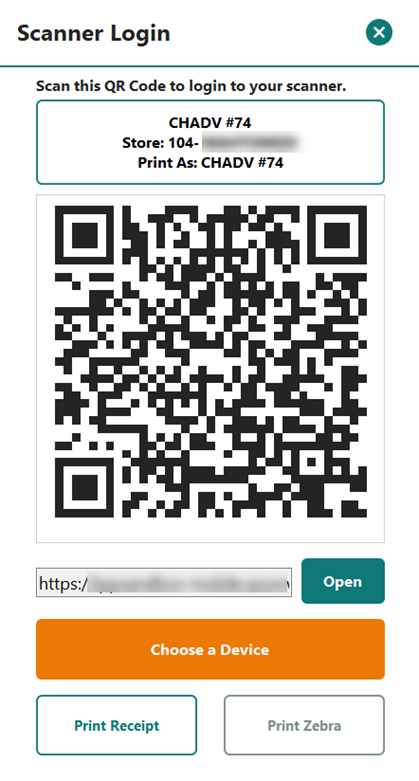
Was this article helpful?
That’s Great!
Thank you for your feedback
Sorry! We couldn't be helpful
Thank you for your feedback
Feedback sent
We appreciate your effort and will try to fix the article