Counting and reconciling on-hand inventory in the FieldStack desktop application and FieldStack Mobile (FSM).
TABLE OF CONTENTS
- Overview
- Key Concepts
- Configuration
- Permissions
- Cycle Count Types
- Statuses
- Using Cycle Counts
- How Counts Affect Inventory
- FAQ
Overview
Cycle counting verifies and corrects on-hand inventory a little at a time, without a full physical inventory. You create a focused count - top sellers, items below zero, a fixed list you pick, or a list you build by scanning - count those items, and FieldStack compares what you counted against what it expected and (optionally) adjusts on hand.
Cycle counts run in two places against the same data:
- Desktop application - create counts, review results, print count sheets.
- FieldStack Mobile (FSM) - walk the floor and scan items as you count.
Key Concepts
- Cycle count - one counting session for a single store: a name, a type, optional dates, and a list of items
- Expected - what the system thinks is on hand. Before you process an item it's the live on-hand number; once processed it's frozen as a snapshot, so variance stays accurate even if stock moves later.
- Actual - the quantity you physically count
- Variance - Actual minus Expected
- Positive = found more than expected
- Negative = found less
- Process - save a counted quantity. Records the count and, depending on settings, adjusts on hand
- Close - finish the count and remove it from the active list. Uncounted items are skipped
Configuration
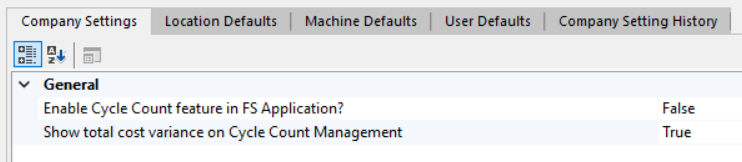
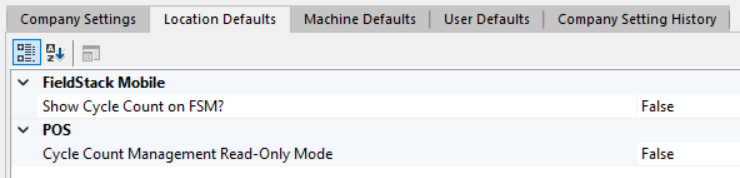
Cycle count settings live in Configuration Management. Open the Company or Location profile, then find each setting under the section shown below. (There are no machine-level cycle count settings.)
Company
| Section | Setting (exact text) | Effect | Default |
| General | Enable Cycle Count feature in FS Application? | Turns on cycle counts in the desktop application, company-wide. | Off |
| General | Show total cost variance on Cycle Count Management | Shows the cost-variance totals and column on the desktop Cycle Count screen. | On |
| FieldStack Mobile | Inventory Adjustment Updates On Hand Available | When on, FSM counts adjust On Hand Available; when off, they adjust On Hand Total. | Off |

Location
| Section | Setting (Exact text) | Effect | Default |
| FieldStack Mobile | Show Cycle Count on FSM? | Enables cycle counts on FSM for this location. | Off |
| POS | Cycle Count Management Read-Only Mode | Makes the desktop Cycle Count screen view-only here, users can't create or process counts. | Off |
| POS | Warehouse with Bins | Bin-managed warehouses can't run cycle counts (see Store Eligibility). | Off |

Store Eligibility
Cycle counts only run at real, active store locations. A store won't appear in the selectors if it is inactive, a non-store/ungrouped location (e.g. an office), a staging location, or a Warehouse with Bins location.
Warehouses with Bins can use the Bin Lookup feature in FSM. More information here: FS Mobile: Bin Lookup
Permissions
Who can use cycle counts is controlled by two things: whether the feature is turned on, and your staff role.
Your role determines what you can do. Cycle count access is tied to the permission level assigned to your login:
- Store and warehouse staff can do the everyday work — create a count, enter counts, process them, and close a count.
- Reopening a closed count is a manager/administrator-level action, because it clears all the counts already entered.
Which of your roles include these permissions is configured for your company. Your FieldStack administrator can confirm who has access or adjust it.
Read-only locations - A location can be set to Cycle Count Management Read-Only Mode. There, staff can open and view cycle counts on the desktop but can't create, count, process, or close them. (This applies to the desktop Cycle Count Management screen; it doesn't restrict counting on FieldStack Mobile.)
Cycle Count Types
| Type | What it counts | Created in |
| Top Products | Best-selling items (Top 50 or Top 100) | Desktop or FSM |
| Below Zero | Items currently below zero on hand | Desktop or FSM |
| Custom | A fixed list of items you choose up front | Desktop |
| Freeform | A list you build by scanning as you count | FSM |
Top Products and Below Zero build their lists automatically. Custom and Freeform are different:
- Custom (desktop - the option labeled Custom List (search and select items)) is a fixed list. You search and select the items up front (at least one required); the list doesn't change while counting, and items can't be added by scanning.
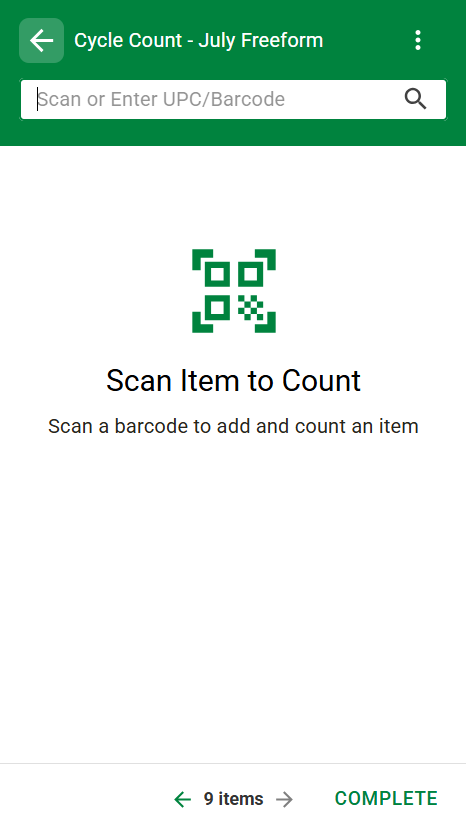
- Freeform (FSM) is built as you go. It can start empty; scanning an item that isn't already on the count adds it, and items can be removed.
Statuses
| Status | Meaning | Editable | Shown by default |
| New | Created, nothing counted yet | Yes | Yes |
| In Progress | Some items counted, not all | Yes | Yes |
| Closed | Completed or manually closed | No | No (use the Closed filter) |
Using Cycle Counts
Desktop
Open the screen
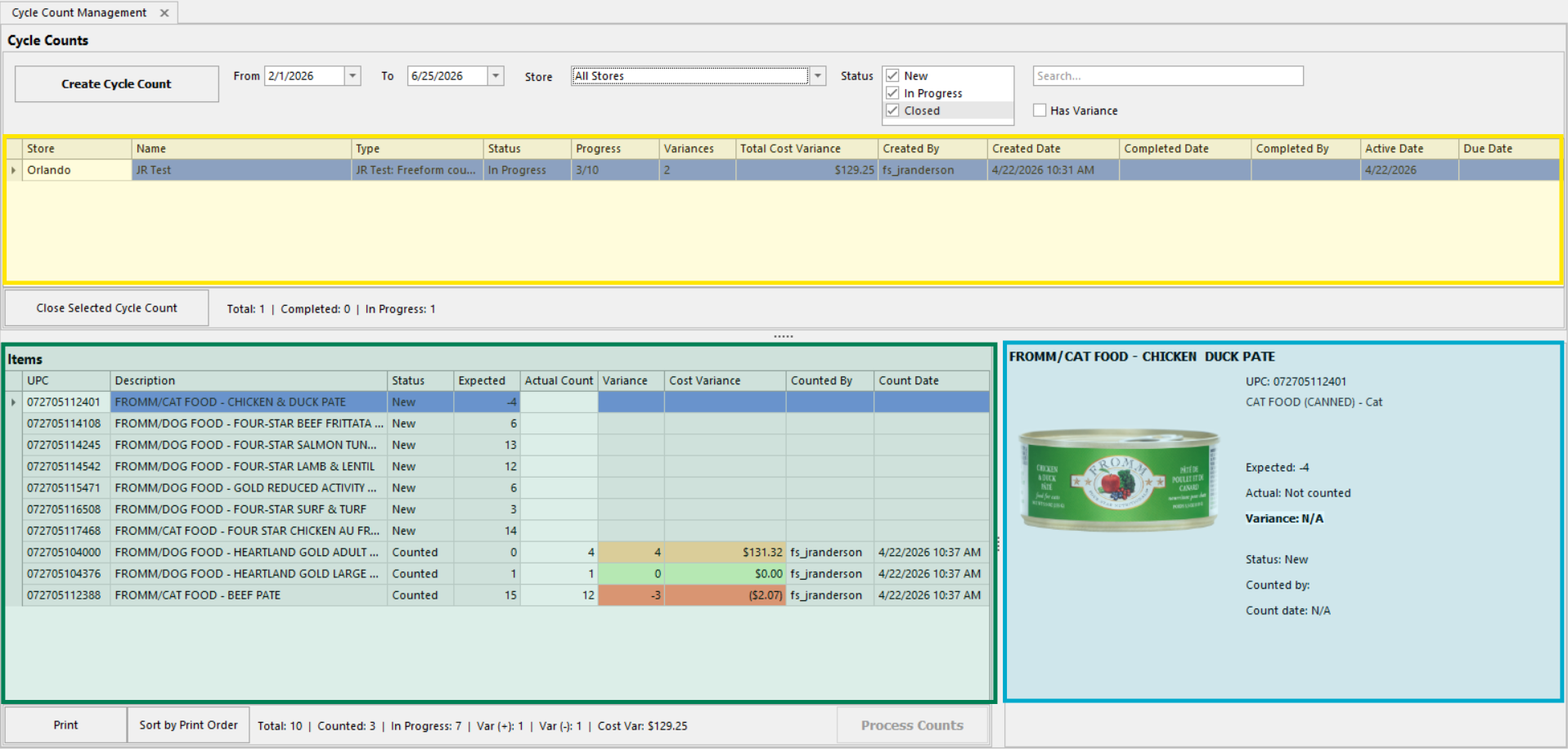
On the ribbon, click Cycle Count (on the Retail or Inventory tab, depending on your edition). The screen has three areas:
- the list of counts (yellow)
- the items in the selected count (green)
- the selected item's detail (blue)
Filter the list by date range, store, status, variance, or search text.
Create a count
- Click Create Cycle Count.
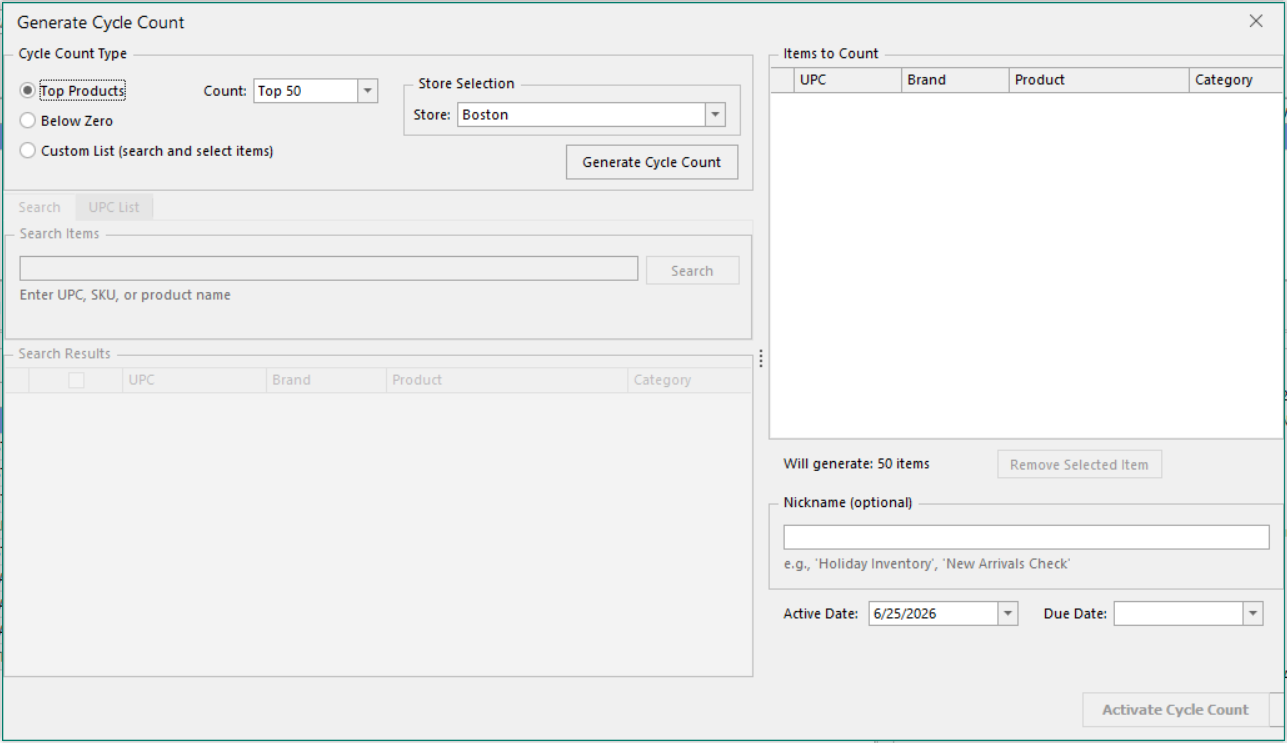
- Choose a type:
- Top Products - then pick Top 50 or Top 100
- Below Zero
- Custom List (search and select items) - builds a Custom count. At least one item is required.
- Search by UPC or description, paste a list of UPCs (newline, comma, or tab separated), or check items in the grid. Use Remove Selected Item / Clear All to adjust.
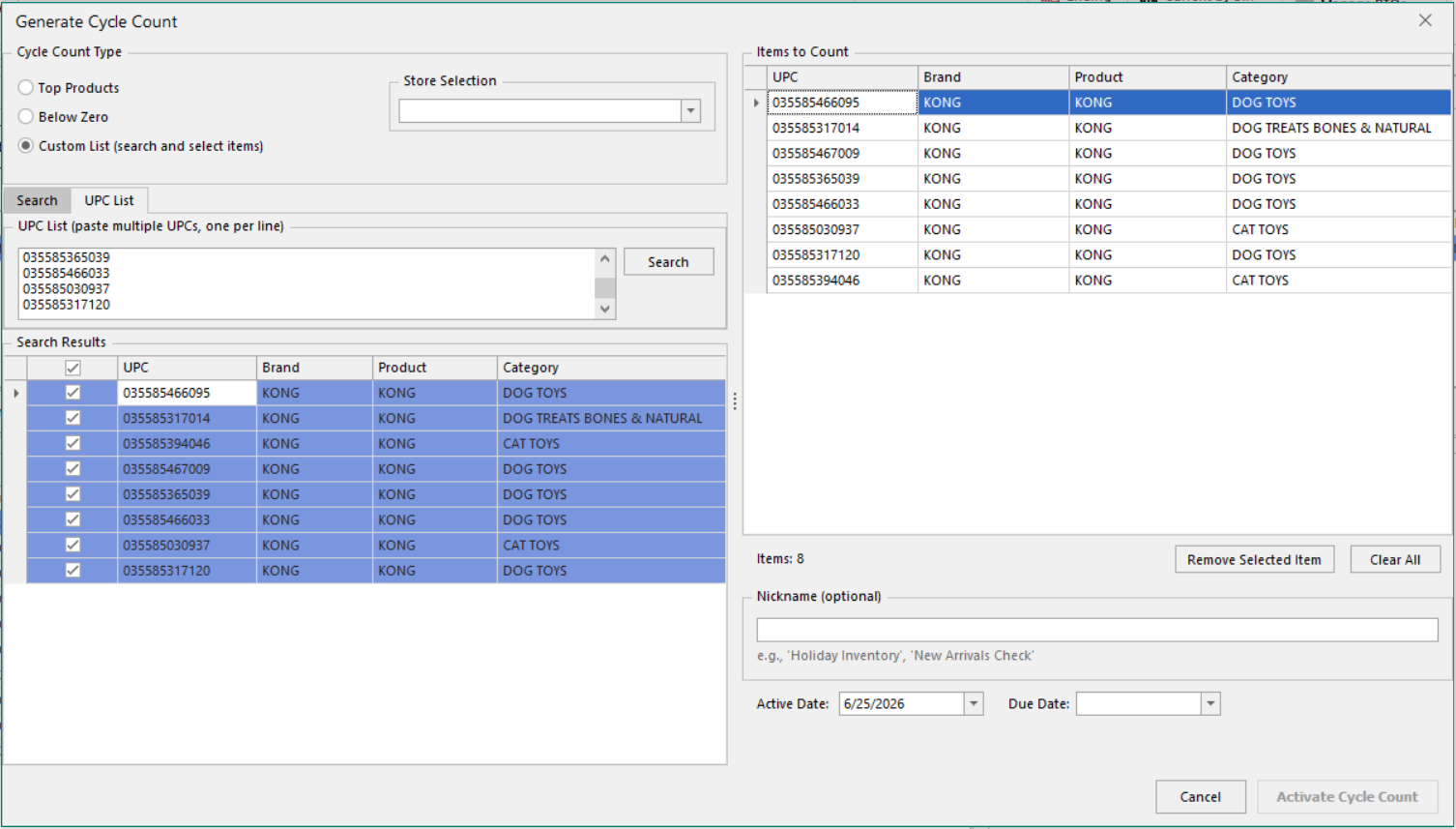
- Search by UPC or description, paste a list of UPCs (newline, comma, or tab separated), or check items in the grid. Use Remove Selected Item / Clear All to adjust.
- For Top Products / Below Zero, click Generate Cycle Count to build the preview.
- Choose the store. A Custom count allows multiple stores, and one count is created per store.
- Optionally set a Nickname, Active Date, and Due Date (the due date cannot be before the active date).
- Click Activate Cycle Count and confirm.
Note: Reusing the name of an open count prompts: "A cycle count with this name already exists and is still open. Do you want to continue?"
Count items
Select a count to load its items. Click an item's Actual Count cell, type the counted quantity, and press Tab or Enter to move down to the next item (Shift+Tab moves up; both wrap around the list). Use the delete button to remove a count.
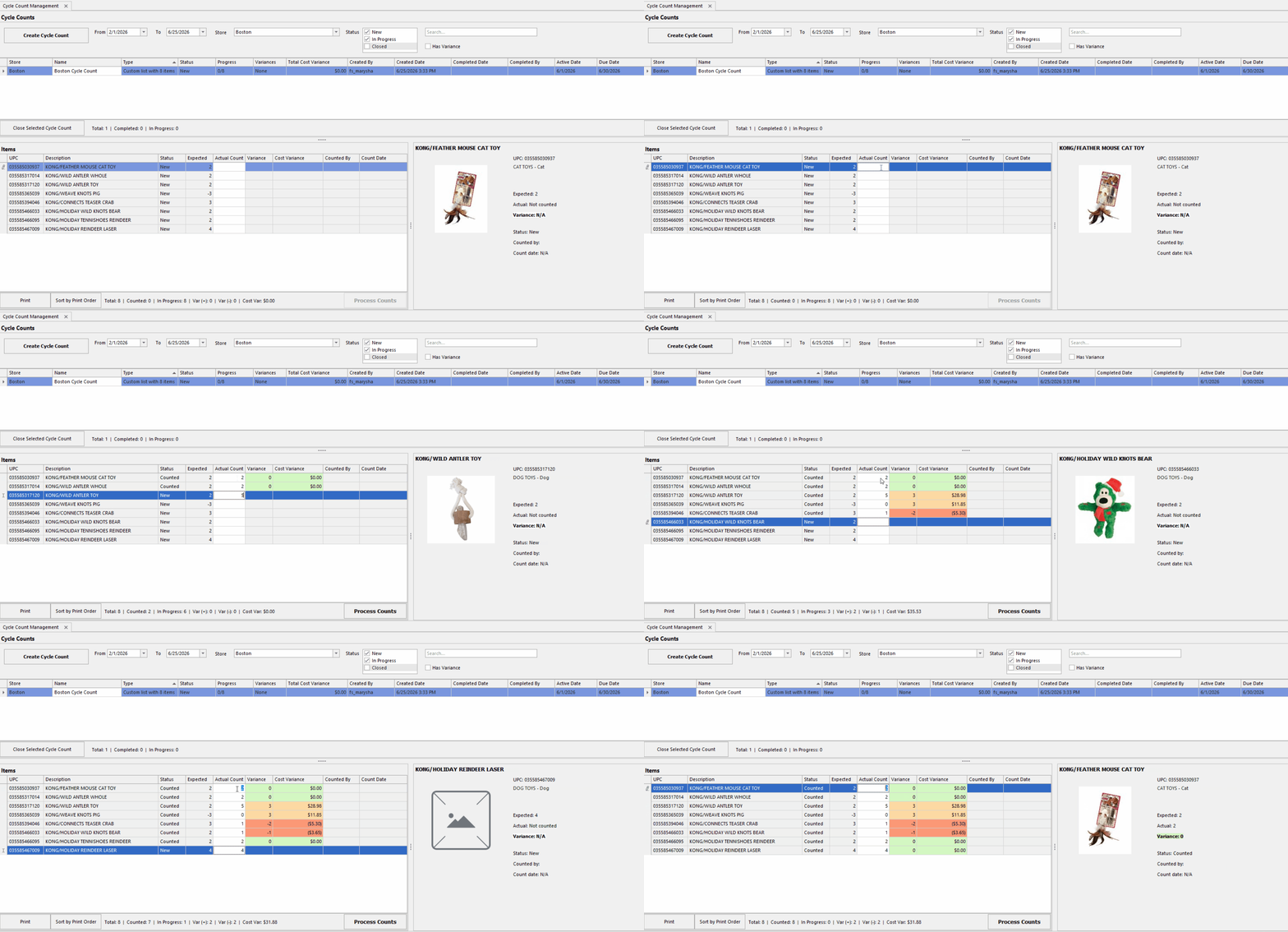
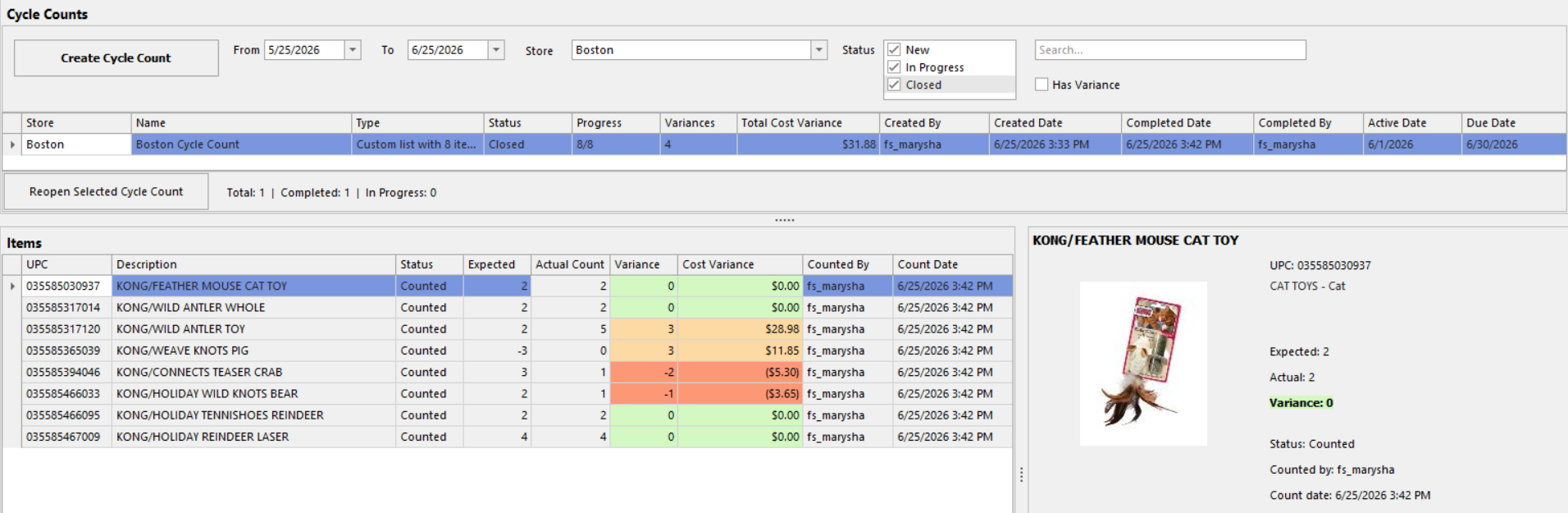
Each item shows Status (New, then Counted), Expected, Actual Count, and Variance, color-coded:
- Green - exact match (zero)
- Salmon - counted fewer than expected (negative)
- Peach - counted more than expected (positive)
- White - not yet counted
The Sort by Print Order button reorders items into a walk-the-shelf sequence; click the Sort by Grid Default button to switch back. Switching counts with unsaved edits prompts before discarding them.
Process counts
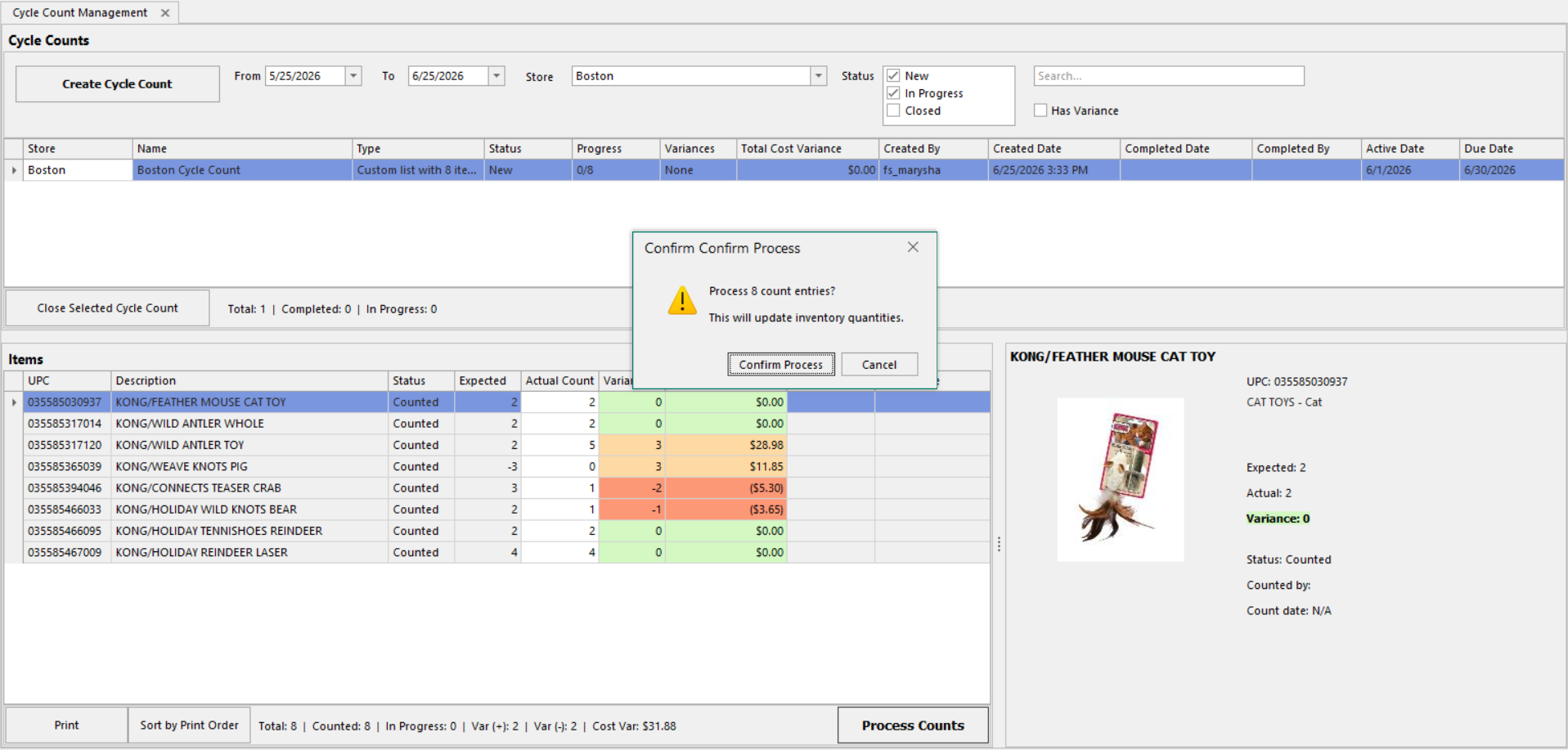
Click Process Counts and confirm ("Process N count entries? This will update inventory quantities.").
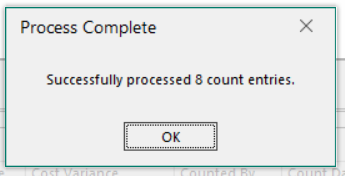
The Cycle Count's status will be updated to Closed and the Completed Date and Completed By cells will populate. Each entry is marked Counted with the time and your name, Expected is locked as a snapshot, and variance is finalized. Whether on hand is adjusted depends on company settings.
Close, Reopen, Edit, Print
In Cycle Count Management, there are a few actions for managing existing cycle counts.
- Close - select an open count, click the Close Selected Cycle Count button. Uncounted items are skipped; the count leaves the default view.
- Reopen - with the Closed filter on, select the count; click the Reopen Selected Cycle Count button. Reopening resets all entered counts.
- Edit - an open count's Nickname, Active Date, and Due Date can be changed in the Edit Cycle Count dialog.
- Print - click Print for an expected-vs-actual count sheet.
Keyboard shortcuts
On the Cycle Count Management screen:
| Key | Action |
| Ctrl+N | Create Cycle Count |
| Ctrl+S | Process Counts |
| Ctrl+E | Toggle Sort by Print Order / Grid Default |
| Ctrl+P | |
| Ctrl+F | Jump to the search box |
| Tab / Enter | In Actual Count: next item (Shift+Tab: previous) |
FieldStack Mobile (FSM)
Eligable locations can also use Cycle Counts in FSM.
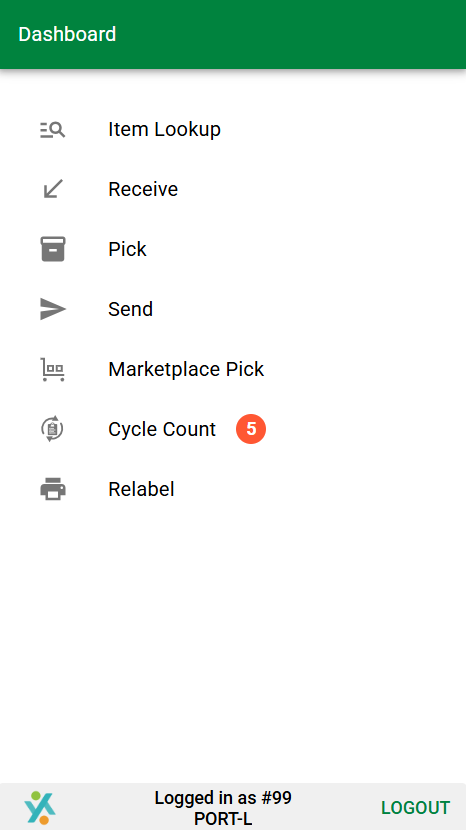
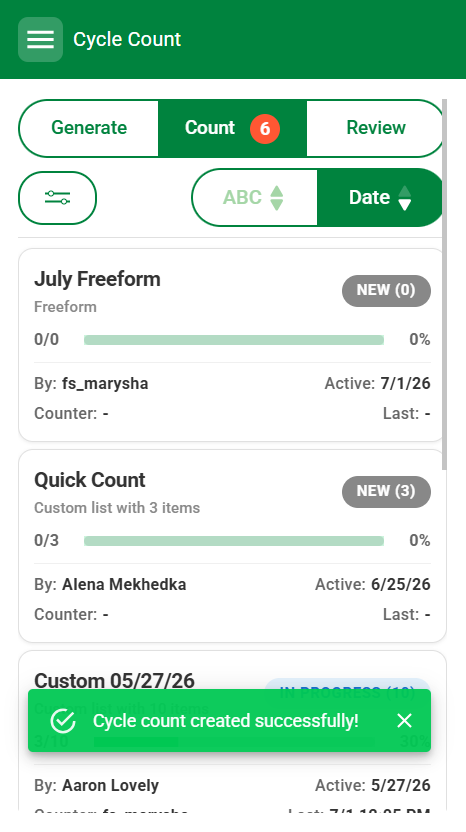
FSM has three tabs: Generate, Count, and Review. The Count tab shows a badge with the number of open counts.
Create a count
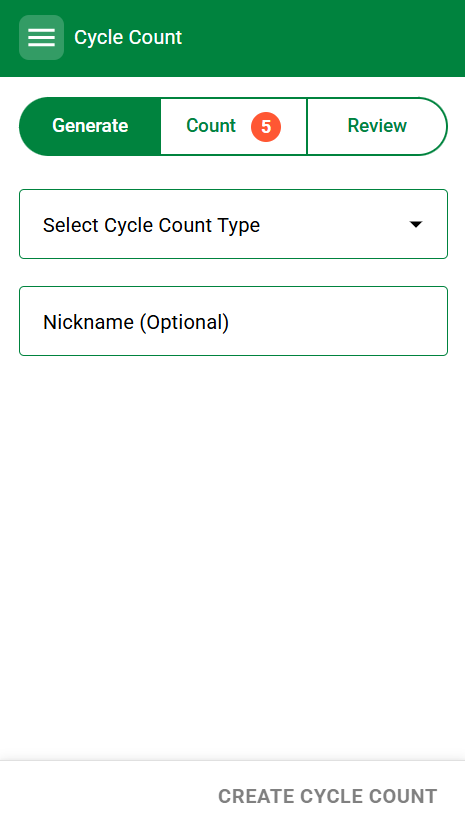
On the Generate tab: open Select Cycle Count Type and choose Top Products (then Top 50 / Top 100), Below Zero, or Freeform; optionally enter a Nickname; tap CREATE CYCLE COUNT. (Custom counts are created on the desktop, not on FSM.)
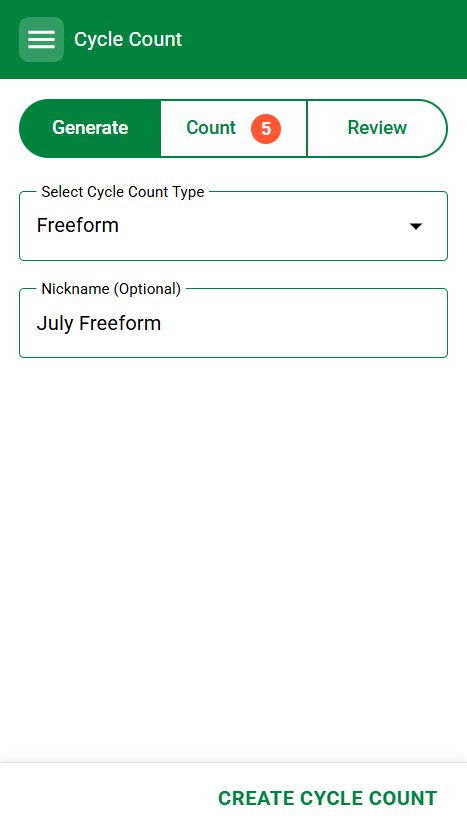
Once cycle count is created, the screen will move to the Count tab
Count and scan
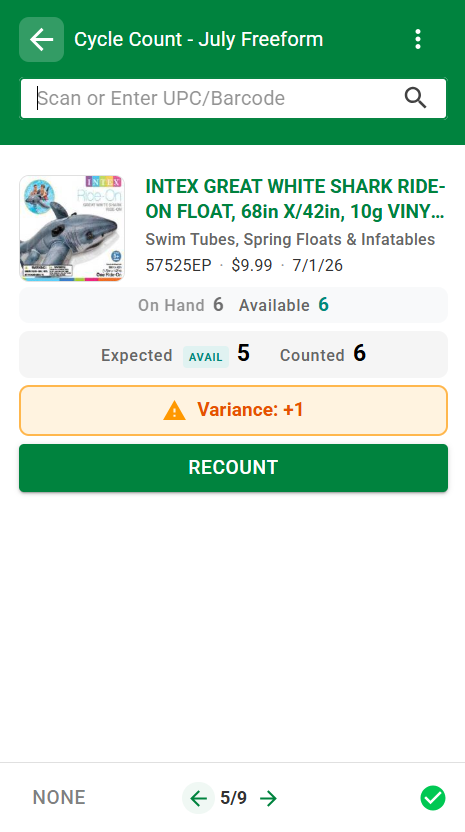
Cycle counts created on the desktop app, or in FAM will show here. Open a count from the Count tab. Each item shows its image, name, category, and the On Hand and Available quantities.
- Scan a barcode at the top to jump to that item.
- In a Freeform count, scanning an item not on the list adds it. In the other types, an off-list scan shows "Item not found in this cycle count!"
- Enter the count with + / − or by typing. Tap NONE in the bottom left for zero.
- Use the arrows at the bottom of the screen to move through items.
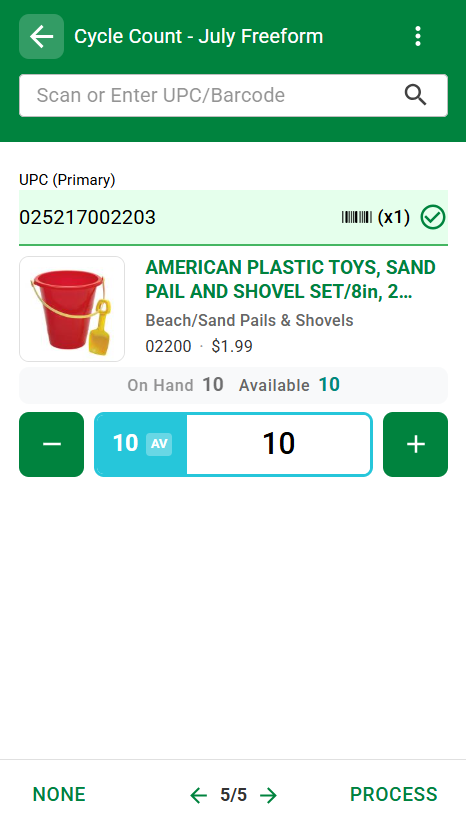
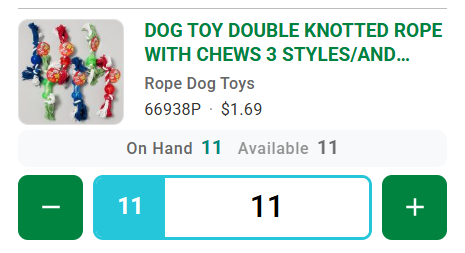
Note: The setting Inventory Adjustment Updates On Hand Available is currently True for these examples, indicated by the "AV" next to the quantity. If this setting is False, The screen looks like this:
Process, recount, complete
- Tap PROCESS to record the current item. On hand is adjusted (per settings), quantities refresh, and the app advances to the next uncounted item.
- For a processed item, Expected and Counted show side by side with a variance indicator. Tap Recount, enter a new number, then PROCESS again.
- From the menu, choose Complete Cycle Count. Uncounted items are skipped; you'll see "Cycle count complete!"
Review
The Review tab lists completed counts with status, progress (counted / total), who created and last counted them, dates, and a variance count. Tap a card for detailed results, or Reopen (with permission) to redo it.
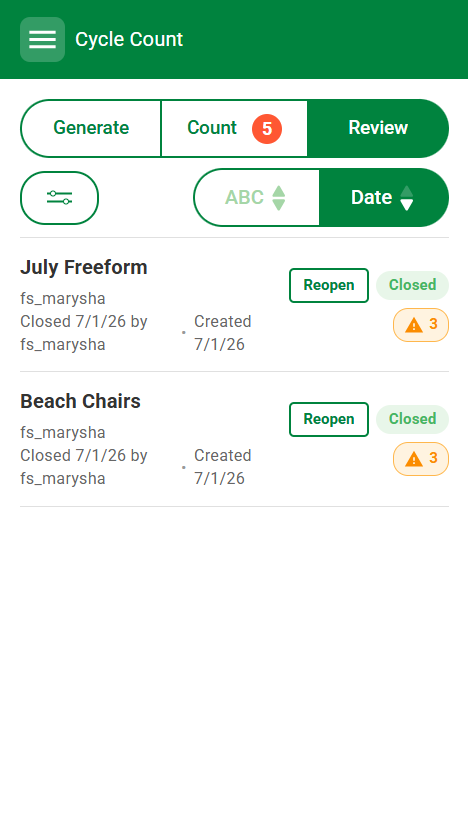
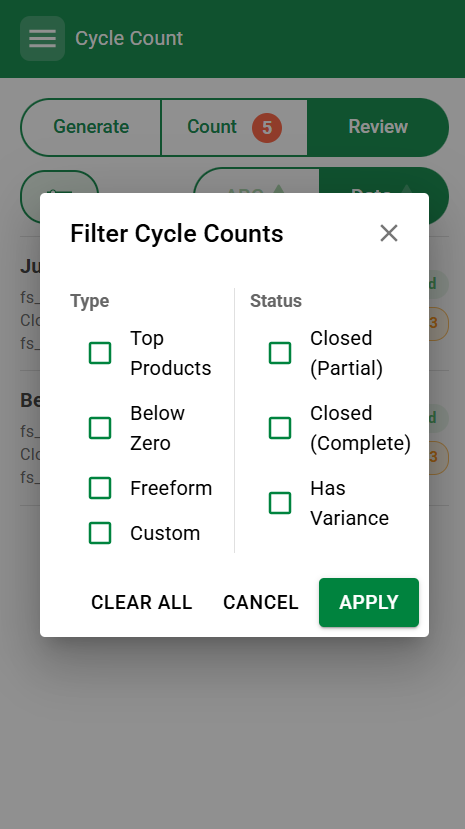
You can filter the cycle counts that show in this screen:
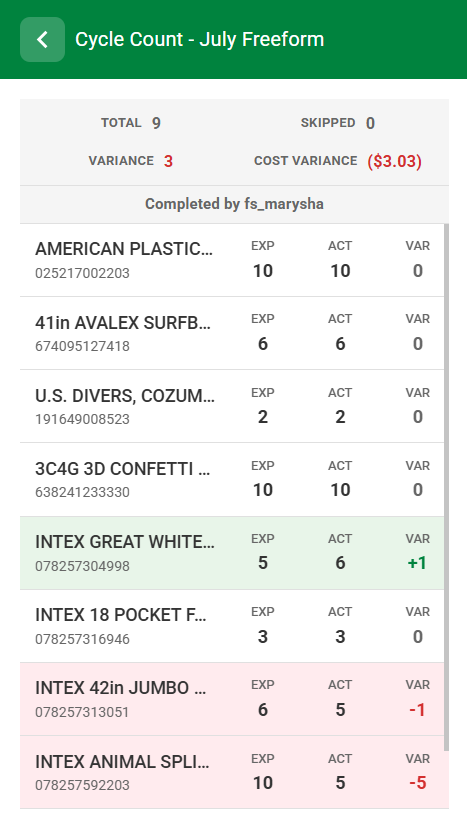
Clicking into a count brings up a screen with the detailed results. Clicking an item row will bring you to the Item's Details for that cycle count.
How Counts Affect Inventory
- Variance - Actual minus Expected. Expected is the live on-hand figure until you process the item, then a frozen snapshot.
- On-hand adjustment - if your company adjusts on hand from counts, processing creates an inventory adjustment so on hand matches your count; otherwise the count is recorded for review.
- Cost variance - when enabled, variance is also valued at average cost to show the dollar impact.
- Recounts - you can re-enter a count for an item, or reopen a whole count to start over.
FAQ
- What's the difference between Custom and Freeform?
- A Custom count (created on the desktop) is a fixed list of items you pick up front. A Freeform count (created on FSM) is built by scanning as you count - scanning a new item adds it. Custom counts can't be added to by scanning.
- A store isn't in the list when I create a count.
- Cycle counts only run at active, real store locations. Inactive, non-store, staging, and Warehouse-with-Bins locations are excluded.
- I don't see the Cycle Count button.
- The company setting Enable Cycle Count feature in FS Application? may be off, or your permission level doesn't include cycle counts.
- I counted items but on hand didn't change.
- Make sure the count was processed - click Process in FSM or Process Counts on the desktop. Entering a number in the Actual Count column doesn't adjust inventory until you process it.
- Your company may record counts without auto-adjusting on hand; variances are kept for review instead.
- I closed a count by mistake.
- View it under the Closed filter and reopen it (with permission) - reopening resets all entered counts.
- Is there a one-page guide for Cycle Counts?
- Coming Soon!
Was this article helpful?
That’s Great!
Thank you for your feedback
Sorry! We couldn't be helpful
Thank you for your feedback
Feedback sent
We appreciate your effort and will try to fix the article