Weight-Based Item Rendering
Action Required:
Company setting: Show Bulk Item Quantity in Weight (Lbs)
Default = False
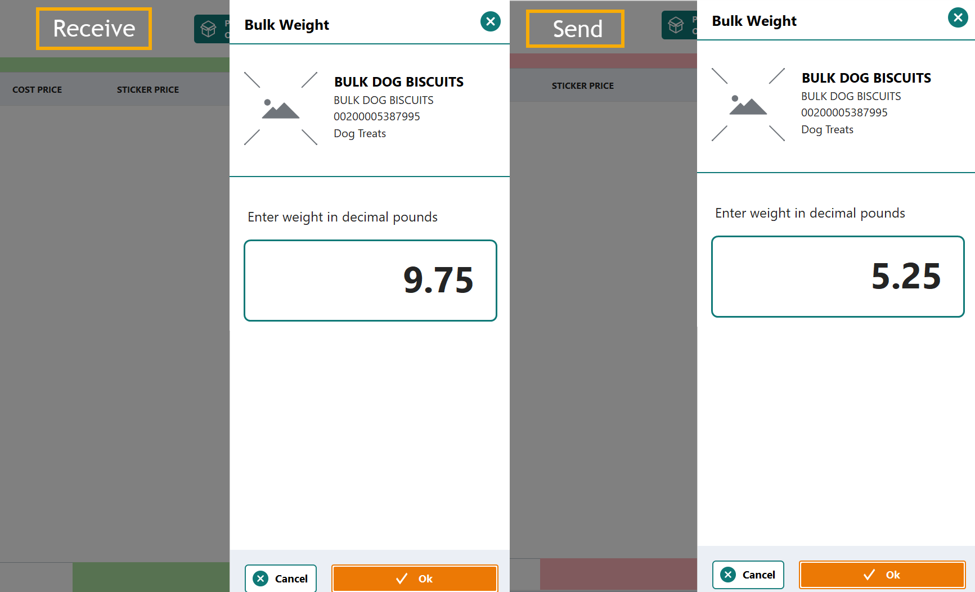
For those who sell bulk weight-based items, a company setting allows most current store associate views to display in pounds in two decimal places. Like the current selling screen where an associate would enter 1.50 to denote one and a half pounds, this will carry over in the following places:
- Receive on POS
- Receive on FieldStack Mobile
- Send on POS
- Send on FieldStack Mobile
- *Item lookup on POS will follow in the next release
Important notes about weight based item data:
- On back-office views, a pound on-hand will still be denoted by 100 units; a pound sold will be denoted by 100 units.
- With the setting enabled, the price per pound will visualize from "Override Shelf Price"
- List price must be 1/100th of override shelf price for alignment of price per pound and price to customer
- List price must be edited in bulk loader to handle 4 decimal places (existing need)
- If you think your list prices and override shelf prices are unaligned, FS CS can help pull a report of those items.
Receive/Stage all from 856 ASN
For vendors that take EDI orders, and send back 856 Advanced Ship Notifications, a back-end setting can be enabled which will monitor incoming 856 data, and update those Vendor orders when the data comes in. This will specifically alter the items and quantities on the order.
This will allow stores to Stage All from those EDI vendors (on Receive Mode) and only see a list of items that the vendor reported to have been shipped.
Current Orders > Expected
Action Required:
Location Setting: Allow transfers to show Expected item list in Receive Mode
Default = False
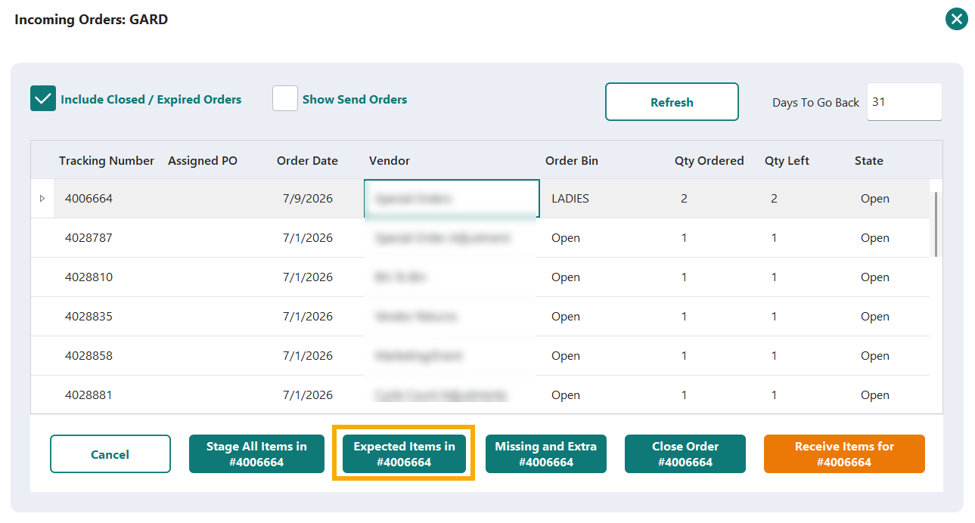
To preview the stock coming on a transfer order from the warehouse, the Expected button can be enabled. This will show items that were sent from the warehouse without having to use Stage All and having them populate the transaction screen. The Expected button will pull in the same item list as Stage All and can also be used to preview the items Expected via 856 EDI data (Above.)
Pre-Owned Grading
If you would like to skip pre-owned grading, a back-end setting call Require Item Condition Grade During Buyback can be changed to False. The result is that the ABCD grading selector pop-up will go away. Items will default to the A-level buyback price.
If you would like this setting changed, please contact FieldStack Client Success.
Improvements
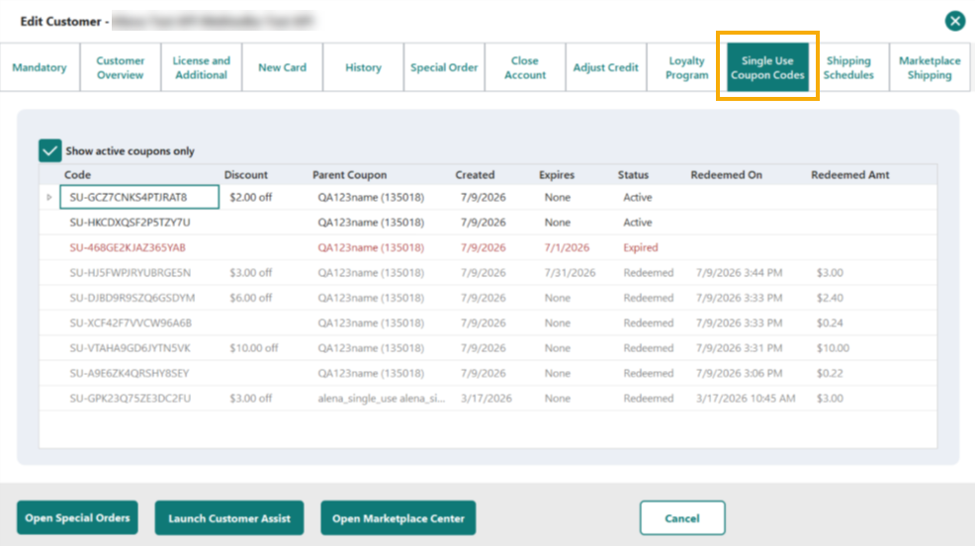
Single Use Coupons - One time Use Coupon Code in Customer Edit – A new tab will show all Single Use coupons (by name, not code) that a customer has active codes applicable to their account.
On customer edit. Displays the coupon code, Parent Coupon Name, and the status of the coupon:
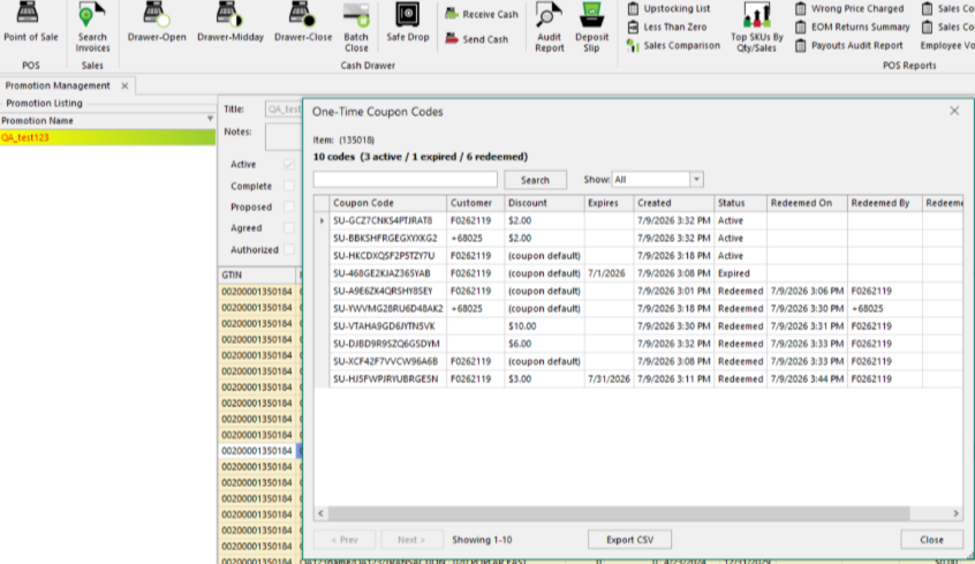
From the coupon/promotion. Displays all pertinent data:
Single Use Coupons – Export to CSV from Generate One-Time Coupon Codes screen. Previously this was only available after generating a list bound to specific customers.
New Marketplace Mode – Customer name was not visible on screen when doing a Marketplace label reprint. This has been rectified.
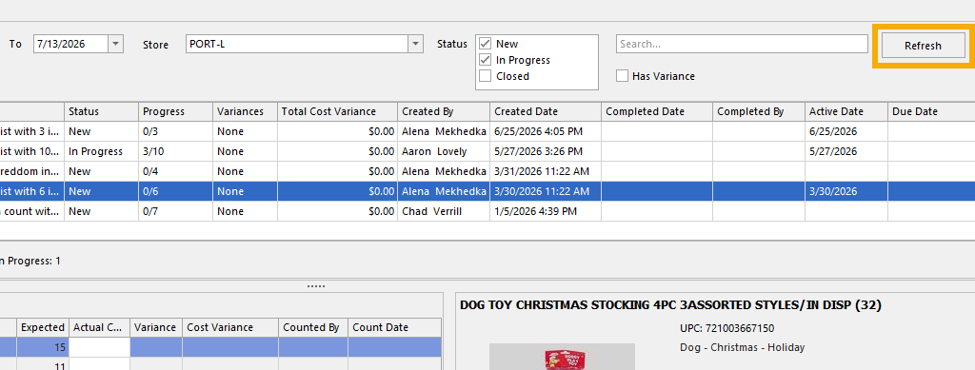
Cycle Count Interface – A Refresh button has been added to the Desktop Interface.
Cycle Count Below Zero – When selecting or creating a Below Zero cycle count, non-physical items such as Coupons and Services have been coded to be excluded. Depending on your item data, this may not exclude all items that would fall into this category.
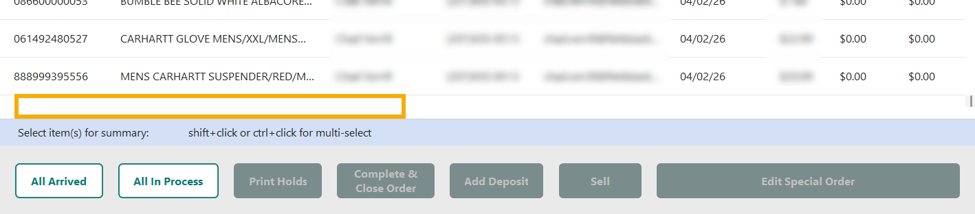
Find Special Order list - Depending on screen resolution and special order display settings, the last item in the list was sometimes hard to read, scroll to, or select. Spacing has been improved to render this line fully.
Bug Fixes
New Marketplace Mode - After scanning out a gift card in New Marketplace Mode, the batch would sometimes complete and the remaining items would be reallocated to a future batch.
Cycle Count - Vendor orders were getting updated with person who received an item as if they had cycle counted that item. This code has been completely pulled out. The solution will be handled in another way.
Cycle Count – The printed barcodes on a printed Cycle Count list were not always scannable on the POS.
Was this article helpful?
That’s Great!
Thank you for your feedback
Sorry! We couldn't be helpful
Thank you for your feedback
Feedback sent
We appreciate your effort and will try to fix the article