A section is a rule-based grouping of items used to populate web store pages. Sections filter items by their attribute values. For example, a section could include all items with the attribute "Pet Type: Dog" and "Flavor: Chicken." You must create a section before building a category page that uses it.
For more on how sections fit into the web store setup process, see: Web Store Setup & Management
Where to Find It
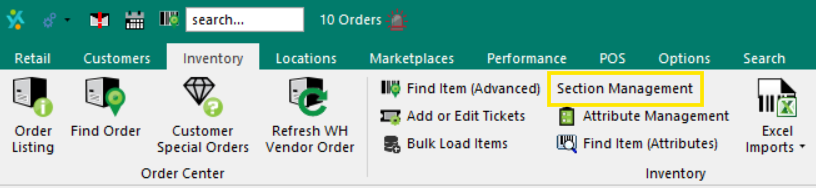
Go to the Inventory Tab > Section Management.
Creating a Section
- Click Add Section in the bottom left of the Section Management window
- Enter a name for the section
- The new section appears in the left column
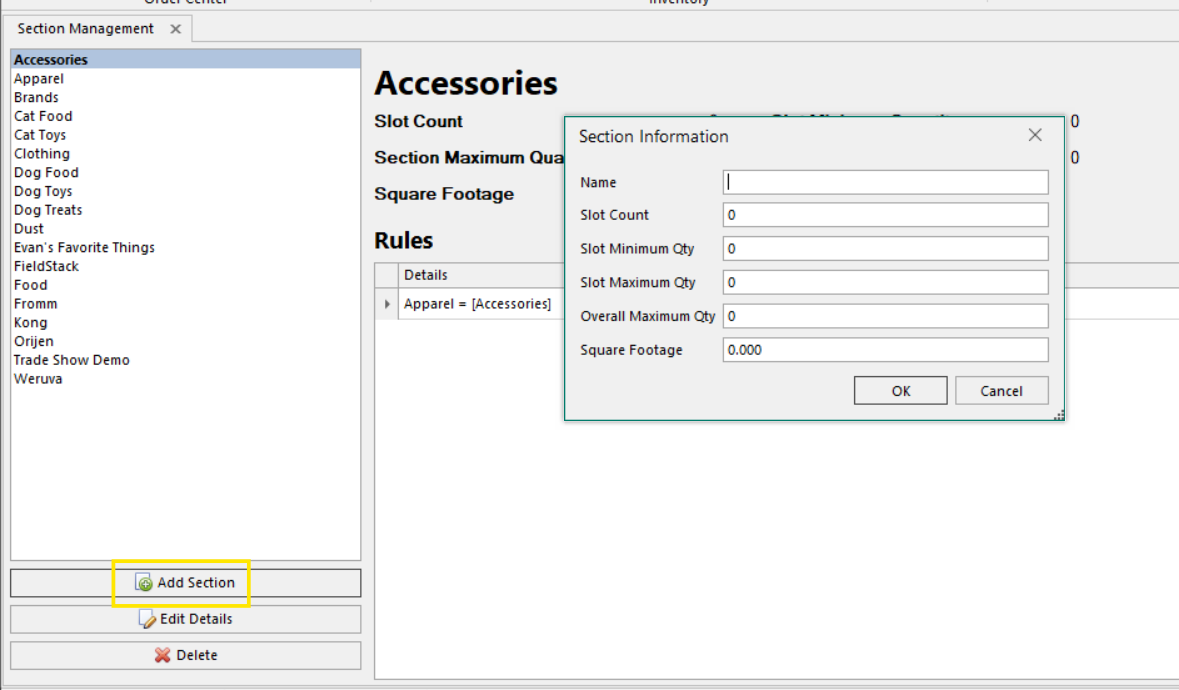
Enter a Name for the section. The remaining fields (Slot Count, Slot Quantity Min/Max, Overall Quantity Max, Square Footage) are used for in-store assortment planning and are not required for web store setup.
Adding Rules to a Section
Rules define which items belong in the section based on their attributes.
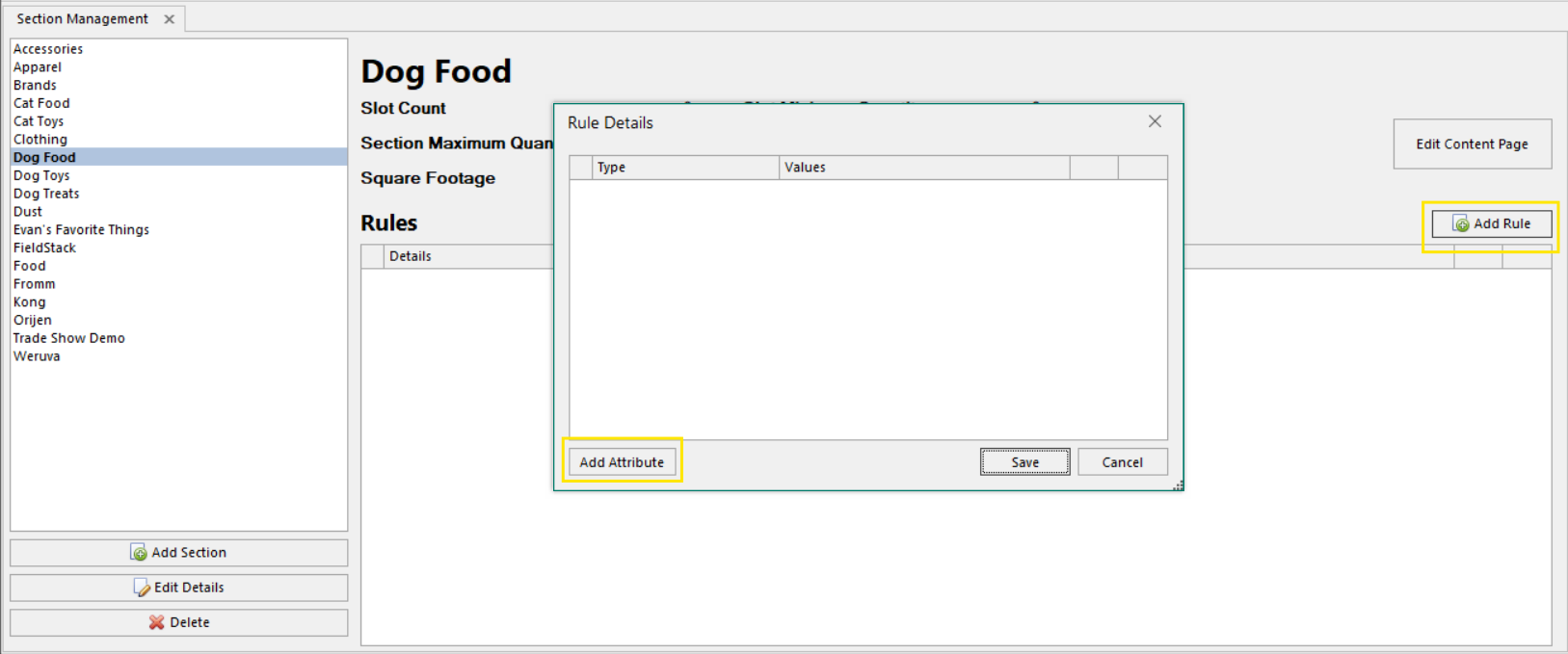
1. Select your section from the left column
2. Click Add Rule on the right side of the section panel
3. In the Rule Details window, click Add Attribute in the bottom left
4. Select an Attribute Type (e.g., Flavor, Size, Color) and choose the values you want to include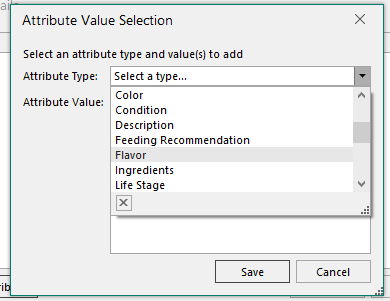
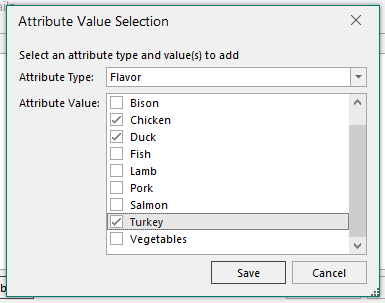
5. Click Save
6. To narrow the section further, click Add Attribute again and add another attribute type. Items must match all attribute types to appear in the section
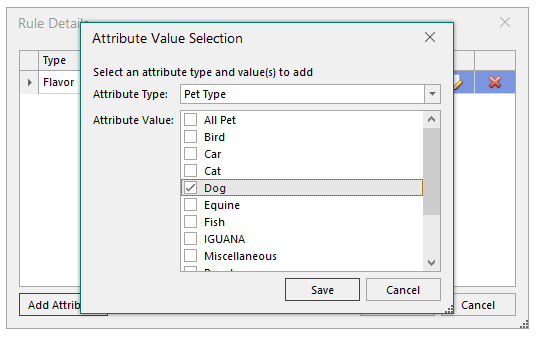
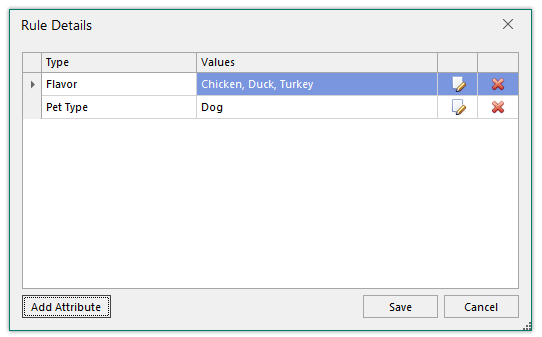
7. Click Save to apply the rule

Attaching a Section to a Page
Once your section is created, go to the Marketplaces Tab > Edit Web Store Content and follow the steps for creating a Category Page or Content Page to attach your section.
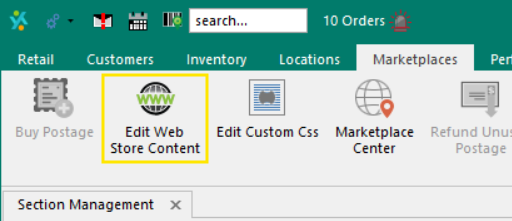
After publishing, verify the expected products appear on the page. If items are missing, check that they have the correct attribute types and values assigned in the Inventory Tab.
Was this article helpful?
That’s Great!
Thank you for your feedback
Sorry! We couldn't be helpful
Thank you for your feedback
Feedback sent
We appreciate your effort and will try to fix the article