There will be times when a customer may need to adjust a scheduled shipment in their Auto Ship subscription and may be unable to make the necessary changes themselves. You can help the customer manage this information with FieldStack. FieldStack has a Shipping Schedules tab inside the Customer Edit screen that can be accessed in two different ways.
If you know the customer's name, you can find their AutoShip schedule using the Find Customer button on the POS screen, or Find Customer under the Customers tab.
If you do not know the customer's name, you can go to the Marketplaces tab and open Marketplace Center to find the order. In the Order/Item Details tab at the bottom of the screen, click Customer Overview to open the Customer Edit window.
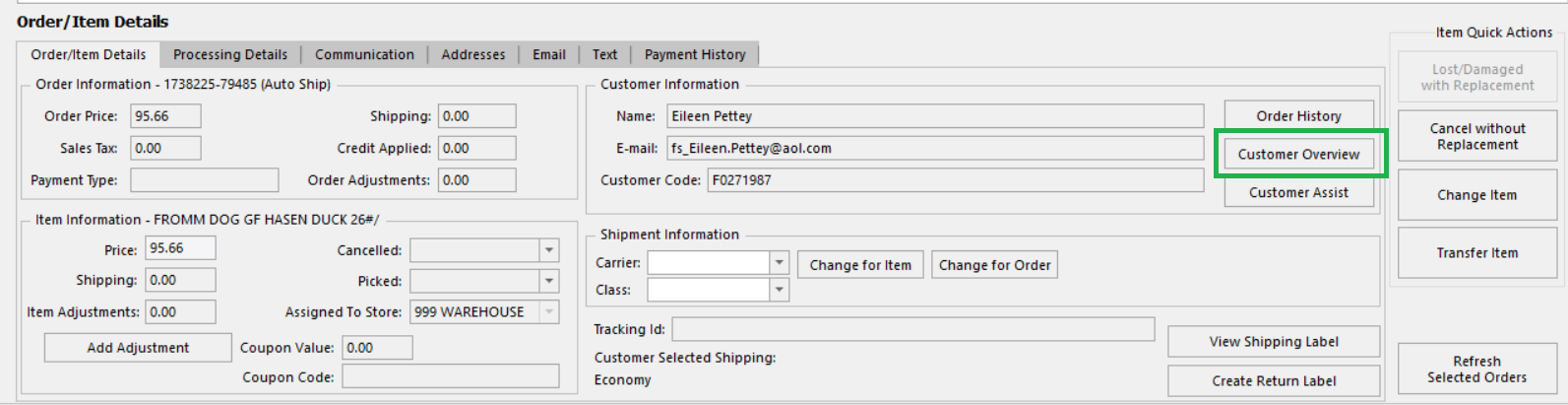
Once you have opened the Customer Edit window, navigate to the Shipping Schedules tab.

From this tab under Customer Edit, you can:
- De-Activate any active AutoShip schedules
- Activate any inactive AutoShip schedules
- Reschedule any AutoShip schedule. If you press this button, it will cause the AutoShip schedule to start again today.
You can also see the results of the AutoShip schedule in this window, if you need to troubleshoot an AutoShip order and are looking for that data.
Was this article helpful?
That’s Great!
Thank you for your feedback
Sorry! We couldn't be helpful
Thank you for your feedback
Feedback sent
We appreciate your effort and will try to fix the article