FS APP 12.2026.115
Previous version: 12.2025.1201
SYNOPSIS OF CHANGES
Features controlled by settings:
- Penny rounding location setting
- Cycle Count Feature (FS app and FSM)
- Show UPC on item lines and receipt setting
- Special Order & Hold control enhancements
General Changes:
- POS Search Results Improvements
- Quick Access Menu Improvements
- Store Group Descriptions
- Customer Notes Updates
- Invoice Management column additions
- SMS Opt-In
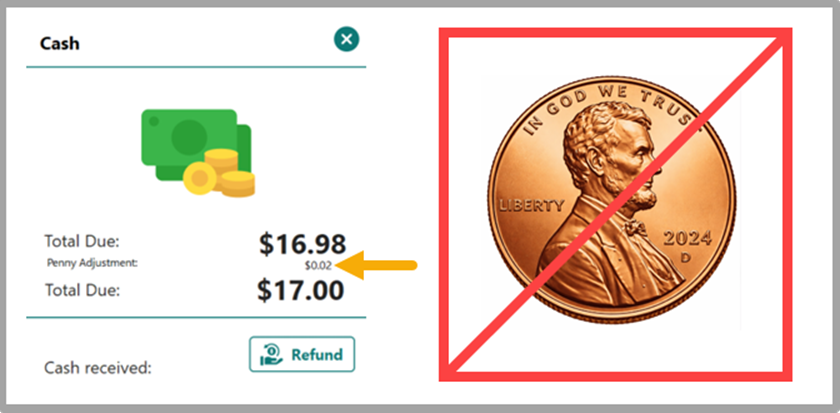
PENNY ROUNDING FOR CASH SALES
Action Required
Location Setting: Penny Cash transactions rounding (to Nickels)
Default: Do Not Round
The physical penny is being phased out. A setting has been introduced that allows a Location to have all registers handle cash sales in one of the following ways:
- Do Not Round
- Round Down to the nearest Nickel value
- Round Up to the nearest Nickel Value
- Round to the nearest Nickel value (up or down)
While Federal and State guidance on handling this has been minimal and inconsistent, it is up to each client to select the setting that works for each store and aligns with your service model.
This records as a specific item called Penny Adjustment that is added to the transaction after Cash button is tapped.
For cash payouts, the rounding will work in the opposite way (example, if you round down to the customer’s benefit during a sale, you will round up to the customer’s benefit when giving cash payouts.)
CYCLE COUNT FEATURE
CYCLE COUNT MANAGEMENT
Action Required
Company Setting: Enable Cycle Count feature in FS Application?
FS Mobile: Location Setting: Show Cycle Count on FSM?
Location Setting: Cycle Count Management Read-Only Mode
Default of all settings = False
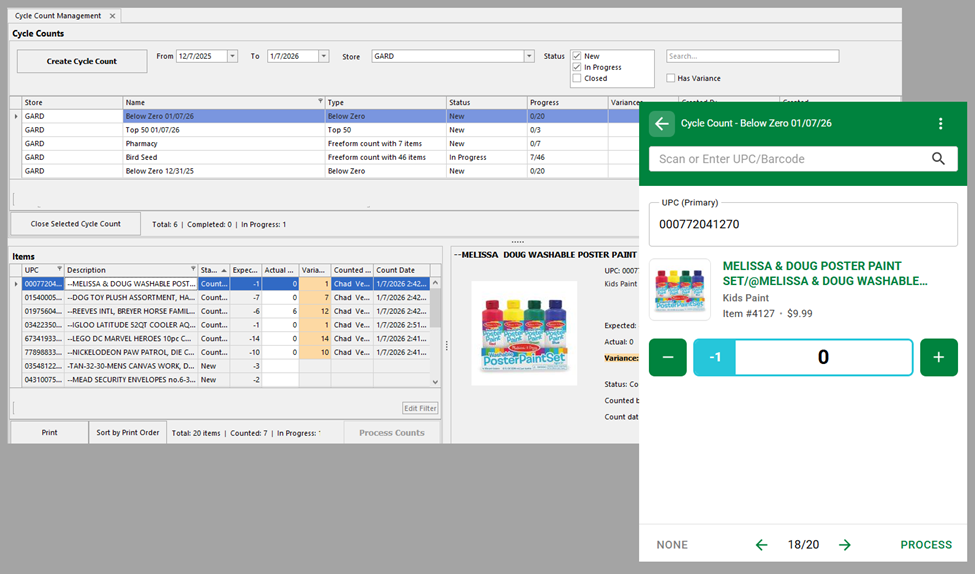
- The Cycle Count Interface is paired with Cycle count mode on Fieldstack Mobile.
- Cycle Counts can also be printed like pick lists and quantities entered within the Interface (if FS Mobile is not used)
- interface allows items lists to be generated and shared with all stores, single stores or select stores.
- Default selections such as Top 50 items or Less Than Zero can be generated for single stores.
- Keyword-based or UPC-based lists can be created and shared with all stores or select stores.
- After processing a count on FieldStack Mobile, the actual count per SKU and any variances will be displayed in the interface.
- A setting allows this interface to be read-only, or work administered from a central location on behalf of all stores.
- More default lists and more features will be added in the future.
If you would like custom queries within the Generate Cycle Count drop-down or would like to investigate time-based Cycle Counts that automatically push to locations based on specified criteria, please contact your account manager.
A separate detailed page explaining this feature in depth will be added.
POS SEARCH RESULTS
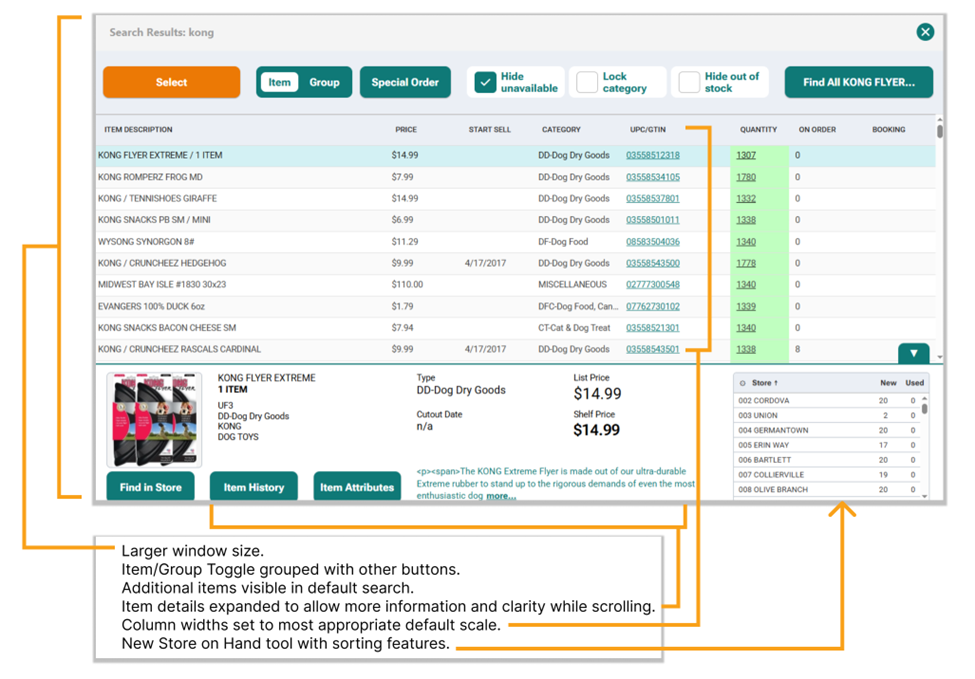
The search results screen has been altered to accommodate more items and render item information with minimal truncation or info loss.
A Company Setting has also been introduced to specifically configure the results based on item types. The primary area of current focus currently is for Department Stores. The Description field has been widened; Start Sell date column is hidden. More changes to these columns will follow in the future and can be configured behind this setting.
General improvements will be in all systems.
Specifications by vertical currently alter Department Store only.
Company Setting: Company Vertical
Standard layout shown:
OTHER IMPROVEMENTS
QUICK ACCESS MANAGEMENT COLOR HIGHLIGHTING
What Changed:
- Utilized Red Text for an expired item or category.
- Removed Peach background from active categories.
- Removed light red background from expired categories.
- Added yellow highlighting when the child and its parent category have inconsistent dating.
QUICK ACCESS MENU IMPROVEMENTS
- Items with long names will now inform the font size to improve rendering.
- Images were often not shown in Preview mode. This has been rectified.
- Price Codes (such as employee discount) are honored properly to reflect the standard transaction screen.
- Performance has been Optimized to improve timing and rendering
CROSSDOCK / REPLENISHMENT GIRD
Allocate Forecast Button added to Crossdock Grid and Replenishment Grid. When tapped, all items will be reviewed against their current Forecast and on hand quantities and applied to the Crossdock grid in case quantities (inboxitemquantity) or eaches (if no case quantity is on file) until all units have been assigned, in store sort order.
Tabbing has been made consistent between both forms.
Bug fix: Items with stop sell date were not displaying in new Crossdock.
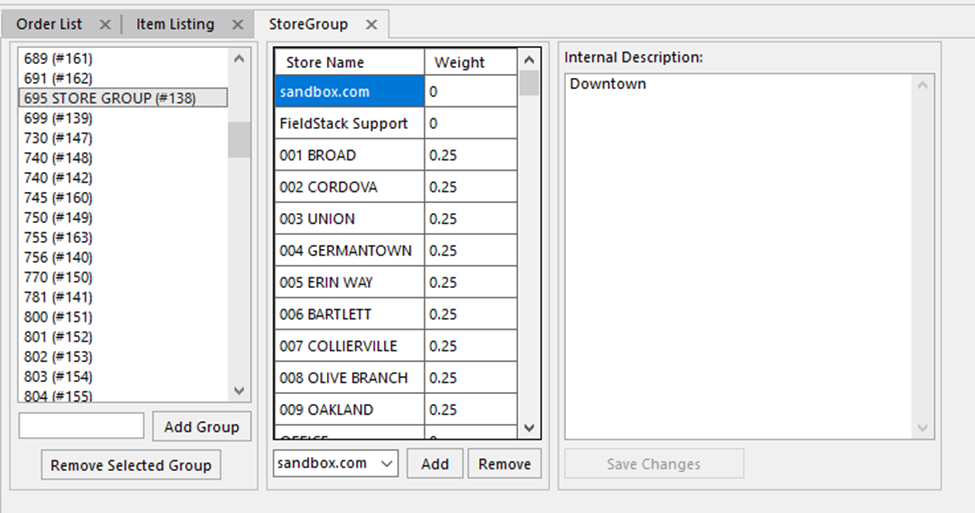
STORE GROUP DESCRIPTION
Internal Store Group description field added. This is for internal reference. This field accepts up to 500 characters.
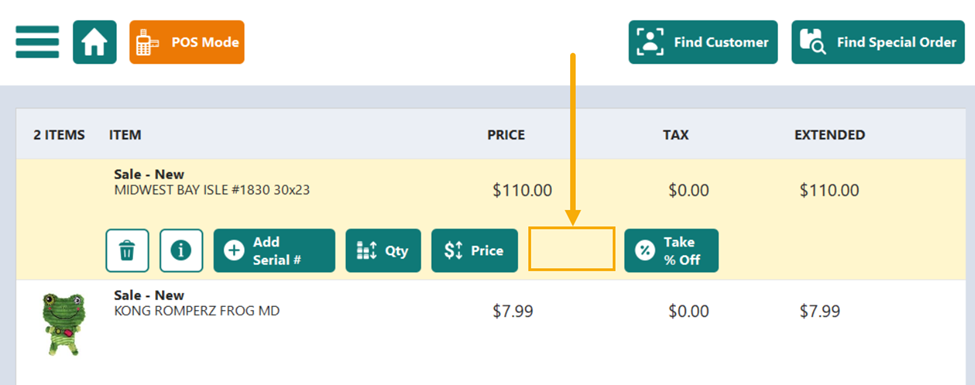
HIDE HOLD ON ITEMS IN TRANSACTION LIST
A new company setting has been introduced to allow the Hold button to be hidden on single item lines in the transaction screen and from the Special Order form. This functions separately from Hold All and allows Hold All to be maintained.
Action Required
Setting: Disable Hold on transaction and special order form.
Default = False
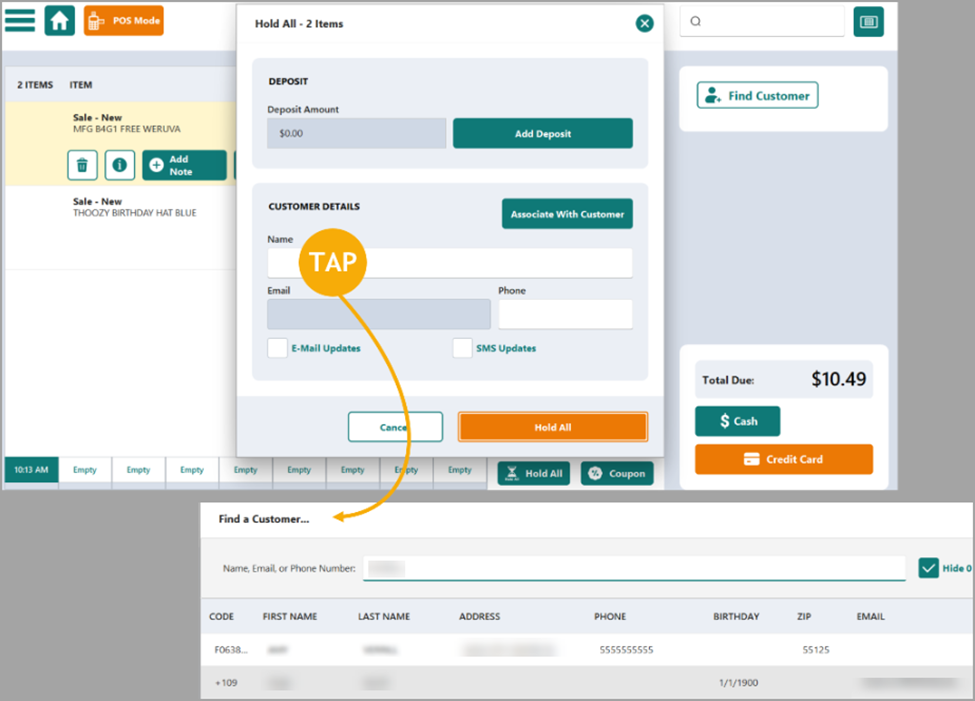
ENFORCE “ASSOCIATE WITH CUSTOMER” ON HOLD ALL
Action Required
Company Setting: Require Associate with Customer on Hold All form
Default = False
A Company Setting has been added that will enforce the use of Associate with Customer when Hold All is tapped.
If enabled, and the Name field is tapped, the customer search will launch and force a user to search or create a customer account.
In the next version, the setting will also affect the Special Order entry form.
SHOW UPC IN TRANSACTION AND ON RECEIPTS
A new company setting has been introduced to show the item primary UPC on the transaction screen and on customer receipts.
Action Required
Company Setting: Expose UPC in POS and Customer Receipt
Default = False
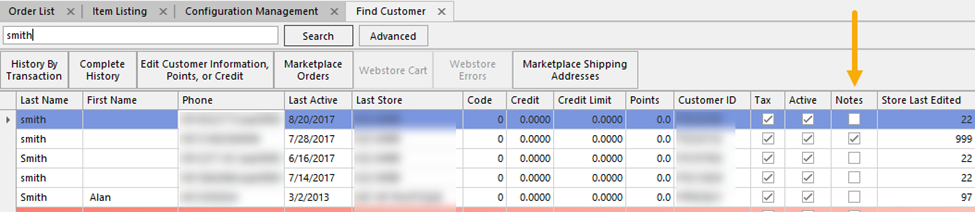
CUSTOMER NOTES COLUMN
Find Customer in Desktop application now shows a Notes column with a checkmark denoting if a customer has notes saved on their account.
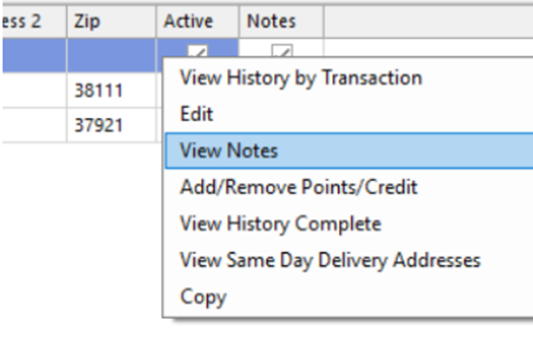
Right-click to open a context menu and “View Notes.”
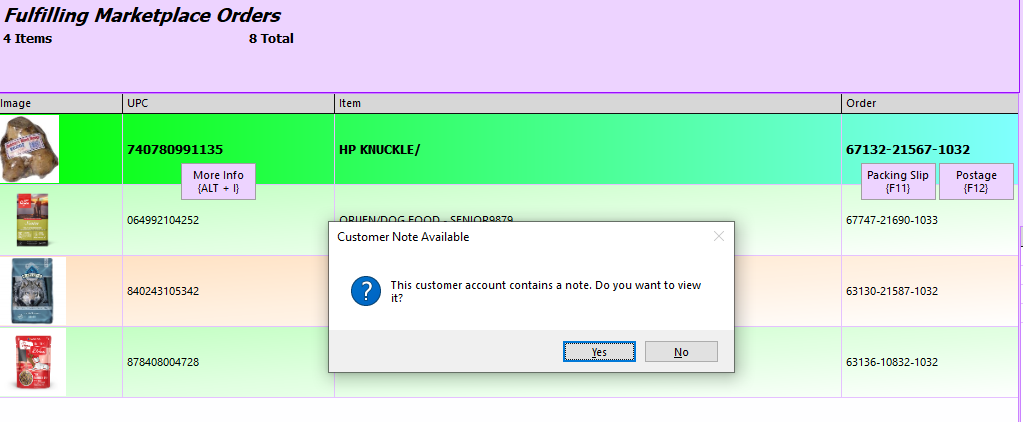
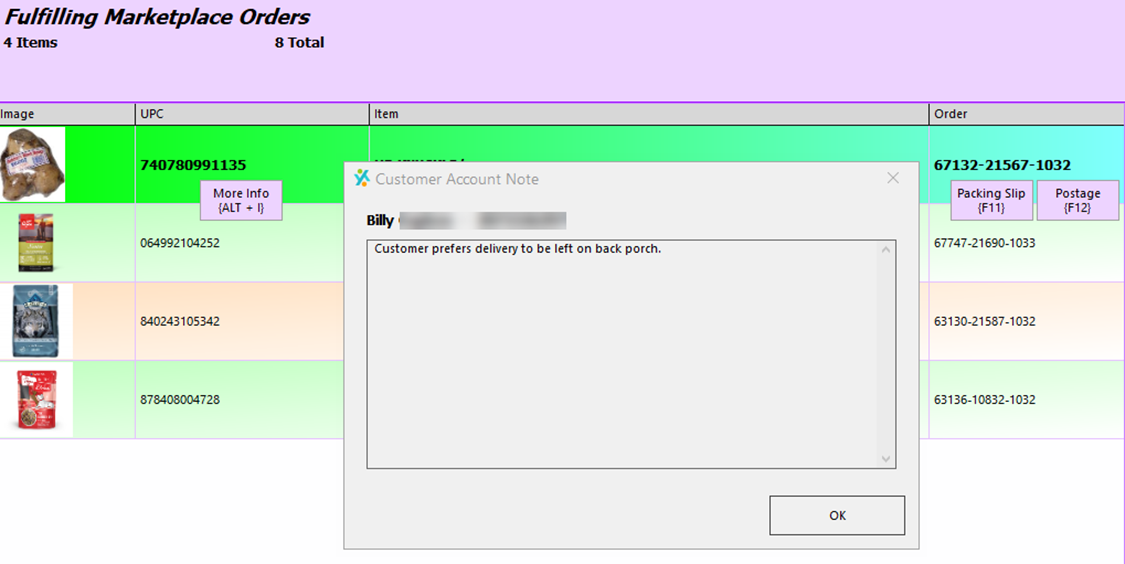
CUSTOMER NOTES IN MARKETPLACE PICK
Action Required
Company Setting: Alert before shipping select if customer account has note
Default = False
When enabled, an alert will show up on Marketplace Mode when all items for a cusotmer have been scanned. This comes from the customer notes within customer account and is separate from shipping notes a customer would add to their own information. This information is internal and is not presented anywhere to the customer nor printed on the shipping label. The goal is that the the packer or delivery person will take note of this for their own reference.
CUSTOMERS: SMS OPT-IN
Action Required
Company Webstore Setting: SMS Marketing Enabled
Default = False (contact FieldStack to enable this)
When the SMS Opt-In is enabled, customers will see an SMS check box upon account set up and on their account page. Clerks also have access to this check box on the customer edit form. Customer data can include this true/false information and allow customer data specifically for texting to be exported to CRM platforms.
FIND SPECIAL ORDER
Pop out screen has been maximized and columns optimized to improve visual search results.
INVOICE MANAGEMENT
Quantity total Sum and Cost Per Invoice Sum added as columns in Invoice Management.
SELF CHECKOUT
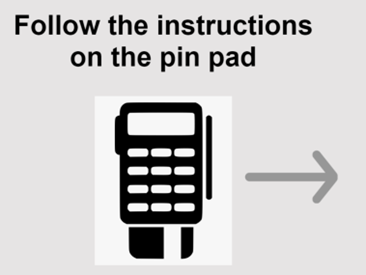
Arrow removed from Self Checkout Pin Pad alert as it does not always accurately point toward the Credit Card Reader.
BUG FIXES
- Tip Entry Modal – Fixed price entry field to mirror other entry fields in the POS.
- Some devices would randomly switch the Find Customer and Find Special Order buttons on the POS. These have been locked to their default locations.
- End Sale or other pop-up modals could be locked to the screen after Auto Logout on the POS. This was a temporary issue and has been fixed.
- Item Merge requires the user to actively click Merge button to move forward. Previously an item scan when the merge alert was up could push the merge through. This is a safeguard to stop unintended merges.
- POS Freezing after Finish Sale – This intermittent issue has been rectified.
- Cursor disappearing after pop out window close – This issue has been rectified.
- Crossdock – Items with Stop Sell Date were not visible in new Crossdock form.
Was this article helpful?
That’s Great!
Thank you for your feedback
Sorry! We couldn't be helpful
Thank you for your feedback
Feedback sent
We appreciate your effort and will try to fix the article