New Features
Add or Remove items from active Purchase Order
What it’s for:
- You were delivered an item you didn’t order but intend to keep it and pay for it so you’d like it to show on the original order
- You verbally/electronically asked your vendor to add an item after you had already activated the order
- You want to remove an item you were told is no longer carried or was replaced with a newer item listing
If location setting “Is the Cost Price on orders editable?” is set to true, users in a location will be able to Remove or Add items from an Active, Unclosed purchase order.
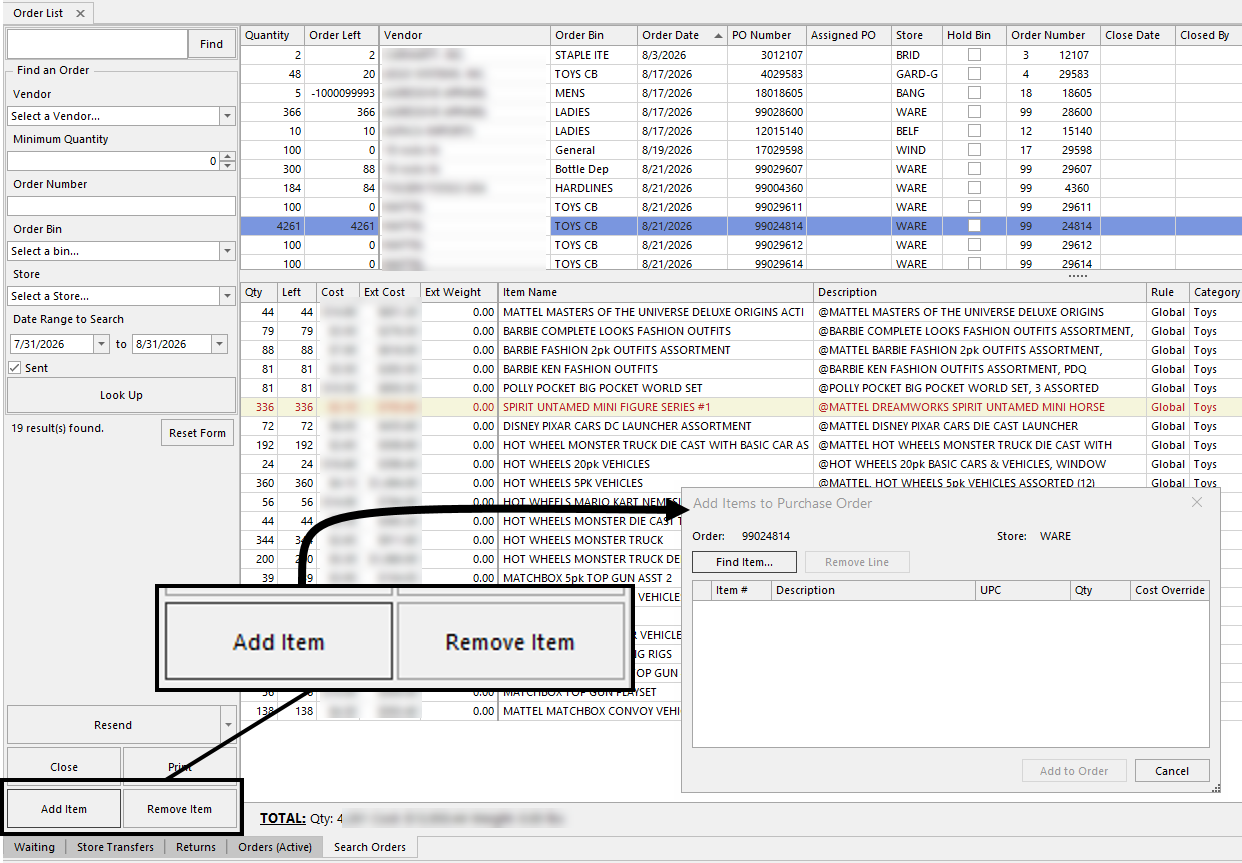
On the latest version, with the setting enabled, two new buttons will appear in the lower left. For orders have that have a close date, the buttons will be locked and unusable.
Note: This is not available on store-to-store transfers or warehouse-to-store transfers
To include a new item, click the Add Item button.
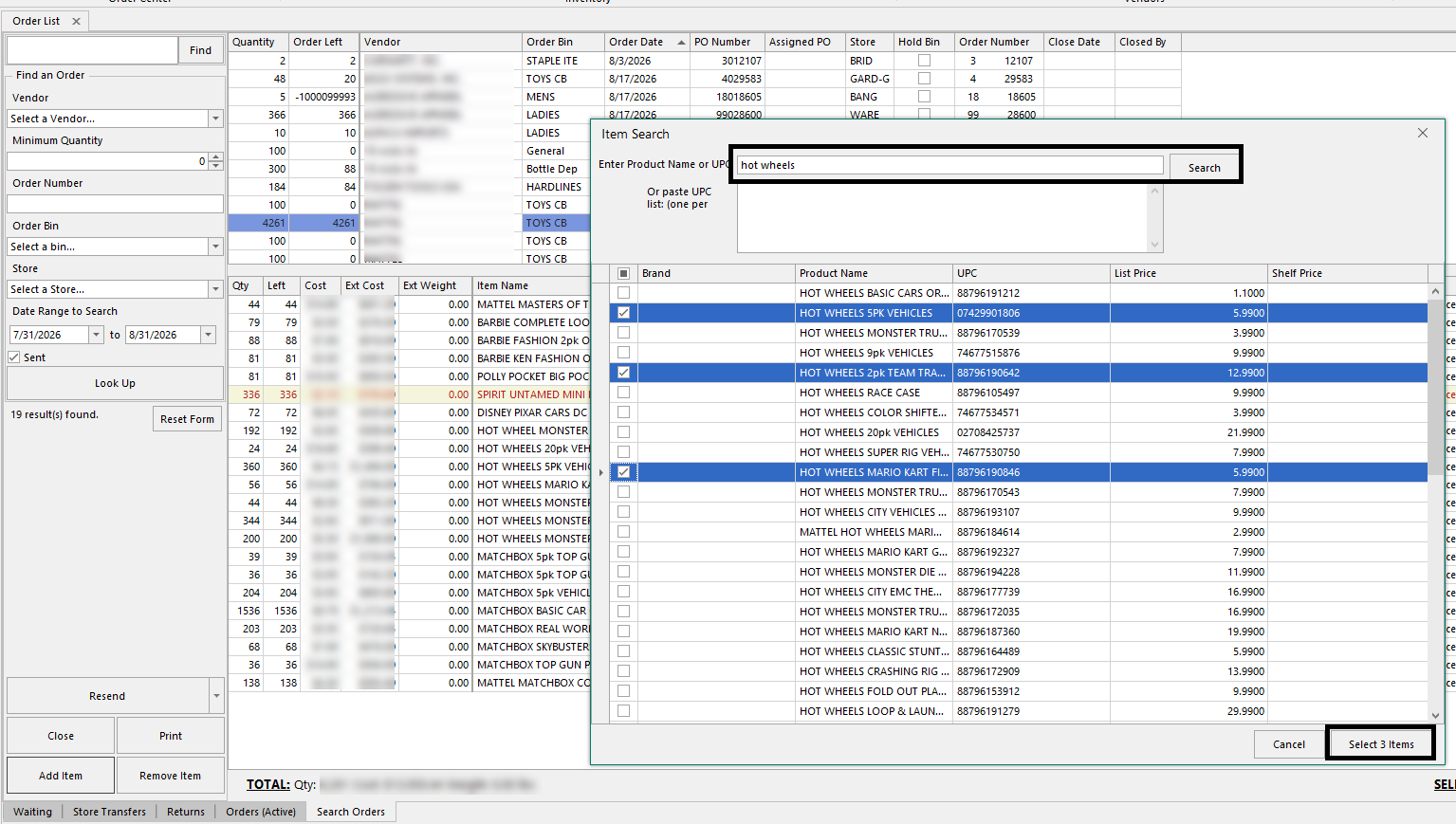
Click the Find Item button to search items by keyword, UPC, or paste a UPC list. Check off the items you want to add to the original Purchase Order and click Select ## Items.
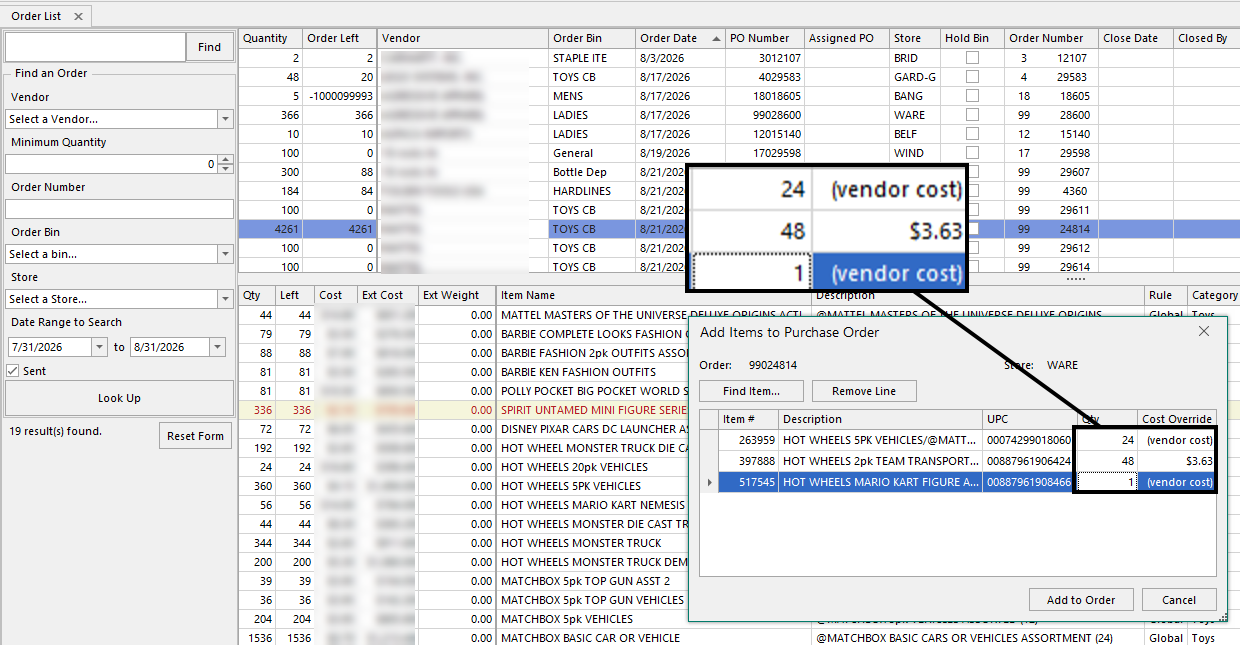
The resulting list allows you to update the item quantity and include a specific override cost, if the vendor cost or default item cost are not relevant to the this order or to your process.
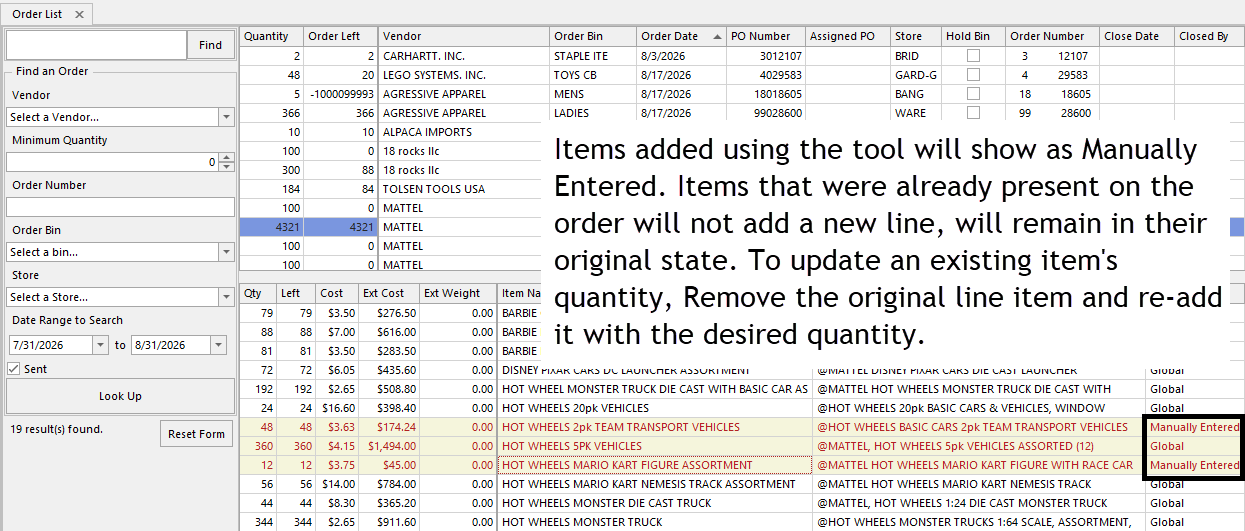
The Purchase Order will refresh and the items will be added. If an item was already included on the Purchase Order, it will not be added. To update the original order quantity, remove the original line item and re-add it with the desired quantity.
To remove one or more items, select/multi-select the items you would like to remove and click Remove Item. If an item has been received in full or in part, has an open crossdock associated with it, is allocated to a special order, or staged in a receiving batch, it cannot be removed and you will be alerted.
Other Improvements
Marketplace Mode: Two-page packing slips for full-sheet printing
Action Required
Location Setting: Print Shipping Label on a Separate Sheet
Default: Off
When printing online order packing slips using the full sheet method, and with this setting enabled, marketplace fulfillment will split the shipping label and packing slip onto two separate sheets of paper, allowing the delivery information or pickup information to be attached to the outer package, and the packing slip to be contained with the items.
Quick Access Menu
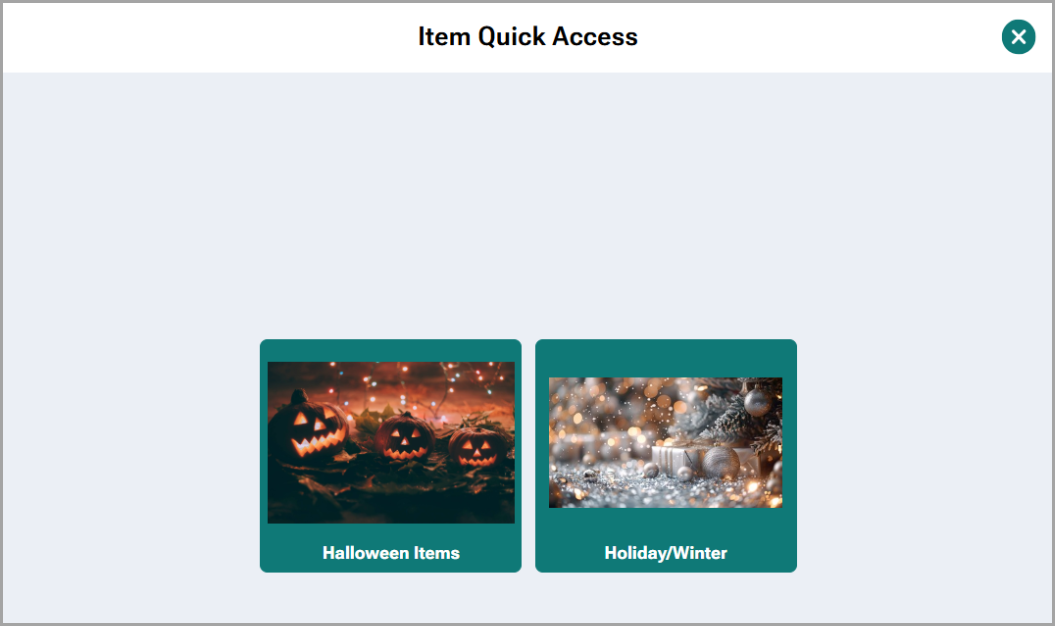
Redesigned Quick Access Menu: bigger, cleaner tiles that fill the screen, smoother page navigation with clickable page dots, and a simplified header (single Home button, no breadcrumb).
Receipt Improvement
Unredeemed "FREE" coupon lines no longer print on receipts (printed, emailed, or reprinted) once a sale is finalized.
Bug Fixes
- Fixed: A failed timeclock punch-in could leave the register stuck on a blank, unresponsive screen.
- Fixed: The New POS login screen didn't always lock the register, which could let clicks, scans, or drawer opens reach a sale underneath.
- Fixed: Using Marketplace mode on New POS could leave most of the Windows desktop unresponsive to clicks after minimizing the POS.
- Fixed: Shelf labels could print during receiving even when label printing was turned off.
- Fixed: Warehouse 4x6 labels printed a blank barcode or tiny barcode for items with no UPC or a non-primary UPC, respectively. Labels now use the best available code and print no barcode or a reference code/UPC code mismatch exist.
Was this article helpful?
That’s Great!
Thank you for your feedback
Sorry! We couldn't be helpful
Thank you for your feedback
Feedback sent
We appreciate your effort and will try to fix the article