Astro Frequent Buyer runs from the sale screen. Attach a customer and FieldStack enrolls them, counts every program item toward their card, and sends the purchase to Astro when the sale completes. When a card is full, press Apply on the next qualifying item and it rings up free.
TABLE OF CONTENTS
Enrolling a Customer
Attach the customer to the sale. FieldStack finds their Astro account (matched on email or phone) or creates one. See Searching for a Customer for how to add a customer to a sale.
To enroll a customer by hand, or to opt one out:
- Attach the customer.
- Press Loyalty on the customer card.
- Switch Not Enrolled to Enrolled (or Enrolled to Not Enrolled if the customer declines).
- Press OK.
Note: A customer needs a web account with a first name, last name and an email address or phone number. If the register says Customer must have web acct to auto enroll in Astro, complete the customer account and attach the customer again.
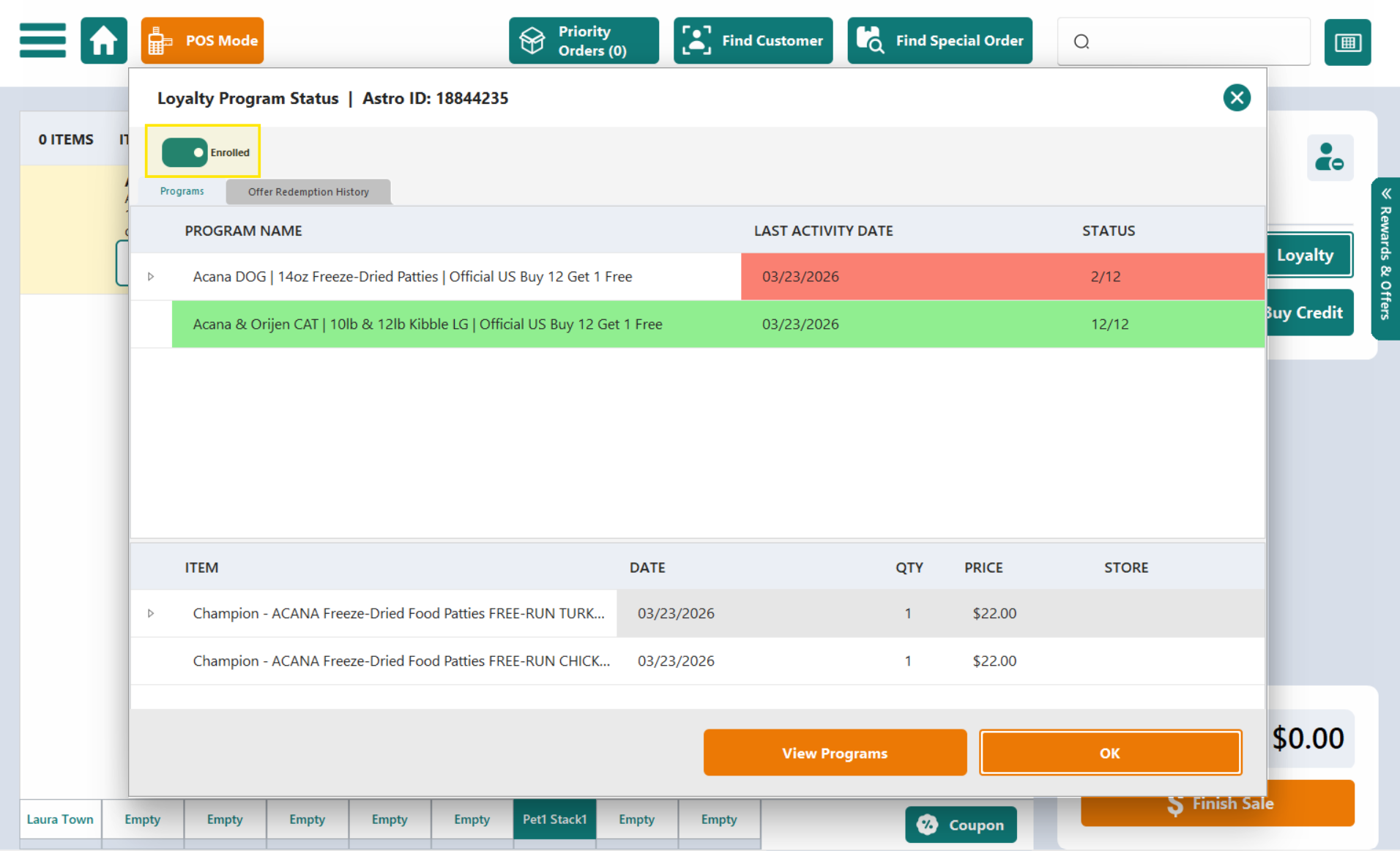
Example: the Loyalty window with the Enrolled switch
Earning Rewards
When an enrolled customer is attached, each program item on the sale shows an icon in the loyalty column of the sales grid (on the far right of the item row):
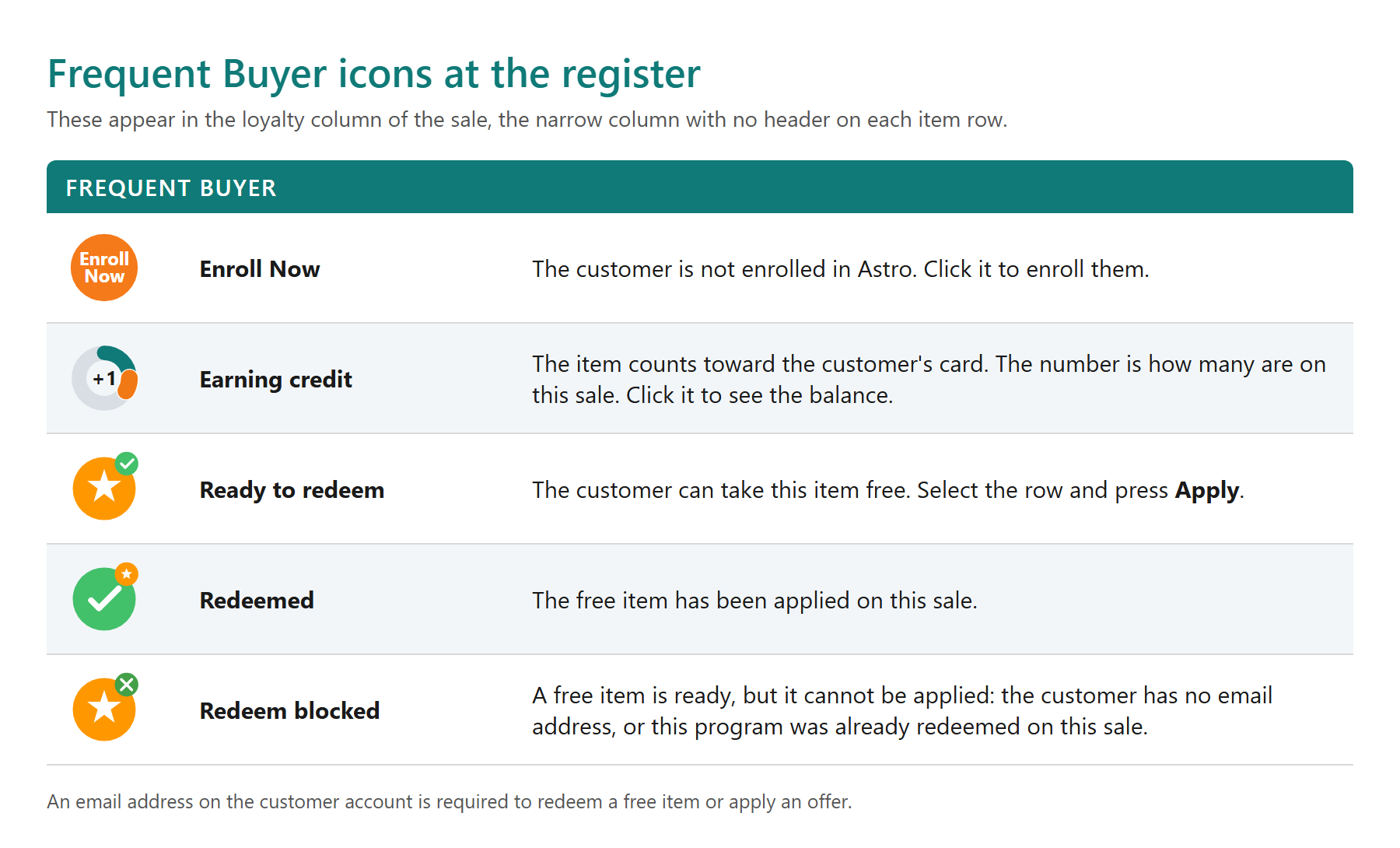
Orange ticket icons are Astro Offers, covered in Astro Loyalty - Offers at the Register.
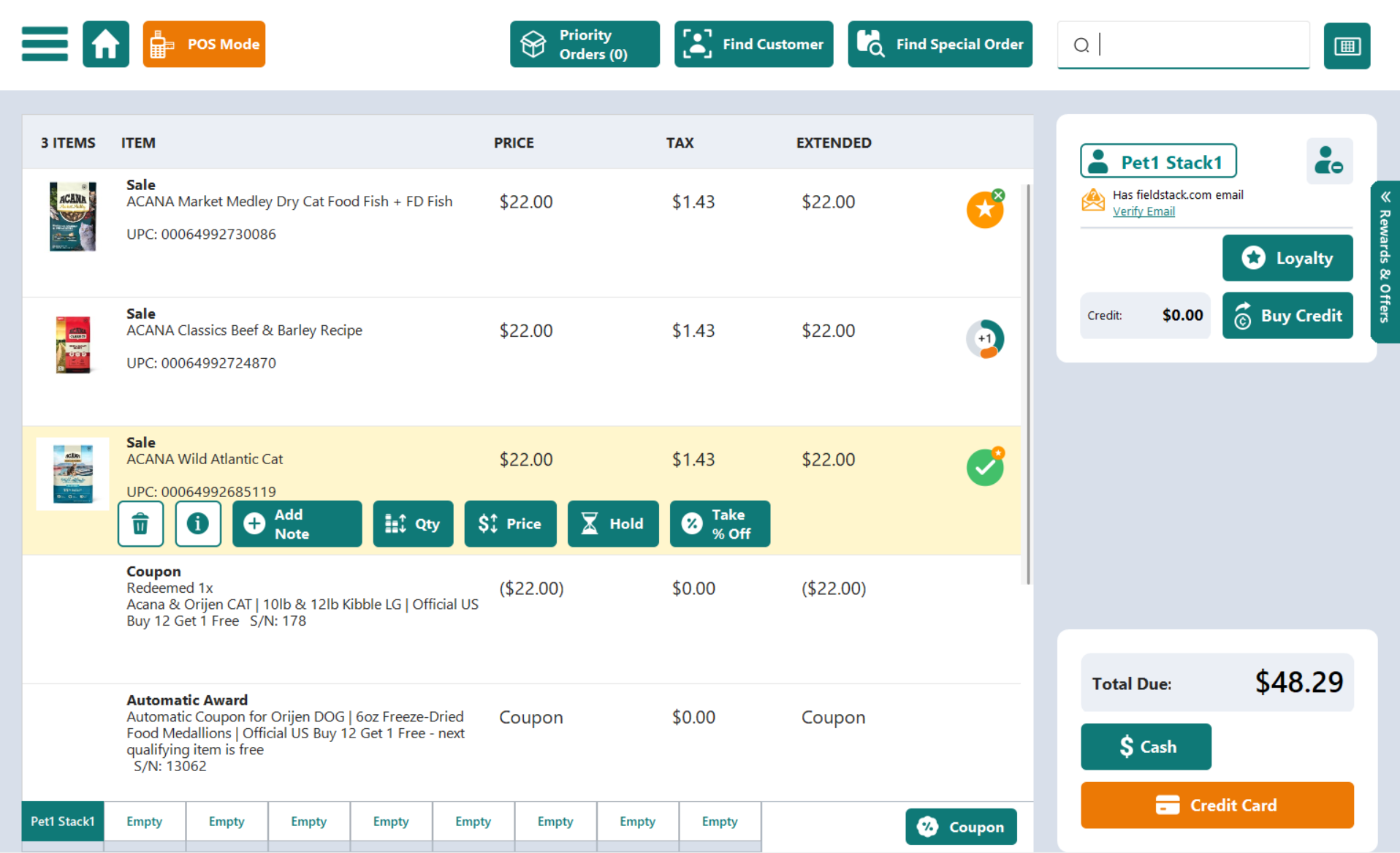
Example: a sale with various Frequent Buyer icons
Redeeming a Free Item
- Scan the item. Its row shows the star icon.
- Select the row and press Apply.
- The Astro Loyalty Program coupon line is added and the item is free.
- Take payment as usual.
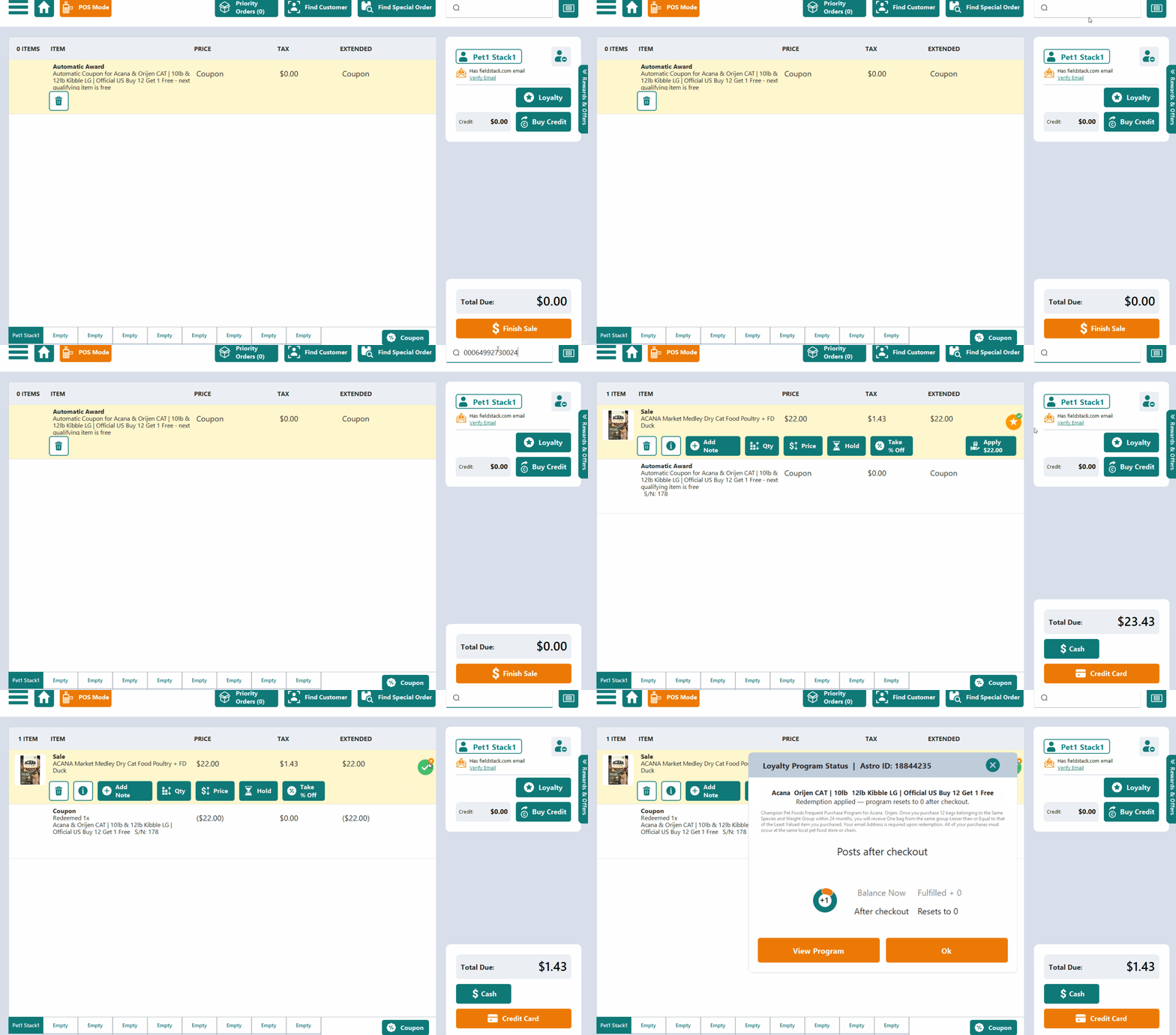
Example: applying an award
Rules the register enforces:
- One free item per program per sale.
- An email address is required. Without one the Apply button does not appear.
- Rewards currently do not apply on their own.
- To undo before payment, delete the coupon line. The Apply button comes back.
Note: Credit for today's purchase posts after checkout, so the free item becomes available on the customer's next visit.
Checking a Customer's Programs
- Loyalty on the customer card: every program the customer is in, with purchase history.
- View Programs in that window: all programs and the items that count toward them, with Eligible marked on items the customer can take free today.
- The Rewards & Offers tab on the right of the sale: programs the customer can redeem right now. Click one to see its items.
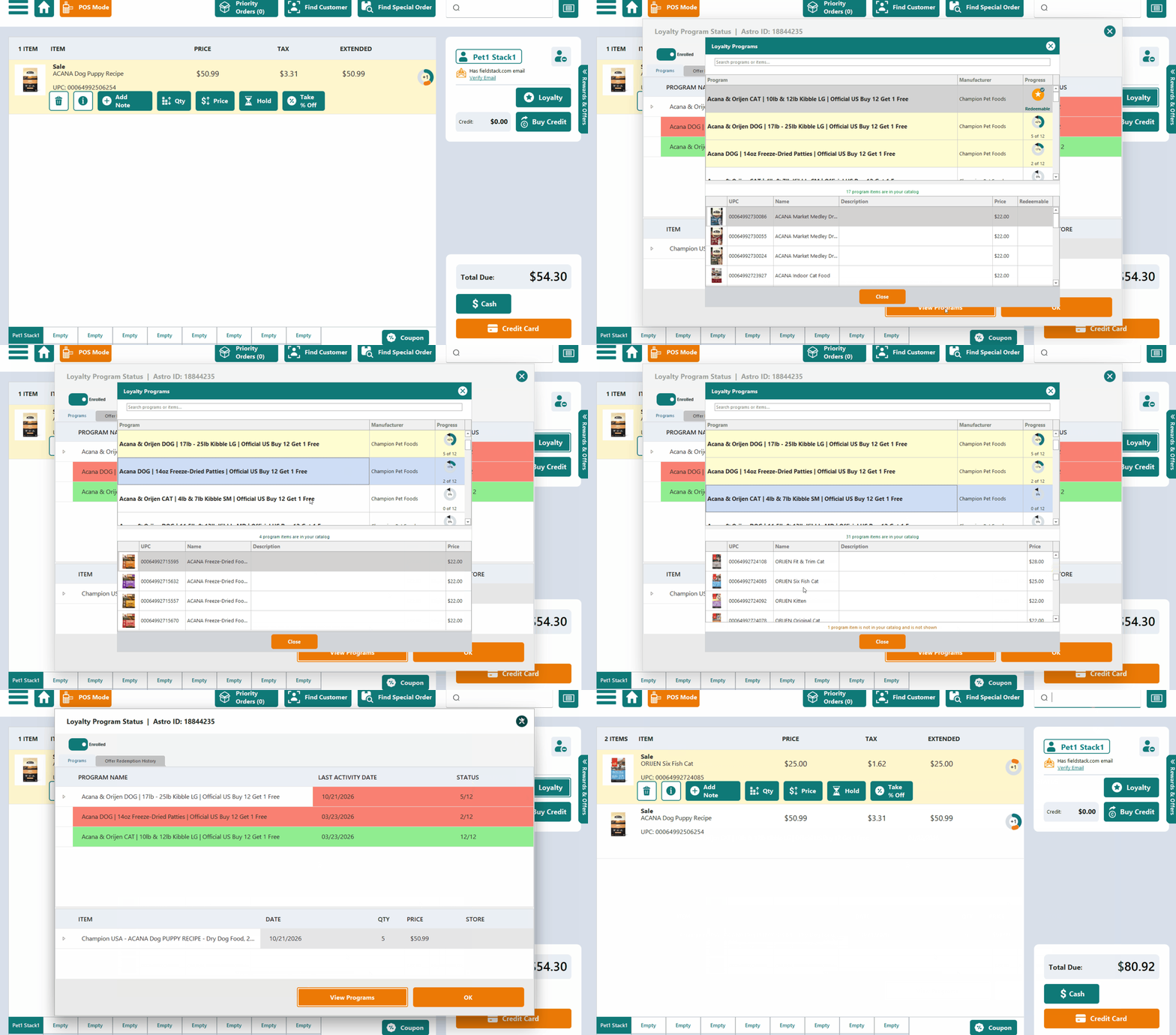
Example: the Loyalty button brings up the Loyalty window in the POS
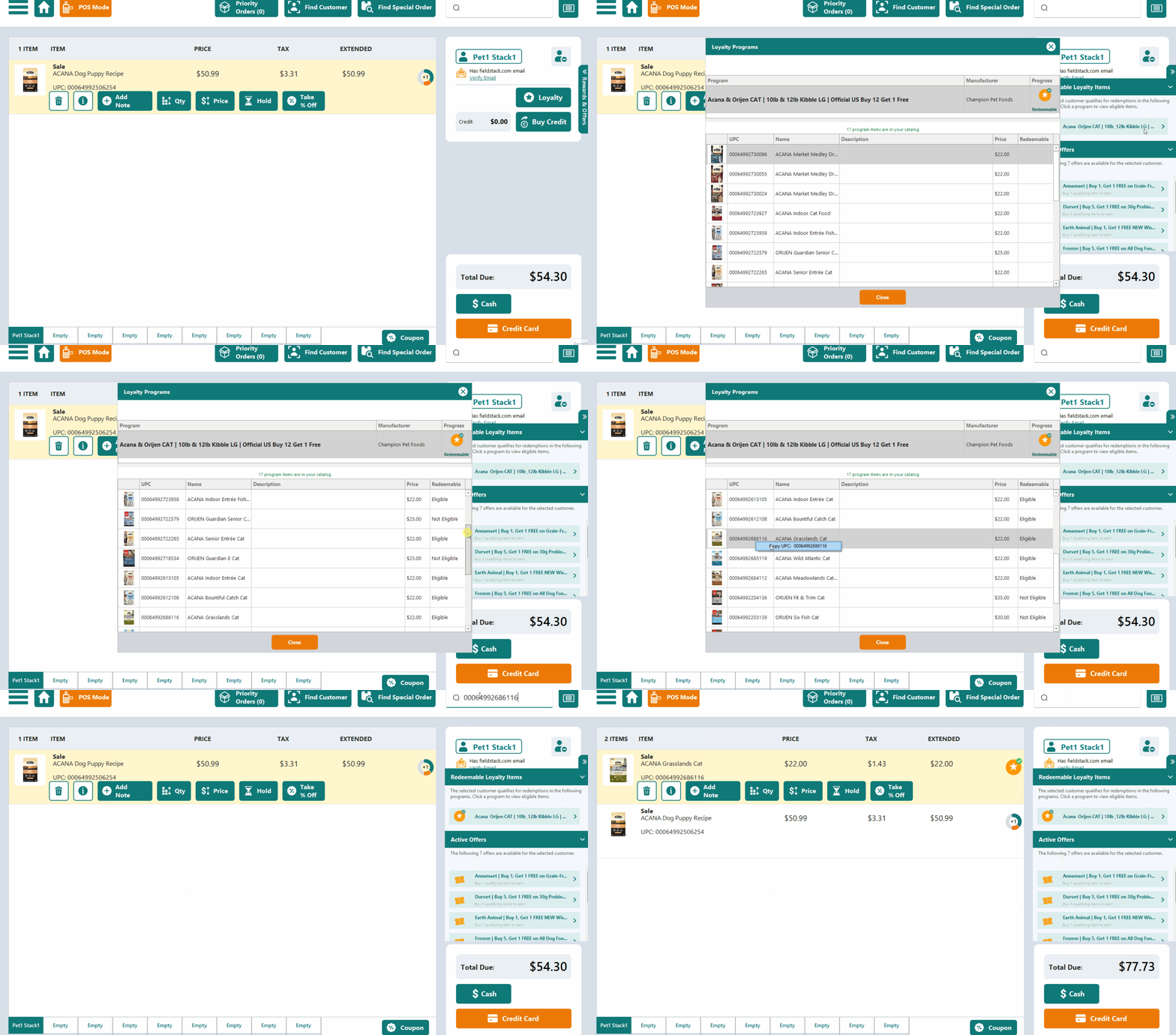
Example: adding an item from the Rewards and Offers tab in the POS
Was this article helpful?
That’s Great!
Thank you for your feedback
Sorry! We couldn't be helpful
Thank you for your feedback
Feedback sent
We appreciate your effort and will try to fix the article