FieldStack Support turns on Astro Loyalty for your account; there is nothing to set up on your registers. This article covers what to send Support, the options you can choose, how to confirm it is working, and what a customer account needs for Astro.
Before you start: You need an Astro Loyalty retailer account with API access from your Astro account manager.
What to Send FieldStack Support
- Ask your Astro account manager to turn on API access for your retailer account.
- Collect your Astro API credentials from Astro: the username, the password and the client ID.
- Decide which of your stores will use Astro Loyalty.
- Decide the options in the table below (auto-enroll, Web Store enrollment, Offers, the register drawer and the Web Store threshold).
- Open a ticket with FieldStack Support and include the credentials, the store list and your choices.
FieldStack Support sets up the connection, the loyalty screens at the register and the Astro coupon items for you. There is nothing to install or configure on your registers.
Options You Can Choose
Tell FieldStack Support which of these you want. Each can be changed later by contacting Support.
| Option | Default | What it does |
|---|---|---|
| Auto-enroll customers | On | Every customer attached to a sale is enrolled in Astro the first time they are attached. Existing Astro members are matched on email or phone and linked. With this off, staff enroll customers one at a time with the Enrolled switch (see Astro Loyalty - Frequent Buyer at the Register). |
| Web Store enrollment | Off | Shows the Enroll in loyalty rewards program checkbox on the Web Store's Create Account form and the Loyalty Rewards switch on the customer's My Account page. |
| Offers | Off | Turns on Astro Offers at the register: Offer icons, the Active Offers section of the drawer, the Apply Offer button and the Offer Redemption History tab. Offers can be turned on for all stores, for one store, or for one register. |
Note: Auto-enroll also controls the Web Store. With auto-enroll on, the enrollment checkbox at Create Account is pre-checked and a customer's online purchases are sent to Astro. With auto-enroll off, online purchases are not sent to Astro. If you want online earning, keep auto-enroll on.
Connection Messages You Might See
These appear as an alert on the sale when a customer is attached or a sale is completed.
| Message | What it means | What to do |
|---|---|---|
| "Unable to connect to loyalty system. Please try again." | FieldStack could not reach Astro, or the Astro credentials on file are incomplete. | Finish the sale as normal and try again on the next customer. If it continues, contact FieldStack Support. |
| "Loyalty system configuration error. Please contact support." | The Astro credentials or configuration on file are not valid. | Contact FieldStack Support. |
| "Loyalty program is not enabled for this store." | Astro Loyalty is not turned on for this store or register. | Contact FieldStack Support if this store should have Astro. |
| "Customer must have web acct to auto enroll in Astro" | The customer account has no web account, so the customer cannot be enrolled. | See Customer Account Rules below. |
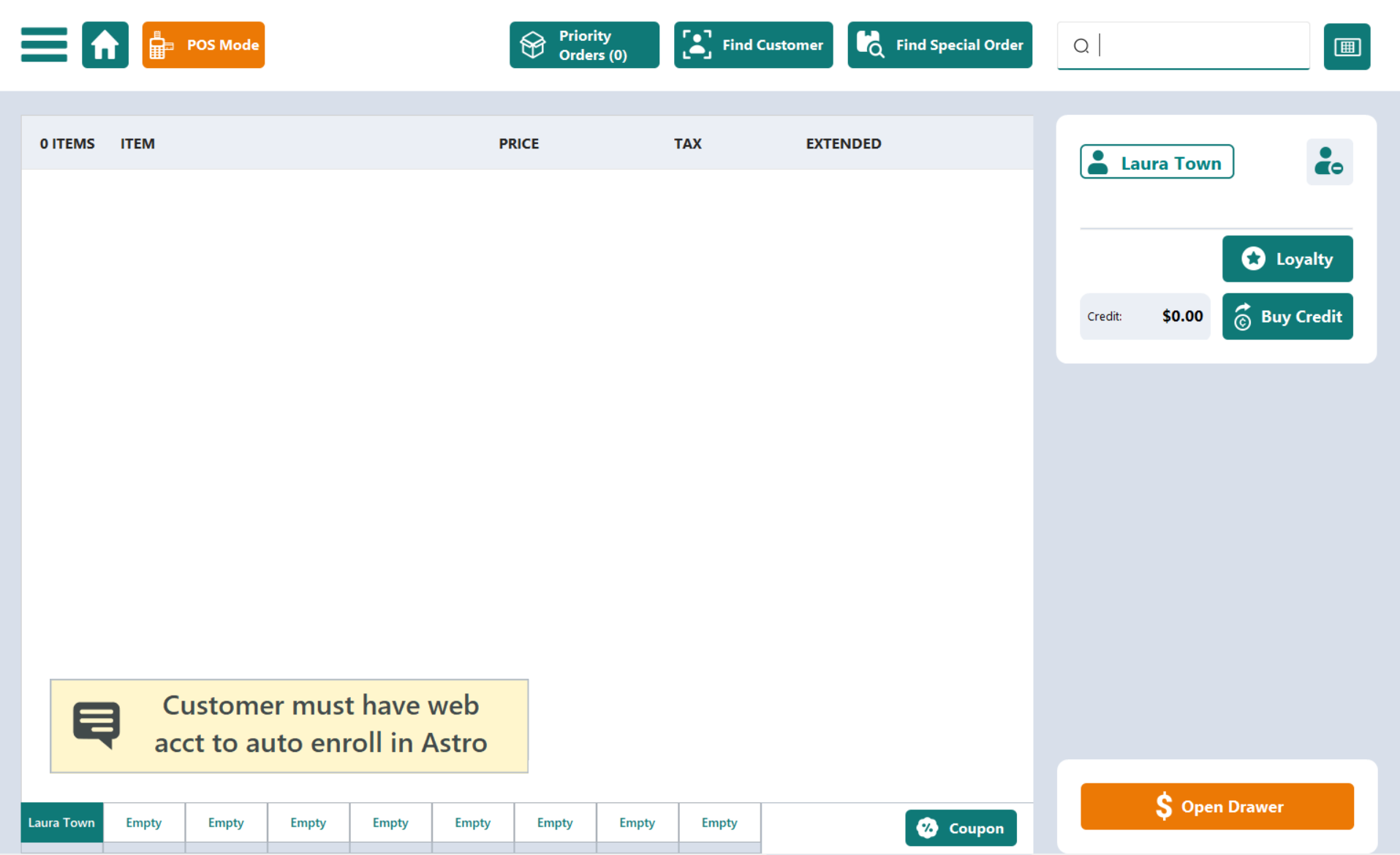
Example: the connection alert on a sale.
Warning: If your Astro password changes, the connection stops until FieldStack has the new password: registers show the connection messages above, purchases queue, and rewards cannot be applied. Send any change to your Astro username, password or client ID to FieldStack Support straight away.
Customer Account Rules
| Rule | Why it matters | What you see if it is missing |
|---|---|---|
| The customer must have a FieldStack web account. | Astro enrollment is keyed on the web account. A customer with only a basic register account cannot be enrolled. | The alert "Customer must have web acct to auto enroll in Astro" when the customer is attached. Loyalty is skipped for that sale. |
| First name and last name are both required. | Astro needs both to create an account. | The POS will not save the customer: "Astro requires both a first and last name for a customer". |
| Email address or mobile phone is used to find an existing Astro member. | FieldStack searches Astro by email and phone together. Names are never used for matching. If nothing matches, a new Astro account is created. | A customer who already had an Astro account elsewhere gets a second account, and their history is split. |
| Email address is required to redeem a reward or an Offer. | Astro requires an email on every redemption. Purchases still earn credit without one. | The Apply button is hidden and the alert "Customer email address required to redeem Astro loyalty reward." appears. For Offers: "Customer email address required to redeem Astro offers." |
| Mailing address is sent when it is on the account. | FieldStack sends the street address, city, state and ZIP along with the name, email and phone. Some Astro programs ask for an address. | In the Find Customer screen or the Edit Customer screen. |
Note: Changes to a customer account take effect right away. Name, email and phone are sent to Astro when the account is saved, and the register re-reads the email when the customer is attached, so a customer who was blocked from redeeming can redeem as soon as the email is added.
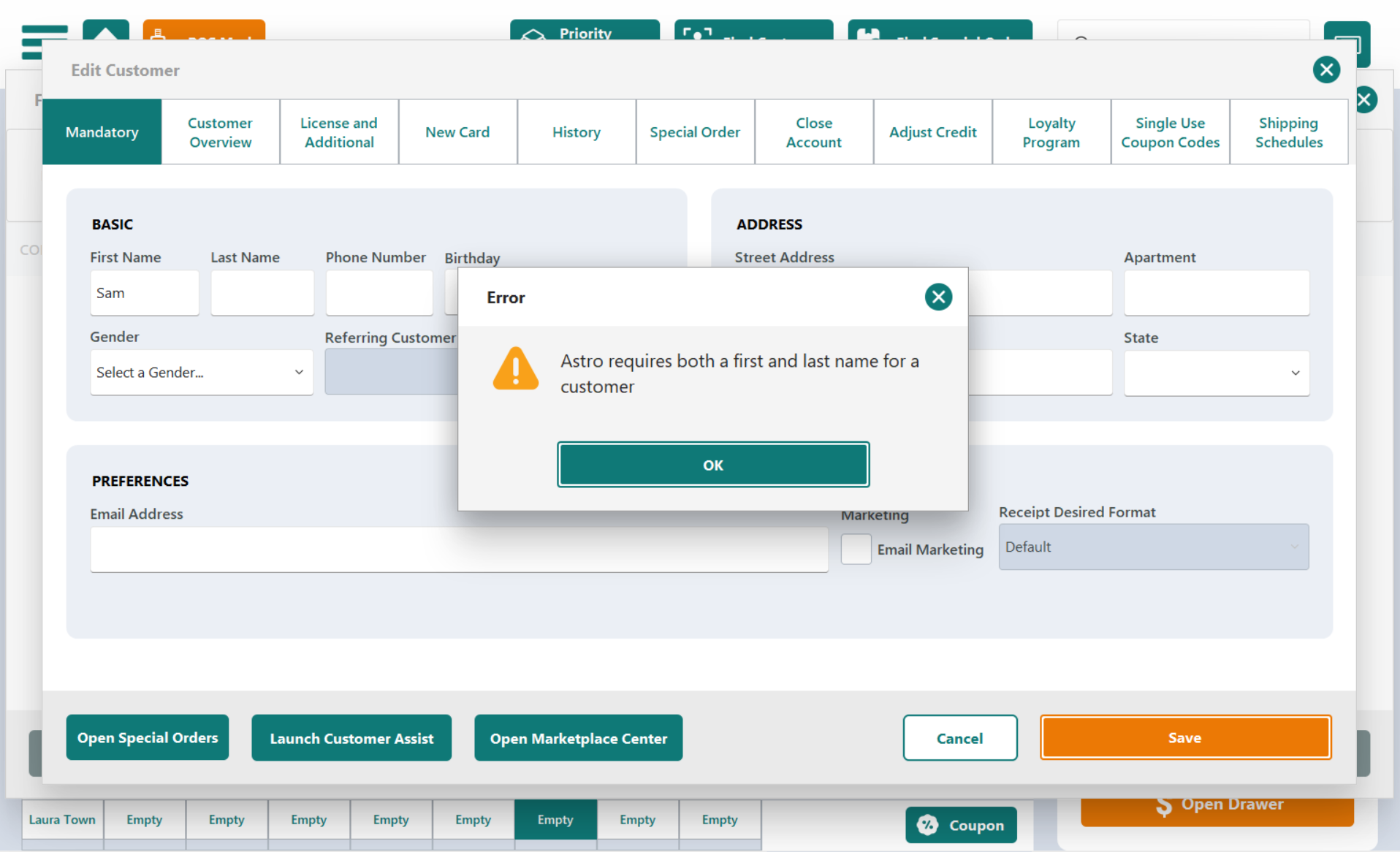
Example: the customer editor refusing to save a customer with no last name.
What Happens for Each Kind of Customer
| Customer | What FieldStack does | What to check on the account |
|---|---|---|
| Already an Astro member (joined at another store, or with your previous POS) | Searches Astro by the email and phone on the account. If Astro finds a match, the FieldStack account is linked to that Astro account and the customer keeps their history. | The email or mobile phone in FieldStack matches what Astro has. If neither matches, a new Astro account is created. |
| New to Astro | Creates an Astro account with the customer's name, email, phone and address. | First and last name. An email address, so the customer can redeem. |
| Registered on your Web Store | Enrolled at registration when the customer checks Enroll in loyalty rewards program (shown only when Web Store enrollment is on). Otherwise, with auto-enroll on, the Astro account is found or created when their first online order is fulfilled or when they are first attached to a sale at the register. Matching works the same way as at the register. | Nothing. Web registration already collects name and email. |
| Migrated from your previous POS with existing Astro history | Keeps posting to the customer's existing Astro card. During migration, FieldStack Support stores the identifier Astro already holds for each customer. | Ask FieldStack Support about this during your implementation. |
| Customer with two Astro accounts | FieldStack links to the account Astro returns for the email and phone on the account. | Astro Support can merge duplicate accounts. Contact them with the customer's name and both emails. |
Migration Checklist
Work through this before Astro Loyalty is turned on, especially if auto-enroll is on, because every customer attached to a sale will be enrolled on their first visit.
- Make sure every customer who should earn credit has a FieldStack web account. Ask FieldStack Support to help you find customers who have only a basic register account.
- Fill in a first name and a last name on every account. The POS will refuse to save an account without both once Astro is on.
- Add an email address wherever you have one. Without it the customer earns credit but cannot redeem.
- Add a mobile phone number wherever you have one. It is the second way an existing Astro member is matched.
- Ask your Astro account manager for an export of your current Astro members. Compare emails and phones with your FieldStack records and fix mismatches, so existing members are linked instead of duplicated.
- If customers already have Astro history from your previous POS, tell FieldStack Support before go-live so their existing Astro accounts are carried over.
- Decide whether auto-enroll should be on or off at go-live (see Options You Can Choose above).
- Keep a cheat sheet at the registers for quick access (see Astro Loyalty - Register Quick Reference).
Warning: Do not enter a made-up email or address to get past a block. The email address is recorded on every redemption sent to Astro, and it is how Astro identifies the customer across stores.
Was this article helpful?
That’s Great!
Thank you for your feedback
Sorry! We couldn't be helpful
Thank you for your feedback
Feedback sent
We appreciate your effort and will try to fix the article