Astro Loyalty is a loyalty network for independent pet retailers. Pet food and supply brands fund Frequent Buyer programs (for example, buy 12 bags and get the 13th free) and time-limited Offers (rebates, buy-one-get-one, free items). Astro keeps each customer's card and tells the store when a reward is earned.
FieldStack connects your registers and your Web Store to Astro, so the programs work from the FieldStack point of sale and your customers earn credit wherever they shop. This article explains what the integration does, what happens on its own, what your staff do, and where to find the article for each task.
Note: Astro Frequent Buyer programs and Offers are separate from FieldStack's own loyalty programs and loyalty points. The articles in this series cover Astro only.
TABLE OF CONTENTS
- Features at a Glance
- What You Will See at the Register
- What Your Customers See Online
- Prerequisites
- Related Articles
Features at a Glance
| Feature | Where | Status | What it means for your store |
|---|---|---|---|
| Frequent Buyer at the register | FieldStack POS | Available | Purchases of program items post to the customer’s Astro card when the sale completes. When the card is complete, the clerk applies the free item at the register. |
| Offers at the register | FieldStack POS | Available | Active brand Offers for the attached customer appear in the Rewards & Offers drawer. When an Offer is earned, the clerk applies it at the register. |
| Frequent Buyer on the Web Store | FieldStack Web Store | Coming soon! | Online purchases of program items post to the customer’s Astro card when the order is fulfilled. Customers see their progress on the web store, and collect the free item in store. |
| Offers on the Web Store | FieldStack Web Store | Coming soon! | Active brand Offers for the signed-in customer will appear in the cart. When an Offer is earned, the customer applies it at checkout. |
What You Will See at the Register
When an enrolled customer is attached to a sale:
- A green alert shows the customer's first in-progress program, for example "Brand Frequent Buyer: 3 of 12".
- The Loyalty button on the customer card opens the Loyalty Program Status window with the customer's Astro ID, program history and (when Offers are on) Offer redemption history.
- Each program or Offer item in the sale shows an icon in the loyalty column: Enroll Now, a progress dial, Ready to redeem, Redeemed, Redeem blocked, or an orange Offer ticket.
- When the customer has a reward ready or an active Offer, the Rewards & Offers tab appears on the right of the sale. Click it to see Redeemable Loyalty Items and Active Offers.
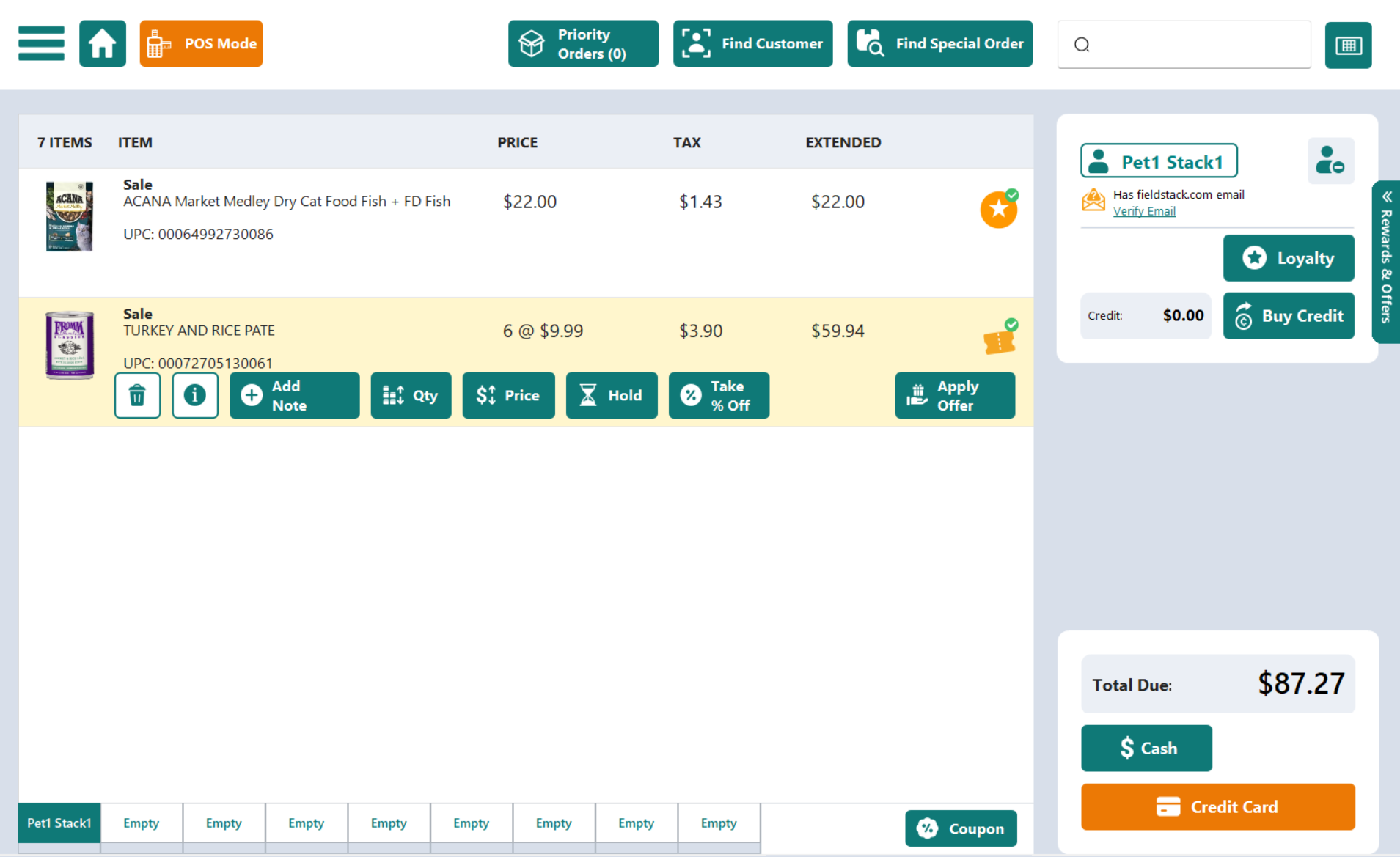
Example: the Rewards & Offers drawer collapsed, with Redeemable Loyalty Items and Active Offers.
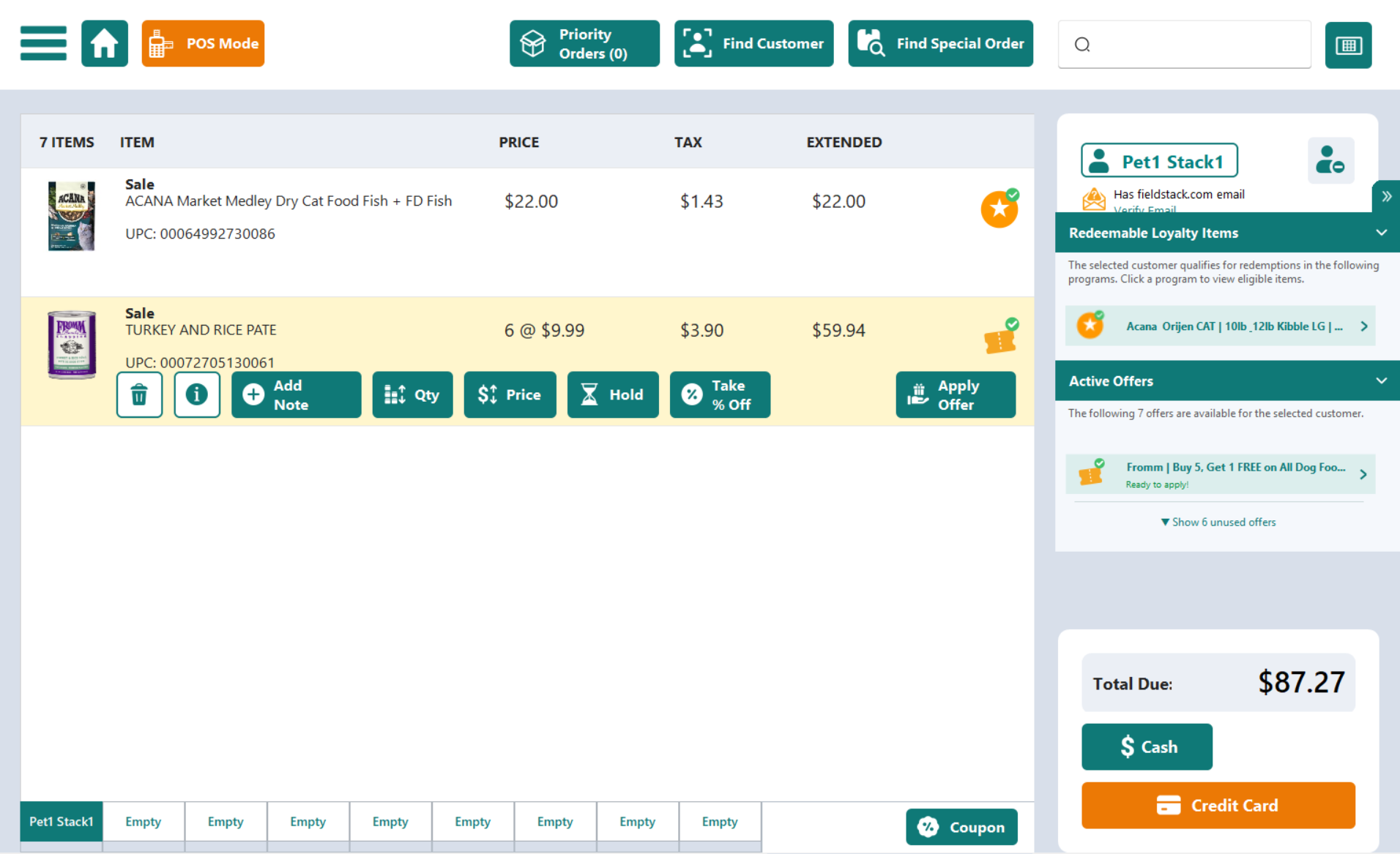
Example: the Rewards & Offers drawer expanded, with Redeemable Loyalty Items and Active Offers.
What Your Customers See Online
Coming Soon!
Customers who are enrolled will see a Loyalty Status card on product pages and in the cart, a Loyalty Programs page under My Account with their available rewards, in-progress cards and purchase history.
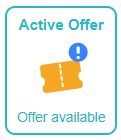
Example: Active Offer tile on product pages.
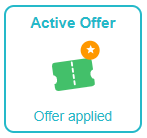
Example: Active Offer tile in Cart and at Checkout.
Prerequisites
- An Astro Loyalty retailer account with API access, arranged with your Astro account manager. FieldStack Support connects it for you (see Astro Loyalty - Setup and Customer Accounts).
- Customer records with a FieldStack web account, a first and last name, and an email address or mobile phone number. Email is required to redeem a reward or an Offer (see Astro Loyalty - Setup and Customer Accounts).
Related Articles
- Astro Loyalty - Setup and Customer Accounts
- Astro Loyalty - Frequent Buyer at the Register
- Astro Loyalty - Register Quick Reference
- Astro KB: POS Integration Options (POS Integration Options | Astro Retailers)
Was this article helpful?
That’s Great!
Thank you for your feedback
Sorry! We couldn't be helpful
Thank you for your feedback
Feedback sent
We appreciate your effort and will try to fix the article