Astro Offers are brand-funded deals: money off a qualifying item, or a free item when the customer buys enough. FieldStack tracks each offer as you scan and shows when one is earned. Press Apply Offer to apply it; the offer is sent to Astro when the sale completes.
Before you start: Offers must be turned on for your store by FieldStack Support.
TABLE OF CONTENTS
- Seeing a Customer's Offers
- Applying an Offer
- Offer Icons
- If the Item Is Also in a Frequent Buyer Program
- Unapplied Offers at Payment
- Why Didn't the Offer Apply?
Seeing a Customer's Offers
- Attach the customer. If they have offers, the Rewards & Offers tab on the right of the sale pulses.
- Click the tab. Active Offers lists each offer with where the customer stands.
- Click an offer to see its qualifying items and free items.
| Under the offer name | Meaning |
|---|---|
| Ready to apply! or Earned! | Press Apply Offer on the item. |
| 2 of 3 qualifying in cart | Scan more qualifying items. |
| Add the free item to redeem | Scan the free item. |
| Limit reached or Offer expired | Cannot be used. |
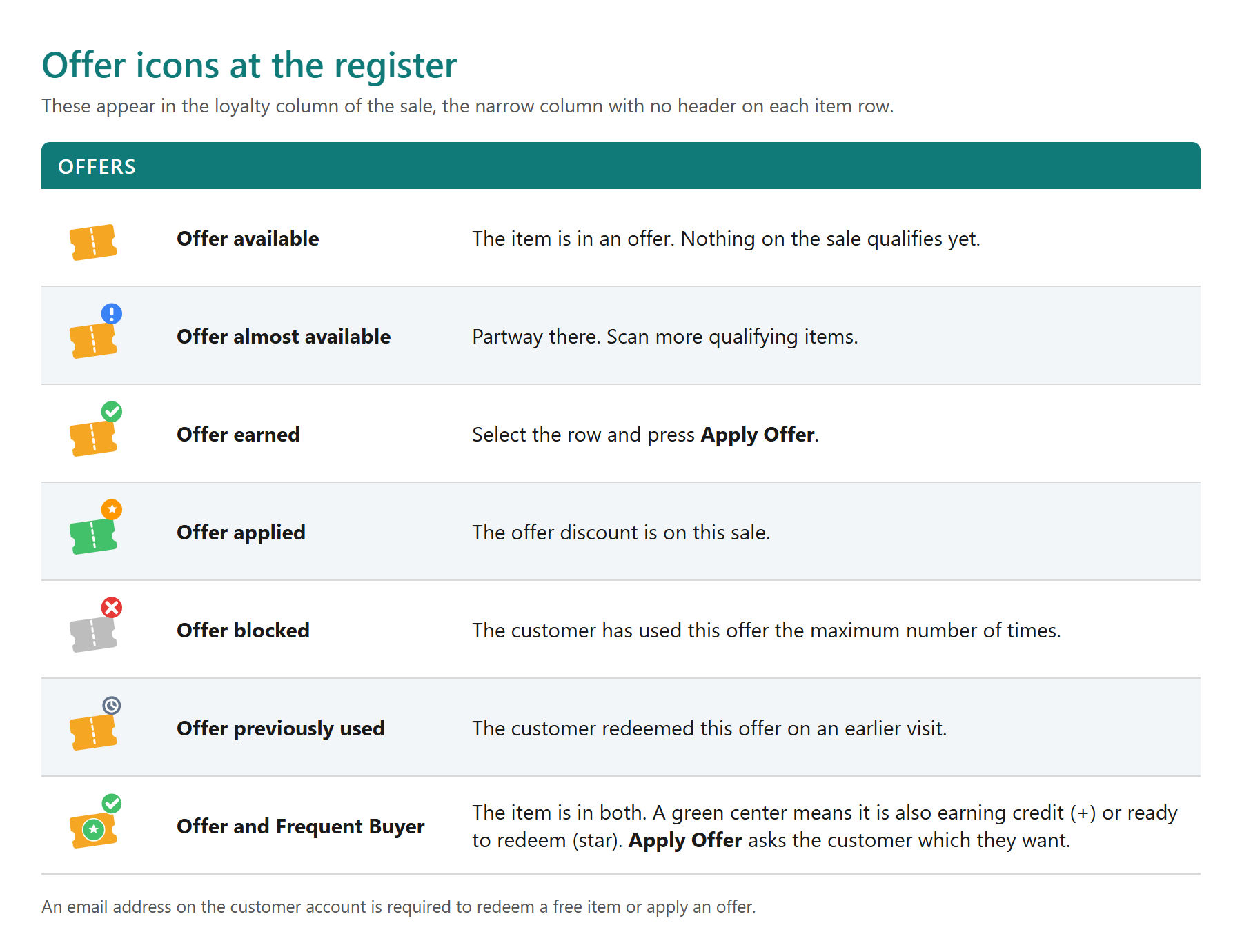
Items that belong to an offer show a ticket icon in the loyalty column of the sales grid:
| Icon | Meaning |
|---|---|
| Orange ticket | The item is in an offer. Nothing on the sale qualifies yet. |
| Orange ticket with a blue ! | Partway there. Scan more qualifying items. |
| Orange ticket with a green check | Earned. Select the row and press Apply Offer. |
| Green ticket with a star | Applied on this sale. |
| Gray ticket with a red x | Limit reached for this customer. |
| Orange ticket with a clock | Used on an earlier visit. |
| Ticket with a green center | The item is also in a Frequent Buyer program (see below). |
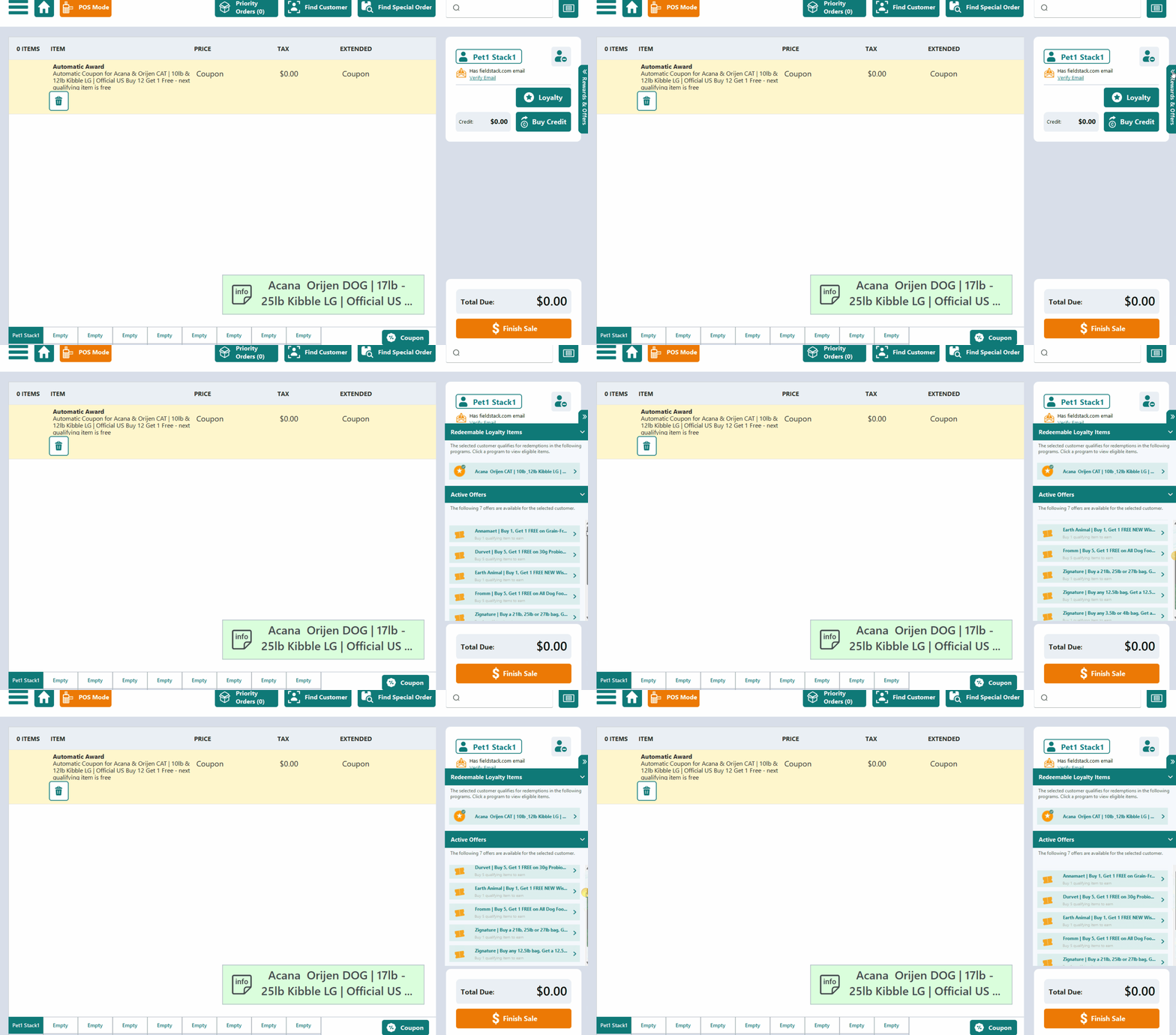
Example: the Active Offers list
Applying an Offer
- Scan the qualifying items. For a free-item offer, scan the free item too.
- Select the item's row: the qualifying item for money off, the free item for a free-item offer.
- Press Apply Offer.
- The Astro Loyalty Offers coupon line is added. Take payment as usual.
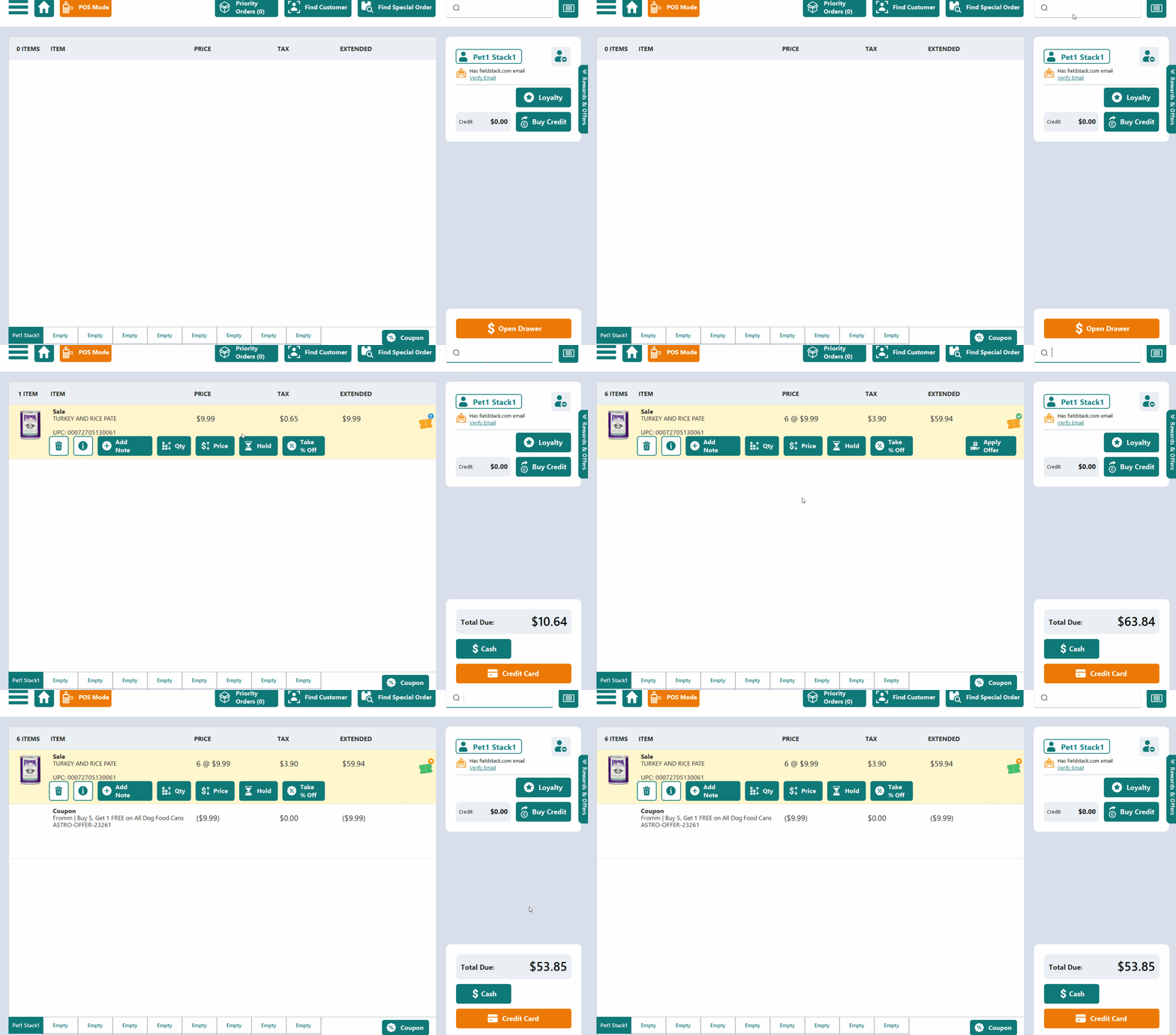
Example: applying an Offer in the POS
- To undo before payment, delete the coupon line.
- To change the quantity on a discounted item, delete the coupon line first, then apply the offer again.
- An email address on the customer account is required to apply offers.
Offer Icons
If the Item Is Also in a Frequent Buyer Program
When an item can be a free Frequent Buyer item and part of an offer, pressing Apply Offer asks Offer or Free Item?. Ask the customer and press Apply Offer or Redeem Free Item. They get one or the other on that item; the item still counts toward their card either way.
Unapplied Offers at Payment
If the customer has earned an offer that has not been applied, the register asks Unapplied Offers when you take payment. Press No to go back and apply it. Pressing Yes forfeits the discount.
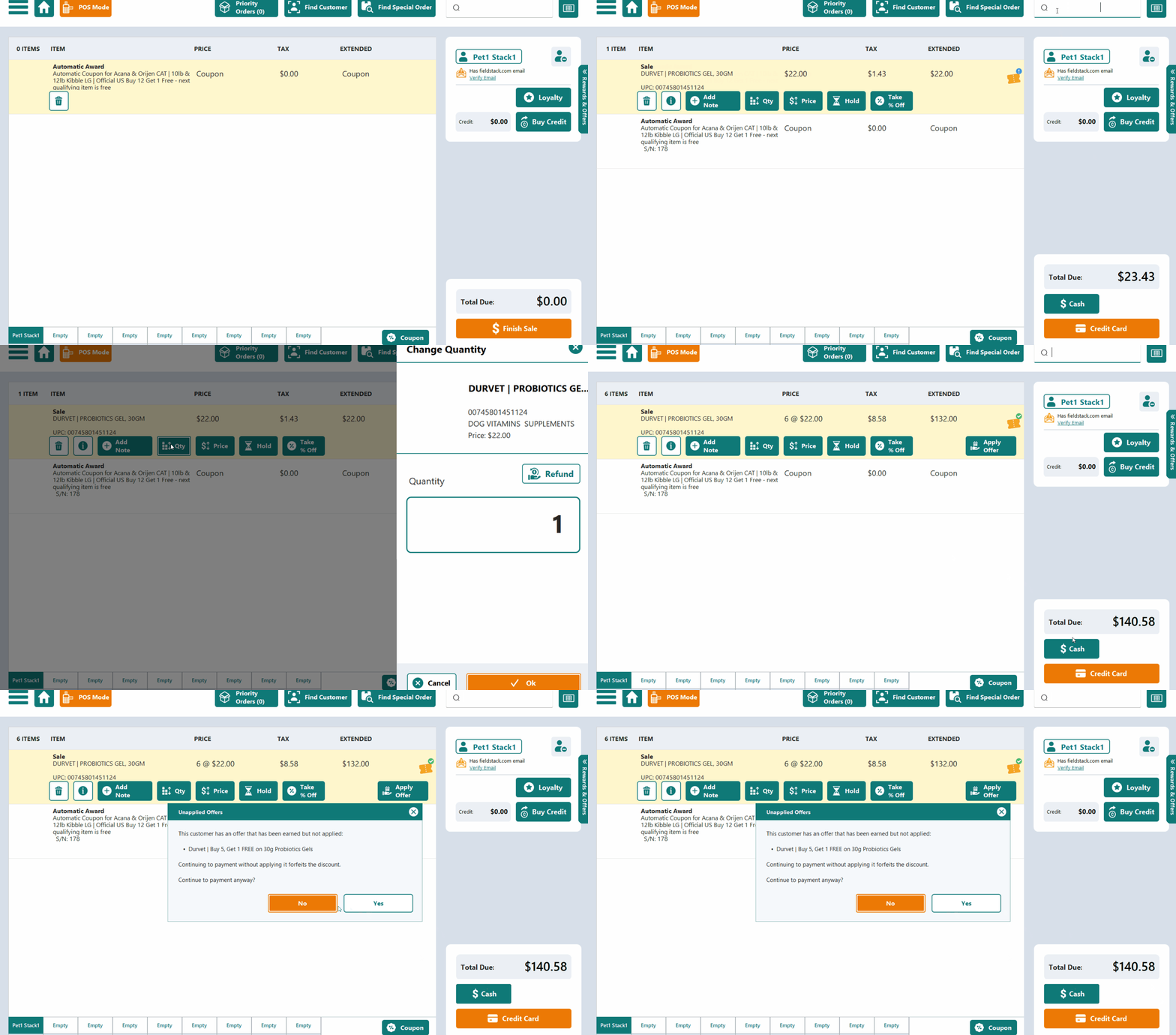
Example: Unapplied Offers popup.
Why Didn't the Offer Apply?
| What you see | What to do |
|---|---|
| 2 of 3 qualifying in cart | Scan the missing qualifying items. |
| Add the free item to redeem | Scan an item from the offer's free items list. |
| Apply Offer is not showing | Select the right row: the qualifying item for money off, the free item for a free-item offer. |
| Limit reached | The customer has used this offer the maximum number of times. |
| Offer expired | The offer has ended. |
| Customer email address required to redeem Astro offers. | Add an email to the customer account and attach the customer again. |
| No Active Offers at all | Offers are not turned on for your store, or the customer is not enrolled. |
Was this article helpful?
That’s Great!
Thank you for your feedback
Sorry! We couldn't be helpful
Thank you for your feedback
Feedback sent
We appreciate your effort and will try to fix the article