Every Astro reward or Offer is a coupon line in FieldStack, so it shows on the sale, in the customer's Loyalty window and on the Daily Close report. This article covers where to find Astro activity in FieldStack and which Astro portal reports to check.
TABLE OF CONTENTS
Where Astro Appears in FieldStack
On the sale and the receipt
Each redemption adds a coupon line to the sale. There are two kinds.
| Coupon line | When it appears | Amount |
|---|---|---|
| Astro Loyalty Program | The clerk clicked Apply to give the free item from a completed Frequent Buyer card. | The price of the free item, as a negative line. |
| Astro Loyalty Offers | The clerk clicked Apply Offer to apply a brand Offer (rebate or free item). | The Offer discount, as a negative line. It grows and shrinks with the qualifying quantity. |
Both lines are coupon lines, so they appear on the receipt and in transaction history the same way as any other coupon. Each line also carries an internal reference that names the program or the Offer, so FieldStack Support can pull Astro activity by program, Offer, date or store if you need an itemized list.
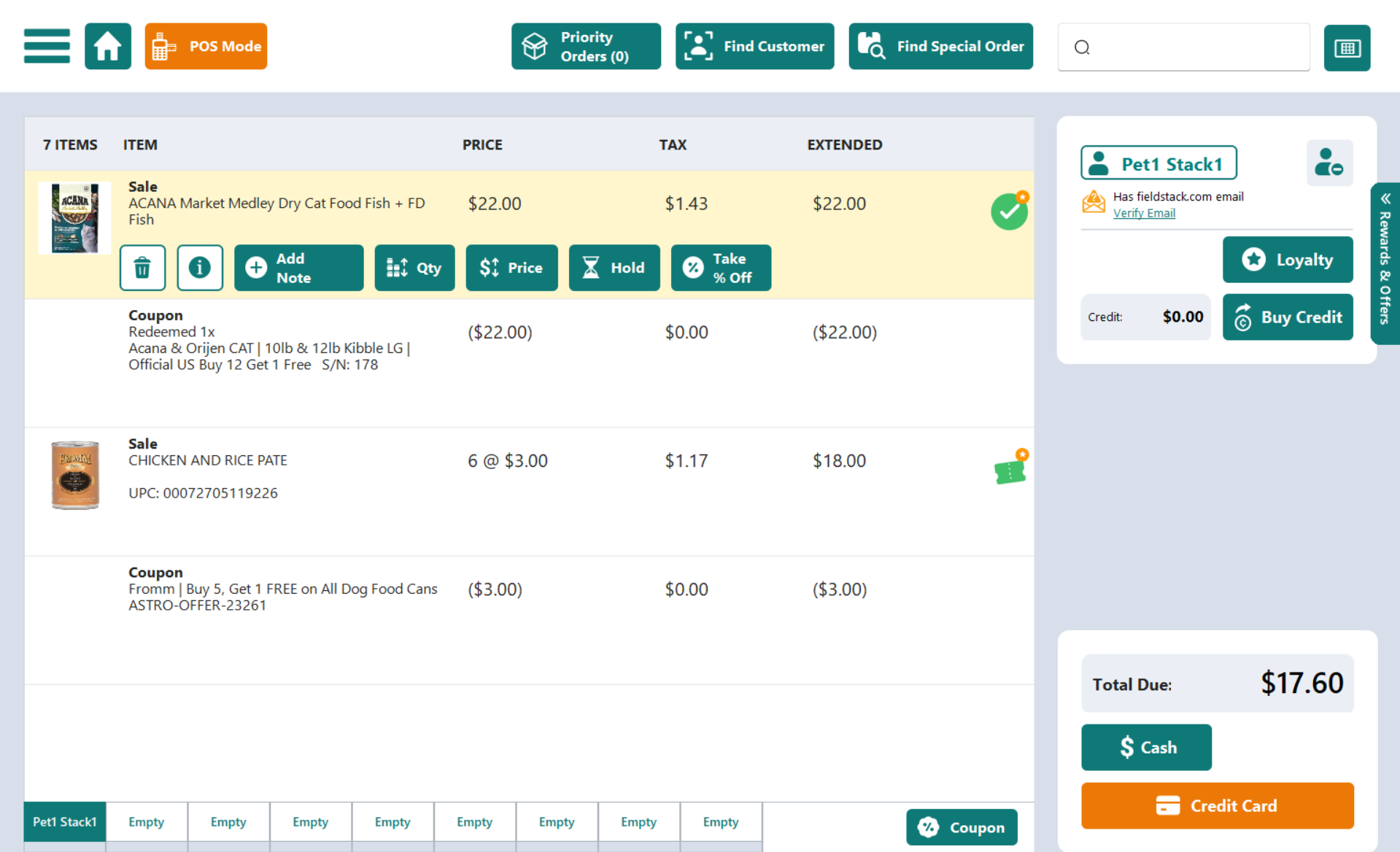
Example: an Astro Loyalty Program coupon line under the free item on a sale.
In the customer's Loyalty window
Click Loyalty on the customer card to open the Loyalty Program Status window.
- The Programs tab lists every Astro program the customer has a card in, with the columns PROGRAM NAME, LAST ACTIVITY DATE, REDEEMED DATE and STATUS. Select a program to see its purchases. Click View Programs to open the Loyalty Programs catalog of every program and item in your inventory.
- The Offer Redemption History tab (shown when Offers are on) lists every Offer the customer has redeemed. Click View Offers to open the Offers catalog.
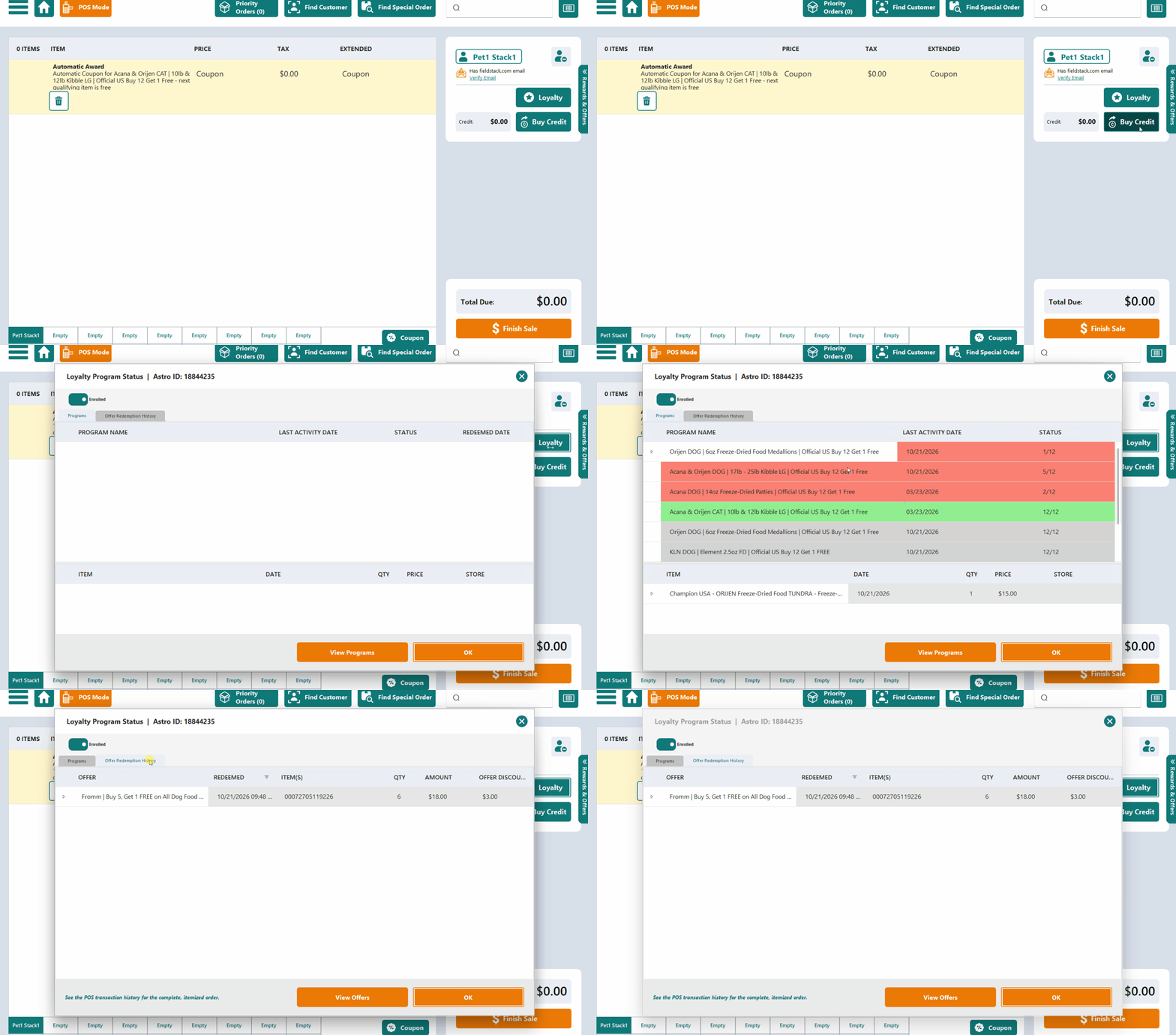
Example: the Programs tab and the Offer Redemption History tab.
Note: The Offer Redemption History tab is a summary. It does not show the transaction number. As the tab itself says: "See the POS transaction history for the complete, itemized order."
On the Daily Close report
Run the Daily Close report for the day or date range. On stores that use Astro, three extra columns total the Astro activity.
| Column | What it totals |
|---|---|
| Astro Coupon | The value of every Astro Loyalty Program coupon line: free items given from completed Frequent Buyer cards. |
| Astro Offer | The value of every Astro Loyalty Offers coupon line: rebates and free items from Offers. |
| Astro Discounts | The discount recorded against the items for both kinds of Astro coupon. Discounts plus Astro Discounts is the day's total item discounting. |
Detailed Astro reporting: Coming Soon!
A FieldStack report listing every Astro reward and Offer by date, store, customer, and program is in development.
Astro Portal Reports to Check
Astro also keeps its own reports of what FieldStack sends it. They are in the Astro portal under Reports.
Reconciling FieldStack to Astro
Online orders earn Frequent Buyer credit but never create a coupon line, because rewards are redeemed in store. Online purchases appear in the customer's Programs tab, not in the Daily Close Astro columns.
Was this article helpful?
That’s Great!
Thank you for your feedback
Sorry! We couldn't be helpful
Thank you for your feedback
Feedback sent
We appreciate your effort and will try to fix the article