An AutoShip Discount Program rewards customers for putting items on AutoShip in your web store. Each program has two discounts:
- Initial Discount - a percentage off the first order when a customer creates a new AutoShip
- Recurring Discount - a percentage off every order that AutoShip places after the first one
Examples:
- "35% off your first AutoShip order of Brand X, then 5% off every order that AutoShip ships after."
- "10% off all first-time AutoShip orders, then 2% off every order that AutoShip ships after."
Note: AutoShip discounts apply to web store orders only, not in-store sales. If you don't see the AutoShip Discount button in Promotion Management, contact FieldStack Support to have the feature turned on.
TABLE OF CONTENTS
- How to Create a Program
- How to Edit a Program
- Changing a Discount Percentage
- How AutoShip Discounts Work
- What Customers See
- Troubleshooting
How to Create a Program
- Open Promotion Management.
- Select an active promotion for the program, or create a new one. See How to Create and Edit a Promotion.
- Click AutoShip Discount in the top right. The AutoShip Discount Program Setup window opens.
- Fill in the settings below. The Summary box at the bottom describes the program in plain language as you go.
- Click Save Program.
- To see the program on your web store right away, go to Webstore Administration and click Flush COUPONS (also flushes ATTRIBUTES). Otherwise, it can take a few minutes to appear.
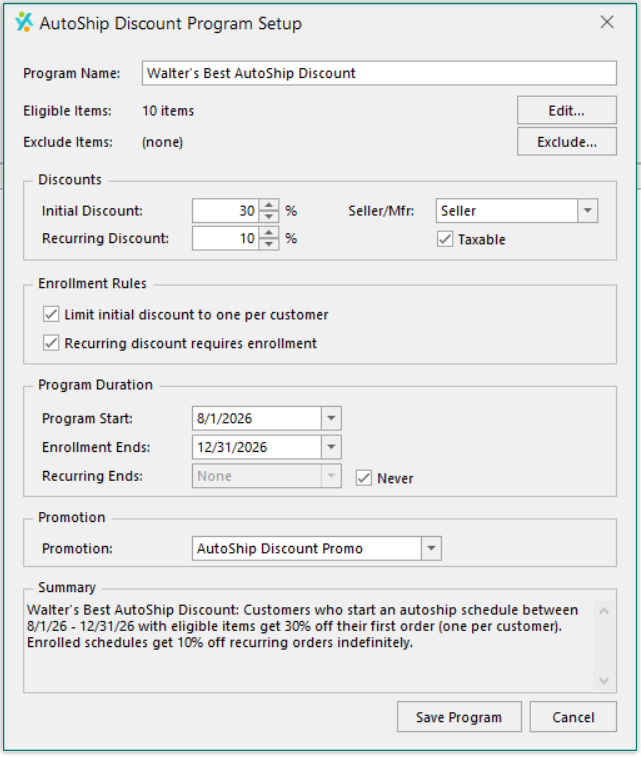
Example: an AutoShip Discount Program with 30% off the first order and 10% off recurring orders
Program Settings
| Setting | What it does |
| Program Name | The program's name. Customers see it next to the discount in the cart and at checkout. |
| Eligible Items | Click Edit... to choose the items that get the discount. You can add specific items or attribute rules, such as a brand. To add several items, enter all the UPCs in the UPC List at once, one per line, then click Search and check each item. |
| Exclude Items | Click Exclude... to choose items that never get the discount, even if they match the eligible items. |
| Initial Discount | The percentage off the first order of a new AutoShip. Must be at least 1%. |
| Recurring Discount | The percentage off each order an AutoShip places after its first order. Must be at least 1%. |
| Seller/Mfr | Seller for a discount you fund, or Manufacturer for a vendor-funded discount. |
| Taxable | Whether sales tax is calculated on the discounted price. Available for Seller programs only. |
| Limit initial discount to one per customer | When checked, each customer gets this program's initial discount only once. |
| Recurring discount requires enrollment | When checked, only AutoShips that received one of this program's discounts on their first order get the recurring discount. See Choosing the Enrollment Rules below. |
| Program Start | The first day the discounts are available. |
| Enrollment Ends | The last day new AutoShips can get the initial discount. |
| Recurring Ends | The last day the recurring discount applies. Check Never to keep it running. |
| Promotion | The promotion the program belongs to. |
Tip: To offer one flat discount with no larger first-order discount, enter the same percentage for Initial Discount and Recurring Discount.
Tip: To discount everything on AutoShip, add an attribute rule to Eligible Items for the attribute that makes items available for AutoShip on your web store. Leave Recurring discount requires enrollment unchecked so existing AutoShips get it too.
Choosing the Enrollment Rules
Both checkboxes are checked by default. The examples below use a program with 30% off the first order and 10% off recurring orders.
Limit initial discount to one per customer
- Checked: A customer gets the 30% once. If they create a second AutoShip later, its first order doesn't get the 30%.
- Unchecked: A customer gets the 30% on the first order of every new AutoShip they create.
Recurring discount requires enrollment
- Checked: Only AutoShips that got one of the program's discounts on their first order get the 10% after. A customer's AutoShips from before the program started don't get the 10%.
- Unchecked: Every AutoShip with eligible items gets the 10% on its recurring orders, including AutoShips from before the program started.
Common setups
| You want | Limit initial discount to one per customer | Recurring discount requires enrollment |
| A larger discount once per customer, then the smaller discount for everyone on AutoShip, including existing AutoShip customers | Checked | Unchecked |
| Discounts only for customers who start a new AutoShip during the program, once per customer | Checked | Checked |
| The larger discount on every new AutoShip a customer creates | Unchecked | Checked or unchecked |
How to Edit a Program
In Promotion Management, select the program's promotion and double-click the GTIN of either of its two coupons. Both open the same AutoShip Discount Program Setup window. Make your changes and click Save Program.
Note: If a program's dates have passed, its coupons are hidden from the list. Change Oldest PP End Date to an earlier date to show them.
Changing a Discount Percentage
Existing AutoShips get the new Recurring Discount starting with their next order. There isn't a way to keep the old percentage for existing AutoShips while new ones get the new one. If more than one program gives a recurring discount on the same items, change each one. Only the larger discount applies, so a program left at the old percentage keeps applying it.
How AutoShip Discounts Work
The initial discount
- Applies when a customer checks out with an eligible item set up as a new AutoShip.
- A customer's existing or canceled AutoShips from before the program started don't prevent it.
- With Limit initial discount to one per customer checked, a customer who has received the program's discount can't get its initial discount again, even if they cancel that AutoShip.
- The limit is per program. A customer can get the initial discount once from each program.
Combining with other discounts
- Sale prices:The AutoShip discount is taken off the item's current price, so it applies on top of a sale price.
- For more information on Sale prices, see: How to Configure a Sale Price Promotion
- Coupons:An AutoShip discount doesn't combine with another coupon on the same item. Only one applies, normally the larger one. If the other coupon uses custom Stacking settings, those settings decide which applies.
- For more information on Coupons, see: How to Create and Edit a Coupon
- If a coupon wins on the first order: The customer isn't enrolled in the program for that AutoShip and can still get the initial discount on a later new AutoShip.
Recurring AutoShip orders
- Each AutoShip order is charged the item's price on the day it is placed, not the price when the AutoShip was created.
- Coupons don't apply to recurring AutoShip orders. This includes auto-apply coupons and promo codes. Only AutoShip program discounts apply.
Running more than one program
- An item gets only one program's discount at a time.
- Different items in the same cart can get discounts from different programs.
- To offer both a Seller discount and a Manufacturer discount, create a separate program for each.
- You can move items from one program to another while both are active by editing each program's Eligible Items. Each order uses the program the item is in on the day it ships:
- New AutoShips get the new program's discounts, including its initial discount, even if the customer already got the old program's initial discount.
- Existing AutoShips stop getting the old program's recurring discount.
- Existing AutoShips get the new program's recurring discount only if its Recurring discount requires enrollment is unchecked.
Limits
- Discounts are percentages only. There isn't a dollar-off option or a way to cap the discount at a dollar amount, dev work is currently underway.
- There isn't a minimum order amount for a program.
What Customers See
| Where | What shows |
| Product page | The AutoShip price under the regular price, such as "$5.59 with Autoship (save 30% on your first order)," and a "SAVE 30%" tag with the price crossed out next to Create AutoShip. |
| Cart | The program name, the discount name (such as "Brand X - Initial 35%"), and the discount amount at the top. The item shows an "APPLIED" tag with the program name. |
| Checkout | "APPLIED" followed by the program name, and the discount in the order total. |
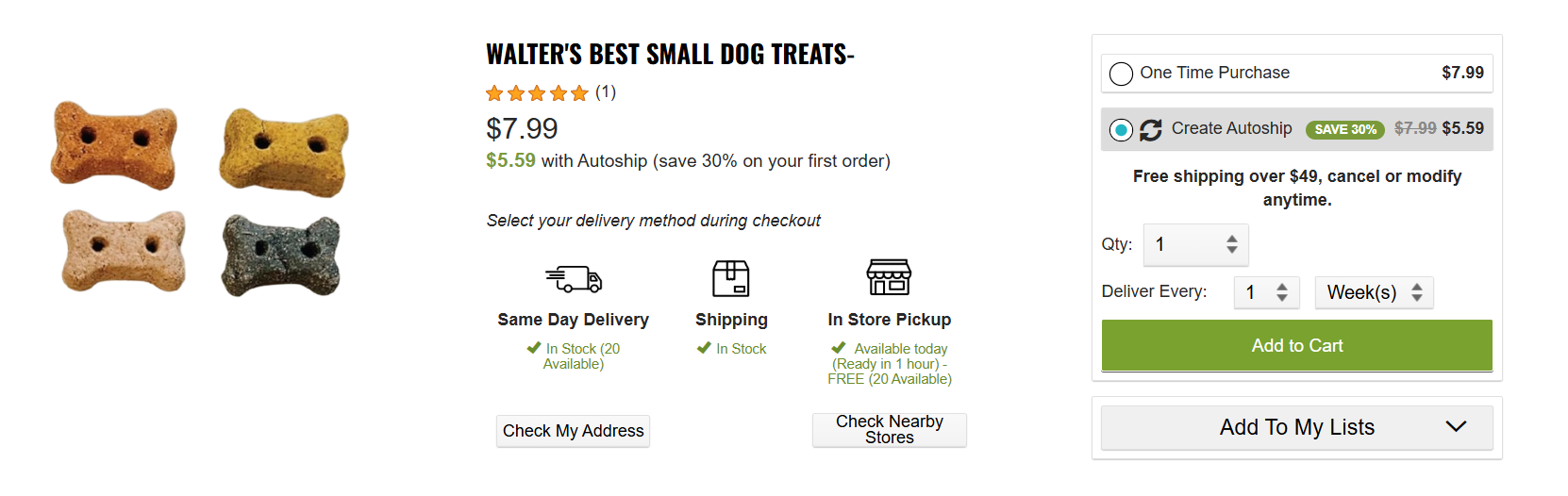
AutoShip discount shown on a product page
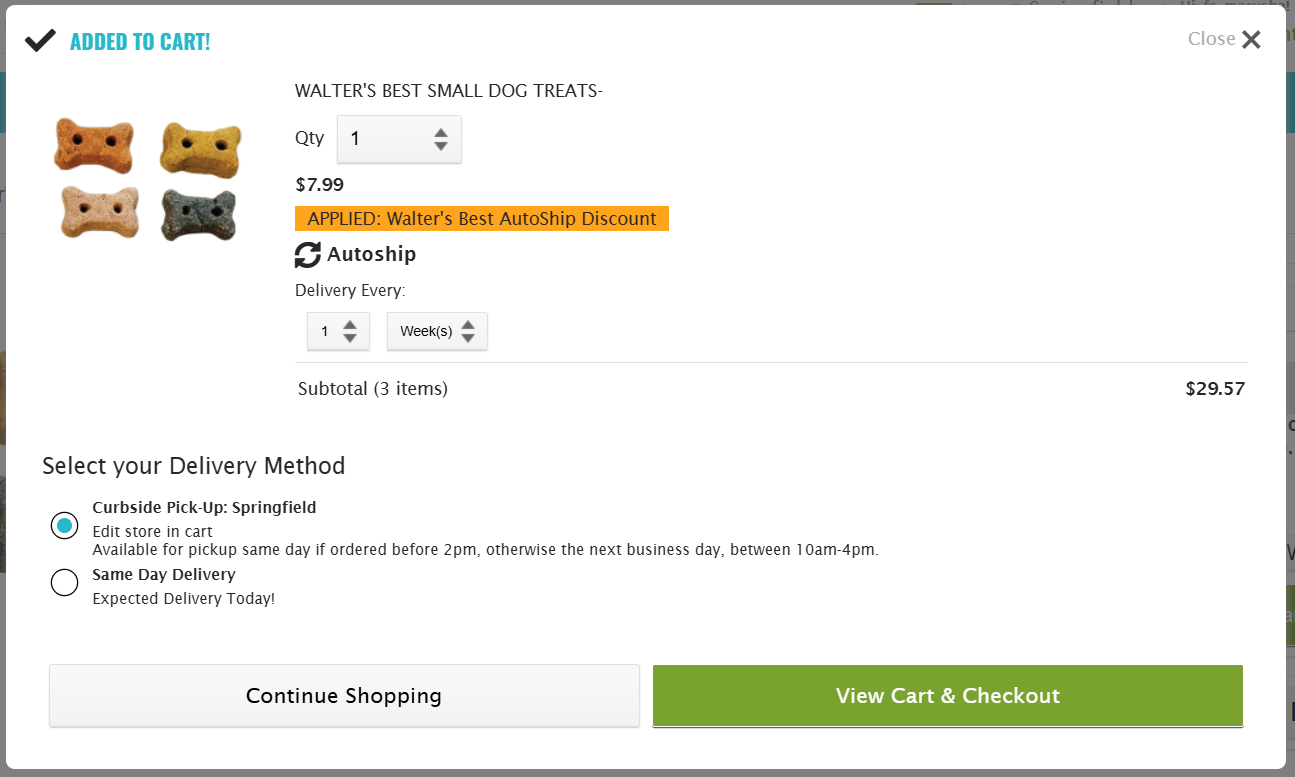
Autoship discount shown in cart popup
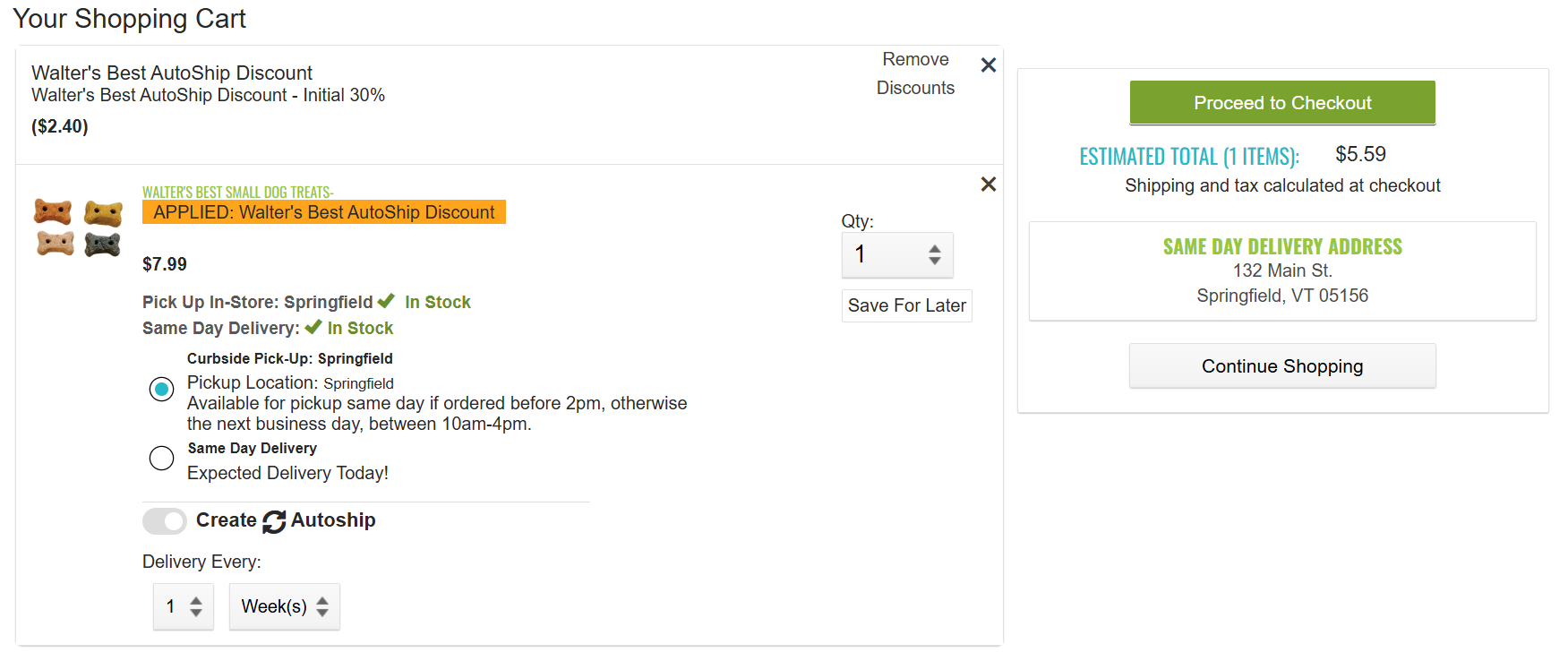
AutoShip discount shown in cart
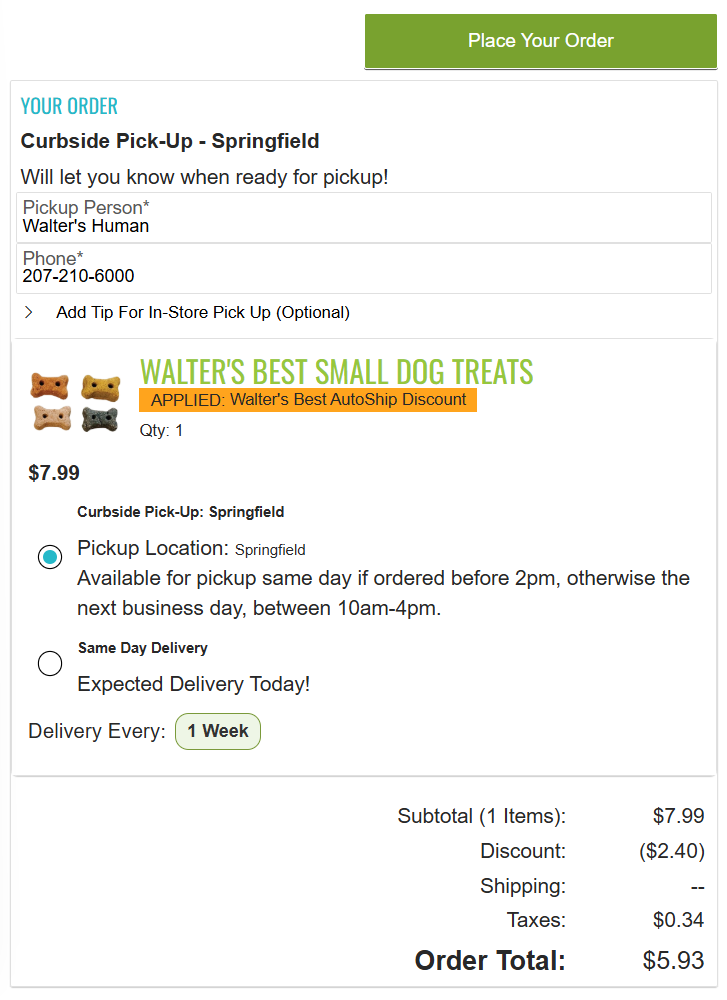
AutoShip discount shown in Checkout
Troubleshooting
- The discount isn't showing. Check that the promotion is active, today is between Program Start and the end date, and the item is in Eligible Items and not in Exclude Items. Make sure the item was added as Create AutoShip, not One Time Purchase.
- A change to a program isn't showing yet. Customers already signed in may not see changes right away. When testing, sign out, wait a few minutes, and sign back in.
- The discount disappeared from the cart. Another coupon on that item is being applied instead, normally because it gives a larger discount or has custom Stacking settings. Also check that the item is still set to Create AutoShip and that the program is still active.
See also: Coupon Redemption and Troubleshooting and Auto Ship Schedule Management.
Was this article helpful?
That’s Great!
Thank you for your feedback
Sorry! We couldn't be helpful
Thank you for your feedback
Feedback sent
We appreciate your effort and will try to fix the article