This article covers refreshing and managing existing web store category pages. To create a new category page, see: Creating New Web Store Category Pages
How Category Pages Update
Web store category pages refresh automatically based on their section's attribute rules. As new items are added that match a section's rules, or as inventory changes, the category page updates on the next scheduled cache refresh.
Manually Refreshing a Category
If you've made changes to a section or its items and want to see them reflected on the web store right away:
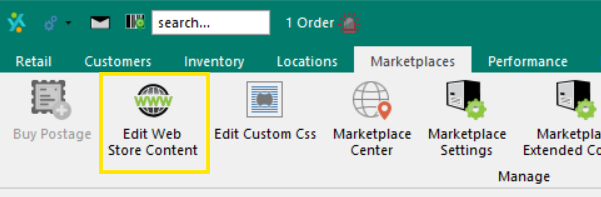
- Open the Web Store Content Management screen (Marketplaces Tab > Edit Web Store Content)
- Select the category page from the left column
- Click Refresh to repopulate items for this category based on its current section rule
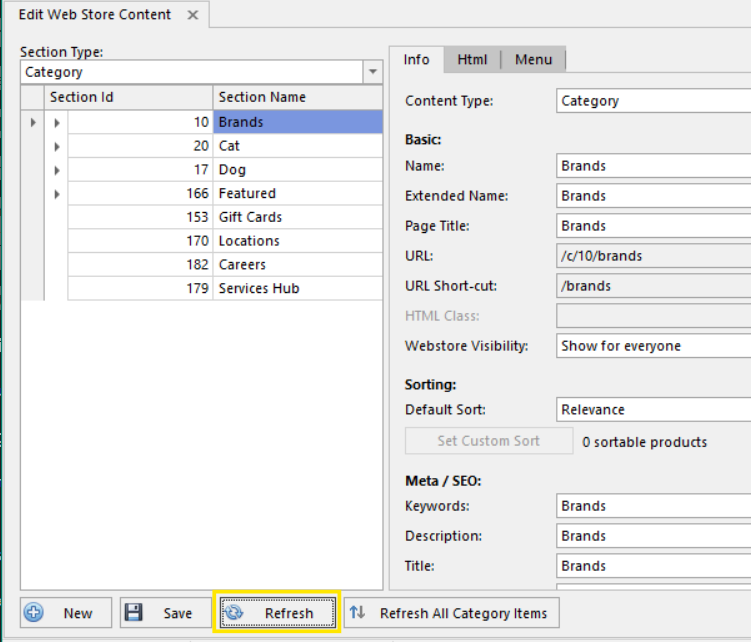
This may take several minutes depending on the size of the section.
Refreshing All Categories
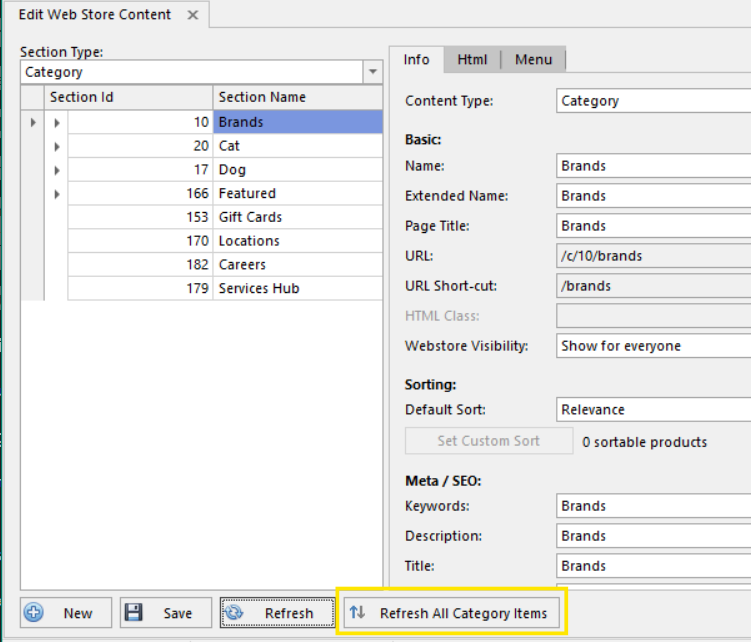
To repopulate items for all sections at once, click Refresh All Category Items in the Web Store Content Management screen. This can take significantly longer and is best run when you've made broad changes that affect multiple categories.
Editing an Existing Category Page
All of the fields from when the category was created (Page Title, URL, SEO keywords, HTML content, menu settings, etc.) can be edited from the same Web Store Content Management screen. After making changes, click Save. For detailed field descriptions, see: Creating New Web Store Category Pages
Hiding or Showing a Category
Use the Webstore Visibility field on the Info tab to control who can see the category:
- Show for everyone - visible to all customers
- Admin only - visible only when logged in as an admin (useful for testing)
- Hidden - not visible on the web store
This is useful for seasonal categories, upcoming launches, or retiring a category without deleting it.
Changing Product Sort Order
Each category page has a Default Sort setting (e.g., Relevance, Price Low to High, Newest, etc.) that controls how products are ordered on the page by default.
For cases where you want to hand-pick the order, click Set Custom Sort to manually arrange products. The count next to the button shows how many sortable products are in the section.
Flushing the Web Store Cache
When content or category changes aren't appearing on the live web store, you may need to flush the cache. Go to the Web Store Administration Page and flush Content and Categories.
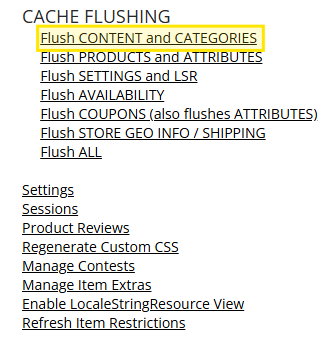
For more on the admin page, see: Web Store Administration Page
Deleting a Category
To permanently remove a category, select it from the list and click Delete at the bottom of the screen. Be careful - this can't be undone!!
Was this article helpful?
That’s Great!
Thank you for your feedback
Sorry! We couldn't be helpful
Thank you for your feedback
Feedback sent
We appreciate your effort and will try to fix the article