Overview
Attributes are tags that describe the characteristics of your items - things like color, size, flavor, weight, or ingredients. They serve several purposes:
- Web Store filtering and product variants - customers can filter by attributes (e.g., "show me all chicken-flavored products") and see product variants (e.g., different sizes of the same item) on the same page.
- Building web store pages - sections and category pages are built using rules based on attribute values. You must set up attributes before creating sections or pages.
- Coupon targeting - attributes can be used to set up coupons that apply to specific groups of items based on their attribute values
To edit attributes, navigate to the Inventory Tab and select Attribute Management.

For more on how attributes connect to pages, see: Web Store Setup & Management
Attribute Type Settings
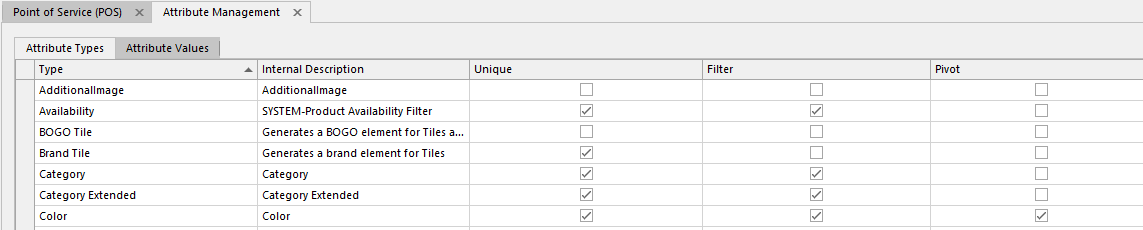
When creating an attribute type, you have three options that control how it behaves:
| Setting | What It Does | Example |
| Unique | Each item can only have one value for this attribute type | A product is either "Chicken" or "Beef" flavor, not both |
| Filter | Values appear as search filters on the web store for customer | Customers can click "Grain-Free" to filter products |
| Pivot | Values appear as selectable variants on the product page | A bag of food shows 5lb, 15lb, 30lb options the customer can toggle between |
These can be combined - an attribute can be both Filter and Pivot, for example.
Managing Attribute Values
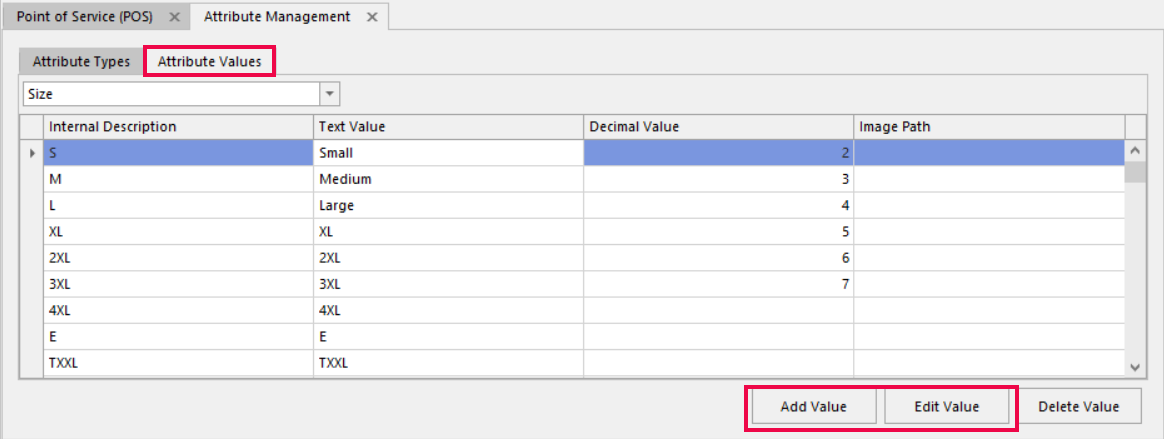
- Go to the Attribute Values tab
- Select an Attribute Type from the dropdown
- Use Add Value to create new values or Edit Value to modify existing ones
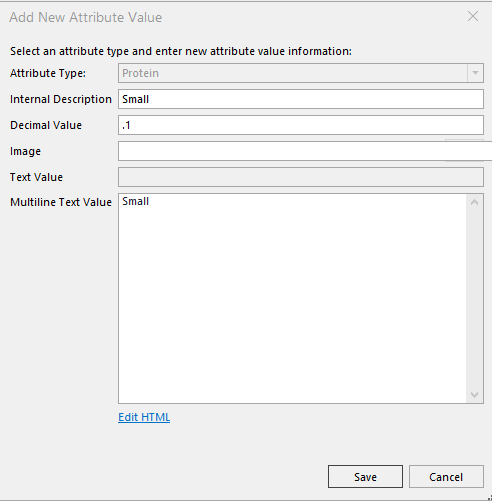
Each value has these fields:
- Internal Description - what you see when assigning attributes to items (not visible to customers)
- Multiline Text Value - customer-facing description that displays on the web store
- Decimal Value - controls the display order of filter values on the web store (lower numbers appear first)
Assigning Attributes to Items
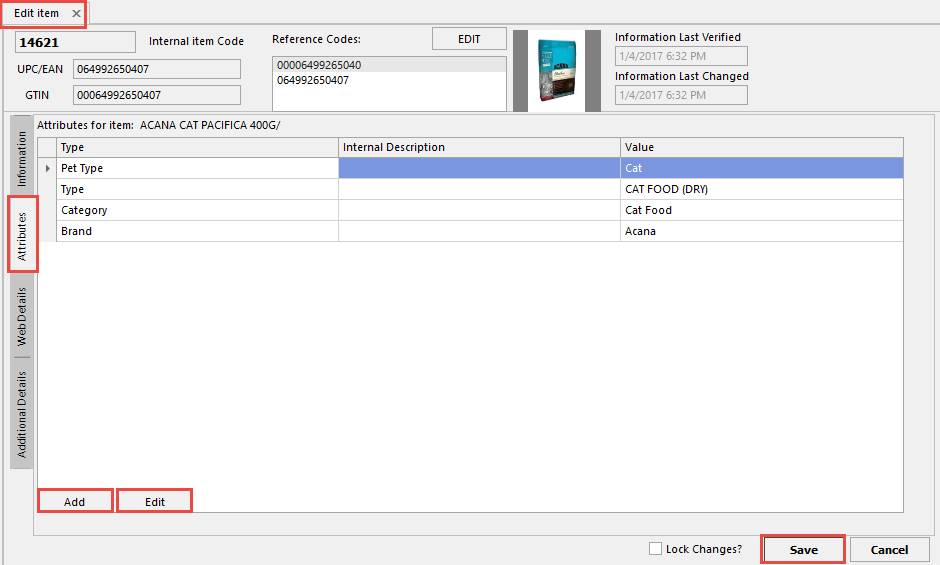
Single item (from Edit Item):
- Open the item in the Edit Item screen
- Navigate to the Attributes tab
- Choose the Attribute Type and Value
- Save
Single item:
- Search for the item using Find Item (Advanced)
- Right-click the item and select Add Item Attribute
- Choose the Attribute Type and Value
- Save
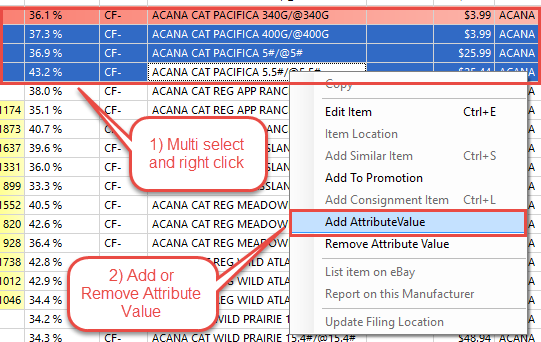
Multiple items at once:
- Search for the items using Find Item (Advanced)
- Hold Shift + Click to select a range, or Ctrl + Click to select individual items
- Right-click and select Add Item Attribute
- Choose the Type and Value, it will apply to all selected items
Searching by Attribute
To find all items with a specific attribute:
1. Select Find Items by Attribute Values

2. Click Add Attribute and choose your search criteria
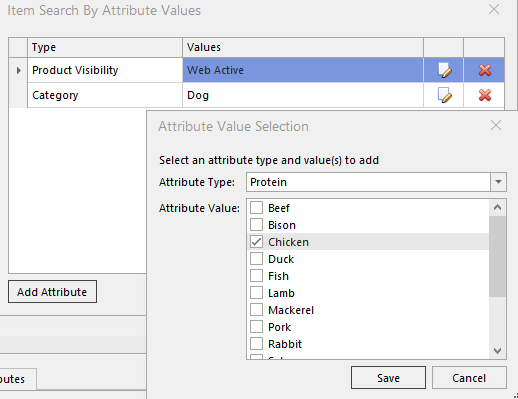
3. Click Search
You can add multiple attributes to narrow results. For example, find all items that are both "Grain-Free" and "Chicken" flavor.
Was this article helpful?
That’s Great!
Thank you for your feedback
Sorry! We couldn't be helpful
Thank you for your feedback
Feedback sent
We appreciate your effort and will try to fix the article