How Grouping Works
Items automatically group together on the web store when certain name fields match. Grouped items appear as a single product page with options customers can toggle between (e.g., different sizes or colors).
The specific fields that determine grouping depend on your store's configuration. Common patterns include:
- External name grouping - External Name and External Extended Name

- Internal name grouping - Item Name, sometimes combined with additional name fields or category aggregates

If you're unsure which fields drive grouping for your store, contact FieldStack support.
Pivoting
For grouped items to show as selectable options (e.g., a size dropdown), they must all share the same pivotable Attribute Types with different Attribute Values. For example, if three bags of the same dog food come in 5lb, 15lb, and 30lb sizes, all three need a "Size" attribute with their respective values.
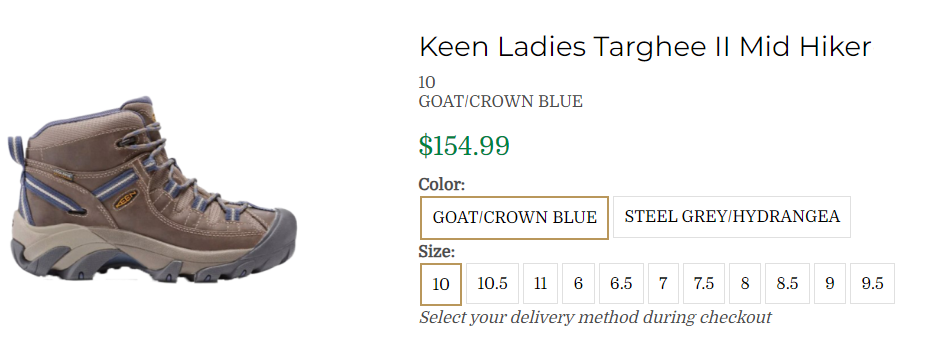
For more on attributes, see: Attribute Types & Attribute Values
Grouping Existing Items
- Search for the items you want to group in the item list
- Verify each item has the correct pivotable attributes assigned (open Edit Item > Attributes tab)
- Multi-select the items, right-click, and select Edit ## Items to open the bulk item editor

- Make the grouping name fields identical across all items - remove any differentiating text from the name and move it into the Extended Description External column to retain the detail

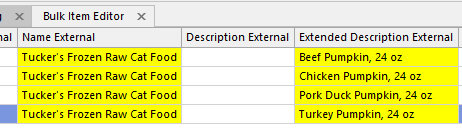
- Repeat for all items in the group
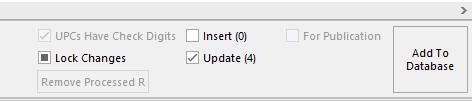
- Check Update in the lower right and click Add to Database to save
Viewing a Product Group
You can see which items are grouped together from either:
- Edit Item screen - click the View Product Group button to see how many items are in the group and view them
- Item List screen - select an item and press {Ctrl+H} or right-click and select View Product Group to open a list of all items in the same group
Applying Changes
After saving, go to the Web Store Administration Page and flush Products and Attributes to apply the grouping immediately. Otherwise, changes will appear after the next scheduled cache refresh.
See the article Web Store Administration Page for more information
Need a Custom Grouping?
If items need to be grouped in a way that doesn't follow the standard name-matching rules, contact FieldStack support to discuss options.
Result
On the web store, grouped items display as a single product page with:
- A shared product name
- Extended descriptions that update as the customer toggles options
- Images that change with each selection
- Pivotable attribute options (e.g., size, color)
- Dynamic pricing and availability based on the selected option
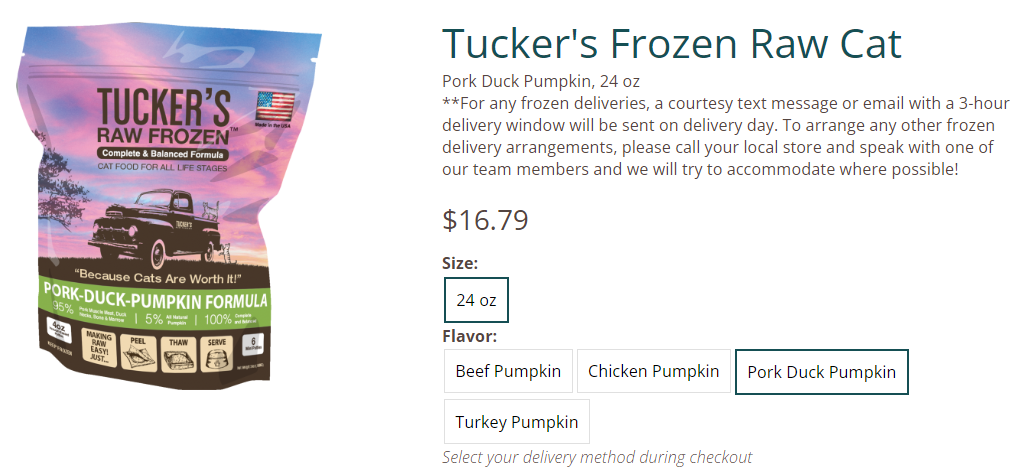
For more on how grouping fits into web store setup, see: Web Store Setup & Management
Was this article helpful?
That’s Great!
Thank you for your feedback
Sorry! We couldn't be helpful
Thank you for your feedback
Feedback sent
We appreciate your effort and will try to fix the article