When a customer can't change their AutoShip on the web store, you can do it for them in FieldStack from the Shipping Schedules tab in Customer Edit.
Open a customer's AutoShips
Find the customer with Find Customer on the POS screen or under the Customers tab in the application. If you only have the order, open Marketplace Center from the Marketplaces tab, find the order, and click Customer Overview in the Order/Item Details tab.
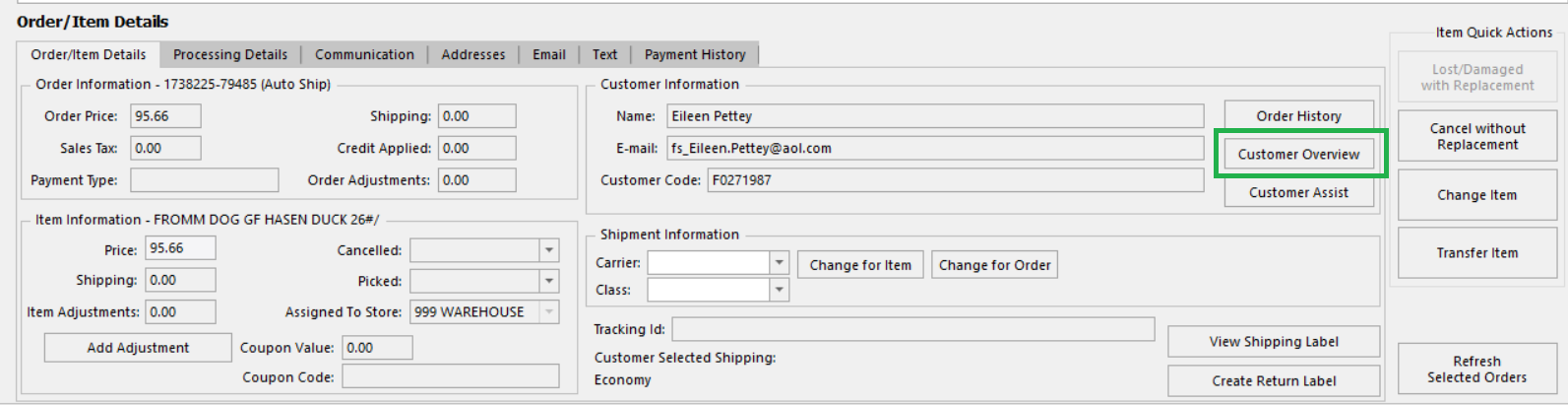 Order/Item Details tab in Marketplace Center
Once you have opened the Customer Edit window, navigate to the Shipping Schedules tab.

The Shipping Schedules tab in the Customer Edit screen
From this tab, you can:
| Button | What it does |
| De-Activate | Stops the AutoShip. No more orders are placed until it's activated again. |
| Activate | The De-Activate button reads Activate when the selected AutoShip is inactive. Click it to restart the AutoShip. FieldStack shows the date of the next order before you confirm. That's the AutoShip's next ship date if it's at least 2 days away, otherwise 2 days from today. |
| Reschedule | Changes the next ship date. Pick any date from tomorrow on. Later orders follow the AutoShip's frequency from that date. |
The grid shows each AutoShip's Next Order Date, frequency (Type and Interval), whether it's Active, and its Last Result, which shows whether the last order succeeded. Select an AutoShip to see its items below.
AutoShip Discounts
De-activating, activating, or rescheduling an AutoShip doesn't change its AutoShip discounts. Each AutoShip order is charged the item's price on the day it's placed.
- For more information on AutoShip discounts, see: AutoShip Discount Programs
Was this article helpful?
That’s Great!
Thank you for your feedback
Sorry! We couldn't be helpful
Thank you for your feedback
Feedback sent
We appreciate your effort and will try to fix the article