FieldStack offers eGift cards which allows customers to send gift cards digitally via email to anyone with an email address.
Creating an eGift Card
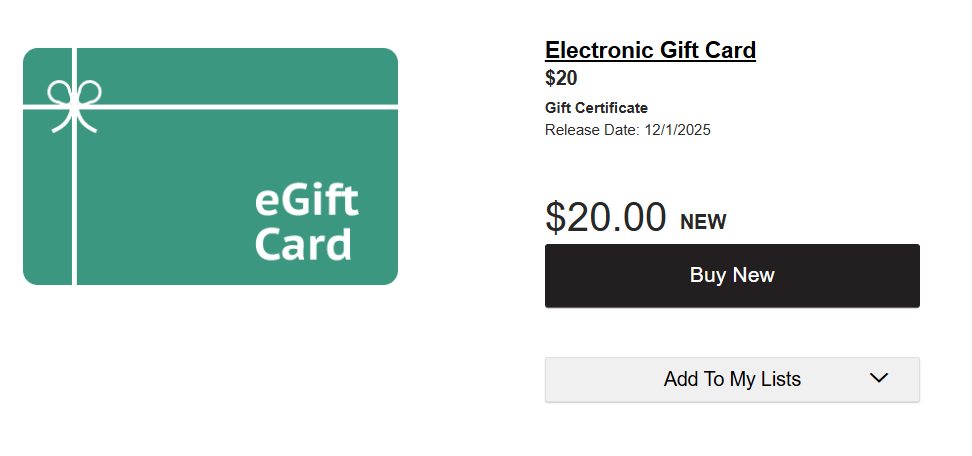
FieldStack offers two types of electronic gift cards:
- Set amount ($20, $40, $100, etc) - one item per amount
- "Any Amount" - The customer can decide the gift card amount
All eGift Cards require the Extended Category of 'GIFT CERTIFICATE' (P10) and Additional Type of 'ALWAYS AVAILABLE' (IN3).
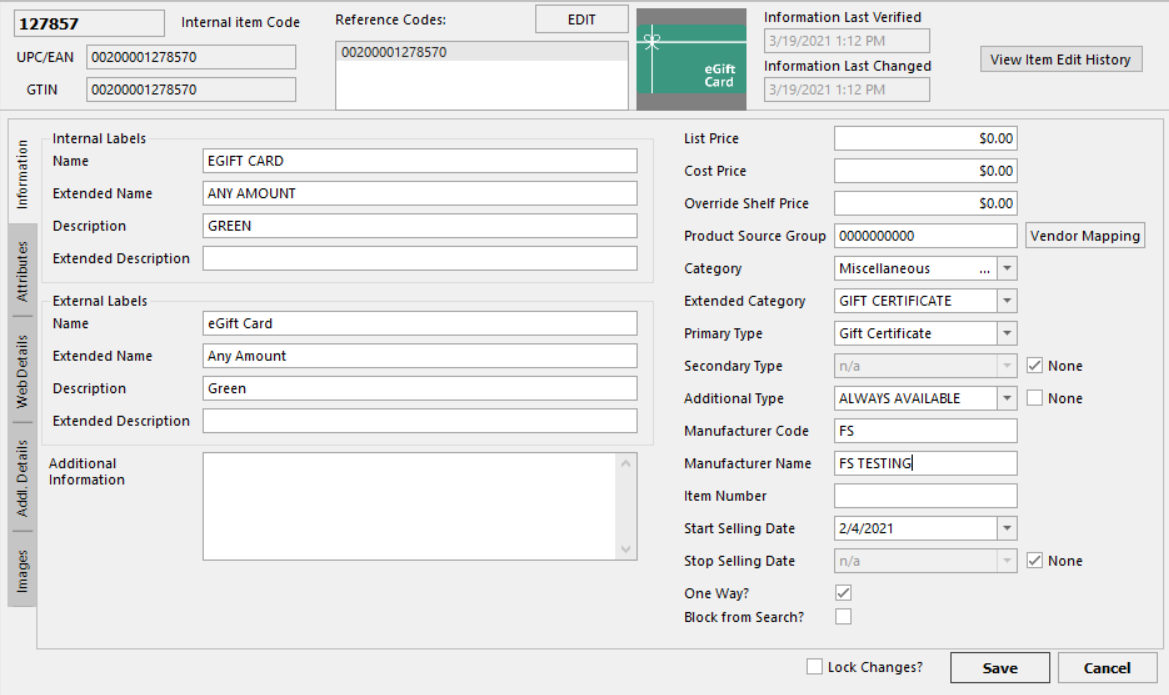
All eGift cards require the following attributes:
- eGift Card Type
- Electronically Delivered Item
- CustomerFillable

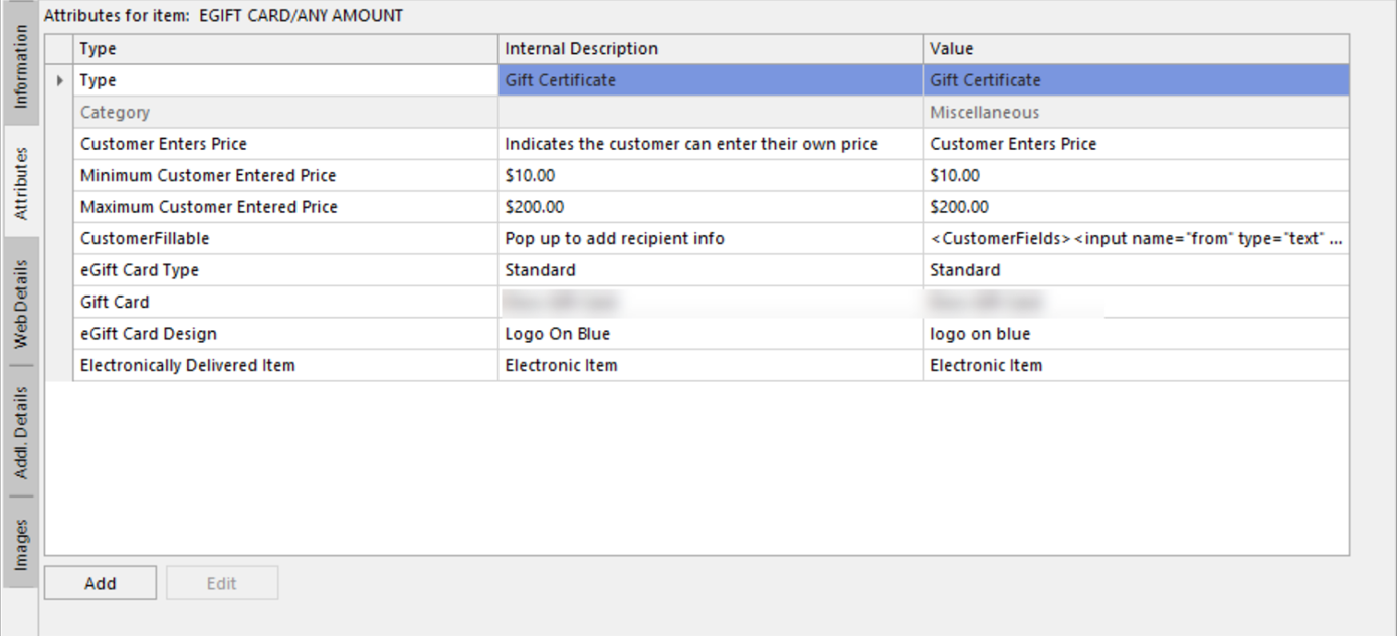
For the "Any Amount" egift cards, there are more attribute requrements on top of those above:
- Customer Enters Price
- Minimum Customer Entered Price
- Maximum Customer Entered Price
Purchasing an eGift Card
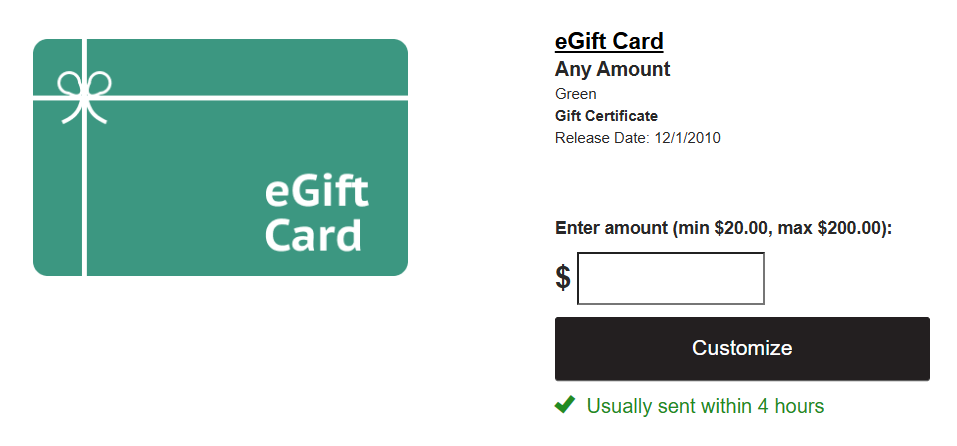
After adding the desired value of the card, clicking the Customize button will allow the user to add the following information:
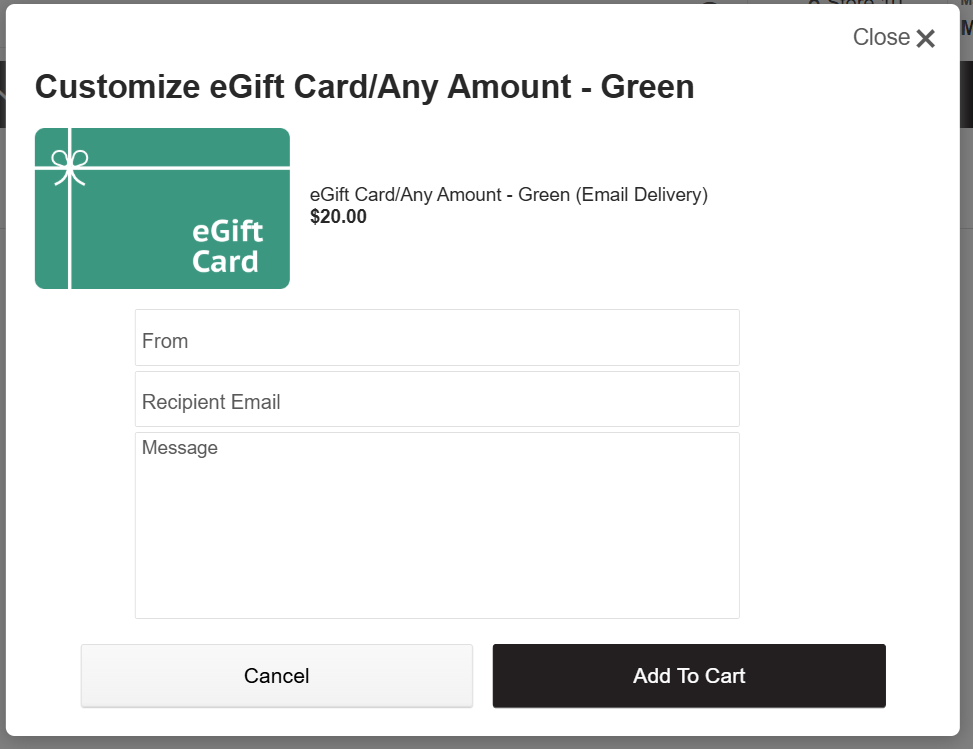
Note: The system will send the eGift card to the exact email address typed in the field.
This screen will also be able to be accessed again by clicking on the Edit button when the gift card is in the cart:
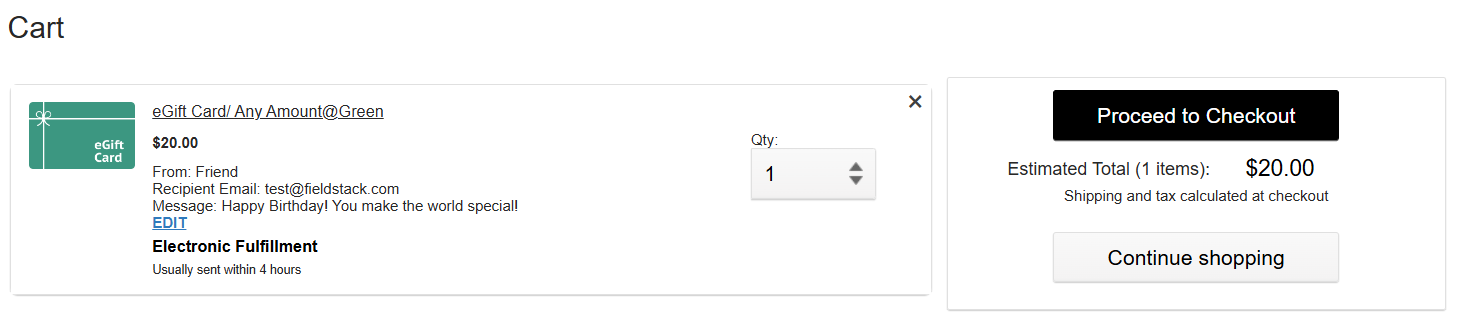
After automatic processing, eGift cards will be automatically fulfilled electronically and an email will be sent to the recipient.
Creating the Customer Notification
The template that notifies the recipient on their eGift Card can be found under Marketplaces > Customer Notifications > E-Gift Card Fulfilled.
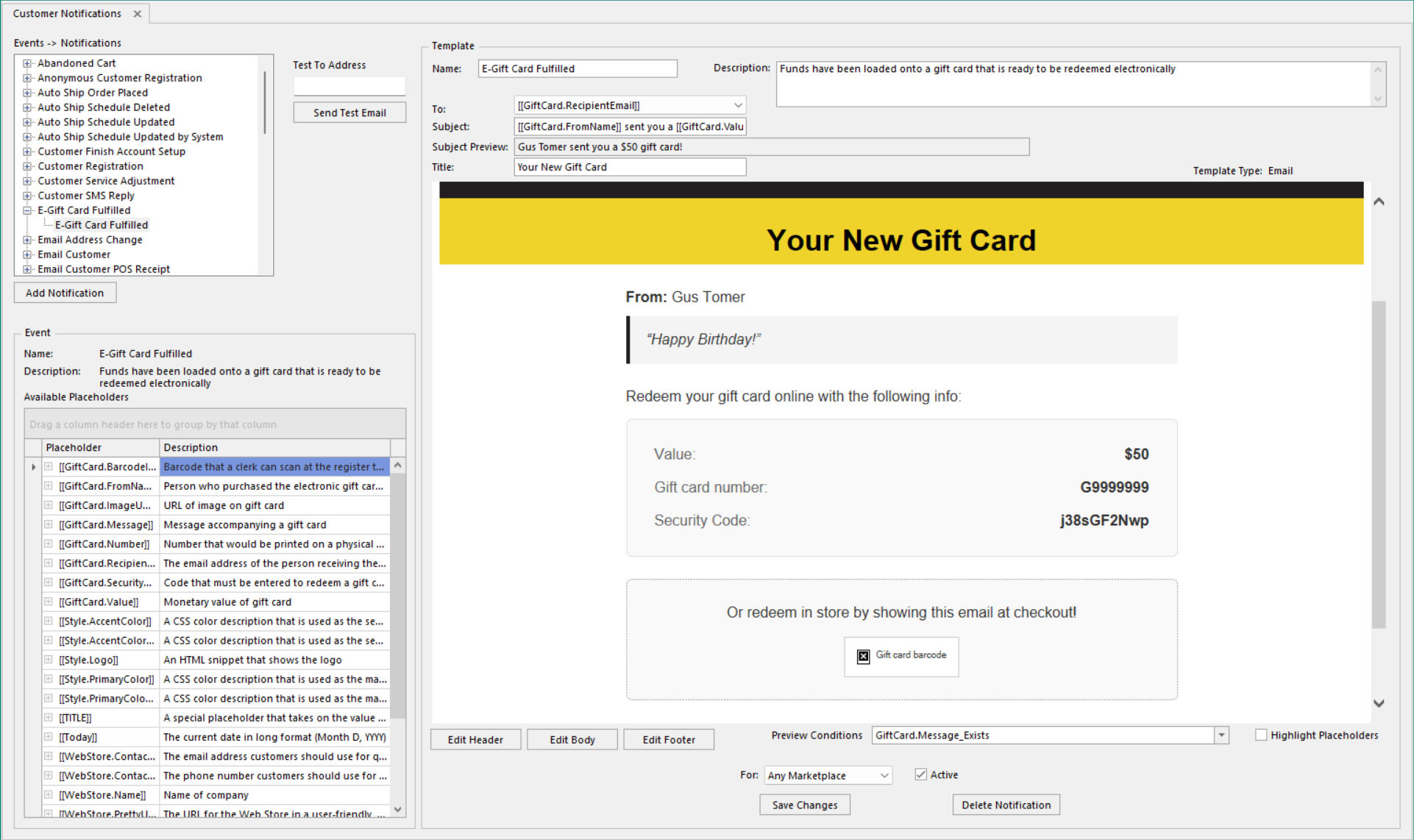
eGift Card specific variables available for use in the template include:
- [[GiftCard.BarcodeImageURL]]
- [[GiftCard.FromName]]
- [[GiftCard.ImageURL]]
- [[GiftCard.Message]]
- [[GiftCard.Number]]
- [[GiftCard.RecipientEmail]]
- [[GiftCard.SecurityCode]]
- [[GiftCard.Value]]
There is logic to handle if there is a gift card message or not:
- [[if:GiftCard.Message_Exists]]
- [[if:GiftCard.Not_Message_Exists]]
Checking an eGift Card Balance Online
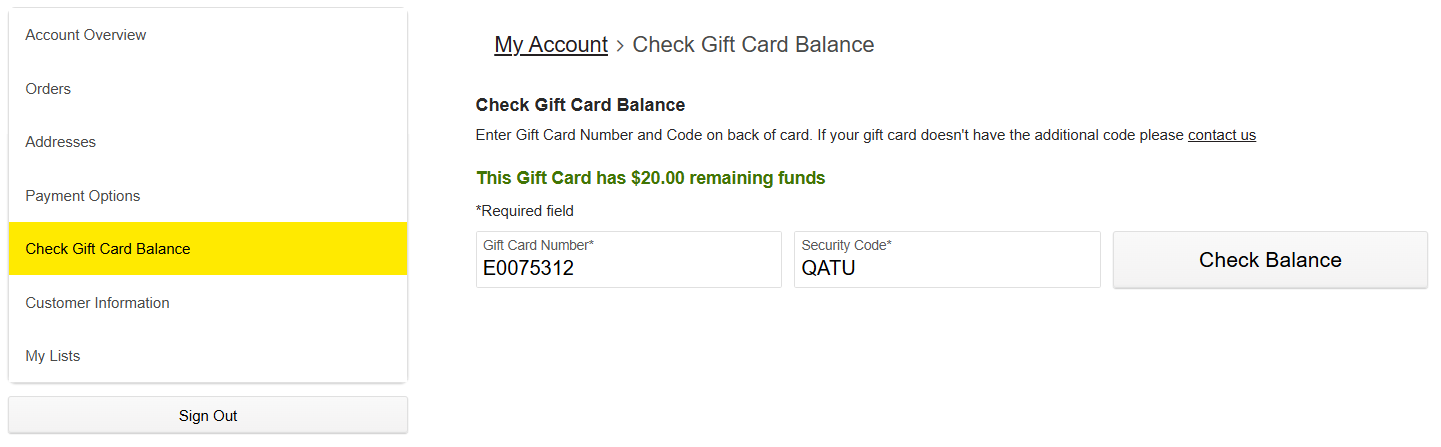
Customers can check the balance of their eGift Cards in their online account in the Check Gift Card Balance screen.
Checking an eGift Card Balance In Store
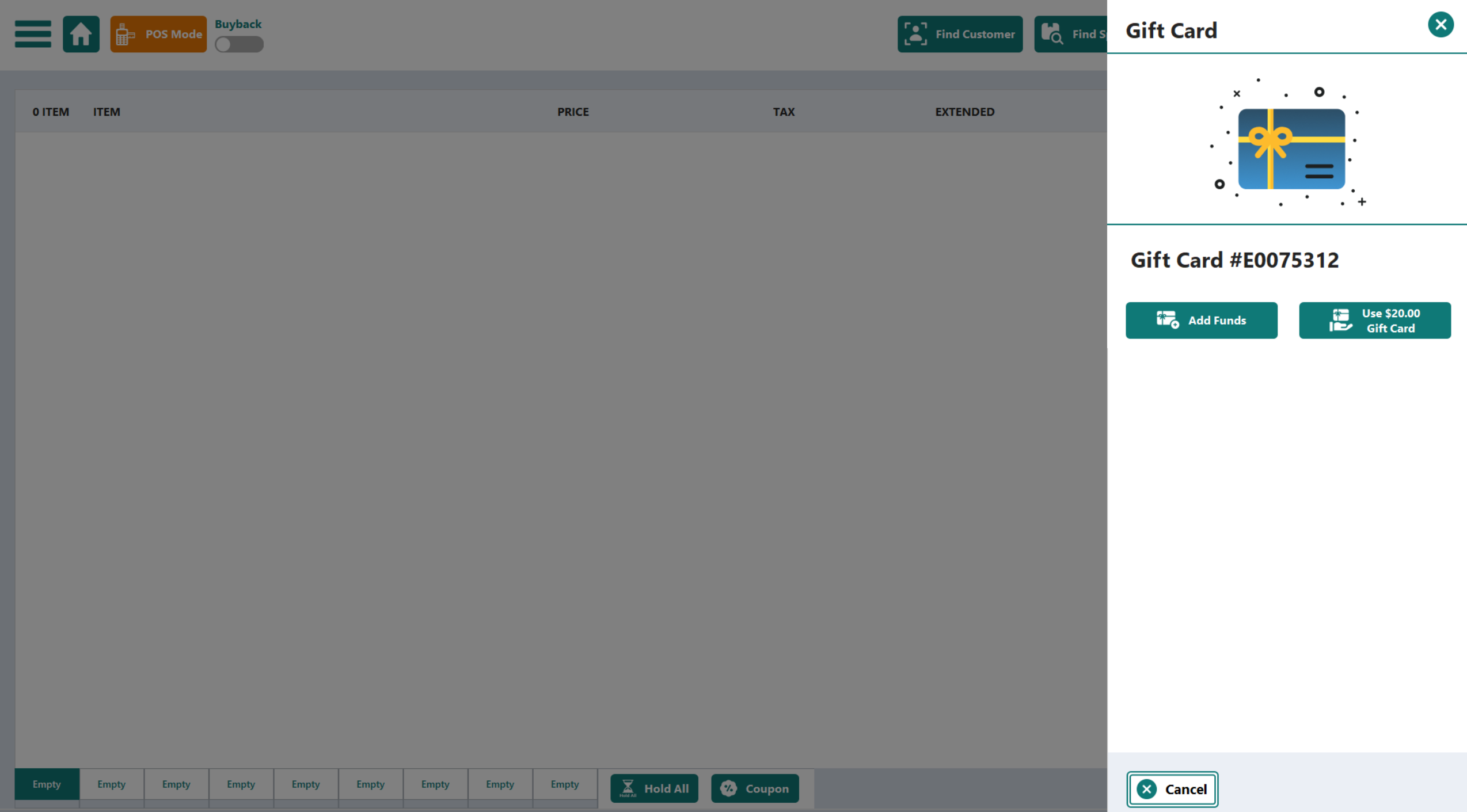
To check the balance of a gift card, Scan the barcode in the POS like any other gift card, the balance will show, as well as other options.
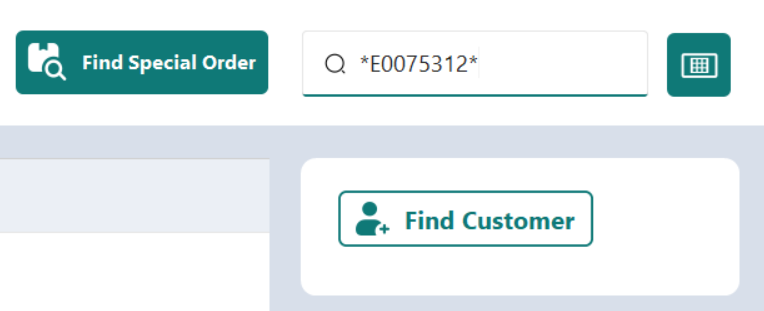
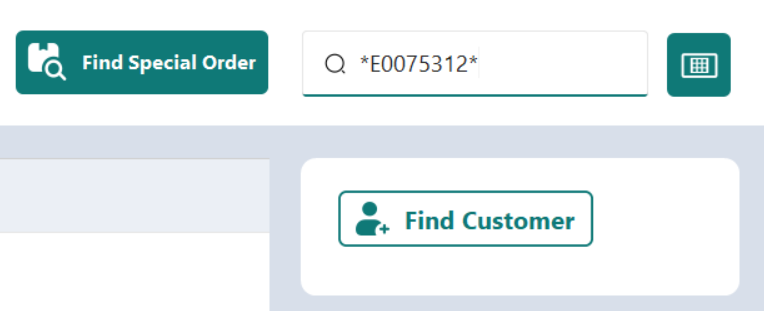
If the gift card barcode is un-scannable for some reason, or missing entirely, you can manually type the card number into the POS search box, but surrounded with "*" asterisk symbols into the POS like this:
Redeeming an eGift Card Online
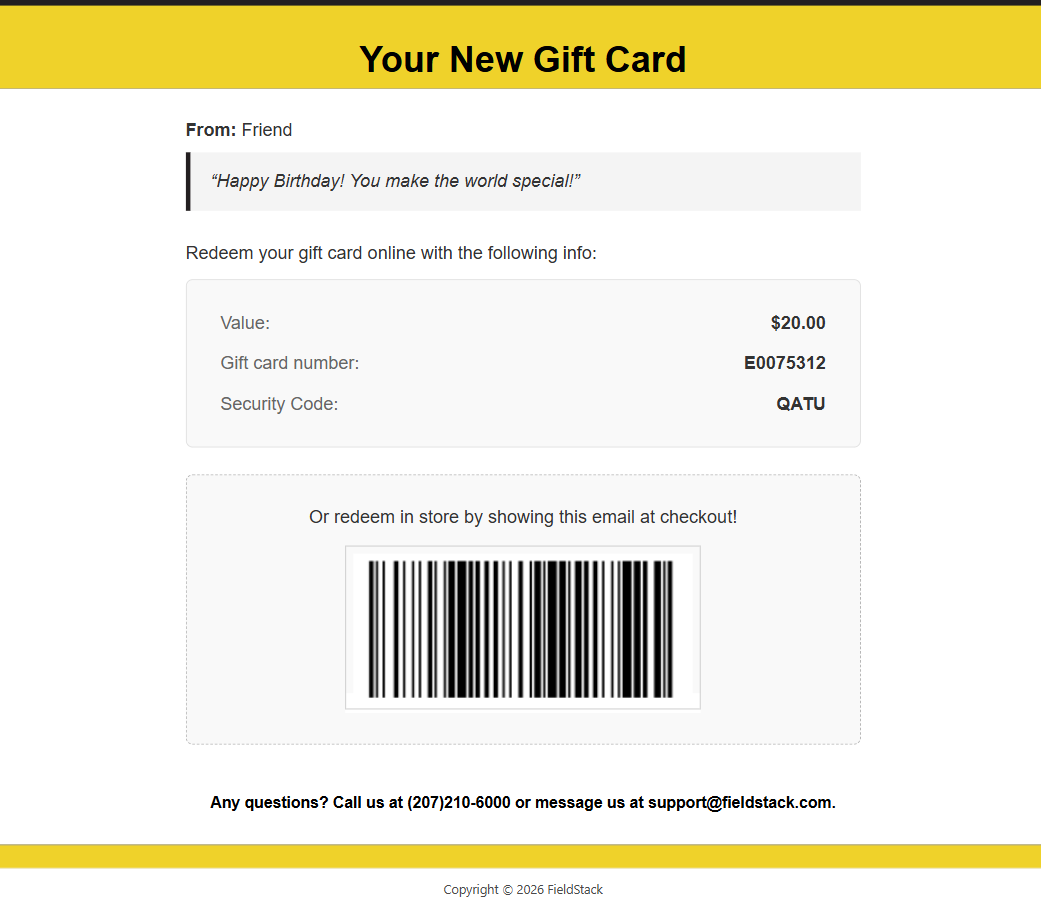
Recipients will receive an email with details on redeeming their eGift card and can add their eGift card funds to their account.
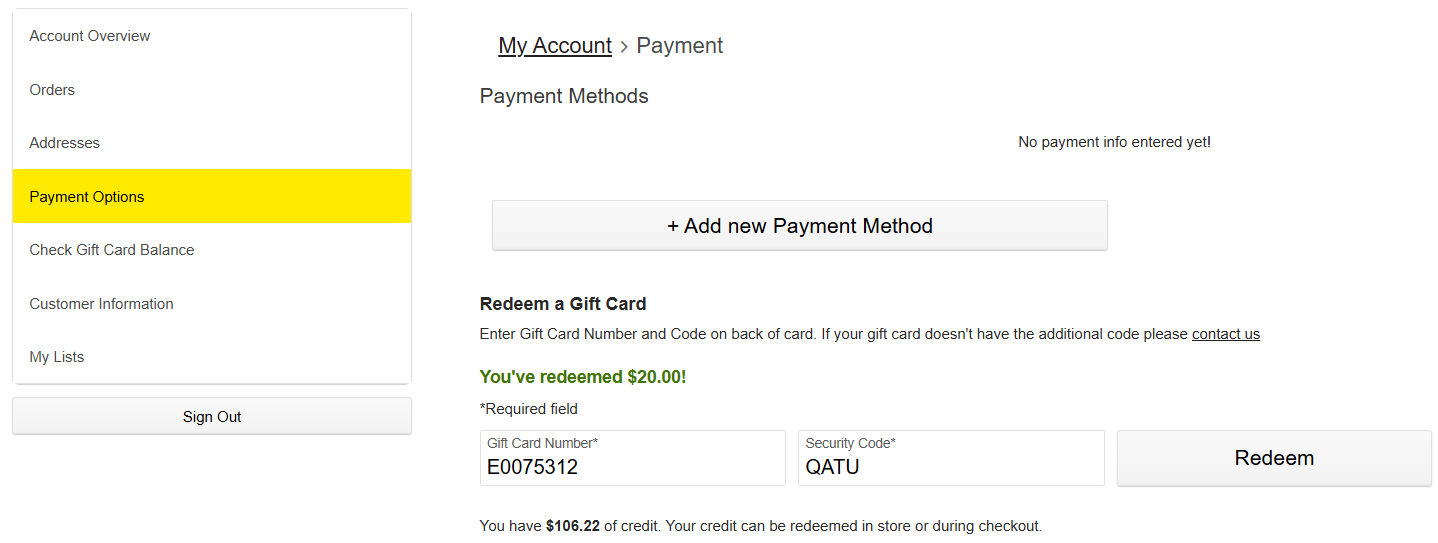
Funds can be added to the account on the Payment Methods screen:
Or Funds can be applied to purchases during checkout:
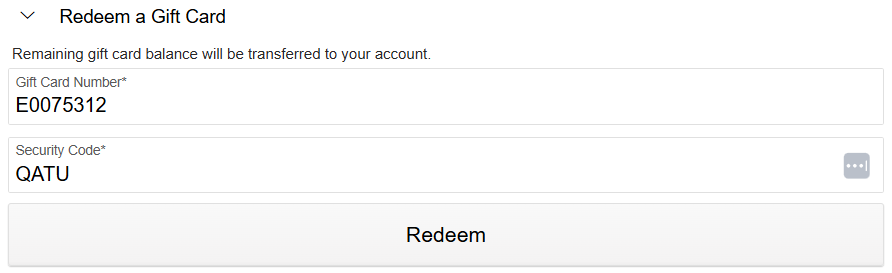
Upon a successful redemption, there will be a confirmation message:
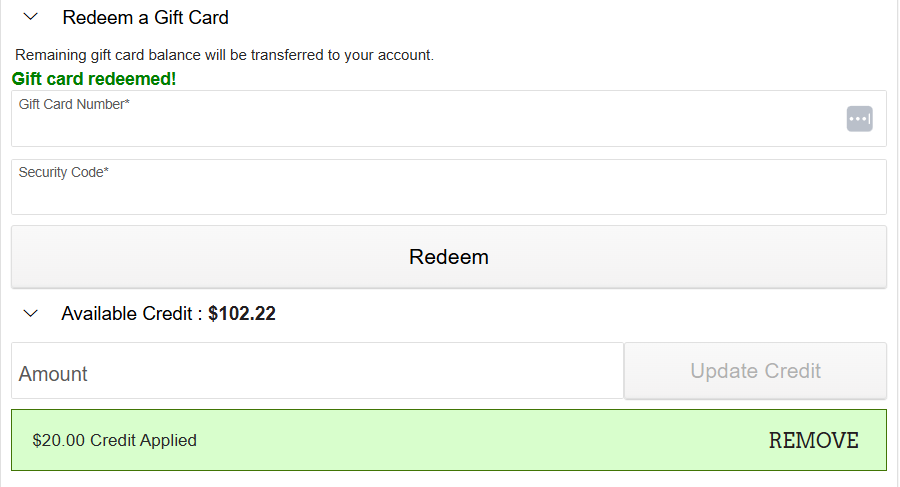
Redeeming an eGift Card In Store
The barcode shown in the email will allow the eGift Card to be used in Brick & Mortar locations. Scan the barcode to redeem the value like any other gift card.
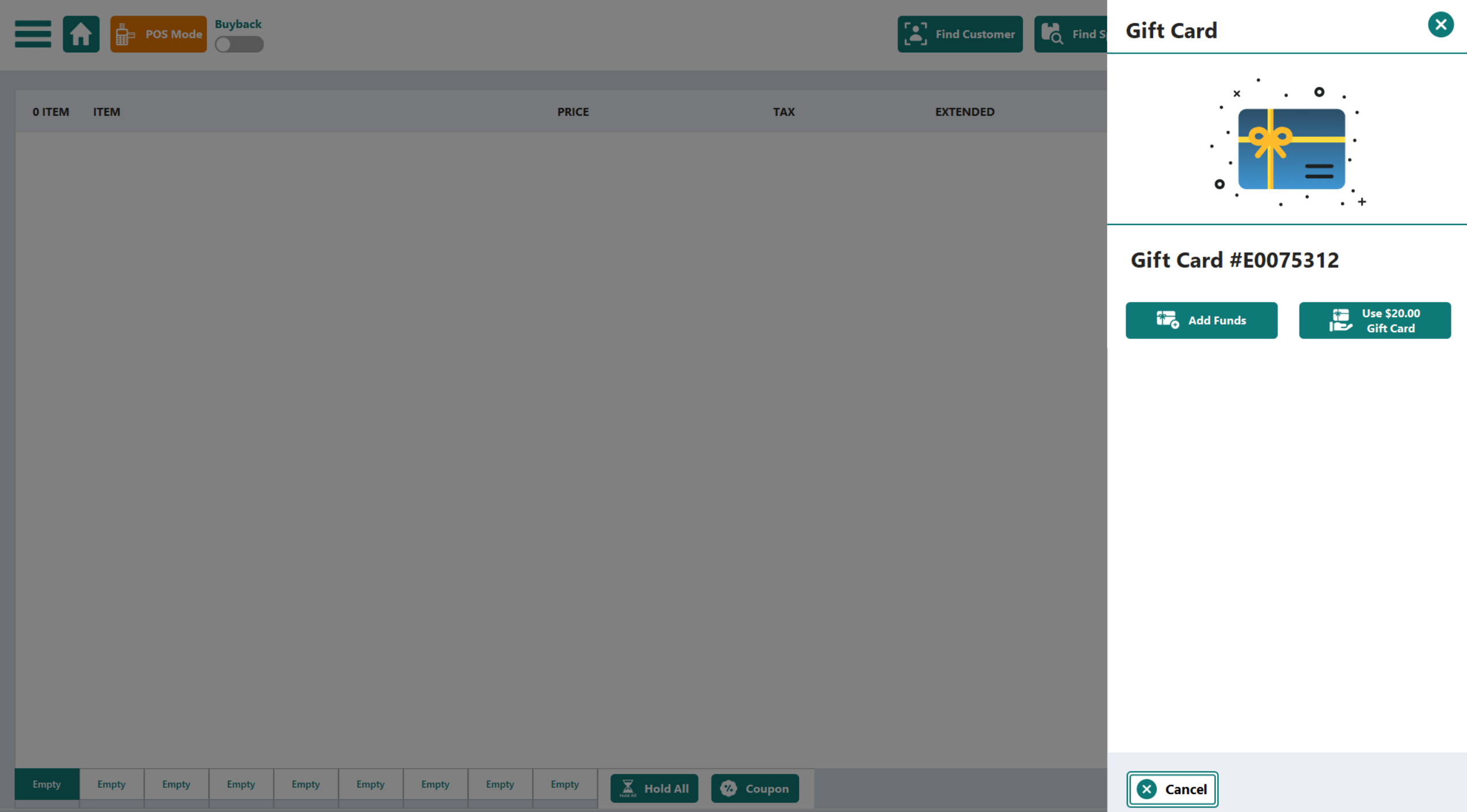
If the gift card barcode is un-scannable for some reason, or missing entirely, you can manually type the card number into the POS search box, but surrounded with "*" asterisk symbols into the POS like this:
Was this article helpful?
That’s Great!
Thank you for your feedback
Sorry! We couldn't be helpful
Thank you for your feedback
Feedback sent
We appreciate your effort and will try to fix the article