TABLE OF CONTENTS
- Overview
- Key Concepts
- Prerequisites
- How to Generate Coupon Codes
- How Coupons Are Redeemed
- Important Notes & Limitations
- Troubleshooting
- Reports
- FAQ
Overview
Single-use coupon codes let you generate unique, one-time-use codes tied to an existing coupon item in your inventory. Each code can only be redeemed once, making them ideal for:
- Targeted promotions sent to specific customers via email or direct mail
- Loyalty rewards with personalized discount amounts
- Limited-time offers with built-in expiration dates
- Bulk giveaways where you need to track individual redemptions
Codes follow the format SU-XXXXXXXXXXXXXXXX (the prefix "SU-" followed by 16 alphanumeric characters). They can be redeemed at the Point of Sale, on the WebStore, or automatically applied when a bound customer is added to a transaction.
Key Concepts
| Concept | Description |
|---|---|
| Parent Coupon Item | The existing coupon item in your inventory that the generated codes are linked to. The code inherits the coupon's discount rules. |
| Code Format | All codes start with "SU-" followed by 16 alphanumeric characters (e.g., SU-A8B2C4D6E1F3G5H7). |
| Customer Binding | Codes can optionally be bound to a specific customer. When bound, only that customer can redeem the code. |
| Override Amount | You can set a custom discount amount that overrides the parent coupon's default value. |
| Expiration Date | Optional. If set, the code remains valid through the end of that date (11:59 PM). |
Prerequisites
Before generating coupon codes:
- Enable the feature - The Enable One-Time Use Coupon Codes setting must be turned on.
- Have a coupon item - You need an existing coupon item in your inventory. The generated codes will inherit this item's discount behavior.
- Administrator access - You must have the Item List Administrator permission to generate codes.
Settings & Configuration
| Setting | Description | Default |
|---|---|---|
| Enable One-Time Use Coupon Codes | Master toggle for the entire single-use coupon feature. When off, the generator menu items are hidden and codes cannot be redeemed. | Off |
| Auto-Apply One-Time Use Coupons | When enabled, customer-bound coupons are automatically added to the POS transaction when the customer is attached. | Off |
To see the current settings, navigate to the WebStore Administration Page, click Settings, click commonsettings. Please contact FieldStack Support to change these.
How to Generate Coupon Codes
Accessing the Generator
There are two ways to open the code generator:
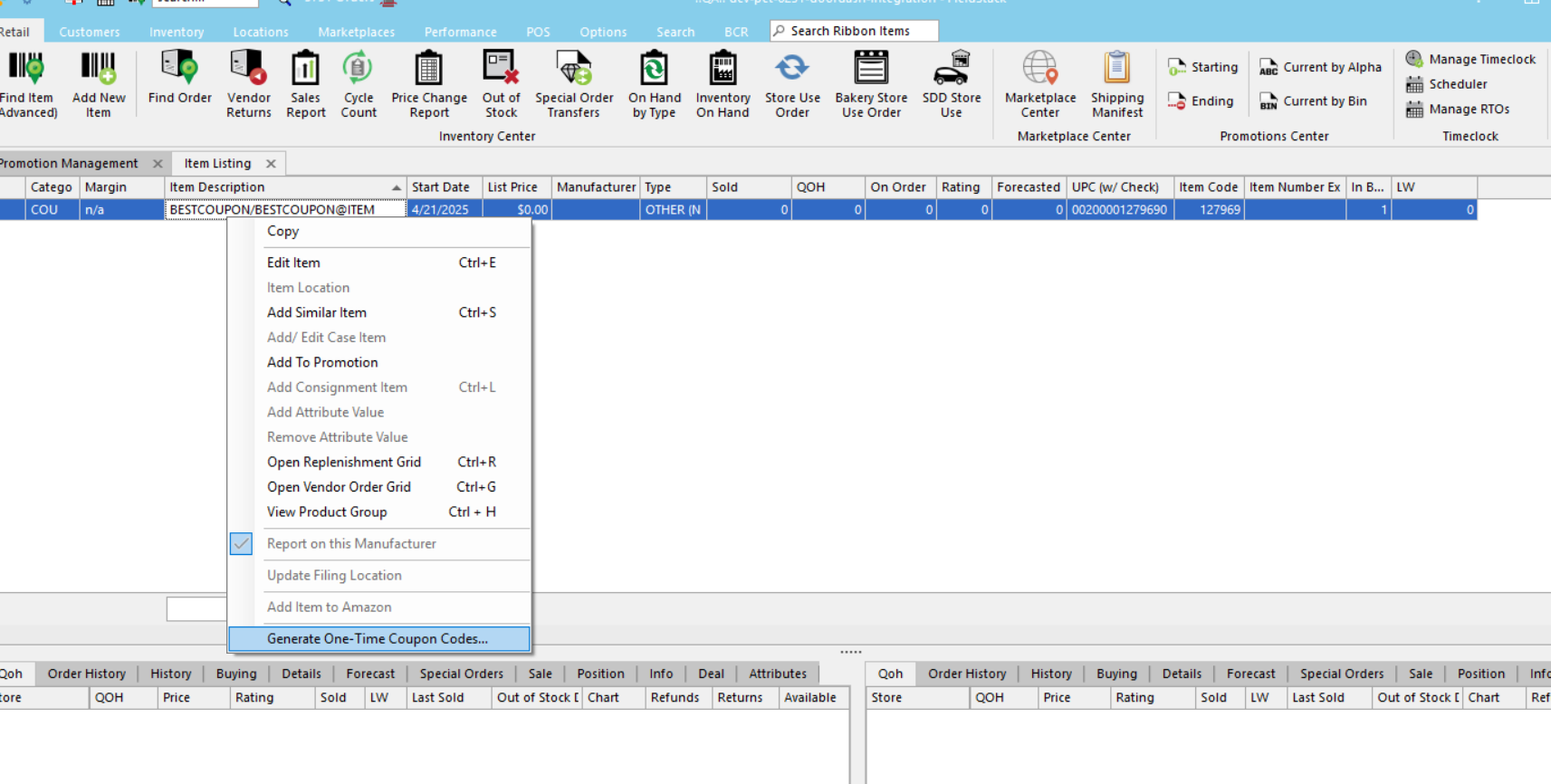
- From the Item List: Right-click a coupon item → select Generate One-Time Coupon Codes
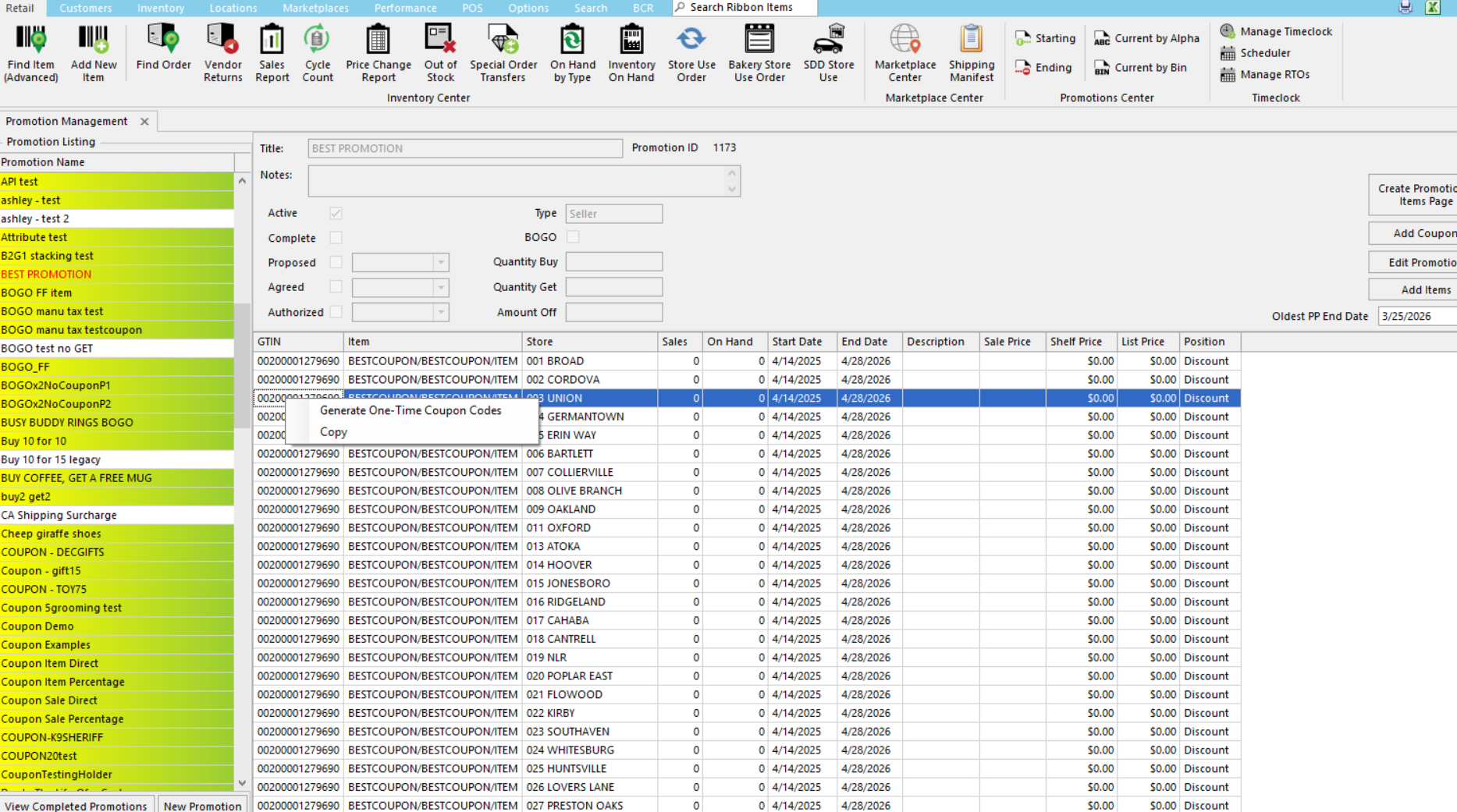
- From Promotion Management: Right-click a coupon item in the promotion items grid → select Generate One-Time Coupon Codes
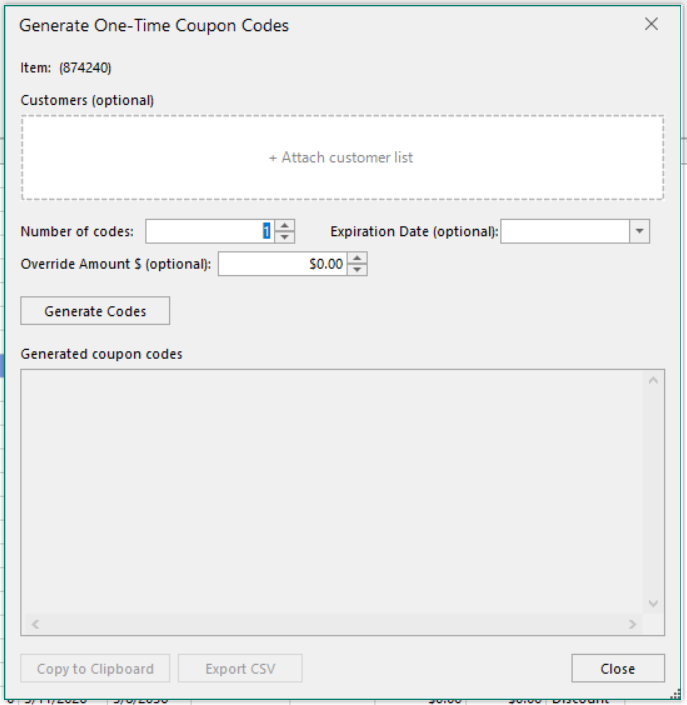
The generator window shows the selected coupon item name and code at the top.
Mode 1: Generic (Anonymous) Codes
Use this mode to generate a batch of codes that are not tied to any specific customer. Anyone with the code can redeem it.
- Enter the number of codes to generate (1 to 1,000,000) in the Number of codes field.
- (Optional) Set an Expiration Date. Codes will be valid through the end of that date.
- (Optional) Enter an Override Discount Amount to set a custom dollar value. Leave at $0.00 to use the parent coupon's default discount.
- Click Generate Codes.
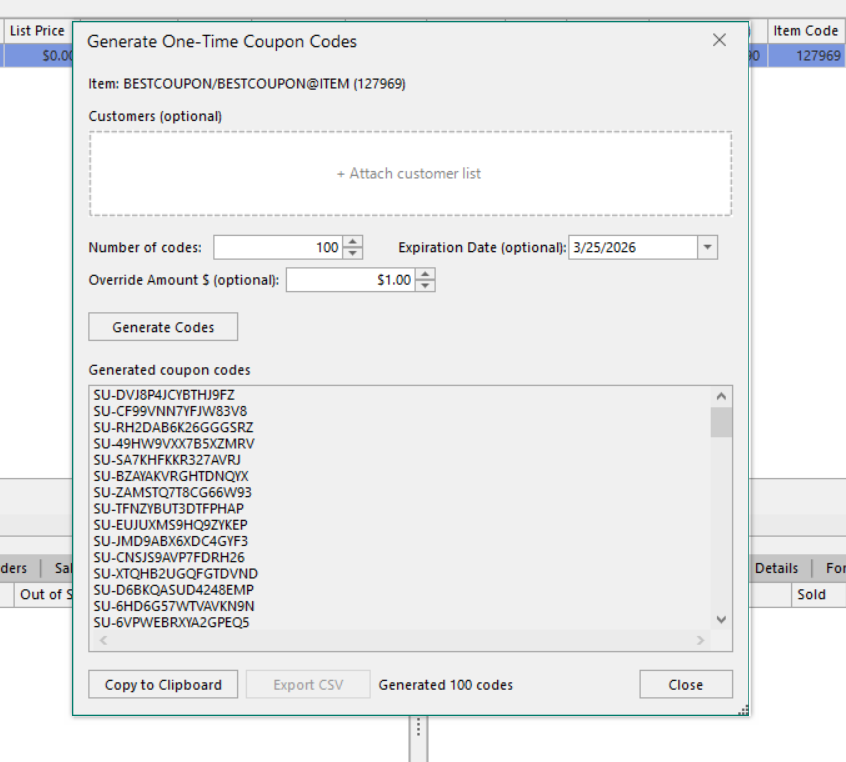
- The generated codes appear in the results area, one per line.
- Click Copy to Clipboard to copy all codes for pasting into emails, documents, etc.
Mode 2: Customer-Bound Codes
Use this mode to generate one code per customer, bound so only that customer can redeem it.
- Prepare a text file (.txt or .csv) with one customer code per line (max 8 characters each).
- Import the file by either:
- Drag and drop the file onto the "Attach customer list" area, or
- Click the "Attach customer list" area to browse for the file.
- Once imported, you'll see the file name and the number of customer codes loaded. The Count field is disabled - one code is generated per customer.
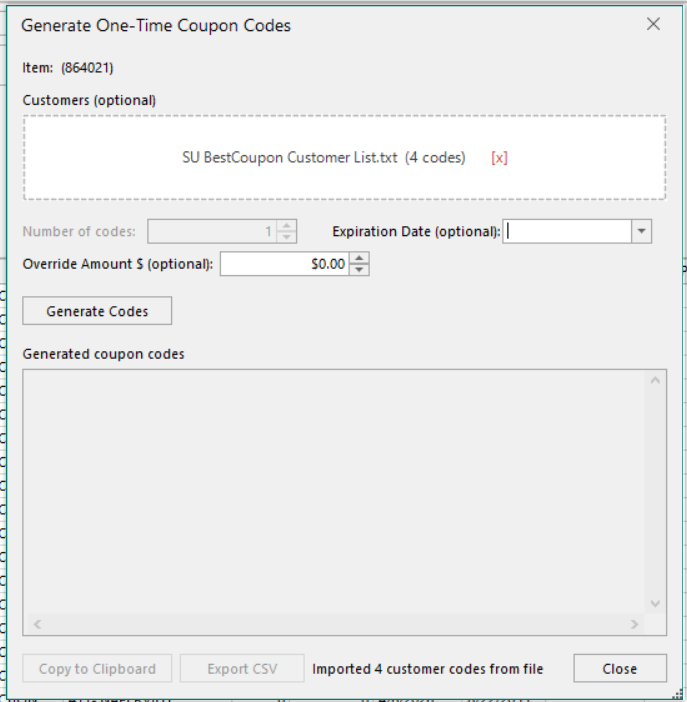
- (Optional) Set an Expiration Date and/or Override Discount Amount.
- Click Generate.
- Click Export CSVto save the results. The CSV includes columns for:
- CustomerCode - the customer's code
- Email - the customer's email address (for sending the coupon)
- CouponCode - the generated single-use code
- ExpirationDate - when the code expires (if set)
- DiscountAmount - the override amount (if set)
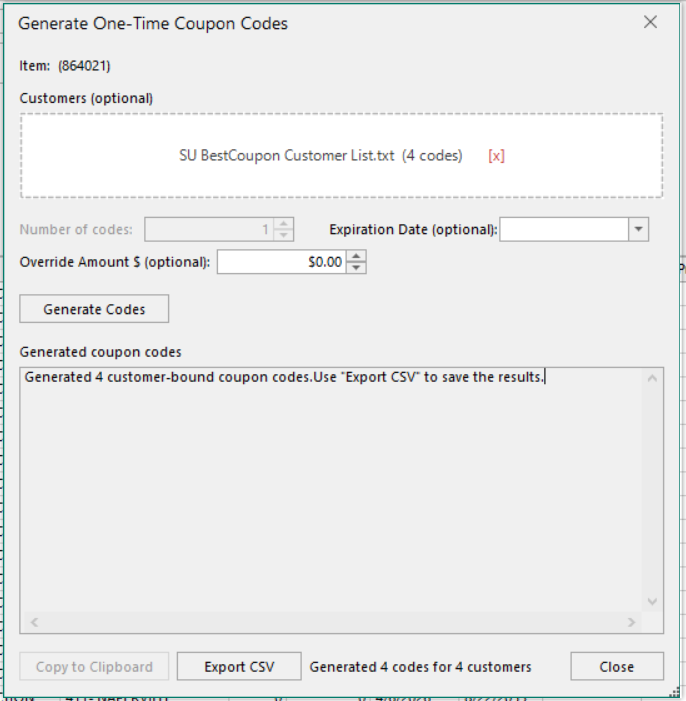
To remove an imported file and switch back to generic mode, click the [x] next to the file name
Note: Only customers that exist in FieldStack will receive codes. If a customer code in your file doesn't match a record, it will be skipped (no error is shown).
How Coupons Are Redeemed
Manual Redemption (POS)
At the Point of Sale, scan or type the coupon code. The system will:
- Verify the code is valid, unexpired, and hasn't already been redeemed
- If the code is bound to a customer, confirm the correct customer is on the transaction
- Add the parent coupon item to the transaction
- Display the override amount and/or expiration date on the line item (if applicable)
- After successful payment, mark the code as redeemed
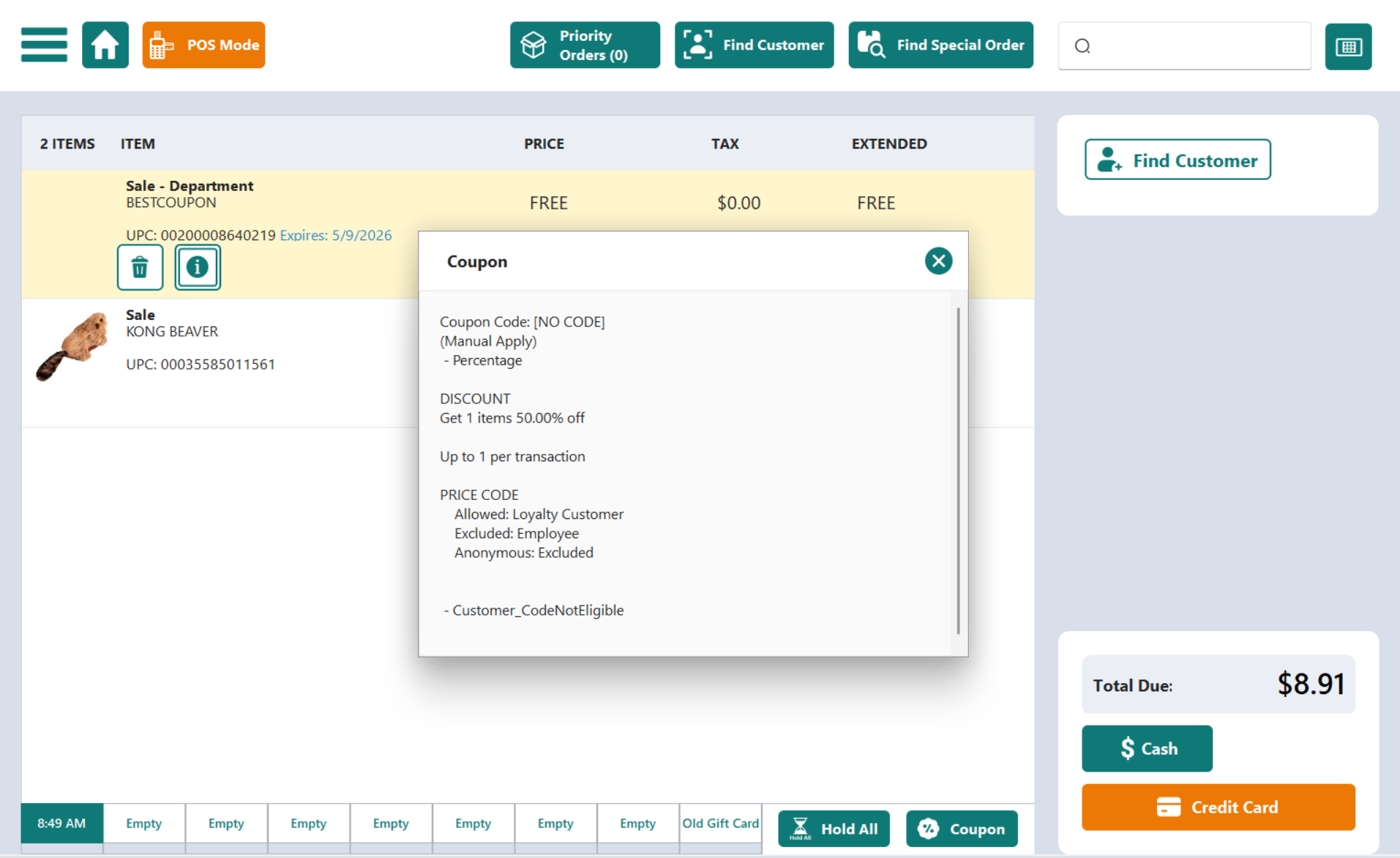
Example of Single Use Coupon that requires a customer, but is not bound to a customer:
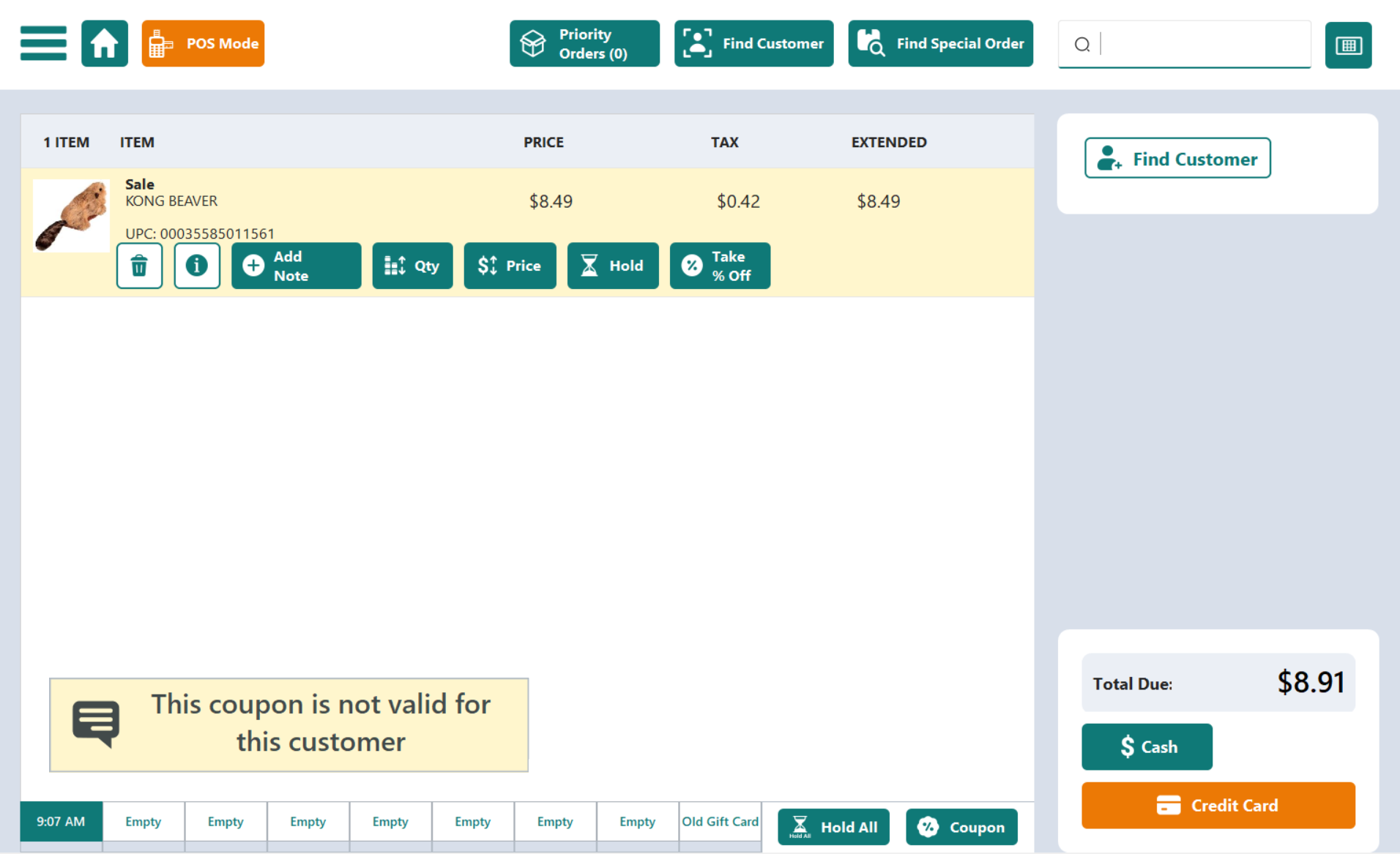
Example of trying to scan a Single Use Coupon bound to a customer and no customer is added:
Example of trying to use a Single Use Coupon bound to a different customer:
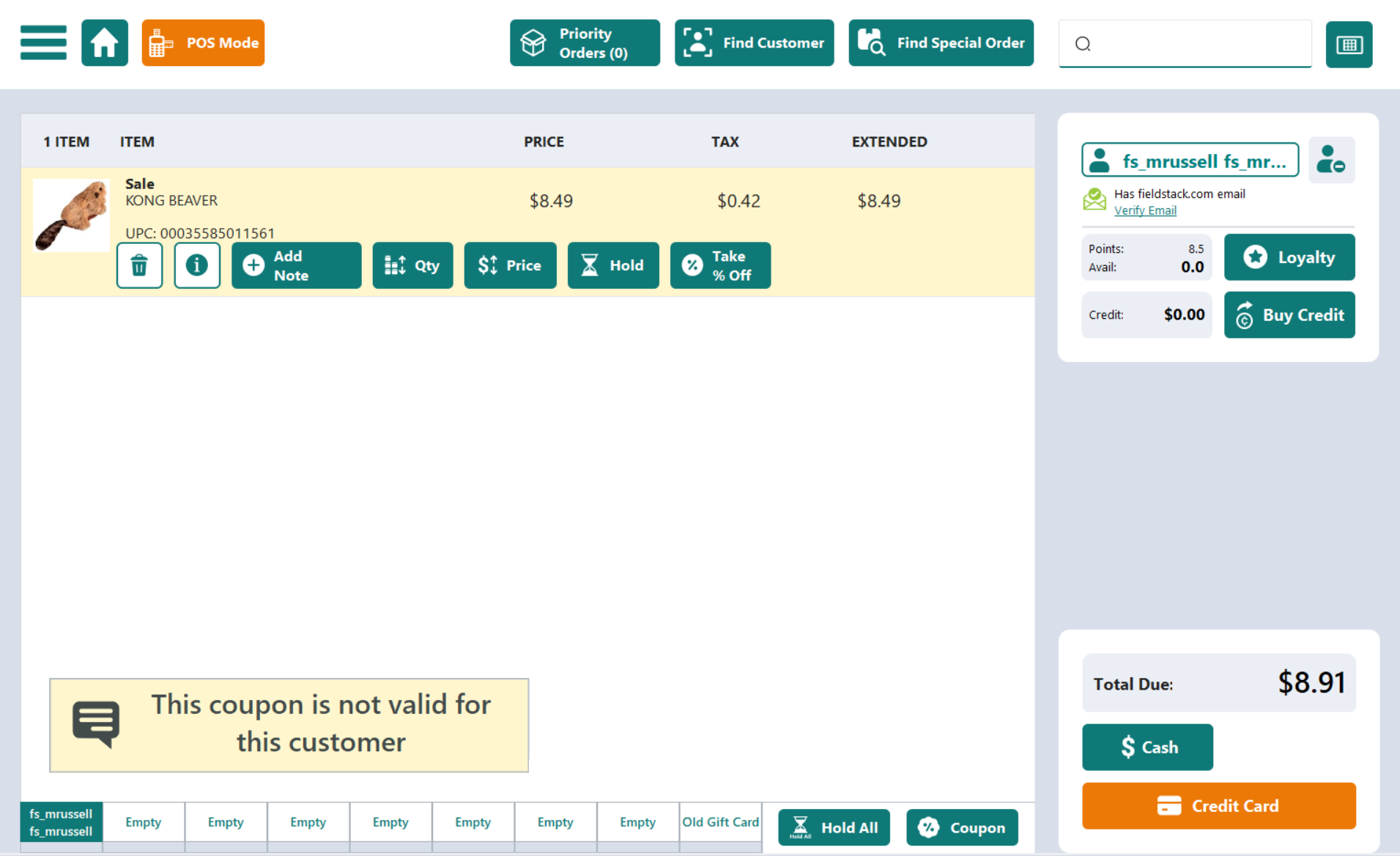
Multiple different single-use codes from the same parent coupon can be stacked in one transaction. The same code cannot be scanned twice in the same transaction.
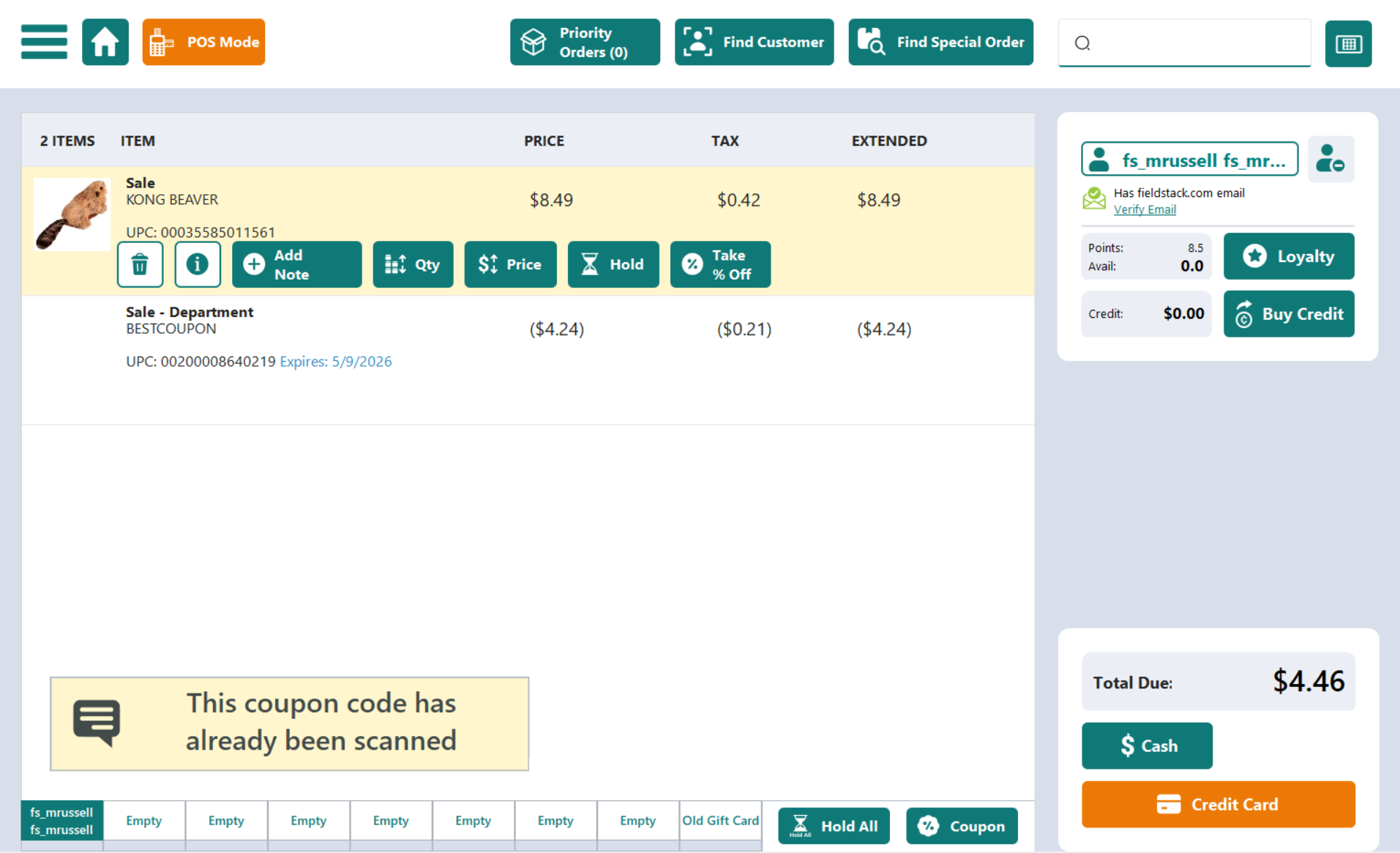
Automatic Redemption (POS)
When Auto-Apply One-Time Use Coupons is enabled, any valid customer-bound codes are automatically applied when the customer is added to the transaction. This requires:
- The customer has unredeemed codes bound to them
- Enable One-Time Use Coupon Codes is turned on
- Auto-Apply One-Time Use Coupons is turned on
- The register is online
When the customer is removed or changed, all auto-applied single-use coupons are removed from the transaction.
When Customer has a Single Use Coupon bound to them, it will show up automatically when they are added to the transaction:
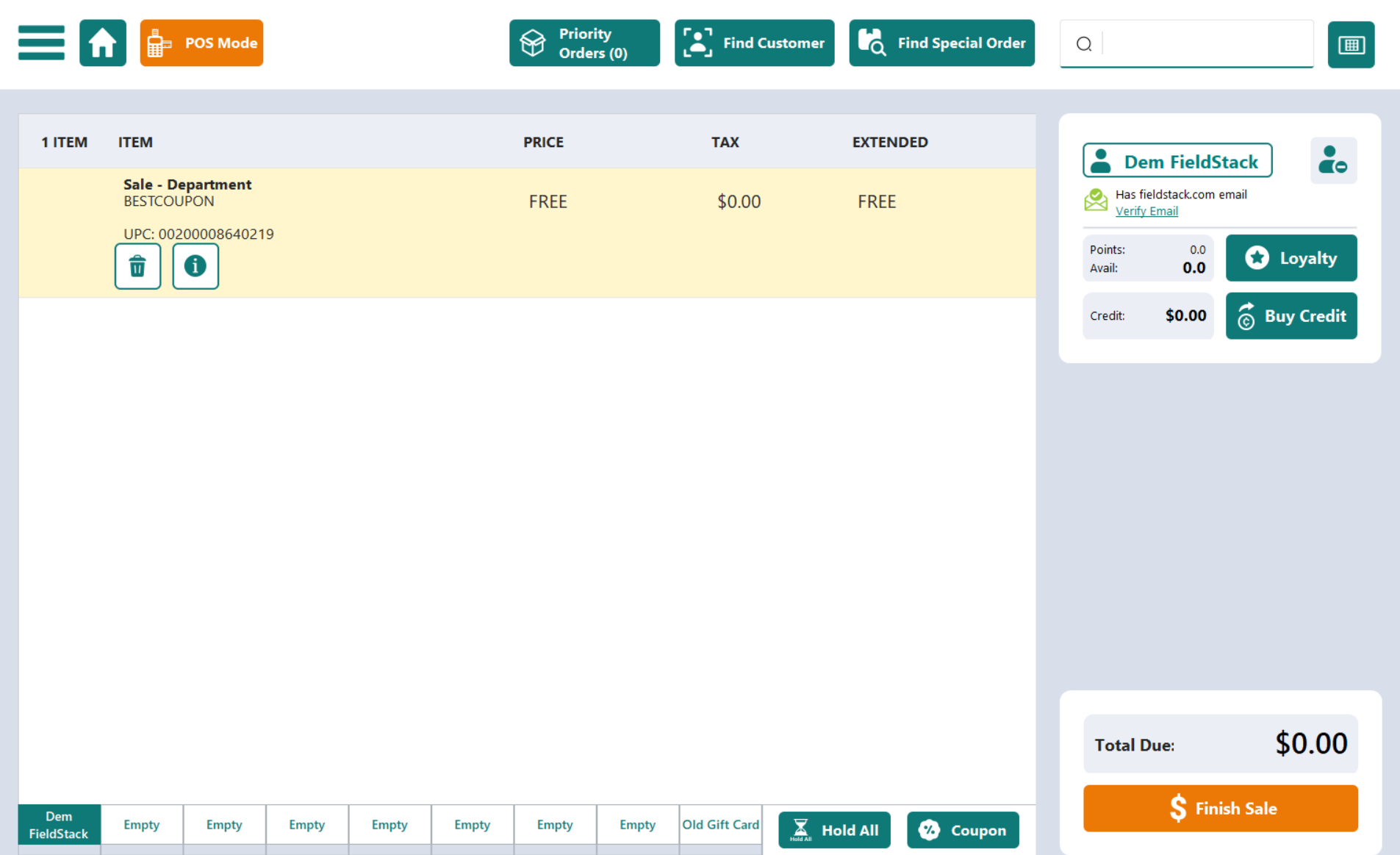
Example of once an eligible item is added (for an Item coupon):
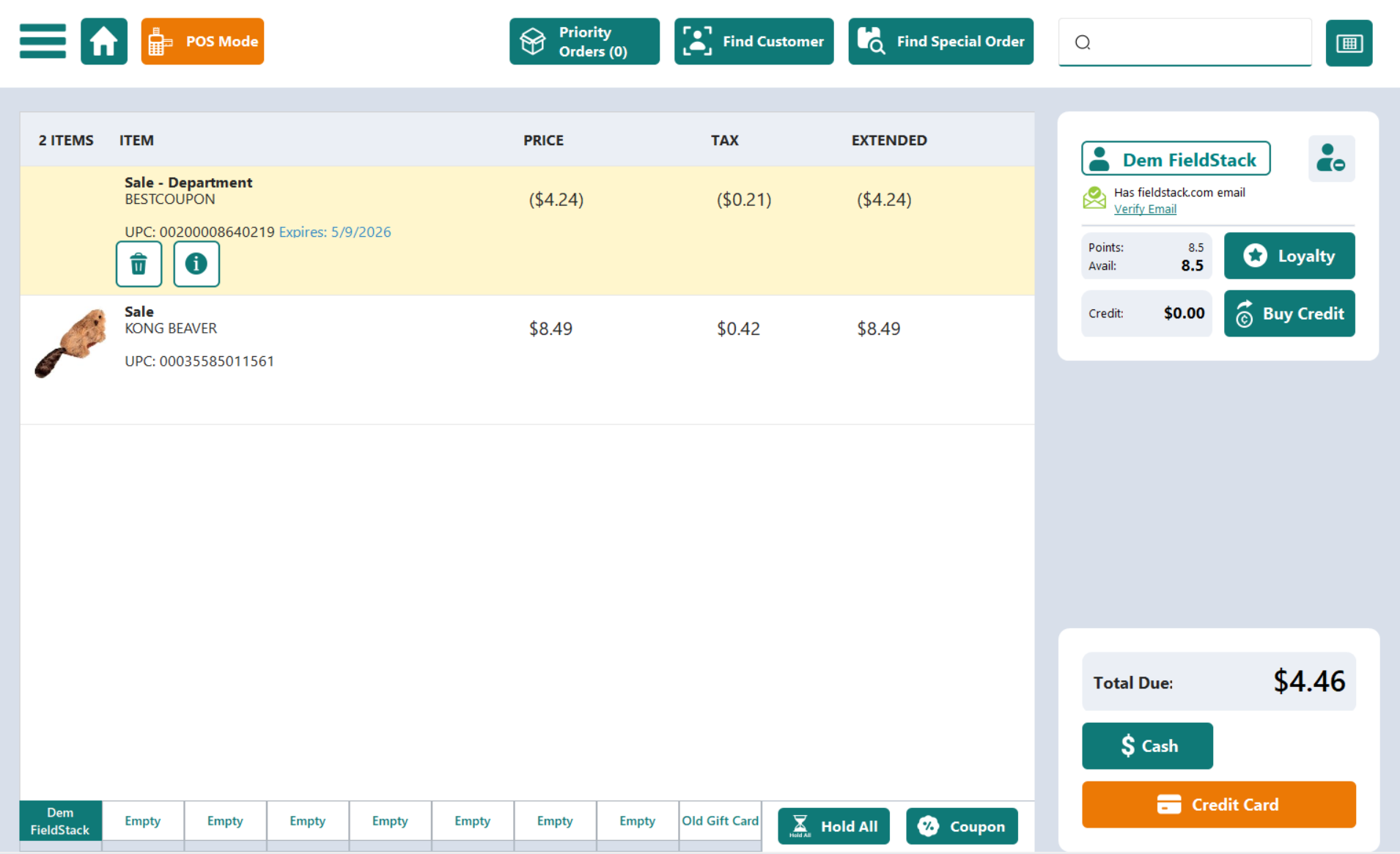
WebStore Redemption
Customers can enter single-use coupon codes at checkout on the WebStore. The same validation rules apply, the code must be valid, unexpired, unredeemed, and (if customer-bound) belong to the logged-in customer.
Important Notes & Limitations
- Online connection required - Single-use coupons require a connection to the cloud database. They cannot be redeemed while offline. Scanning a code offline displays: "Single-use coupons require an online connection."
- One-time use only - Each code can be redeemed exactly once. After redemption, the code is permanently marked as used. The system also re-verifies codes at the moment of payment, so the same code cannot be used on two registers at the same time.
- Normal POS mode only - Codes can only be redeemed when the POS is in Normal mode (not Returns, Transfers, etc.).
- Customer change clears coupons - When the customer on a transaction is changed or removed, all single-use coupons (both manually scanned and auto-applied) are removed from the transaction.
- Zero-effect coupons are not used up - If a coupon's discount comes out to $0 (e.g., no qualifying items in the cart), the code is not redeemed and can be used in a future transaction.
- End-of-day expiration - Codes with an expiration date remain valid through the end of that date. A code set to expire on March 15 is still valid on March 15 and expires on March 16.
- Maximum batch size - You can generate up to 1,000,000 codes per batch.
Troubleshooting
Error Messages at the POS
| Message | What It Means |
|---|---|
| "Invalid single-use coupon format" | The scanned code doesn't match the expected format. Check for typos or a damaged barcode. |
| "Invalid coupon code" | The code was not found in the system. It may have been mistyped or was never generated. |
| "This coupon code has expired" | The code's expiration date has passed. |
| "This coupon code has already been redeemed" | The code was used in a prior transaction. Each code can only be used once. |
| "This coupon is not valid for this customer" | The code is bound to a different customer. Make sure the correct customer is attached to the transaction. |
| "This coupon code has already been scanned" | The same code was already added to the current transaction. |
| "This coupon code is not valid. Please contact support." | The code exists but the parent coupon item could not be found in inventory. This may indicate the coupon item was deleted. |
| "Coupon is no longer valid. Remove it and try again." | The coupon was valid when scanned but has since been redeemed on another register or expired. Remove the coupon and re-scan or proceed without it. |
| "Single-use coupons require an online connection" | The register is offline. Single-use coupons cannot be verified without a connection to the server. |
| "Single-use coupons can only be redeemed in Normal mode" | The POS is in a mode other than Normal (e.g., Returns). Switch to Normal mode to scan the code. |
Error Messages During Code Generation
| Message | What It Means |
|---|---|
| "Please enter a valid count greater than 0." | The count field is set to zero or negative. |
| "Count cannot exceed 1,000,000." | Reduce the number of codes to 1,000,000 or fewer. |
| "No valid customer codes found in the file." | The imported file contains no valid customer codes. Ensure the file has one customer code per line, each 8 characters or fewer. |
| "File contains more than 1,000,000 customer codes." | The customer file is too large. Split it into smaller batches. |
| "No codes were generated. Verify that the imported customer codes exist in the system." | None of the customer codes in the file matched records in the system. |
Reports
Additional reporting tools:
FAQ
Can I regenerate or reactivate a used code?
- No. Once a code is redeemed, it is permanently marked as used. Generate a new code instead.
What happens if I generate codes for a coupon item and then delete the item?
- The codes will still exist but cannot be redeemed, the POS will show "This coupon code is not valid. Please contact support."
Can a customer use multiple single-use codes in one transaction?
- Yes, as long as each code is different. Multiple codes from the same parent coupon can stack in a single transaction.
How do I distribute the codes to customers?
- For generic codes, copy them from the results area and distribute however you prefer (email, print, etc.). For customer-bound codes, export the CSV and use the email column to send each customer their unique code.
What file format should the customer list be in?
- A plain text (.txt) or CSV (.csv) file with one customer code per line. Each code should be 8 characters or fewer. Trailing commas and blank lines are automatically ignored.
Does the override discount amount replace the coupon's discount entirely?
- Yes. When an override amount is set, it replaces the parent coupon item's default discount value for that specific code. The override amount is displayed on the POS line item and in the exported CSV.
What happens if the register goes offline after a coupon is scanned but before payment?
- The coupon remains in the transaction. At payment, the system attempts to re-verify the code. If the register is offline at that point, the sale is allowed to proceed. The system will still prevent the same code from being used twice.
Was this article helpful?
That’s Great!
Thank you for your feedback
Sorry! We couldn't be helpful
Thank you for your feedback
Feedback sent
We appreciate your effort and will try to fix the article